Before submitting a candidate, check whether the recorded evidence addresses the client’s essential job order requirements. This staffing agency candidate qualification checklist from Staffing Worksheets gives you an Excel workbook for recording that review and finding unfinished evidence checks.
The workbook covers one client order with three essential requirements, with space for 100 current candidate review records. It summarizes documentation status and follow-up dates; it does not score personality, rank candidates or authorize submission.
When to use this worksheet
- Keep each candidate’s evidence review tied to the same stated job order requirements.
- Find requirements marked Documented that still lack an evidence reference.
- Use follow-up alerts to identify clarification work due as of your chosen date.
- See documentation workload counts without treating them as candidate rankings.
What the workbook includes
How to use the workbook
1. Save a clean copy and set up the order
Read the instructions on Summary and Lists, then complete Client Order. Replace the fictional order details and define all three essential requirements, including what evidence you will accept. Check As of Date, which defaults to TODAY() but permits a manual date. Use a separate workbook for another order.
2. Start a current review record
On Review Queue, use the pale blue input cells in columns A:K, rows 2–101. Replace or clear the fictional example inputs before relying on your counts. Enter a unique Review ID, candidate alias, review date and reviewer alias. Use one record for each candidate’s current review for this order.
3. Record evidence and select statuses
For each requirement, enter a short source reference and verification note, then choose Unreviewed, Documented, Needs clarification or Not documented. Use aliases rather than real personal data, and do not paste source documents or sensitive information into the workbook. Add a follow-up date where work remains.
4. Resolve flags before submission review
Filter Evidence Summary and Follow-Up Alert to find missing details, missing references and follow-ups. Correct the inputs rather than typing over the results: columns L:M contain formulas and are not protected. Review the workload counts on Summary and Lists, then decide separately which records warrant submission review.
Define the evidence standard before reviewing candidates
Use Client Order to state what the client requires and what evidence would address each requirement. The supplied fictional order illustrates task-based requirements: reconciling a synthetic spreadsheet, maintaining a discrepancy log and preparing a written handoff. These are examples to replace, not default qualifications for every role.
All three requirement slots are treated as essential. Do not use one as an optional preference and then interpret the overall result as an essential-requirements check. The file does not distinguish required from preferred criteria or apply weights.
If the client changes a requirement, re-review every existing record. The recorded status does not establish that evidence meets a newly edited requirement. As a suggested manual practice, save a dated copy before changing the order if you need to retain the earlier review context; this is not automatic version history.
Read documentation status without turning it into a hiring score
Choose Documented only after you have recorded supporting evidence against the stated requirement. Needs clarification signals an unresolved question; Not documented records a gap in documentation. Neither is a personality rating, and a documentation gap alone should not be read as proof that a candidate lacks the skill.
The Evidence Summary first checks for missing order setup or required review details. It then checks whether a requirement marked Documented has an empty evidence field. With the necessary setup, review details and references present, all three statuses must be Documented for the result to become Evidence documented. Other unfinished status combinations remain review work.
Evidence documented is not submission approval. The formula uses the entries you supply; it does not read a source document, verify its authenticity or judge whether your note adequately supports the requirement. Check the substance of the evidence before making a submission decision.
Example: a documented status with a missing reference
Suppose a fictional candidate has complete review details and all three statuses set to Documented. The first evidence field says “EX-01: totals matched; exceptions explained,” and the third cites “HO-01: completed work, outstanding items, and next steps.” The second evidence field is blank.
Even though the three statuses say Documented, the result is Missing evidence reference. That is a prompt to revisit the discrepancy-log evidence, not a judgment about the candidate. If you actually reviewed that evidence, add its short reference and verification note, such as “LG-01: issue, investigation, and resolution recorded.” If you have not established support, change the status to reflect the unfinished review rather than adding a placeholder.
Once all required details, references and Documented statuses are present, the summary becomes Evidence documented. Its follow-up alert then becomes blank. That means the workbook no longer flags documentation follow-up for the row; it does not mean a submission or placement has occurred.
Use the as-of date to interpret follow-up alerts
For a row that is not fully documented, the workbook compares Follow-Up Date with As of Date on Client Order. A date before the as-of date produces Overdue, the same date produces Due today, and a later date produces Scheduled. Missing dates can produce Set as-of date or Set follow-up date prompts.
For example, with As of Date set to 10/08/2026, an unfinished review with a follow-up date of 10/07/2026 is Overdue. A follow-up on 10/08/2026 is Due today, while 10/09/2026 is Scheduled. Use these results to decide which evidence questions to address next; they are worksheet alerts, not sent reminders.
TODAY() makes the reporting date move when the workbook recalculates. For a fixed-date check, you can manually enter As of Date. Dates display as MM/DD/YYYY. Review Date must be a valid date on or before As of Date, while Follow-Up Date may be in the future.
Common entry problems and how to correct them
- Missing setup or review details: Check Client Order cells B2:B8, then the affected row’s Review ID, Candidate Alias, Review Date and Reviewer Alias. A missing item here takes priority over the evidence-reference checks, so resolve it before interpreting the next result.
- Unexpected review status: Use the status dropdowns. Blank statuses mean unfinished review, and pasted entries can bypass validation. Inspect imported statuses and dates manually rather than assuming a paste was accepted correctly.
- Red duplicate Review IDs: Check whether the record was entered twice or two different reviews received the same identifier. Correct the duplication manually. The warning does not remove a row or change summary counts.
- Missing or overwritten results: The formula cells are visually distinguished but not locked. Restore damaged formulas from a clean copy and recheck the affected results; typing a desired outcome into Evidence Summary disables the calculation for that cell.
Use workload counts within the workbook’s limits
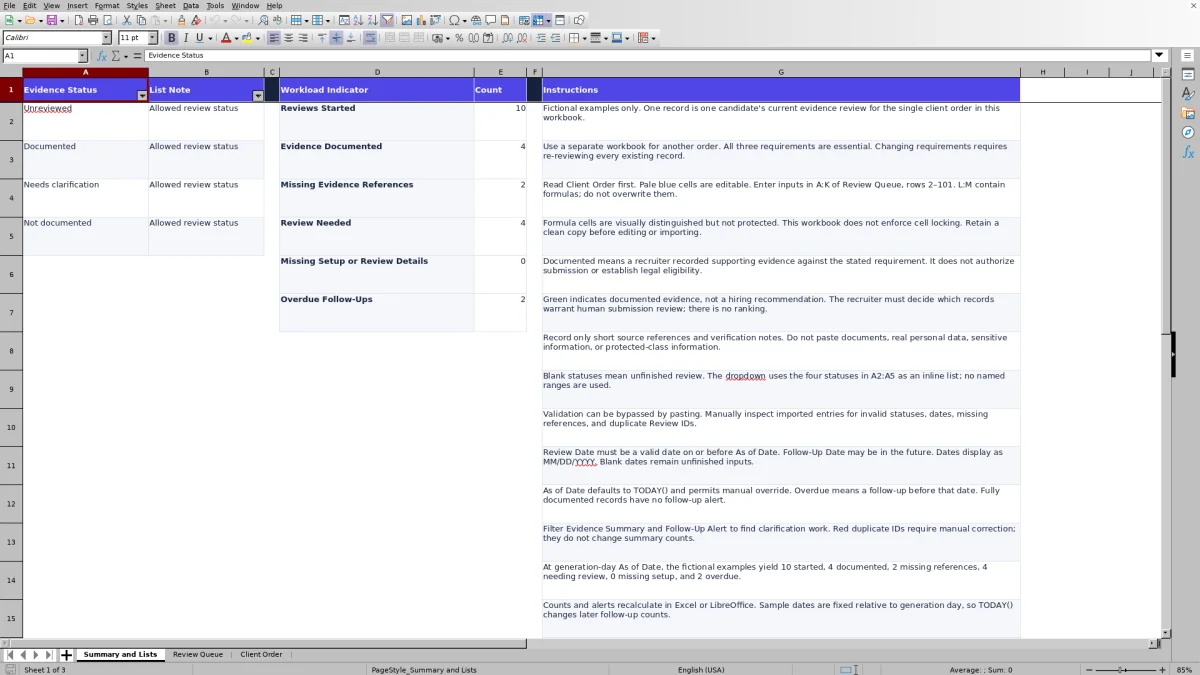
Summary and Lists counts results across Review Queue rows 2–101. Reviews Started counts nonblank Evidence Summary results, so even a partly entered row with missing setup can count as started. It is not a count of completed reviews, unique candidates or candidates ready to submit.
The instructions describe the fictional examples at the generation-day As of Date as 10 started: 4 documented, 2 missing references, 4 needing review and 0 missing setup. They also show 2 overdue follow-ups. The overdue count overlaps the documentation workload; do not add it to the other categories as though it represented two additional records. Later recalculation with TODAY() can change follow-up counts because the sample dates are fixed.
The prepared formulas, validation and review filter cover 100 record rows. Entries below row 101 are outside those supplied ranges. The workbook stores current review entries, not a built-in history of each status change, and it does not provide a multi-order reporting system.
Comparison: this workbook or a blank spreadsheet?
This workbook fits a focused review process with one order, three essential requirements and a defined follow-up queue. A blank spreadsheet can fit a different checklist structure, but you must decide how to record evidence, flag incomplete work and count results. Neither approach removes the need to judge the evidence yourself.
| Method | Requirement structure | Review checks | Follow-up and totals | Best fit |
|---|---|---|---|---|
| This workbook | One order with three essential requirements and 100 prepared record rows | Preset status dropdowns, missing-detail and missing-reference summaries, and duplicate-ID flags | Date-based alerts and six workload counts | A consistent, narrowly scoped evidence review before submission decisions |
| Blank spreadsheet | A structure you design for your requirements | Manual checks unless you create validation and formulas | Manual tracking unless you build calculations | A different review structure when you are prepared to design and maintain it |
If you need more requirements, multiple orders in one view or a retained review history, assess those needs before choosing this file. Adding columns or rows alone does not extend its decision logic. It also does not connect to an applicant tracking system or submit candidate records.
Frequently asked questions
Can I use this checklist for a different staffing role?
Yes, if the review fits the workbook’s three-essential-requirement structure. Replace the fictional order details and evidence standards before starting. Use a separate workbook for each order, and re-review existing records if you change a requirement after reviews have begun.
Should I enter candidate names or attach resumes?
No. The workbook instructions call for candidate and reviewer aliases, short source references and verification notes. Do not paste documents, real personal data, sensitive information or protected-class information into it. Keep the evidence entry focused on the stated job requirement.
Does the checklist establish legal eligibility or compliance?
No. Documented means supporting evidence has been recorded against a requirement. It does not establish legal eligibility, regulatory compliance or authorization to submit or hire. Those decisions and any required checks remain outside this workbook.
Will the workbook work in LibreOffice?
The workbook instructions state that counts and alerts recalculate in Excel or LibreOffice. After opening the XLSX file, check the As of Date and calculated results before using the queue. The fictional example follow-up counts may differ from the generation-day figures as the reporting date advances.
Does the reviewer alias mean someone has independently verified the review?
No. Reviewer Alias is an input that records the alias you enter. It is not an approval, signature or proof of independent verification. If your agency needs another person to check the evidence before submission, arrange that as a separate manual step; the workbook does not route or enforce that review.
Editorial contributors

Miriam HaldenRecruiting & assignment workflows
Explore this editorial focus →
Wesley CorbinBilling & agency finance
Explore this editorial focus →