
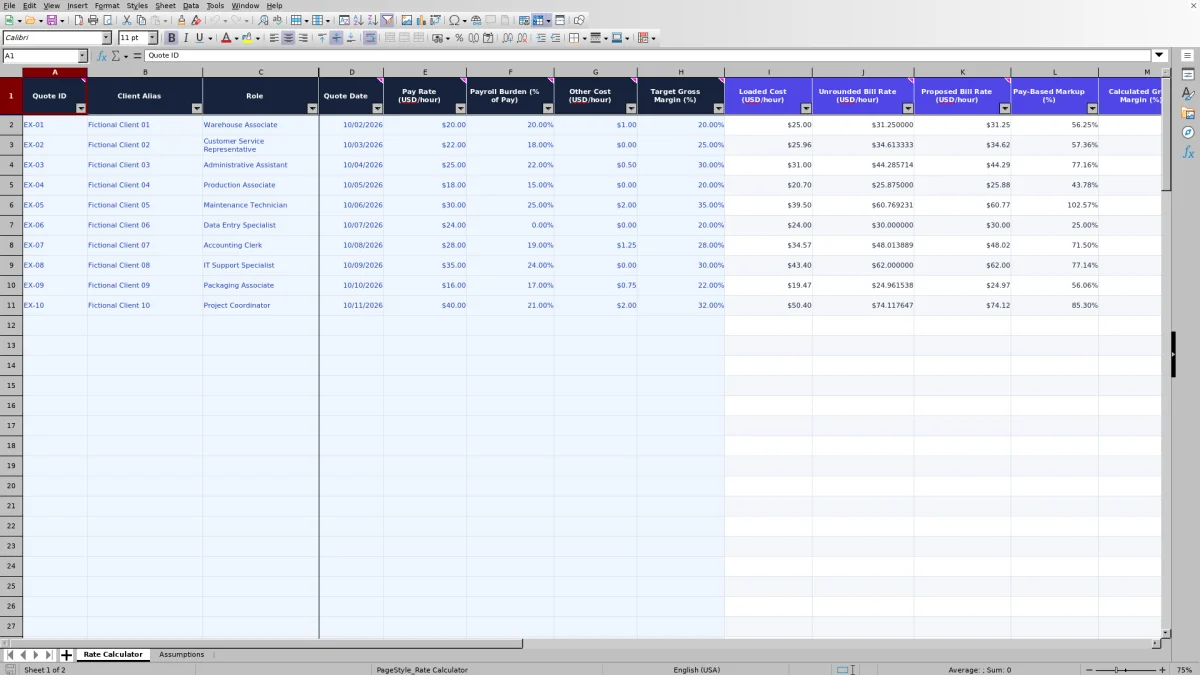
Before quoting a client, turn the worker’s hourly pay and your estimated employment costs into a proposed bill rate. This Excel workbook calculates loaded hourly cost, applies your target gross margin and rounds the result upward to your chosen increment.
The Staffing Worksheets calculator keeps each proposed rate with a client alias, role and quote date. It shows pay-based markup separately from gross margin, so you can check the pricing assumptions before presenting a rate. It does not process payroll or create invoices.
When to use this worksheet
- Build a proposed hourly rate from your own pay, burden and other cost estimates.
- See whether the rounded proposal meets your target margin under the entered assumptions.
- Avoid treating pay-based markup as the same measure as gross margin.
- Find incomplete or invalid quote records before using their results.
What the workbook includes
How to use the workbook
1. Set the rounding increment
Open Assumptions and review Bill Rate Rounding Increment in B2. The initial value is $0.01 per hour. Use a positive whole-cent increment, such as $0.05 or $0.10. This setting applies to every quote in the workbook.
2. Enter one proposed rate per row
On Rate Calculator, use the pale blue input cells in columns A–H. Enter a quote ID, client alias, generic role and quote date, followed by hourly pay, payroll burden, other hourly cost and target gross margin. Use USD per hour for monetary inputs and enter percentages as 20%, not 20. Rows 2–11 contain fictional examples; replace them or use a blank row through row 101.
3. Resolve the input status
Check Input Status in column N. A started record needs all required inputs, including explicit zeroes when there is no burden or other hourly cost. Resolve Incomplete or Check inputs before using the quote. Ready means the inputs pass the workbook’s checks, not that the client has approved the rate.
4. Review the proposed rate before sharing it
Compare Loaded Cost with Proposed Bill Rate, then compare Calculated Gross Margin with your target. Leave calculation columns I–N unchanged. As a manual recordkeeping step, save a dated copy before revising a proposal if you need to preserve what you previously considered or sent.
Build the hourly cost estimate before choosing a margin
Start with the costs you intend this rate to cover. Payroll Burden (% of Pay) is an estimate applied only to hourly pay. Other Cost (USD/hour) adds a separate hourly amount. The workbook calculates loaded cost = pay × (1 + burden) + other hourly cost.
For example, a $20.00 hourly pay rate with 20% burden adds $4.00 of burden per hour. Adding $1.00 in other hourly cost produces a loaded cost of $25.00. This is the estimated hourly cost used in the pricing calculation, not the amount charged to the client.
Decide what belongs in your burden estimate and what belongs in the separate hourly cost before entering either value. If an expense is included in both, the workbook will count it twice. Keep supporting assumptions separately when you need a detailed breakdown; the calculator has one combined burden percentage and one other-cost amount, not a tax or expense schedule. The fictional percentages are illustrative inputs, not recommended tax rates.
Example: a 20% margin is not a 20% markup
Fictional example EX-01 uses $20.00 hourly pay, 20% burden, $1.00 in other hourly cost and a 20% target gross margin. Its loaded cost is $25.00 per hour. To leave 20% of the bill rate after that cost, the calculator divides $25.00 by 80%: $25.00 ÷ (1 − 20%) = $31.25.
At the initial $0.01 rounding increment, the proposed bill rate remains $31.25. The difference between that rate and loaded cost is $6.25 per hour. Dividing $6.25 by the $31.25 bill rate gives the calculated gross margin of 20.00%.
Pay-based markup uses a different starting point: ($31.25 − $20.00) ÷ $20.00 = 56.25%. It measures the increase over worker pay, before distinguishing burden and other cost. Markup and margin use different denominators and cost bases; do not substitute one percentage for the other in a client pricing discussion.
Simply adding 20% to the $25.00 loaded cost would produce a $30.00 rate and only a 16.67% gross margin. When you need a margin target, use the calculated proposal rather than adding that percentage to cost.
Choose rounding with its effect on every quote in mind
The workbook first calculates an unrounded bill rate as loaded cost divided by one minus the target margin. It then rounds that amount upward to the increment in Assumptions!B2. Rounding is upward, not to the nearest increment, so it is intended to meet or exceed the target under the entered cost estimates.
For EX-01, changing the increment from $0.01 to $0.10 moves the proposed rate from $31.25 to $31.30. Loaded cost stays at $25.00, while calculated gross margin rises to approximately 20.13%. Review that final margin rather than assuming it still equals the target exactly.
The increment is shared across the workbook, not stored separately for each record. Changing it recalculates all Ready proposals, including earlier ones. Save a separate copy first if you need an unchanged record of previous pricing, and restore $0.01 when returning to the initial example. Values below $0.01 or with fractional cents, such as $0.025, do not pass the input checks.
Problems to fix when results are blank or unexpected
The calculation cells stay blank unless the row is Ready. A completely unused row also has a blank status. On a started record, Incomplete generally means required information is missing or a numeric input is stored as text. Check the identifying fields and the date, pay, burden, other cost and margin entries.
- Use zero deliberately. Enter 0% burden or $0.00 other hourly cost when that is your actual assumption. Leaving either blank makes a started record Incomplete.
- For Check inputs, confirm that the date is a positive Excel numeric date value, pay is greater than zero, burden and other cost are nonnegative, and target margin is at least 0% but below 100%.
- If several otherwise complete rows change to Check inputs together, inspect the shared rounding increment on Assumptions.
- If a result is unusually high, inspect percentage entries. Typing 20 instead of 20% represents 2,000%. That fails the target-margin check, but a nonnegative burden that large can still pass the status formula.
The status counts on Assumptions help you see how many records need attention. Filter Input Status on Rate Calculator to locate those rows. Passing the checks does not establish that a cost estimate or margin target is commercially sensible.
Keep revised proposals distinct from accepted rates
One record represents one proposed rate for one client and role. If a client asks for a different pay assumption or you want to test another margin, use another prepared row with a distinguishable quote ID. You can then filter by client alias or role to compare the resulting proposals.
This is a suggested manual workflow, not automatic version history. Editing an existing row replaces its current assumptions, and the shared rounding increment still affects all rows. For a stable record of a proposal, save a dated workbook copy before making changes.
The Quote Date identifies the proposal’s date; it is not an assignment start date. There is no acceptance or assignment-approval field in this file. Record client acceptance and assignment details in your separate operational records rather than treating a Ready row as a commitment.
Understand what the proposed margin does not measure
The calculated margin uses only the loaded cost represented by your inputs. Estimated gross margin is not net profit. Costs omitted from burden and other hourly cost do not reduce the displayed margin. Review those omissions before deciding whether the proposal supports your business needs.
The workbook does not contain hours, overtime rules, invoice totals, receipts or payroll processing. It calculates an hourly proposal, not weekly revenue, employee wages due or cash collected. If an assignment needs different regular and overtime pricing, determine the applicable assumptions separately; the file does not derive overtime rules for you.
Use the result as a pricing estimate to evaluate before quoting. Neither the fictional examples nor the input checks establish tax accuracy, legal compliance, client acceptance or the margin you will ultimately realize.
Comparison: this calculator or a blank spreadsheet?
This workbook fits a defined task: converting hourly cost estimates and a target margin into a proposed client rate. A blank spreadsheet can fit a different pricing structure, but you would need to create and check the calculations, input checks and record layout yourself.
| Method | Calculation setup | Input checking | Scope and fit |
|---|---|---|---|
| This Excel calculator | Prepared loaded-cost, margin-based pricing, upward-rounding and markup formulas. | Required-input and numeric checks, row statuses and status counts. | Fits up to 100 proposed hourly-rate records using one shared rounding increment; excludes hours and invoicing. |
| Blank spreadsheet | You design formulas and rounding rules for your pricing model. | You add validation and review checks if needed. | Fits a custom layout or cost model when you are prepared to build and maintain it. |
Choose the prepared calculator when its pay-plus-burden-plus-other-cost model matches your quoting task. Choose a custom spreadsheet when you need a materially different model, such as a detailed cost schedule or separate rounding rules for each proposal. If you also need assignment, time or billing records, handle those in a separate system appropriate to those tasks; this workbook stops at the proposed hourly rate.
Frequently asked questions
How many proposed rates can I enter?
The prepared calculation range is rows 2–101, or 100 records. Ten rows initially contain fictional examples, leaving 90 blank prepared rows. You can replace the examples to use all 100. Status counts and the filter range cover those rows only, so do not assume that typing below row 101 extends the workbook’s functions. Use another copy if you need more records without modifying its structure.
Can I set the target gross margin to zero?
Yes. A 0% target is accepted. The unrounded bill rate then equals loaded cost, and upward rounding may create a small positive calculated margin. That represents break-even only against the costs you entered, not necessarily all agency expenses.
What date format should I use?
Enter Quote Date as a date Excel recognizes; the field displays MM/DD/YYYY. The status formula requires a positive numeric value but does not verify that the date is appropriate for your proposal. Check the date yourself rather than treating Ready as confirmation of its business accuracy.
Can I type a negotiated client rate into Proposed Bill Rate?
That column contains formulas, so typing over it would remove the calculation for that row. The workbook has no separate negotiated-rate input. Keep the formula intact and record an accepted or negotiated rate separately. If you want to explore another proposal within this model, change the editable cost or target-margin assumptions instead.
Does the initial Ready count represent real client quotes?
No. The initial 10 Ready records are fictional examples after recalculation. They demonstrate the calculation and are not approved assignments or client commitments. Replace or clear the example inputs in columns A–H when preparing your working file, while leaving the formulas in columns I–N intact.
Editorial contributors

Miriam HaldenRecruiting & assignment workflows
Explore this editorial focus →
Wesley CorbinBilling & agency finance
Explore this editorial focus →