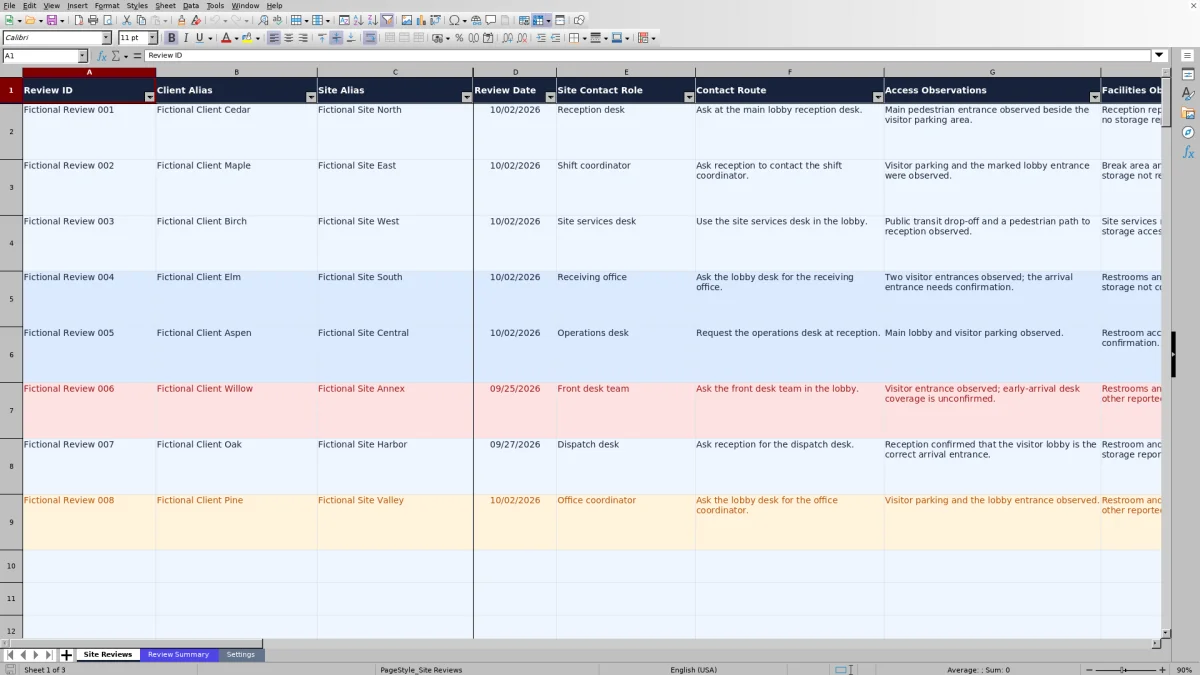
Before sharing worker arrival instructions, record where to report, which site role to contact and what the client says workers need on arrival. This Excel checklist from Staffing Worksheets keeps host-site observations and missing-information follow-ups in one workbook.
Use one record for each dated site review, then check its calculated status and the summary counts. The workbook is an operational information log, not a safety certification, a suitability assessment or authorization to place workers.
When to use this worksheet
- Keep site observations and arrival directions together for a clearer assignment handoff.
- Identify missing information before communicating worker arrival instructions.
- See which complete follow-up records are open, overdue or closed.
- Give unresolved questions a stated next action, responsible agency role and due date.
What the workbook includes
How to use the workbook
1. Prepare the workbook for your reviews
Check the As of Date in Settings!B2. It starts with =TODAY(), so date-based results can change as the workbook recalculates. Replace the fictional sample inputs with your records, or clear their input cells before starting. Preserve the formulas in columns P–Q of Site Reviews and the summary formulas.
2. Record one dated site review
In Site Reviews, enter a unique Review ID, client and site aliases, and the review date. Complete the required fields through Follow-up Needed in column K. Use role-based contact information, distinguish observations from client reports, and enter None reported only where that accurately describes the information received.
3. Assign missing-information follow-up
Select Yes in Follow-up Needed when a question remains. Enter the action, responsible agency role and due date. Select No only when no follow-up is reported, and leave the follow-up action, owner and dates blank. Use dates in MM/DD/YYYY format without a time component.
4. Check exceptions before sharing directions
Read Review Status and Days Past Due, then check Review Summary for incomplete records, unresolved follow-ups and conflicting entries. Confirm unresolved arrival details through your normal client contact process. Enter a resolved date when the follow-up has been addressed; the workbook does not contact the client or send instructions for you.
Separate what you observed from what the client reported
A useful site review tells the next recruiter or assignment coordinator how the information was obtained. In Access Observations and Facilities Observations, distinguish observed from reported information rather than presenting both as personally verified facts.
The fictional Cedar example does this explicitly: the pedestrian entrance was observed beside visitor parking, while reception reported restroom and break-area access. That wording lets you explain the arrival route without implying that you inspected every facility.
Keep Arrival Instructions focused on where the worker should go and which role to ask for. Use Arrival Requirements for client-provided instructions, such as signing in at reception or bringing an assignment reference. Recording a requirement does not verify eligibility or compliance. If its meaning is unclear, record the question as a follow-up instead of turning it into a definitive instruction.
Turn an unanswered question into an actionable handoff
A note such as “confirm access” leaves the next person to work out what is missing. A more usable Follow-up Action would be “Ask the shift coordinator which entrance workers should use before reception opens.” Pair it with an agency owner role, such as account manager, and a due date.
These entries support a manual follow-up workflow. They record responsibility and timing, but do not notify the owner, schedule a call or verify the answer. Use your normal communication process to obtain the information, then update the relevant arrival details and enter the resolved date.
Each review row has one action, owner and due-date set. If several questions need different owners or deadlines, the workbook does not provide separate task records beneath that review. You can summarize related questions in the action field, but use a separate task log when each item needs its own status. Keep later site visits as new review records rather than treating them as additional tasks on the original visit.
Example: interpret open, overdue and closed follow-ups
Suppose you reviewed a site on 10/02/2026 and still need confirmation of the early-shift entrance. You complete the required information, select Yes for follow-up, assign an action and owner role, and set the due date to 10/05/2026.
With an as-of date of 10/08/2026 and no resolved date, the result is Follow-up Overdue with 3 days past due. The calculation subtracts the due date from the as-of date and prevents negative results: MAX(0, Settings!$B$2-N2) for the first data row. Use that result to identify the outstanding question and contact the responsible role; it is not evidence that a worker was affected.
If the due date were 10/08/2026, the result would be Follow-up Open with 0 days past due. Due today is not overdue. A future due date also returns zero. Once you enter a numeric resolved date on an otherwise complete follow-up record, the status becomes Follow-up Closed and Days Past Due becomes blank.
A missing action, owner or numeric due date makes a Yes record Incomplete before an open or overdue status is assigned. A blank Days Past Due therefore does not, by itself, mean that no action is needed.
Read the summary as a work queue, not a site count
Review Summary counts review records by their calculated status. Review counts are not unique-site counts. Two visits to the same host site are two reviews, even if their client and site aliases match.
The Unresolved Follow-ups total adds Follow-up Open and Follow-up Overdue only. Incomplete records are counted separately and may also contain unanswered questions. When deciding what to address next, examine both the unresolved total and the Incomplete count rather than treating either one as the whole workload.
The workbook's stated fictional build-date totals are 3 Recorded, 1 Incomplete, 2 Open, 1 Overdue and 1 Closed: 8 total reviews and 3 unresolved follow-ups. Those are examples, not your agency's results, and date-based statuses can change with the as-of date. The summary also counts records marked No that contain a numeric resolved date, giving you a separate exception check.
Common entry problems and how to correct them
- An apparently finished review says Incomplete. Check every required field in A–K, including the narrative fields. The review date must be numeric in Excel. If Follow-up Needed is Yes, the action, owner role and numeric due date are also required. Do not fill an unknown detail with None reported merely to clear the status; describe the uncertainty and assign follow-up.
- A date is rejected or behaves unexpectedly. Enter a date without a time component. The review date cannot be later than the as-of date. The follow-up due date must be on or after the review date, and the resolved date must fall between the review date and the as-of date. Re-enter dates pasted as text as valid Excel dates.
- A Recorded row still has an amber alert. A complete No record with a numeric resolved date is a conflict, but its status remains Recorded. Decide whether the No selection or the resolved date is wrong. Correct the record to reflect what actually happened rather than relying on the status alone.
- Follow-up statuses stop making sense after editing Settings. Keep the dropdown source values exactly Yes and No; the formulas depend on those labels. Do not rename them to alternatives such as Required and Not required.
The validation rules help check entries, but they do not establish that observations are accurate or that all pasted data is valid. Review important inputs before using the results.
Understand the date, history and capacity limits
The as-of date controls overdue calculations and some date-entry rules. It does not reconstruct the workbook as it existed on a previous day. Statuses use the current contents of each row, including any resolved date entered later. Changing the as-of date is not a historical snapshot.
If you need a record of what was known when you issued arrival instructions, save a dated copy before later edits. That is a suggested manual practice, not built-in version history. A later observed visit should receive a new Review ID, while resolving a question can update the original review.
The supplied formulas, validations and review summary ranges cover rows 2–101: 100 review records. Entries below that range are not included in the existing summary formulas. Expanding capacity requires extending the relevant formulas, rules, filters and summary references, then checking the results.
Formula cells are marked locked, but sheet protection is not enabled. Avoid overwriting them. The workbook also does not verify attendance, approve assignments or certify site safety; a Recorded or Follow-up Closed result describes the record's workflow state, not the site's suitability for workers.
Comparison: this workbook or a blank spreadsheet?
This workbook fits a repeatable site-information process when you want predefined fields, date-based follow-up statuses and review counts in Excel. A blank spreadsheet fits a process whose information structure is still changing, but you must decide how to identify missing entries and manage follow-up.
| Method | Information structure | Follow-up handling | Summary and scope | Best fit |
|---|---|---|---|---|
| This Excel workbook | Predefined site observations, arrival details and role-based contacts | One action, owner and due-date set per review, with calculated status | Status counts across 100 supplied record rows; manual communication remains necessary | A consistent review log with visible missing-information follow-up |
| Blank spreadsheet | You choose and maintain the fields | You track actions manually or build your own formulas and rules | You design the counts, capacity and exception checks | An evolving or highly customized review process |
Choose based on how much structure you need, not on an assumption that a completed spreadsheet proves readiness. Neither approach independently confirms the client's instructions or replaces the judgment and separate processes needed before an assignment starts.
Frequently asked questions
Does the workbook include real client-site information?
No. The supplied examples are fictional. Replace or clear the sample inputs before using the summary for your agency, while keeping the calculated columns and summary formulas intact.
Should I enter personal contact details for site staff?
The field guide calls for role-based, operational descriptions rather than personal contact details. For example, record Reception desk as the Site Contact Role and Ask reception to contact the shift coordinator as the Contact Route. Use client and site aliases consistently so your team can identify the location through its normal records.
Can a worker use the arrival instructions directly from the workbook?
You can use the recorded directions as the basis for an arrival briefing after confirming unresolved details. The file does not create or send a worker-facing message. Manually select the relevant information and check that it applies to the worker's assignment and arrival time before sharing it.
Can I use a fixed as-of date instead of today's date?
Yes. Settings!B2 starts with =TODAY(), but you can replace it with a valid date to use a fixed calculation basis. This replaces the formula; enter =TODAY() again if you want the date to update on recalculation. Check the selected date before interpreting the summary, and remember that it does not restore earlier versions of review records.
Which application should I use to refresh the calculations?
The workbook's guidance states that formula results refresh in Excel or LibreOffice. Open the XLSX in one of those applications, allow recalculation and check the as-of date before relying on the statuses or counts. A static preview may not show refreshed results.
Editorial contributors

Miriam HaldenRecruiting & assignment workflows
Explore this editorial focus →
Wesley CorbinBilling & agency finance
Explore this editorial focus →