When a client group orders staff across several sites, the host location alone may not identify the billing entity or ordering desk. Use this Excel workbook to record those relationships so you can match a client job order to the relevant account details.
The Staffing Worksheets multi-site account map links your location and billing entity records, checks references and flags relationships for review. It maps one client group using records you supply; the included examples are fictional, not a client directory.
When to use this worksheet
- Separate where staff will work from the legal entity named for billing.
- Distinguish ordering desks that share the same site and billing entity.
- Identify incomplete records and reference problems before relying on the map.
- Plan account follow-up using recorded review dates and confirmation flags.
What the workbook includes
How to use the workbook
1. Set the client group and review assumptions
On Controls, replace the fictional Client Group name. Check Review Date, which initially uses TODAY(), and Review Warning Days, initially 14. You can enter a fixed review date for a dated review exercise. Use a nonnegative whole number for warning days; this is your planning window, not a required review schedule.
2. Replace the fictional reference records
Enter your client-supplied records on Billing Entities and Host Locations. Give each entity and each location a unique text ID within its sheet, and enter the corresponding name. Record billing routing references and location details where available. Replace or clear all fictional input records, including the eight sample relationships, before operational use.
3. Record each ordering relationship
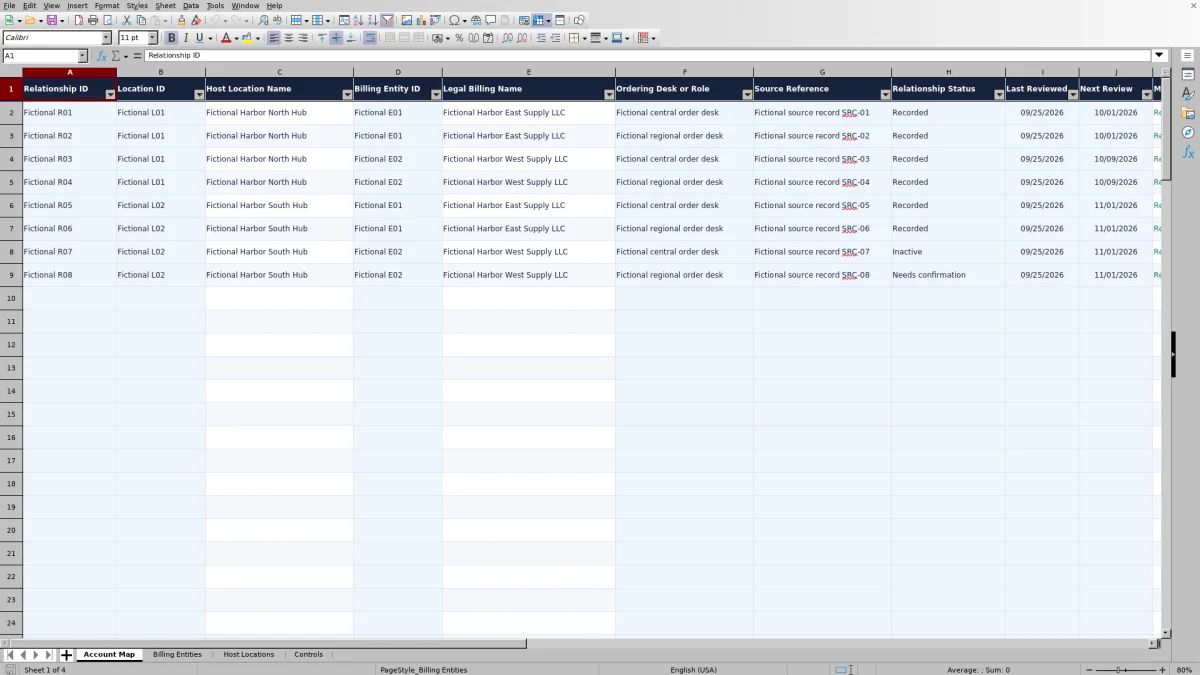
On Account Map, enter a unique Relationship ID, select the location and billing entity IDs, and record the ordering desk or role and source reference. Choose the relationship status and enter Last Reviewed and Next Review as Excel dates, displayed as MM/DD/YYYY. The location and legal billing names fill from the reference sheets. Leave the calculated name, Map Check and Review Flag columns intact.
4. Resolve exceptions and plan follow-up
Check Map Check before acting on Review Flag. Correct incomplete records or reference problems, then use the filters to find relationships needing confirmation or review. The Controls counts summarize populated records, map exceptions, reviews due and confirmation needed. Any client clarification, document check or follow-up is a manual task outside the workbook.
Choose the relationship, not just the site
When a job order arrives, match the host location, legal billing entity and ordering desk against the client's source record. A familiar site name is not enough: one site can appear in several relationships, and the same location and entity can have different ordering desks.
The sample records illustrate that distinction. Fictional R01 and Fictional R02 both use Fictional L01 and Fictional E01, but one names a central order desk and the other a regional order desk. The separate rows preserve that difference rather than treating the location as a single billing instruction.
Use the full relationship to guide your manual check. If the job order does not make the entity or ordering role clear, clarify it with the client instead of choosing the first row that matches the site. The workbook does not select a relationship for a job order or establish who is authorized to order.
Example: turn review dates into a follow-up list
For a dated review exercise, suppose you set Controls Review Date to 10/01/2026 and leave Review Warning Days at 14. The warning horizon is the review date plus 14 calendar days, or 10/15/2026.
Assuming Map Check is Ready, the fictional R01 record has status Recorded and Next Review of 10/01/2026, so its Review Flag is Review due. Fictional R03 has status Recorded and Next Review of 10/09/2026, so it is Review soon. A Recorded relationship with a next-review date of 10/16/2026 would be Current under the same assumptions.
The interpretation is practical: refresh the due relationship now, plan the soon review within your review process, and retain the later date for future follow-up. Current is a date-based label, not evidence that the client has approved the relationship. Because the initial Review Date uses TODAY(), results can change when the workbook recalculates on a later day.
Read review flags in the right order
The Review Flag formula first checks whether the row has a Map Check result. A completely unused input row stays blank. A populated row whose Map Check is not Ready shows Resolve map check, so structural issues take priority over scheduling.
For a Ready row, the formula checks relationship status before dates:
- Inactive produces Inactive, retaining the record for context rather than current ordering.
- Needs confirmation produces Confirm relationship, even when the next-review date is far in the future.
- A Recorded relationship is Review due when Next Review is on or before Review Date.
- It is Review soon when Next Review is after Review Date but on or before Review Date plus Review Warning Days; later dates produce Current.
This order matters when reading the Controls totals. Reviews Due counts rows actually labeled Review due, not every row with an old date. A row needing confirmation or a map correction can require attention without appearing in that count. Ready means structurally complete, not approved or authorized.
Errors and solutions: IDs, names and dates
If a calculated name shows Unknown ID, check that the selected ID exists on the appropriate reference sheet within rows 2–101. If it shows Missing name, the matching reference record lacks its name. Correct the reference record rather than typing over the name formula on Account Map.
A Check references result calls for checking that each referenced ID appears exactly once and has a name. Duplicate IDs can make a lookup ambiguous even if a name is displayed. Keep IDs unique within each reference sheet and use a separate unique Relationship ID for each mapping row.
For Incomplete, finish the required relationship inputs: IDs, ordering desk or role, source reference, status and both review dates. For date-entry problems, use actual Excel dates rather than text that only looks like a date. Last Reviewed must not be later than the Controls Review Date, and Next Review must not precede Last Reviewed.
After correcting a problem, recalculate and check the result again. Input validation and formulas help identify issues, but they do not verify the underlying client information.
Keep source records useful when the client changes
Use Source Reference to identify the internal document or record supporting a relationship. It is a document label, not a hyperlink or an attached file. Choose a reference that lets your team locate the evidence in your existing records, then check that evidence when the client changes an ordering desk or billing arrangement.
A suggested manual workflow is to save a dated workbook copy before a material change, confirm the new details, and update the relationship status and review dates. If an old relationship is no longer used, Inactive can retain it for context. If the replacement arrangement is unclear, use Needs confirmation rather than treating an unverified change as settled.
Recorded is not authorization. It means the relationship was recorded from a source. The workbook does not provide version history, contact the client or document a separate approval process. A dated copy is a filing practice you carry out, not automatic change tracking.
Capacity and scope: an account map, not a transaction system
The prepared range supports 100 relationship rows, 100 billing entity rows and 100 host location rows, including the sample rows until you replace them. That is capacity for 100 relationships, not a promise of 100 independent client accounts. Controls identifies one client group.
Rows beyond 101 are outside the prepared ranges. Simply adding entries below them does not extend the existing lookups, validation, filters or summary counts. If you need more capacity, those ranges and formulas require deliberate revision and testing before you rely on the expanded file.
This workbook records account relationships only. It does not create invoices, process receipts or payroll, track candidate submissions, or confirm assignment attendance. Legal Billing Name is a name you enter; its presence does not verify legal status, tax treatment or compliance. There are no external connections or automated actions.
Comparison: this workbook or a blank spreadsheet?
A blank spreadsheet can suit a small, occasional list when you want to choose every field yourself. This workbook fits a more defined task: maintaining one client group's location, billing entity and ordering-desk relationships with prepared reference checks and date-based review flags. Both depend on accurate records and manual follow-up.
| Method | Starting structure | Reference checking | Review planning | Best fit |
|---|---|---|---|---|
| This Excel workbook | Separate entity and location records linked to relationship rows | Prepared name lookups and map checks within rows 2–101 | Status and date-based flags with summary counts | One client group needing a consistent, manually maintained account map |
| Blank spreadsheet | You design the fields and layout | Manual checks unless you build formulas or validation | Manual planning unless you add review logic | A simple list or a custom structure you are prepared to maintain |
Choose based on the task rather than the amount of formatting. If your main need is routing live job orders, controlling access or coordinating a broader staffing workflow, evaluate your existing staffing system against those requirements. This account map should not be treated as a substitute for functions it does not contain.
Frequently asked questions
Can I use the workbook in LibreOffice?
The workbook guidance states that Excel or LibreOffice recalculates its formulas. Open the XLSX in your chosen application, allow recalculation, and check the names, Map Check results and Review Flags before relying on them. The manifest does not establish support for every other spreadsheet application.
Can I rename the relationship status choices?
Keep Recorded, Needs confirmation and Inactive as shown. The review formulas depend on those labels, so changing the list without revising the related formulas can change the meaning of the results. They are operational labels, not certifications.
Does Billing Routing Reference send invoices to the right place?
No. Billing Routing Reference stores a reference you enter on Billing Entities. It can help you find the relevant billing instructions, but it does not route an invoice, connect to accounting software or verify that the instructions are current.
Are the calculated cells protected from editing?
No sheet protection is applied. Pale blue cells identify editable inputs, but that visual guidance does not prevent you from overwriting formulas. On Account Map, preserve the calculated Host Location Name, Legal Billing Name, Map Check and Review Flag columns. Keeping an unchanged original copy is a useful manual safeguard.
How should I handle several unrelated client groups?
The workbook is designed around one Client Group value on Controls, rather than a group field on each relationship. A separate workbook copy for each unrelated client group is a straightforward manual approach. If you need a consolidated cross-client directory, this file does not provide that structure as supplied.
Editorial contributors

Miriam HaldenRecruiting & assignment workflows
Explore this editorial focus →
Wesley CorbinBilling & agency finance
Explore this editorial focus →