When a client needs coverage, check which candidates report availability for the required start date, shift and location. This Excel candidate availability board from Staffing Worksheets helps you record those options and identify which are worth contacting.
The workbook compares your entries with one assignment's criteria and flags incomplete or aging availability records. Use it as a recruiting coordination tool, not as proof of candidate eligibility, assignment acceptance or attendance.
When to use this worksheet
- Focus outreach on reported availability that fits the assignment's date, shift and location.
- Spot incomplete records and confirmations that need another check.
- Keep multiple shift and location options under the same candidate reference.
- Review option totals without counting fully blank rows.
What the workbook includes
How to use the workbook
1. Replace the fictional examples and prepare your lists
Save a working copy of the workbook. Replace or clear the fictional inputs in Availability Board rows 2–11, leaving the formulas in columns G–H intact. On Lists, enter the shifts and locations you use within rows 2–101. Keep each list contiguous and avoid duplicates. Retain Available as the status used for qualifying options.
2. Set the assignment and review assumptions
On Match Setup, review B2–B6. Set the As-of Date and a nonnegative whole-number Confirmation Age Limit in calendar days, then enter the Assignment Start Date, Required Shift and Required Location. The initial 14-day age limit is a fictional demonstration assumption, not a required policy.
3. Record each reported availability option
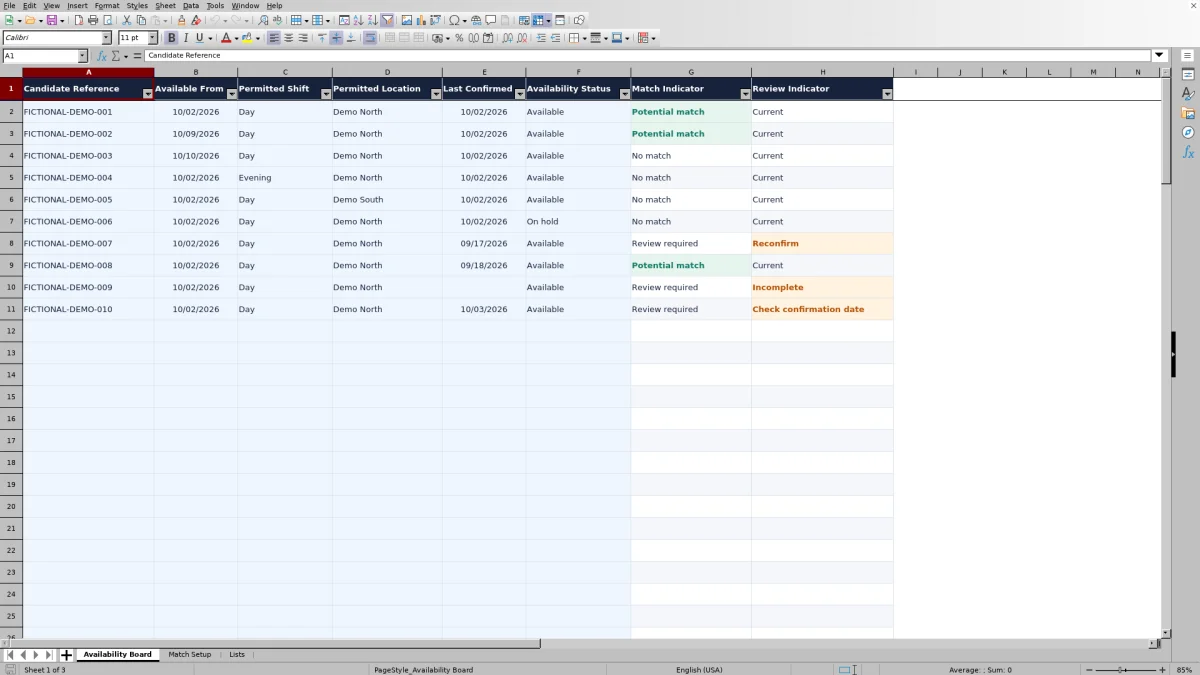
Enter candidate information in Availability Board columns A–F. Use one row for one candidate reference, one shift and one location, with an available-from date, last-confirmed date and availability status. Enter dates as Excel dates displayed in MM/DD/YYYY format. Repeat the reference on another row if the candidate reports another shift or location option.
4. Resolve review flags and plan outreach
Read the Review Indicator before relying on the Match Indicator. Complete missing entries, investigate future confirmation dates and contact candidates whose information needs reconfirmation. Use the board's filters to inspect Potential match rows, then check the option totals on Match Setup. Confirm the assignment with the candidate before treating an option as an accepted placement.
What a potential match actually means
Use the Match Indicator to decide which recorded options merit a closer look for the current assignment. A row qualifies only when its Review Indicator is Current, its status is Available, its Available From date is on or before the assignment start date, and its shift and location match the setup values.
The date test is inclusive: a candidate available on the assignment start date can qualify. Shift and location use equality checks, not a commute-radius calculation or an interpretation of similar labels. A Day option does not also qualify for Evening simply because the candidate might be flexible.
Potential match is a contact cue, not a placement decision. It does not assess skills, credentials, pay expectations or client approval. Check those requirements separately before making a submission or proposing an assignment.
If the row is Current but fails any assignment test, the result is No match. That result applies to the selected criteria; it is not a general judgment about the candidate's suitability for other job orders.
Choose a confirmation window you can use consistently
The Review Indicator checks whether the availability information is complete and recent enough under your chosen assumption. It first checks the six input fields. A partially filled row is Incomplete. A complete row with a Last Confirmed date later than the As-of Date receives Check confirmation date.
For the remaining complete rows, confirmation age equals the As-of Date minus Last Confirmed, measured in calendar days. If that age is greater than the Confirmation Age Limit, the result is Reconfirm. Otherwise, it is Current.
With a 14-day limit, an age of 14 days remains Current; an age of 15 days requires reconfirmation. The boundary is greater than the limit, not equal to it. Choose the limit for your own coordination process rather than treating the demonstration value as a legal or industry default.
When a row says Reconfirm, contact the candidate and update the recorded information after receiving confirmation. Do not advance Last Confirmed merely to remove the flag. Current means the row passes the workbook's completeness and date checks; it does not independently verify what the candidate reported.
Example: compare three available-from dates
To inspect the fictional examples under a stable review date, set the As-of Date to 10/09/2026. Keep the demonstration age limit at 14 days and the assignment criteria at a 10/09/2026 start, Day shift and Demo North location.
The first three fictional options all have Available status, Day shift, Demo North location and a Last Confirmed date of 10/02/2026. Their confirmation age is 10/09/2026 minus 10/02/2026, or 7 calendar days, so each passes the recency check.
- FICTIONAL-DEMO-001 is available from 10/02/2026. Its date is before the assignment start, so the result is Potential match.
- FICTIONAL-DEMO-002 is available from 10/09/2026. Its date equals the assignment start, so it also returns Potential match.
- FICTIONAL-DEMO-003 is available from 10/10/2026. It starts too late for these criteria, so the result is No match.
The first two rows are options to contact about this assignment. The third may become relevant to a later start, but the workbook does not negotiate that change with the client or candidate. These results depend on the stated As-of Date; the workbook initially uses TODAY(), so the examples may show different review results when opened on another date.
Count options without overstating candidate coverage
A row represents one availability option, not necessarily one distinct candidate. For example, if one candidate reports both Day and Evening availability at the same location, record those as separate rows using the same reference. This preserves a single shift and location in each option.
Match Setup counts rows rather than unique references. Potential Match Options counts rows displaying Potential match. Options Needing Review counts Incomplete, Reconfirm and Check confirmation date results. Recorded Options counts rows with any recorded input, including incomplete rows; fully blank input rows are excluded.
Before telling an account manager how many candidates you can contact, review repeated references manually. Duplicate options can inflate a potential-match total, and multiple valid options can make the recorded total larger than the candidate pool. The workbook does not deduplicate candidates or convert option counts into confirmed assignment coverage.
Problems to fix before relying on the indicators
Read an unexpected result as a prompt to inspect the inputs rather than overwrite the formula. The workbook separates missing assignment criteria from problems with the candidate option.
- Criteria needed: Fill in the assignment start date, required shift and required location on Match Setup. This message takes precedence over Review required when assignment criteria are missing, so also inspect the Review Indicator.
- Review required: Once assignment criteria are present, this means the row is not Current. Use the Review Indicator to identify missing information, a future confirmation date or an expired confirmation window.
- Unexpected No match: Check the available-from date, status and exact shift and location labels. On hold, Unavailable and any additional status do not qualify; the matching formula specifically requires Available.
- Problems after renaming a list value: Update existing board entries and assignment criteria as well as Lists. Changing the list does not rewrite previously recorded values.
Keep the As-of Date and Confirmation Age Limit populated with valid values. The Criteria needed check covers the three assignment criteria, not these two review assumptions. Enter real Excel dates rather than text, and inspect pasted data instead of assuming validation has confirmed every entry.
Keep the board within its working scope
The prepared board covers rows 2–101: 100 options with formulas, validation and filtering in that range. The dropdown sources also use fixed ranges through row 101. Do not assume added rows inherit the setup. Extending the workbook requires checking formulas, dropdown sources, validation, filters and summary count ranges before relying on the expanded file.
The workbook evaluates one assignment's criteria at a time. Changing Match Setup recalculates the board for the new criteria; it does not retain a separate match result for each job order. If you need to preserve a prior review, a suggested manual approach is to save a dated copy and note the relevant assignment in the filename. That is a filing practice, not built-in version history.
The record holds an available-from date, not an availability end date or a detailed recurring schedule. It does not test assignment duration, overlapping commitments or attendance. Verify those details through your assignment coordination process, and maintain submissions and placements separately.
Comparison: this workbook or a manual availability log?
A blank spreadsheet can suit a small pool when you mainly need flexible notes and are comfortable checking every entry manually. This workbook fits a more structured review: it provides predefined option records, date-based review flags and comparison with one assignment's criteria. Both approaches still depend on someone obtaining and updating candidate information.
| Method | Recording structure | Assignment comparison | Confirmation review | Best fit and limit |
|---|---|---|---|---|
| Candidate Availability Board workbook | 100 prepared rows, one shift and location option per row, with dropdowns | Formula checks against one start date, shift and location | Flags missing inputs, future confirmation dates and confirmations older than your limit | Structured option review; no distinct-candidate count or assignment scheduling |
| Blank spreadsheet or manual log | You choose the fields, notes and layout | Manual comparison unless you build formulas | Manual checks unless you add review rules | Flexible records for a small pool; consistency depends on your process |
If you need shared candidate histories, multiple concurrent job orders or assignment scheduling, evaluate an applicant tracking system (ATS) or staffing platform for those specific requirements. Check its actual capabilities rather than assuming they are included. This XLSX file is a focused availability board, not a replacement for a full recruiting and assignment system.
Frequently asked questions
Do I need candidate names or contact details in the workbook?
No. The board uses a Candidate Reference field and does not require names or contact details. You can use an internal reference that your team can look up in its existing records. The populated examples use explicitly fictional references.
Can I use a fixed review date instead of today's date?
Yes. Match Setup B2 initially contains TODAY(), but it can be replaced with a valid Excel date. A fixed date is useful when reviewing the board as of a particular day. To resume a date that updates with Excel recalculation, restore =TODAY().
Does the workbook contact candidates or send reconfirmation reminders?
No. It displays review indicators and counts options needing review. You must arrange candidate outreach yourself and update the board after receiving new information.
Are the formula cells protected from editing?
No worksheet protection is enabled. Availability Board columns G–H and the option totals on Match Setup contain formulas, so avoid typing or pasting into them. Keep an unchanged copy of the workbook if you want a reference for restoring an accidentally overwritten formula.
Why do unused rows show blank indicators?
When all six input cells in a row are empty, both indicators remain blank and the row is excluded from Recorded Options. Entering even one input makes the row a recorded option; until all required inputs are present, its Review Indicator is Incomplete.
Editorial contributors

Miriam HaldenRecruiting & assignment workflows
Explore this editorial focus →
Wesley CorbinBilling & agency finance
Explore this editorial focus →