When a client stops sending job orders, review the account before deciding to reconnect. This Excel planner from Staffing Worksheets uses the last job order date and a documented business trigger to identify accounts for outreach review.
Record your outreach plan, current response and next follow-up in one workbook. Calculated decisions and scheduling alerts help you organize the work, while contacting clients and updating records remain manual tasks.
When to use this worksheet
- Focus your review on inactive clients with a documented reason to reconnect.
- Separate overdue actions from upcoming outreach and missing schedules.
- Keep the account owner, current response and follow-up plan together.
- Spot missing information before relying on the summary counts.
What the workbook includes
How to use the workbook
1. Set the review date and planning windows
Open Settings and check the Review Date, Inactivity Threshold (Days) and Upcoming Action Window (Days). The starting values are TODAY(), 90 days and 7 days. Adjust them to your planning needs; these are illustrative assumptions, not legal defaults.
2. Replace the fictional account records
In Account Reviews, replace the 10 fictional examples with your own account information or clear their editable inputs. There are 100 prepared records in rows 2–101. Use the pale blue input cells, give every used record a unique Account ID, and leave the calculated columns L–P intact.
3. Document the reason for outreach
Enter the last job order date, a concise operational trigger and its date. Check Review Decision for missing information or selection for outreach review. Correct red input cells before using the summary.
4. Plan and carry out the next action
Filter Account Reviews by Review Decision and Scheduling Alert. For accounts you decide to contact, choose a supported Outreach Status and enter the planned outreach or follow-up date. Make the call or send the message outside the workbook.
5. Update the current review
After outreach, update the status and, when a response arrives, record its date and summary. Set the next follow-up where needed, then use Review Summary to check the remaining workload.
Decide whether an inactive client belongs in the outreach review
The workbook calculates Days Since Last Order by subtracting Last Job Order Date from the review date. An account becomes Inactive when that result is greater than or equal to your inactivity threshold. This describes time since an order—not the client's willingness to buy staffing services again.
For an inactive account, both Documented Trigger and Trigger Date must be present before it can receive a Review for outreach decision. A documented expansion inquiry, for example, gives you a business reason to investigate current hiring needs. A dated trigger is a review requirement, not proof of demand. The workbook checks whether those fields are filled; you must judge whether the information is credible and still relevant.
The decision checks have an order: a missing job order date produces Check order date; an active account is Not selected; an inactive account missing either trigger field receives Add trigger. Only after those checks does Paused become On hold or Closed become Closed. Neither status produces outreach scheduling alerts.
Example: an account at the inactivity threshold
Suppose you set the review date to 10/02/2026 and retain the 90-day inactivity threshold and 7-day upcoming-action window. A client whose last job order was dated 07/04/2026 has gone exactly 90 days without an order. The calculation is review date minus last order date, so the account is Inactive at the threshold—not one day later.
Give the account a unique ID, record a documented expansion inquiry dated 09/22/2026, choose Planned status and enter 10/05/2026 as the planned outreach date. With no follow-up date entered, the results are Review for outreach, a Next Action Date of 10/05/2026 and a Due soon alert.
That alert means the action falls after the review date and within the window ending 10/09/2026, inclusive. Your next step is to confirm that the trigger still supports a useful conversation and conduct the outreach. The result is a planning prompt, not a predicted reactivation or placement.
Understand which date controls the scheduling alert
For an account selected for outreach review, Next Follow-Up Date takes priority over Planned Outreach Date. If no follow-up date exists, a blank or Planned status allows the planned outreach date to become the Next Action Date. Contacted status requires a follow-up date instead; an old planned outreach date does not keep serving as its next action.
This priority matters when you reuse a current review. If you enter a new outreach date but leave an old follow-up date in place, the old follow-up still controls the alert. Check that the follow-up remains intentional before changing or clearing it.
A next action before the review date is Overdue; one matching it is Due today. Later dates within the upcoming window are Due soon, and dates beyond it are Scheduled. If the status is blank, Set outreach status takes precedence even when a date exists. With a status but no next action date, Contacted receives Schedule follow-up, while Planned receives Schedule outreach.
Record the current response without treating the row as a history log
Use one row for one current client-account review. After making contact, update Outreach Status yourself. When the client responds, enter Response Date and a concise Response Summary, then set a next follow-up if appropriate. Entering a response does not automatically change the status or create a follow-up date.
For example, a client may say that staffing needs will be reviewed next month. Record that operational response and choose a follow-up date based on your conversation. The scheduling formula will use that date, but it does not interpret the response text or decide when you should call.
This is not an outreach-history log. Replacing a response replaces the current entry; it does not preserve each call or message. If you need earlier review states, a suggested manual practice is to save dated workbook copies. If you need a detailed contact history, maintain that separately. Keep personal contact details and sensitive personal information out of this account-planning file.
Errors and fixes before you use the counts
Start with red input cells and missing-information decisions. An incomplete record can change what appears in the summary, and a formula result is not a substitute for checking the underlying account information.
- Missing or duplicate Account ID: give each used record a unique, nonblank ID. A row without an ID is excluded from calculated decisions and counts even if other fields contain information. Duplicate IDs need correction; the summary is not a deduplicated client count.
- Invalid dates: enter whole Excel date values, displayed as MM/DD/YYYY. Last job order, trigger and response dates cannot be later than the review date. Planned outreach and follow-up dates may be past or future.
- Unsupported status: use Planned, Contacted, Paused or Closed from the dropdown. Keep those labels unchanged because the decision formulas recognize their exact text.
- Missing trigger: complete both the business explanation and its date. Filling only one leaves an inactive account at Add trigger.
If you set the review date back to an earlier day, recheck records that now contain later historical dates. A fixed earlier date does not reconstruct what the account information looked like at that time.
Read the summary as a current workload, not campaign results
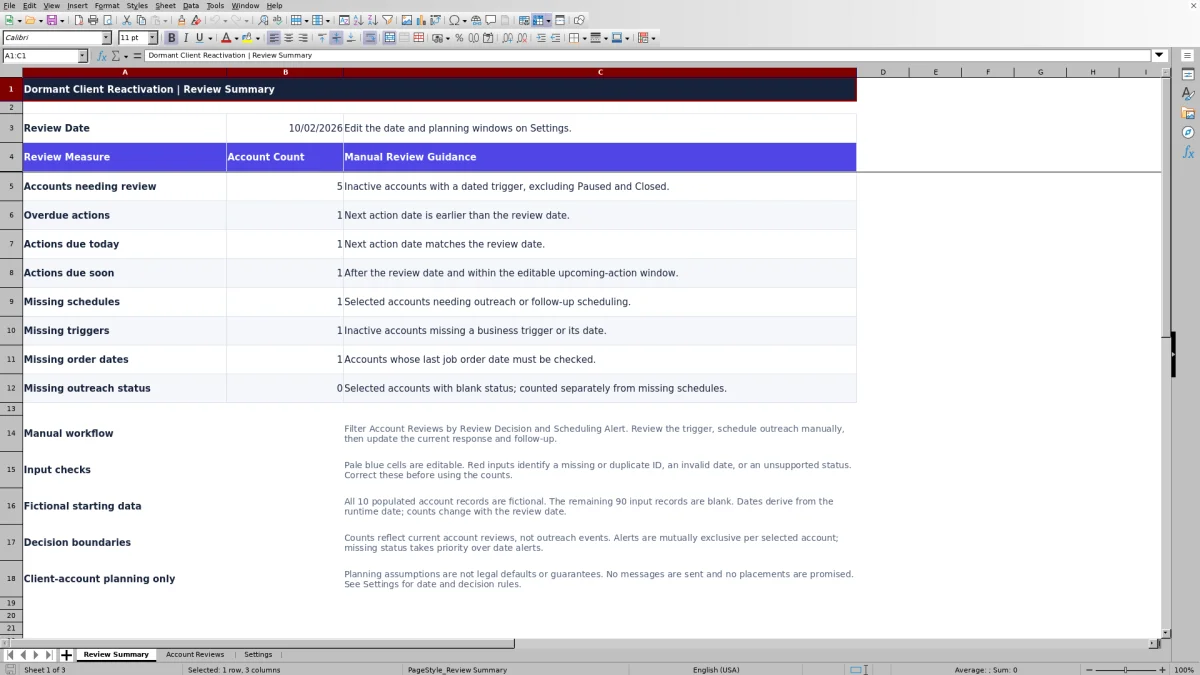
Review Summary counts account-review rows, not calls, messages or successful reactivations. Accounts needing review counts rows marked Review for outreach. Overdue, Due today and Due soon help you choose which dated actions to examine first. Missing schedules combines Schedule outreach and Schedule follow-up, while missing outreach status is counted separately.
Each selected account has only one Scheduling Alert at a time. However, Accounts needing review overlaps with those alert counts, so adding every summary measure together would not produce a meaningful total of clients. A zero in a measure means no prepared row currently matches that label; it does not establish that the source records are complete.
The prepared calculation range is 100 account records. Account formulas and summary references cover rows 2–101. Do not assume that typing below row 101 expands the formulas, validation, filters or counts. Extending the workbook would require deliberate changes and checks. Also remove or replace the fictional inputs before interpreting counts as your agency's workload.
Comparison: this planner or a blank spreadsheet
This workbook fits a focused task: reviewing current inactive client accounts and maintaining a manual outreach plan. A blank spreadsheet may fit better when you need a different record structure, such as a separate row for every interaction, and are prepared to design the rules yourself.
| Method | Starting structure | Decision and timing checks | Record scope | Ongoing work |
|---|---|---|---|---|
| This Excel planner | Prepared account inputs, settings and summary | Formula-based inactivity decisions and scheduling alerts | 100 current account reviews; no interaction history | Contact clients and update current records manually |
| Blank spreadsheet | You design fields and layout | You build formulas or review dates manually | You choose an account-based or interaction-based structure | Maintain both the records and your chosen checks |
Choose this planner when its account-level structure and rules match your workflow. Choose a custom sheet when flexibility matters more than having those checks prepared. Neither approach sends messages by itself. If you need shared communication history or outreach automation, evaluate software for those specific requirements; this workbook has no integrations or automated messaging.
Frequently asked questions
Does the review date update automatically?
Settings!B2 starts with =TODAY(), so the review date updates when the workbook recalculates. You can replace it with a fixed date for a particular planning session. Decisions and alerts use that setting, not a separate clock. A fixed date does not preserve previous versions of your account records.
Can different account owners use the same planner?
The Account Owner field lets you assign an owner to each current review, and the Account Reviews filter can help you focus on one owner's rows. Ownership is information you enter manually; it does not send an assignment notification or provide access controls.
Can I change the inactivity threshold or disable the due-soon window?
Yes. Set Inactivity Threshold (Days) to a positive whole number appropriate for your review process. Upcoming Action Window (Days) accepts a nonnegative whole number. Setting that window to 0 leaves no future dates in Due soon; actions can still be Overdue, Due today or Scheduled. These settings apply across the prepared account records.
What should I do when a client sends a new job order?
Update Last Job Order Date manually from your verified job order record. If the new date puts the account below the inactivity threshold, its activity becomes Active and its review decision becomes Not selected, removing its scheduling alert. Review the remaining outreach inputs yourself; the workbook does not clear old plans or create the new job order.
Does the workbook measure reactivation success?
No. It summarizes current review decisions, scheduling alerts and missing information. It does not calculate conversion rates, revenue or placements, and Contacted only records the status you select. Use your job order and placement records separately to assess business outcomes.
Editorial contributors

Miriam HaldenRecruiting & assignment workflows
Explore this editorial focus →
Wesley CorbinBilling & agency finance
Explore this editorial focus →