Track prospective client business from discovery through proposal and signature so you can decide which sales conversations need attention. This Excel workbook keeps each opportunity’s expected contract value, owner and next action together.
Built for client sales tracking, the Staffing Worksheets workbook calculates probability-weighted values and flags missing information or overdue dates. It covers sales opportunities, not candidate recruitment stages, with separate summaries for open, won and lost business.
When to use this worksheet
- Keep responsibility and the next follow-up visible for each prospective contract.
- Review entered and probability-weighted sales values by stage.
- Identify incomplete records before relying on pipeline totals.
- Separate open opportunities from won and lost business during sales reviews.
What the workbook includes
How to use the workbook
1. Review the sales assumptions
On Setup, review the illustrative probabilities for Discovery, Proposal, Signature, Won and Lost. Edit the probability cells if needed, but keep the five stage labels unchanged. Review Date defaults to today; enter a fixed date if you need an as-of review.
2. Replace the fictional examples
Replace or clear the input data for DEMO-001 through DEMO-010 before using the workbook for your agency. Preserve the formulas in columns I, J and M on Opportunities; these calculated cells are not locked. Use rows 2–101 for up to 100 records.
3. Enter each sales opportunity
Use one row per prospective client contract or job-order opportunity. Assign a unique Opportunity ID, enter the prospect account and internal owner code, and select the service type and sales stage. Add the opened date, target signature date and expected sales value in USD. Dates display as MM/DD/YYYY.
4. Set the next action and resolve flags
Enter a specific Next Action and Next Action Date. Review Follow-Up Status, correct incomplete inputs and check amber ID or row alerts. As a manual review workflow, filter by status and sort the full opportunity range by next action date, earliest first.
5. Review the stage totals
Open Sales Summary to review opportunity counts, entered values, weighted values and missing value counts. Resolve data-quality issues before interpreting the totals. Open Opportunities includes Discovery, Proposal and Signature, excluding Won and Lost.
Define the opportunity before entering the account
Use one row per prospective contract or job-order opportunity, not one row per prospect account. A client considering both a temporary staffing contract and a separate direct-hire search may have two distinct opportunities. Give each a different ID so its stage, value and follow-up can be reviewed separately.
The service-type choices are Temporary Staffing and Direct-Hire Recruiting. Keep the record at the sales level: use account identifiers and internal owner codes rather than personal contact details. Candidate submissions, placements, assignment activity and approved hours belong outside this workbook.
Agree on what Discovery, Proposal and Signature mean for your agency before the team starts updating records. That is a suggested operating practice, not an enforced sales process. The workbook stores your selected stage; it does not verify that a proposal was sent or a contract was signed.
Choose a consistent basis for expected contract value
Enter proposed temporary staffing billings or the proposed direct-hire placement fee in Expected Contract Value (USD). Do not substitute worker pay, gross profit, markup or gross margin. The workbook does not calculate contract value from headcount, hours, pay rate, bill rate or burden.
For temporary staffing opportunities, decide which proposed term or volume your estimate covers before entering the amount. For example, an estimate for a short initial engagement is not directly comparable with an estimate for a full year unless that difference is understood. Keep supporting assumptions in your separate proposal records because this file has no dedicated term or hours inputs.
The stage-weighted result is a sales planning estimate. It is neither recognized revenue nor a profitability forecast. A Won stage does not create an invoice, confirm a placement or show that the client has paid.
Example: interpret a weighted opportunity value
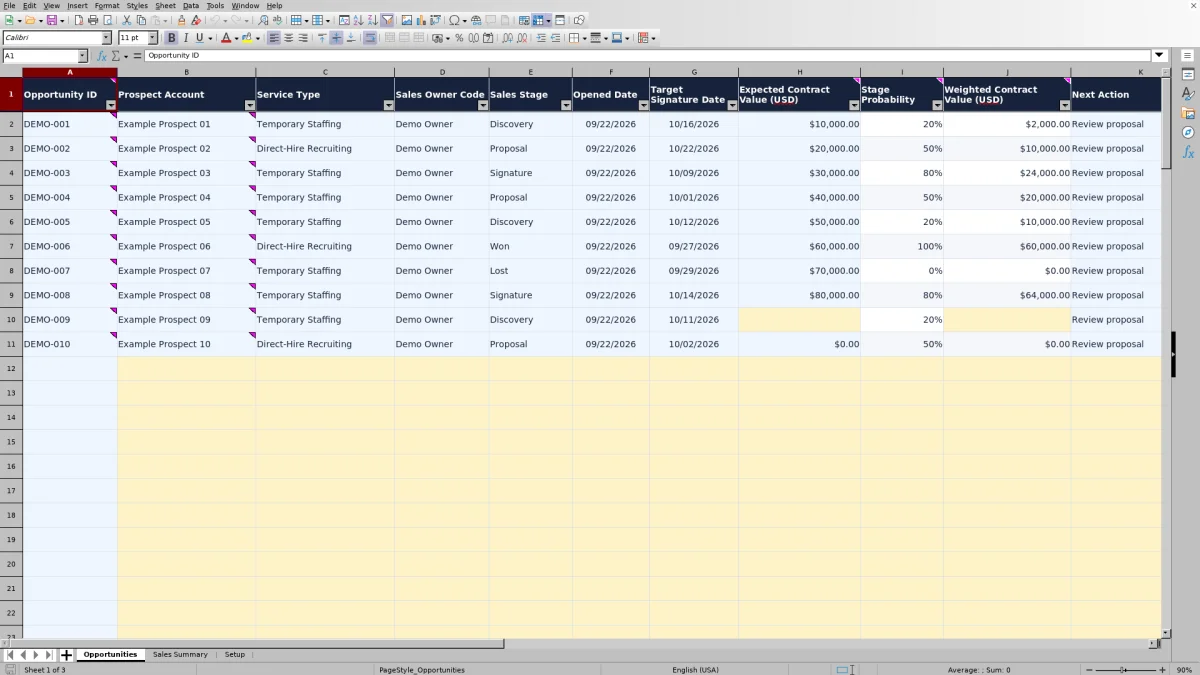
The fictional Proposal example has an expected contract value of $20,000. With the supplied Proposal probability of 50%, the workbook calculates $20,000 × 50% = $10,000 weighted value. The formula multiplies the entered value by the probability looked up from Setup; for that example row, it is H3*I3.
The $10,000 result is a probability-adjusted planning amount, not a reduced quote or a promise of revenue. You would still discuss the proposed $20,000 contract with the client. Use the weighted amount to review the pipeline alongside the opportunity’s stage, timing and next action.
The initial probabilities are Discovery 20%, Proposal 50%, Signature 80%, Won 100% and Lost 0%. They are illustrative assumptions, not measured outcomes. If the same $20,000 opportunity moves to Signature under those assumptions, its weighted value becomes $16,000 without changing its expected contract value. Editing a probability on Setup affects all matching opportunities when formulas recalculate.
Prioritize follow-up without mistaking a status for an alert
Follow-Up Status applies a defined order. A row without an Opportunity ID has no status. Won and Lost display Closed, even if other fields are missing. For an active record with an ID, missing required information produces Incomplete before overdue dates are assessed.
Once the active record is complete, a target signature date before Review Date produces Signature Date Overdue. If that date is not overdue, an earlier next action date produces Next Action Overdue. Otherwise, the result is On Track. Today’s deadlines are not overdue. If both dates are overdue, the signature-date status takes priority, so inspect both dates.
For example, with a fixed Review Date of 10/05/2026, a complete open opportunity with a target signature date of 10/16/2026 and next action date of 10/04/2026 shows Next Action Overdue. Confirm whether the action happened, then manually update the action or date. The workbook displays status in the file; it does not send reminders or record completed calls.
Setup!E2 uses =TODAY() by default. You can replace it with a fixed review date and restore =TODAY() later. A fixed date changes the status comparison point; it does not preserve historical versions of the opportunity data.
Errors and solutions: missing inputs, duplicate IDs and dates
Correct amber ID alerts before reviewing the summary. Duplicate IDs can represent accidental double entry, but they are not automatically merged or removed. Amber rows indicate entered data without an ID. Such a row has no follow-up status, yet its sales stage can still contribute to summary counts. Add the correct ID or clear an unintended record rather than assuming it is excluded.
A blank weighted value is not the same as zero. A missing expected value or missing stage probability leaves the weighted result blank. Zero is a valid value or probability; Lost has a supplied probability of 0%. If a result is blank, check the ID, selected stage, expected value and corresponding Setup probability before entering a replacement number.
Enter real Excel dates without time components. The date rules check that the target signature date is not earlier than the opened date. If an entry is rejected, confirm the dates and their sequence rather than entering them as text.
Keep formulas intact in Stage Probability, Weighted Contract Value (USD) and Follow-Up Status. These columns are not locked. Avoid pasting a complete imported row across them; place source data only into the editable input columns.
Read the summary as a current sales estimate
Sales Summary separates each stage’s opportunity count, entered expected value, calculated weighted value and missing value count. The Open Opportunities line combines Discovery, Proposal and Signature only. Won and Lost remain visible in their own stage rows but are excluded from open totals.
Missing Value Count checks blank expected contract values, not every incomplete field. A record can have an entered amount and still lack an owner, date, next action or probability. Review the incomplete-open-record count and the underlying opportunity rows as well. Some values may be included while others remain missing, so totals can be partial.
The sheet also contains a labeled fictional baseline of 8 open opportunities, $230,000 entered, $130,000 weighted and 1 incomplete record. Those are generation-time reference notes, not live totals after you edit the examples. Use the calculated summary rows for your current review.
The prepared formulas and summary ranges cover Opportunities rows 2–101. Entering records below row 101 does not automatically extend those calculations. Before expanding the file, update and verify formulas, validation, formatting and summary references together.
Comparison: this workbook or a blank spreadsheet
Choose based on how much structure your sales review needs. This workbook fits a manually maintained pipeline using the five supplied stages and stage-level value summaries. A blank spreadsheet fits a process where you need to design different stages, fields or calculations and are prepared to maintain them yourself.
| Method | Starting structure | Value review | Follow-up handling | Capacity and upkeep |
|---|---|---|---|---|
| Staffing Worksheets workbook | Prepared opportunity fields and five fixed stage labels | Stage probabilities, weighted values and stage summaries included | Entered next actions with formula-based status flags; you perform the follow-up | 100 prepared records; formulas and summary ranges need care when expanding |
| Blank spreadsheet | You define the fields and sales stages | You build any weighting and summary calculations needed | You design the date checks or review dates manually | You choose the layout and maintain its ranges and rules |
Neither approach, by itself, provides a connected sales workflow. If you need shared activity histories, assigned reminders or links to other agency systems, evaluate sales or staffing software for those specific requirements. This file has no implemented integrations or automated outreach.
Frequently asked questions
Can I track candidate recruitment stages in this workbook?
No. The stages describe prospective client sales: Discovery, Proposal, Signature, Won and Lost. Use a separate recruitment tracker or applicant tracking system for candidate screening, submissions and placement activity.
Can I change the stage names or add more stages?
Keep the five supplied stage labels unchanged for normal use. The dropdown, probability lookup, closed-status logic and summary depend on the prepared structure. You can edit the probability assumptions on Setup, but adding or renaming stages requires coordinated changes to the workbook’s formulas and ranges.
Does filtering Opportunities change the Sales Summary totals?
No. The summary uses COUNTIF, COUNTIFS and SUMIF formulas across the prepared record range, so filtering rows on Opportunities does not restrict the summary to visible records. Use filters to inspect an owner’s or service type’s records, not to produce a filtered summary total.
Is the workbook limited to USD?
The value fields are labeled USD and use dollar formatting. There is no currency conversion function. Do not mix currencies in the same summary; convert amounts using your separately documented method before entry if your sales estimates originate in another currency.
Does marking an opportunity Won confirm a signed contract?
No. Won is a manually selected stage that produces Closed status and uses the configured Won probability. The workbook does not capture signatures or validate contract approval. Confirm the supporting contract documentation through your own process before changing the stage.
Can I keep a record of prior pipeline reviews?
You can manually save a dated copy before updating the workbook if you need to preserve an earlier review. There is no built-in change history or snapshot function. Setting a fixed Review Date alone does not preserve the earlier stages, values or next actions.
Editorial contributors

Miriam HaldenRecruiting & assignment workflows
Explore this editorial focus →
Wesley CorbinBilling & agency finance
Explore this editorial focus →