Before sourcing for a retained client, turn the target profile and agreed search boundaries into a brief your recruiting team can use. This Excel workbook from Staffing Worksheets helps you record requirements, acceptance evidence and client decisions for one search.
Enter the assignment context, document each criterion and review the calculated readiness and timing indicators. The workbook highlights gaps in entered records; client approval is recorded manually, and the summary does not certify that the full search scope is complete.
When to use this worksheet
- Keep the role context and sourcing boundaries together before candidate outreach begins.
- Connect each requirement to acceptance evidence and a supporting source reference.
- Use owners and due dates to organize follow-up on unresolved client decisions.
- Review recorded, ready, unresolved and overdue criteria in one summary.
What the workbook includes
How to use the workbook
1. Replace the fictional assignment details
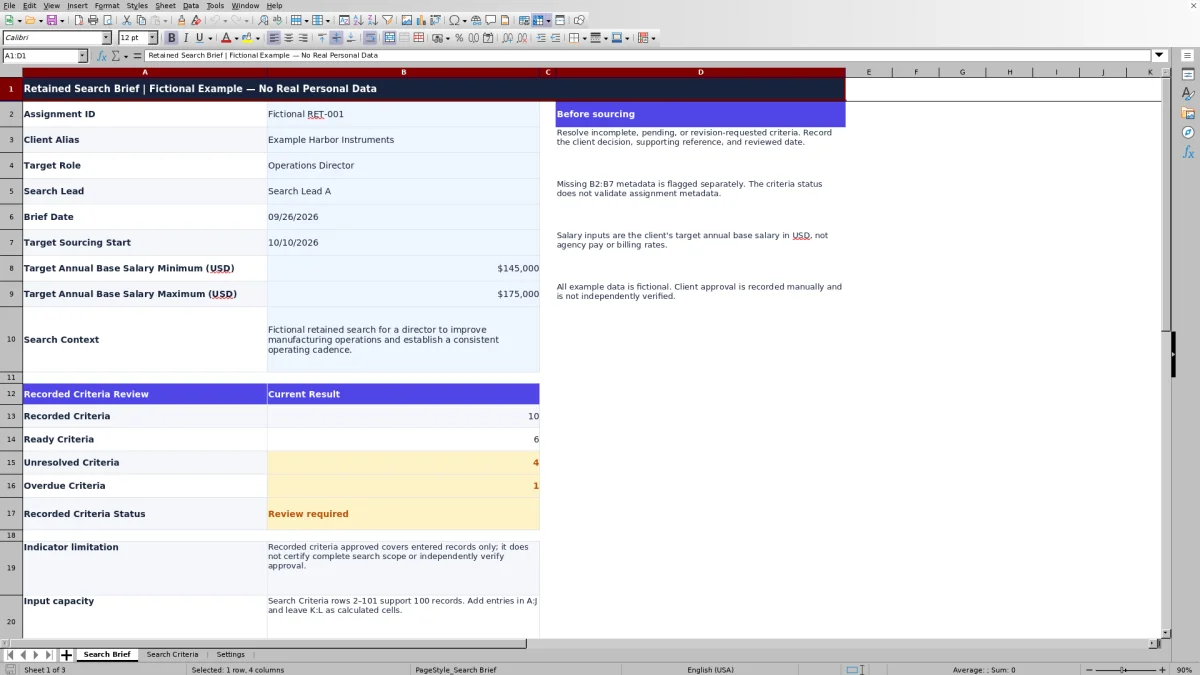
On Search Brief, enter your assignment ID, client alias, target role, search lead, brief date and target sourcing start. Add the search context and the client's target annual base salary range in USD. Replace the fictional examples before relying on the summary for a live search.
2. Write one criterion per row
Use Search Criteria rows 2–101 to record the requirements and boundaries agreed with the client. Enter data in A:J, including what will demonstrate acceptance and where the supporting decision is documented. Leave K:L as calculated cells; the sheets are not protected against formula edits.
3. Record the review outcome
Select Pending, Approved or Revision requested in Client Decision. Assign an owner and review due date, and enter a reviewed date for approved records. Dates display as MM/DD/YYYY. Use Resolution Note for clarification or the next action; it is optional.
4. Resolve gaps before the sourcing handoff
Filter Search Criteria by Review State and Timing to inspect incomplete, pending, revision-requested or overdue items. Return to Search Brief to review the totals, then check the assignment details and scope separately. Confirm the brief with the client through your usual process; the workbook does not send approval requests.
Define the search boundaries before outreach
A retained search brief should tell the recruiter both what the client needs and where the search should stop. Use the five available areas—Client context, Target profile, Search scope, Outreach boundaries and Deliverables—to organize that discussion. These are categories for your entries, not a checklist that guarantees every necessary topic has been covered.
Write each requirement so another recruiter can act on it without reconstructing the kickoff conversation. For example, a role mandate and a reporting relationship belong in separate records if they need separate client decisions. An outreach restriction should describe the actual boundary rather than merely saying that restrictions exist.
Acceptance Evidence describes support for accepting the brief criterion, not a candidate score. Pair it with a Source Reference that points your team to the relevant internal note or document. The workbook records that reference as text; it does not retrieve the document or verify its contents.
Keep the requirement, evidence and decision distinct
A clear requirement is not the same as an approved requirement. In Search Criteria, Requirement or Boundary states the search instruction. Acceptance Evidence explains the supporting agreement or documentation, while Source Reference identifies where your team can find it. Client Decision records the outcome you enter after communicating with the client.
For the fictional operations director search, the required experience includes responsibility for multiple manufacturing functions and measurable process improvements. Its acceptance evidence is an agreed operational-experience definition in a role requirements note. That documents the definition to use during sourcing; it does not establish that any candidate meets it.
When a client asks for a revision, a useful manual workflow is to record the requested clarification in Resolution Note, assign the follow-up to the row's owner and update the criterion after the decision is settled. Only record Approved and a reviewed date when that reflects your actual client communication. The file provides the fields and status calculations, not an independent approval process.
Read the status as a record check, not search authorization
Any entry in a row's A:J input cells causes that row to count as a recorded criterion. The review formula first checks whether the required inputs are present: the criterion ID, area, requirement, evidence, reference, owner, client decision and review due date. If any are missing, the result is Incomplete—even if the decision says Revision requested.
Once those inputs are filled, Revision requested produces Needs revision. Approved produces Ready only when Reviewed Date is also present; otherwise it remains Incomplete. A complete record marked Pending produces Awaiting approval. These results identify which records need attention, but they do not assess whether the wording or supporting evidence is adequate.
On Search Brief, unresolved criteria equal recorded criteria minus ready criteria: Unresolved = Recorded − Ready, calculated in B15 as =B13-B14. No recorded entries produces Not started. Any unresolved entry produces Review required. If every recorded entry is ready, the result is Recorded criteria approved.
That last label covers entered records only. A missing requirement cannot be counted, and missing assignment details in B2:B7 are highlighted separately rather than included in the criteria status. Check both the scope and the assignment context before you hand the brief to a recruiter.
Example: decide what to resolve before sourcing
The workbook's fictional starting example describes an Operations Director search with a target annual base salary of $145,000–$175,000 and a target sourcing start of 10/10/2026. Its stated creation-date totals are 10 recorded criteria, 6 ready, 4 unresolved and 1 overdue.
The unresolved calculation is 10 − 6 = 4, so the overall recorded-criteria result is Review required. This means four entered criteria still need attention under the workbook's rules. It does not measure the chance of a placement or tell you how much sourcing work is complete.
Use the filters to inspect those four records and identify whether each needs missing information, a client decision or a revision. Then review the overdue subset with the relevant owners. Timing compares unresolved records' due dates with TODAY(): a date before today is Overdue, a date of today is On schedule, and a blank due date produces No due date. Ready records show Closed.
The overdue count can change when the workbook recalculates on a later date. The stated one-overdue starting total is a creation-date example, not a fixed result. Closed also means the record is ready now; it is not proof that the review was completed on time.
Common input problems and how to correct them
- Approved still shows Incomplete: check the required fields and the reviewed date. Selecting Approved alone does not make a criterion ready.
- A removed criterion still appears in the count: clear all ten input cells in A:J for that row. A leftover resolution note or owner still records a criterion. Keep the formulas in K:L.
- A date entry is rejected: use a valid Excel date without a time component. Reviewed Date cannot be later than today; a future Review Due Date is allowed.
- The salary range is rejected: use nonnegative numeric amounts and make sure the maximum is at least the minimum. These inputs are annual base salary amounts, not hourly rates.
- A pasted row looks complete but contains questionable values: inspect the pasted dates, decisions and salary amounts. Pasting may bypass validation, and the readiness formula is not a substitute for checking those values.
Formula cells have no sheet protection. If you overwrite a status formula, restore it from an intact copy before relying on the totals. Keeping an unchanged original workbook is a suggested precaution, not a built-in recovery feature.
Handle scope changes without overstating the summary
If the client changes a requirement after it has been recorded as approved, review the affected criterion again. Update its wording, reference and decision to reflect the current discussion rather than leaving an earlier approval attached to a changed instruction. The workbook does not establish whether a manual approval entry still applies after an edit.
A practical manual approach is to save a dated copy before a material scope change when you need the earlier brief for reference. Use Resolution Note to explain the current issue and arrange the follow-up outside the workbook. This is a suggested working practice, not automatic version history or messaging.
Use the workbook for one retained sourcing brief. It does not screen candidates, track submissions or placements, manage staffing assignments or approved hours, or calculate payroll and billing. It also does not certify legal compliance. Once the brief is settled, manage those later activities in your normal recruiting and operational systems; there is no integration provided here.
Comparison: this workbook, a blank spreadsheet or an ATS
Choose the tool based on whether you need to define one search or manage the recruiting work that follows. This workbook provides a prepared structure for the pre-sourcing brief. A blank spreadsheet gives you freedom to design a different structure, while an applicant tracking system (ATS) may be appropriate when you need candidate and recruiting workflow records, depending on the system and its configuration.
| Method | Brief structure | Review follow-up | Scope and fit |
|---|---|---|---|
| This Excel workbook | Prepared assignment context and up to 100 criterion records | Manual decisions with calculated readiness, due-date indicators and filters | One retained brief before sourcing; no candidate pipeline or integrations |
| Blank spreadsheet or manual log | You design the fields and organization | You review entries manually or build your own calculations | Useful when the brief needs a different structure and you can maintain it |
| ATS or staffing software | Brief fields depend on available features and configuration | Task and approval support varies by product | Consider when the brief needs to sit alongside candidate and recruiting records |
If the immediate task is to settle the client's target profile and search boundaries, the prepared Excel structure may fit. If you need shared candidate activity, submission history or connected operational workflows, assess those requirements in your existing software rather than treating this brief as a replacement.
Frequently asked questions
Can I change the area and client decision dropdowns?
You can edit the five area choices in Settings A2:A6. If you rename an area, update existing criteria that use the old label. Keep Pending, Approved and Revision requested in Settings C2:C4 spelled as supplied because the formulas rely on those decision labels.
Can I enter more than 100 criteria?
The implemented input range is Search Criteria rows 2–101. Its formulas, validation, filter range and summary counts cover those 100 records. Entries below row 101 are outside the supplied setup; do not assume that adding rows automatically extends those functions.
Does the salary range calculate a recruiting fee or margin?
No. Search Brief B8:B9 holds the client's target annual base salary minimum and maximum in USD. It is not an agency pay rate, bill rate, recruiting fee, markup or gross margin, and the workbook does not calculate those amounts.
Does the workbook check for duplicate criterion IDs?
No. The recorded-criteria indicator does not validate unique IDs. Check IDs manually so your team can refer to a criterion unambiguously when discussing changes or recording a client decision.
Are the sample client details and approvals real?
No. The assignment details, requirements, source references and approval entries are fictional examples with no real personal data. Replace or clear them for your own brief while retaining the calculated cells. Do not treat the sample approval records as evidence for a live client assignment.
Editorial contributors

Miriam HaldenRecruiting & assignment workflows
Explore this editorial focus →
Wesley CorbinBilling & agency finance
Explore this editorial focus →