When an assignment is nearing its end, compare the worker’s availability with another client’s job order before discussing reassignment. This Excel planner from Staffing Worksheets helps you review proposed pairings using dates, role labels and a recorded requirements review.
You enter one worker–job order pairing per row. The workbook checks the planning window, start-date fit and role fit, then returns a review outcome. It supports reassignment discussions, not confirmed placements; you choose the pairings and verify the underlying information.
When to use this worksheet
- Focus your review on assignments ending within your chosen planning window.
- Spot start-date conflicts and role differences before discussing a proposed move.
- Keep a recruiter code and next action date with each pairing.
- See counts of discussion-ready pairings, incomplete records and overdue follow-ups.
What the workbook includes
How to use the workbook
1. Set the planning date and window
On Settings, update As of Date in B2 and Planning Window (Calendar Days) in B3. The window accepts whole numbers from 0 to 365. Use the date of your planning review; the workbook does not advance this input automatically.
2. Replace the fictional examples with proposed pairings
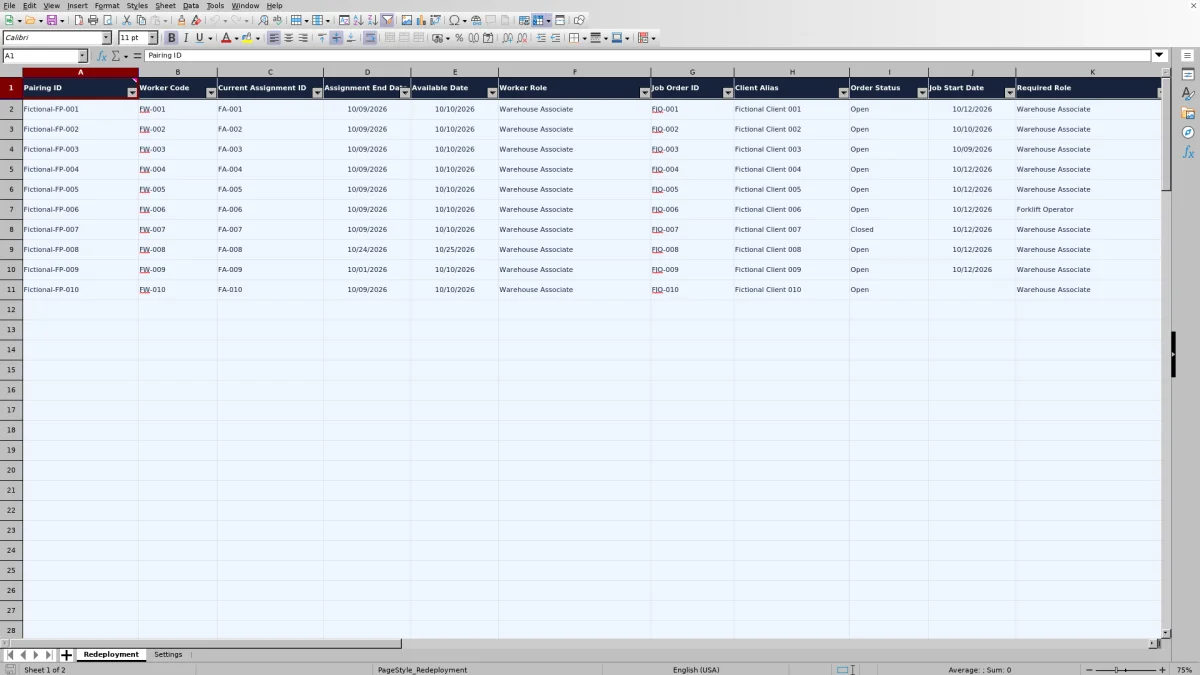
On Redeployment, enter your records in columns A:N and retain the formulas in O:S. Use a unique Pairing ID for each proposed worker–job order combination. Record the current assignment, worker availability, proposed job order, recruiter and next action date. All 14 input fields are needed for a complete row.
3. Select the role and review statuses
Use the drop-downs for Order Status, Worker Role, Required Role and Requirements Review. Check the client’s requirements outside the workbook before selecting Confirmed. Enter dates in MM/DD/YYYY format, with Available Date later than Assignment End Date.
4. Review the outcome and plan contact
Use the Redeployment filters to examine Review Outcome and Follow-Up Status. Resolve missing information or conflicts first. For Discuss reassignment rows, contact the appropriate worker and client as part of your own workflow, then update the next action date and any changed inputs.
Choose which assignment endings belong in this review
The planning window is based on Assignment End Date, not Available Date or Job Start Date. The workbook compares the assignment end with your As of Date and that date plus the selected number of calendar days. Both boundaries are included.
With the supplied As of Date of 10/02/2026 and a 21-day window, assignment endings from 10/02/2026 through 10/23/2026 are within scope. An assignment ending on 10/24/2026 is outside the window. A zero-day window includes only assignments ending on the as-of date.
This scope helps you decide which endings to address in a particular review. It does not require the proposed job to start within the same window or measure the gap between assignments. If a worker has been available since an earlier assignment ended, that pairing may show Outside planning window even when the proposed start date fits. Review those cases separately rather than treating the result as a rejection.
Example: interpret a proposed warehouse reassignment
The first fictional pairing has an assignment ending on 10/09/2026, availability from 10/10/2026 and a proposed job start of 10/12/2026. With the supplied 10/02/2026 as-of date and 21-day window, the ending is Within window. Availability is on or before the job start, so Start Fit is Fits.
Both role fields say Warehouse Associate, producing Matches. The order is Open, Requirements Review is Confirmed and all input fields are filled. The resulting Review Outcome is Discuss reassignment. Its next action date of 10/03/2026 produces Scheduled because that date is not earlier than the as-of date.
Use that result to start a conversation, not to assume acceptance. The date check establishes only that the entered availability is early enough for the entered start date. It does not confirm the worker’s interest, shift availability or attendance.
The third fictional pairing illustrates the opposite date result: availability is 10/10/2026, but the job starts on 10/09/2026. Start Fit becomes Conflict and, with the earlier checks satisfied, Review Outcome becomes Date conflict. Confirm whether either date has genuinely changed or consider a different job order; do not alter the date simply to obtain Fits.
Errors and problems: read the first unresolved condition
Review Outcome follows a sequence rather than displaying every issue at once. It checks completeness, the ending window, whether the order is Open, start-date fit, role fit and requirements status—in that order. A row with missing information shows Incomplete even if it also contains a date conflict. After you fix the first issue, another outcome may appear.
- Incomplete: Check every input in A:N, including Pairing ID, Client Alias, Recruiter Code and Next Action Date. Do not fill unknown information with placeholders merely to clear the status.
- Not live: Verify Order Status. On Hold and Closed do not pass the Open-order test.
- Date entry problems: Enter real Excel dates, not text that only looks like a date. The Available Date validation requires a date later than Assignment End Date when an end date is present.
- Duplicate Pairing ID: Assign a different identifier to each proposed combination. Reusing a Worker Code for another possible job order is different from reusing a Pairing ID.
The Start Fit formula allows Available Date to equal Job Start Date. That is separate from the input rule requiring availability after the current assignment ends. If you need to plan same-day transitions between assignments, this workbook’s current availability rule does not accommodate that case without modification.
Keep role matching separate from requirements verification
Role Fit compares Worker Role with Required Role. Matching labels return Matches; different labels return Review. This is a label comparison, not a skills assessment or a search for related occupations. A worker who could perform a differently labeled role will still need your attention.
The role drop-downs use the five entries in Settings F2:F6. You can edit those entries to reflect your agency’s role vocabulary. Use the same labels consistently and check existing pairing rows after changing the list; changing a list entry does not rewrite previously entered values.
Requirements Review is your recorded status, not a verification performed by Excel. Pending leads to Requirements review once the earlier checks pass. Not Met leads to Requirements gap. Confirmed allows the row to reach Discuss reassignment if every preceding condition is satisfied.
Verify requirements outside the workbook using the client brief and your normal records. The planner has a review-status field, not a detailed checklist for skills, certifications, location or shift requirements. Keep the supporting detail in an appropriate separate record.
Use follow-up flags without mistaking them for reminders
Follow-Up Status is calculated only for rows whose Review Outcome is Discuss reassignment and whose Next Action Date is filled. A next action date earlier than Settings B2 returns Overdue. A date equal to or later than B2 returns Scheduled.
In the supplied second fictional pairing, the next action date is 10/01/2026. Against the 10/02/2026 as-of date, that qualifying pairing is Overdue. An action due on 10/02/2026 would still be Scheduled; the workbook has no separate due-today result.
A blank follow-up status does not mean no action is needed. An incomplete pairing or a requirements gap can need attention while its follow-up result remains blank. A practical manual workflow is to review incomplete and blocked rows first, then filter discussion pairings for overdue actions.
These are worksheet flags, not sent reminders or calendar appointments. Update the as-of date for each review and handle outreach yourself. The record also has no dedicated completed-action field, so retain contact history elsewhere if you need it.
Count pairings, not workers or placements
The Settings summary counts Pairings Entered, Discuss Reassignment, Incomplete Pairings and Overdue Follow-Ups. Pairings Entered counts rows with a nonblank Review Outcome, including incomplete rows. It is not a count of verified matches.
One worker considered for three job orders occupies three rows and contributes three pairings. Those rows could all reach Discuss reassignment. The workbook does not choose one opportunity, rank the options or prevent competing proposals for the same worker. Before making a commitment, manually review other rows with that Worker Code.
The prepared range is rows 2–101. Formulas, validation, filtering and summary references cover those 100 pairing rows. Do not assume that typing below row 101 extends all of those elements. If you need a larger file, extend and verify each affected range or use a system designed for a larger operational record.
The supplied fictional training examples are labeled with expected counts of 10 entered, 2 discussion pairings, 1 incomplete and 1 overdue. These illustrate the logic, not agency performance. Replace or clear the example inputs before using the summary for your own planning.
Comparison: this planner or a manual spreadsheet log?
Use this workbook when your immediate task is to review a manageable set of proposed worker–job order pairings with consistent date and status checks. A blank spreadsheet log can fit a less structured process or a task requiring substantially different fields, but you must design any checks and summaries you want.
| Method | Setup and structure | Review checks | Follow-up handling | Best fit |
|---|---|---|---|---|
| Redeployment planner workbook | 100 prepared pairing rows, shared settings and summary counts | Formula checks for window, dates, role labels and entered statuses | Scheduled or Overdue flags for discussion pairings; outreach remains manual | A defined, row-by-row reassignment review |
| Blank spreadsheet or manual log | You choose and maintain the fields and layout | You inspect entries manually or build your own formulas | You record and review dates using your chosen process | Ad hoc tracking or a workflow needing a different structure |
Neither approach turns a proposed pairing into an accepted placement by itself. If you need candidate history, communications, submissions and placement records in one operational system, evaluate an applicant tracking system (ATS) or staffing platform against those requirements. This workbook has no implemented integration with those systems and requires you to keep its inputs current.
Frequently asked questions
Does the planner automatically find job orders for each worker?
No. You select a proposed worker–job order combination and enter it as a row. The workbook evaluates that entered pairing; it does not search a job-order database, generate recommendations or rank workers.
Can I use my agency’s own role names?
Yes. Edit the five role options in Settings F2:F6 and use consistent labels in Worker Role and Required Role. Adding more options below F6 does not automatically extend the current drop-down source. Review existing rows after changing the vocabulary.
Does a Confirmed requirements status prove the worker is cleared?
No. Confirmed is an input you select after your own requirements review. The workbook does not verify documents, credentials, client approval or legal compliance. It uses the entered status as one condition in the pairing’s review outcome.
Does the as-of date update when I open the workbook?
No. Settings B2 is an editable date, not a current-date formula. Update it when you begin a new review. Both the assignment-ending window and overdue follow-up results depend on that value.
Can this workbook confirm a placement or track worked hours?
No. It records proposed pairings for discussion. It does not record acceptance, attendance, approved hours, pay rates or bill rates, and it does not calculate payroll or billing. Keep those steps in your separate placement and assignment records.
Editorial contributors

Miriam HaldenRecruiting & assignment workflows
Explore this editorial focus →
Wesley CorbinBilling & agency finance
Explore this editorial focus →