Before using a talent pool record for a new job order, check whether its availability and qualification information needs another look. This Excel workbook from Staffing Worksheets flags records due for refresh using the dates you enter and the review intervals you choose.
Use the spreadsheet to resolve missing information, identify overdue reviews, and record who should take the next action. It supports human-led recruiting-pipeline maintenance; it does not verify qualifications, contact candidates, or remove records automatically.
When to use this worksheet
- Separate availability refresh needs from qualification-record refresh needs.
- Identify incomplete records before treating the review queue as ready for action.
- Keep the next action, responsible owner alias, and assignment date beside each record.
- See current, due, and incomplete record counts for the review date you select.
What the workbook includes
How to use the workbook
1. Set the review date and intervals
Open Settings and check Review Date. It initially uses TODAY(), but you can replace it with a fixed date for a review snapshot. Set Availability Freshness Days and Qualification Freshness Days to your operational assumptions. The supplied 30- and 90-day values are fictional starting points, not legal defaults.
2. Replace the fictional inputs
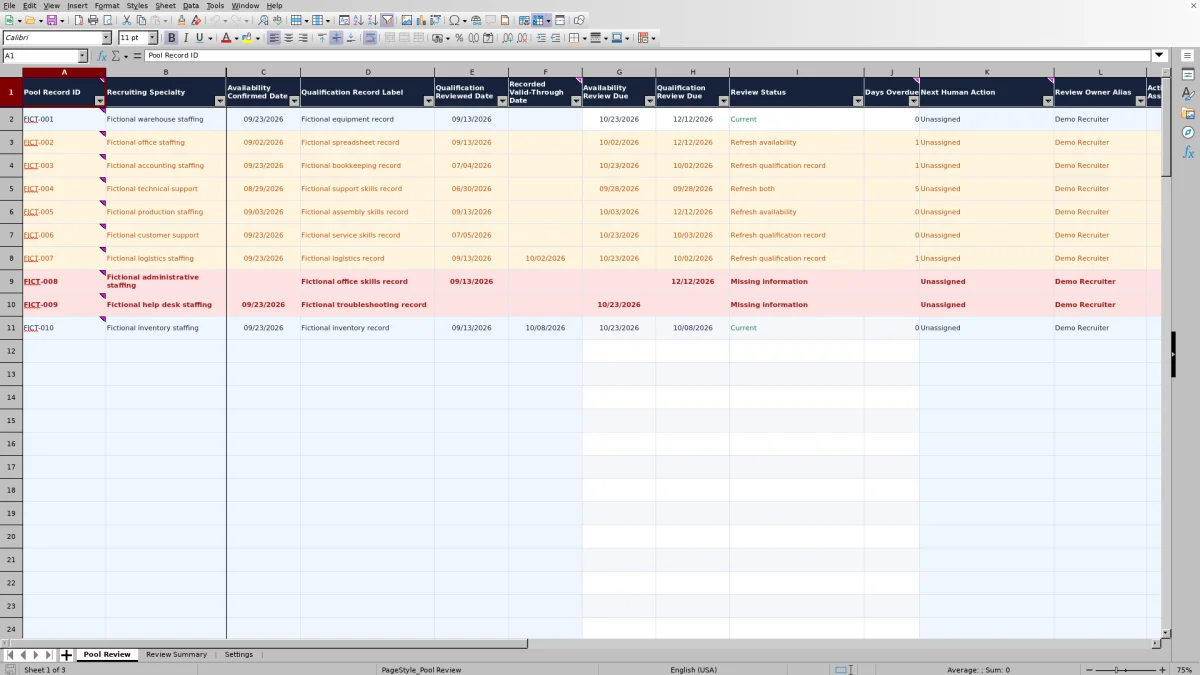
On Pool Review, replace or clear the fictional training inputs without deleting the formulas in columns G–J. Enter a unique text Pool Record ID, recruiting specialty, availability confirmation date, qualification record label, and qualification review date. Add an existing valid-through date when applicable. Use reference IDs rather than names or contact information; dates display as MM/DD/YYYY.
3. Check data quality and recalculate
Recalculate in Excel or LibreOffice. Use the Review Status filter to find Missing information and Missing record ID, then check Duplicate ID Rows on Review Summary. Correct these issues before relying on the queue, especially after pasting data.
4. Assign the next manual action
Filter for the three refresh statuses. Select Next Human Action and enter a Review Owner Alias and Action Assigned Date. A zero in Days Overdue can mean the record is due today. After the actual refresh, update the relevant source dates; assigning an action alone does not change the calculated review status.
Choose what “due for review” means
Set the review intervals before deciding which records need attention. Availability and qualification records use separate intervals because the two types of information may need different refresh schedules. The workbook applies one availability interval and one qualification interval across all prepared rows; it does not assign different intervals by recruiting specialty.
Availability Review Due is the Availability Confirmed Date plus Availability Freshness Days. Qualification Review Due is the Qualification Reviewed Date plus Qualification Freshness Days, unless the Recorded Valid-Through Date is earlier. In that case, the earlier date controls. A blank valid-through field leaves the interval-based calculation in place; it does not mean the record stays current indefinitely.
A record becomes due on its due date. The formulas compare both due dates with Settings!B2, so a fixed Review Date gives you an as-of review, while TODAY() allows the comparison date to move when the workbook recalculates. The interval inputs accept whole numbers from 1 through 3,650 calendar days. That input range is not a recommendation about how often your agency should review records.
Example: interpret a one-day-overdue record
The fictional FICT-002 record has an Availability Confirmed Date of 09/02/2026 and a Qualification Reviewed Date of 09/13/2026, with no recorded valid-through date. At a fixed Review Date of 10/03/2026, using the original 30-day availability and 90-day qualification intervals, its availability review is due 10/02/2026 and its qualification review is due 12/12/2026.
The result is Refresh availability and 1 day overdue. Only the availability due date has been reached. Your next step is to assign an availability refresh, not to assume the qualification record also needs an immediate refresh or that the candidate is unavailable.
Days Overdue measures the time since the earlier of the two review due dates, with a minimum result of zero: MAX(0, Review Date − MIN(Availability Review Due, Qualification Review Due)). Zero does not always mean nothing is due. On 10/02/2026, this same record would already be marked Refresh availability but would show zero days overdue. Read Review Status alongside the number.
Read the summary as a record queue, not a candidate headcount
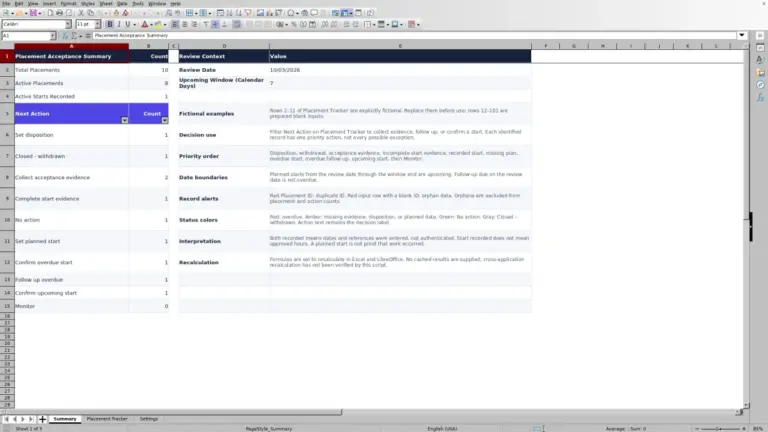
Use Review Summary to gauge the work remaining after resolving data gaps. Records Due for Refresh adds Refresh Availability, Refresh Qualification Record, and Refresh Both. A row that needs both reviews is counted once in that total, not twice.
Populated Records counts rows with a nonblank calculated status, including rows flagged for missing information or a missing ID. Missing Information combines those two problem statuses. Duplicate ID Rows is a separate check and can overlap the other counts. If two rows share an ID, it counts two duplicate rows—not one duplicated ID.
The supplied training reference at 10/03/2026 shows 10 populated records: 2 current, 6 due, and 2 missing information. Those expected counts are fixed reference values based on the original inputs and intervals. Use Live Count for your working review. It is normal for live results to differ from the training reference after you change the records, intervals, or review date.
Errors and solutions before you assign work
A Missing record ID status means a row contains other input data but no Pool Record ID. Give the row a unique text reference before using it in the queue. Missing information means an ID exists but one or more required inputs are absent: recruiting specialty, availability confirmation date, qualification record label, or qualification review date. For these incomplete rows, Days Overdue is blank rather than a reliable lateness measure.
Date validation is designed to accept whole Excel dates. Availability confirmation, qualification review, and action assignment dates cannot be later than the selected Review Date. A recorded valid-through date can be in the future. If you set a historical review snapshot and a date entry is rejected, first check whether that event actually happened after the snapshot date.
Pasted data can bypass validation. After a paste, inspect date values, required fields, and IDs even if Excel did not show an entry warning. Duplicate IDs receive a separate warning but are not a distinct Review Status, so checking only the status filter is not enough. Red formatting identifies missing information or duplicate IDs; amber formatting identifies refresh statuses.
If results do not respond to changed inputs, recalculate and verify them in Excel or LibreOffice. Preserve the formula cells in columns G–J rather than typing a preferred status over a calculated result.
Turn a flag into a manual refresh decision
The action fields let you record a proposed next step: Unassigned, Refresh availability, Refresh qualification record, Refresh both, or Review for removal. Pair the action with an owner alias and assignment date so the person reviewing the sheet can see who is expected to follow up. These are recorded assignments, not notifications or completed work.
As a suggested manual workflow, the assigned person can check the relevant source information or confirm availability through your agency’s usual process. Update Availability Confirmed Date or Qualification Reviewed Date only after that refresh has occurred. If a source valid-through date changes, record the supported replacement date rather than extending it simply to clear the flag.
Review for removal is not a delete command. It neither removes the row nor establishes a retention deadline. Decide any removal separately under your agency’s applicable policies and requirements. Selecting an action does not reset freshness dates, and the workbook has no separate completion field or activity history.
Keep the review within its intended scope
One row represents one candidate-reference and recruiting-specialty combination with one qualification record. It is not necessarily one unique person. If you need to review multiple qualification records for the same candidate, separate rows with distinct record IDs can represent those records, but the summary will still count rows rather than unique candidates.
The file provides formulas, validation, and filtering through row 101—100 record rows beneath the header. Summary formulas refer to rows 2–101. Entries below that range are outside the supplied review setup; do not assume they will be calculated or included in totals. Any expansion requires checking the formulas, summary ranges, validation, filtering, and formatting.
Current is a date-based status, not an eligibility decision. It means the required inputs are present and neither calculated due date has been reached. It does not prove present availability, validate a credential, or authorize a submission or placement. The recorded valid-through date is a source date you provide, not a validity determination made by the file.
Keep the workbook limited to reference IDs and generic recruiting records. Its instructions exclude names, contact information, Social Security numbers, medical information, and protected-class information. This is a maintenance queue, not a candidate profile repository or applicant-screening tool.
Comparison: this workbook or a blank spreadsheet
Choose this workbook when you want a prepared, date-based queue for a bounded manual review. A blank spreadsheet may fit a different record structure or review policy, but you would need to build and check the due-date logic, missing-data checks, and totals yourself. Neither approach, by itself, confirms that a recruiter has completed the work.
| Method | Review logic | Follow-up record | Fit and limits |
|---|---|---|---|
| Talent Pool Expiry Review workbook | Prepared formulas for two review intervals, an optional earlier valid-through date, statuses, and counts. | Next action dropdown, owner alias, and action assignment date; follow-up remains manual. | Fits a 100-row reference-based review with shared intervals. No candidate contact, credential verification, or automatic removal. |
| Blank spreadsheet or manual log | You define the dates, review rules, checks, and any formulas. | You choose the fields and maintain follow-up records manually. | Fits a custom or very small review process when you are prepared to design and maintain the structure. |
If your agency needs centralized candidate communication, document storage, permissions, or activity history, assess an applicant tracking system (ATS) or staffing platform for those specific requirements. This workbook is a separate review aid, not an integration with those systems.
Frequently asked questions
Does the workbook contain real candidate records?
No. The supplied records, recruiting specialties, qualification labels, and owner aliases are fictional training examples. Replace or clear those input values before using the file for your agency, while preserving the calculation cells.
Can I change the action dropdown choices?
The dropdown on Pool Review draws from Settings!D2:D6. Editing those five cells changes the available action labels. It does not change the calculated Review Status, which is driven by source dates and settings. Adding choices outside D2:D6 would require adjusting the validation source.
Can different specialties use different freshness intervals?
Not within the supplied calculation setup. All rows use the availability and qualification intervals on Settings. If separate review policies are needed, one manual option is to use separate workbook copies for clearly defined groups. Their totals would remain separate; the file does not consolidate them.
How can I preserve a past review?
Replace TODAY() in Settings!B2 with the date you want to review, then recalculate. As a manual recordkeeping step, save a dated copy before changing inputs. A fixed date alone does not preserve historical input values, and the workbook does not provide automatic version history.
Does an expiry flag set a legal retention or deletion deadline?
No. The flags identify operational refresh needs under your chosen intervals and entered source dates. They do not establish statutory retention periods, certify legal compliance, or instruct the file to delete anything. Review for removal records a human assignment only.
Editorial contributors

Miriam HaldenRecruiting & assignment workflows
Explore this editorial focus →
Wesley CorbinBilling & agency finance
Explore this editorial focus →