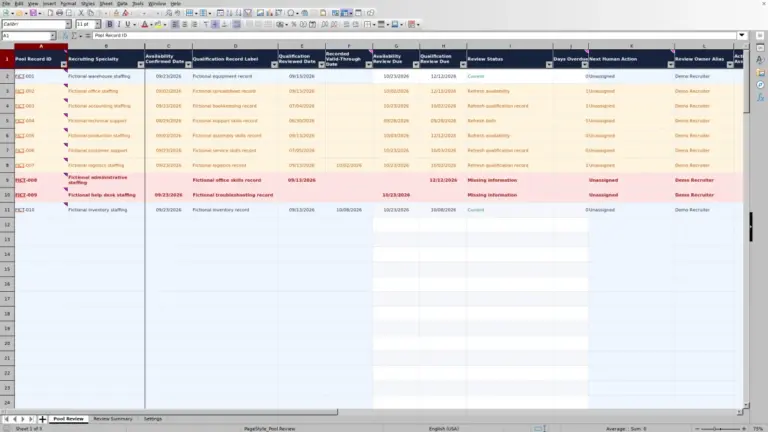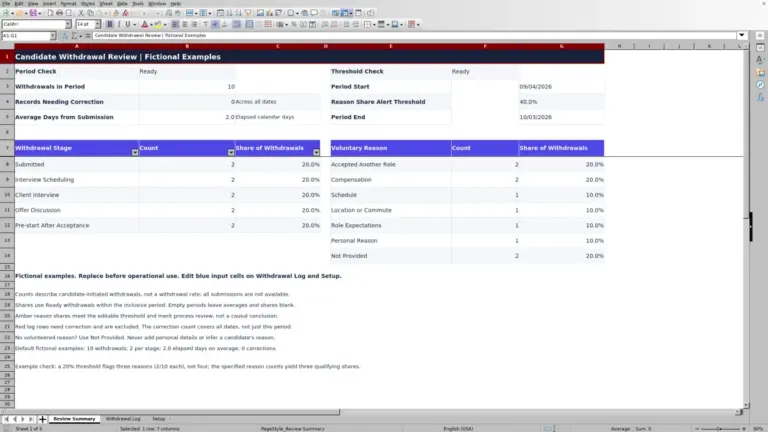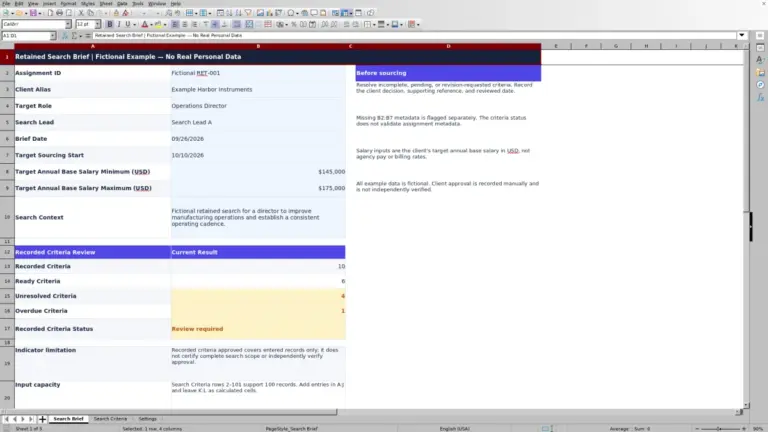
After an offer is accepted, you still need to record both parties’ acceptance and confirm whether the candidate starts. This staffing agency placement acceptance tracker keeps those checkpoints together in an Excel workbook so you can identify the next follow-up task.
The Staffing Worksheets workbook uses manually entered dates, evidence references, and disposition to calculate acceptance checks, start checks, and one priority action per placement. It supports operational follow-up, not evidence authentication: you must obtain and check the underlying records yourself.
When to use this worksheet
- Spot missing client or candidate acceptance evidence before treating the record as complete.
- Separate planned start dates from recorded start evidence.
- Focus your review on one calculated priority action per placement.
- See placement totals and action counts for the review date you choose.
What the workbook includes
How to use the workbook
1. Replace the fictional examples
Rows 2–11 on Placement Tracker contain fictional placements. Clear or replace their input values before using the workbook for your agency. Rows 12–101 are prepared blank inputs. Preserve columns O–Q, which contain the calculated checks and Next Action.
2. Set your review context
On Settings, enter the Review Date in B2 and the Upcoming Start Window in B3. The window uses calendar days and accepts 0–365. The supplied 10/03/2026 date and seven-day window are fictional starting assumptions, not a recommended agency policy. Update the review date whenever you run a new review.
3. Identify each placement and record acceptance
Give each placement a unique Placement ID, then enter the client and the relevant job order, candidate, and recruiter identifiers. Use the Disposition list to choose Active or Withdrawn. Record the planned start and each party’s acceptance date and internal evidence reference. Enter dates as Excel dates displayed in MM/DD/YYYY format.
4. Record start evidence and follow-up dates
When you obtain confirmation that the assignment started, enter the Actual Start Date and Start Evidence Reference. Use Follow-up Due Date for the next manual contact you intend to make. A planned start alone does not establish that work occurred, and a due date does not send a reminder.
5. Review and act on the calculated results
Check the Summary counts, then filter Next Action on Placement Tracker to work through the relevant records. Collect missing evidence, contact the appropriate party, or confirm a start outside the workbook. Update the inputs afterward and review the recalculated action. Do not overwrite the formulas in columns O–Q.
Record acceptance without overstating what the check proves
Use Acceptance Check to distinguish a complete set of entries from an incomplete one. For an identified placement, the result becomes Both recorded only when the client acceptance date and candidate acceptance date are numeric Excel dates and both corresponding evidence references are nonblank. If any part is missing, the result is Incomplete.
This is a completeness test, not a review of the underlying agreement. Both recorded does not mean authenticated. A mistyped reference can still satisfy the nonblank test, and the formula does not inspect the referenced document or message.
As a manual working practice, use internal reference identifiers that let your team locate the relevant record in its existing recordkeeping system. Before relying on an acceptance entry, check that the reference points to the correct client, candidate, and placement. The workbook records the reference; it does not retrieve or verify that source.
Understand why only one next action appears
Next Action is a priority label, not a list of every problem on the row. The workbook first checks for a missing disposition, then withdrawal, missing acceptance evidence, incomplete start evidence, and a recorded start. Only after those checks does it consider a missing planned start, an overdue start, overdue follow-up, an upcoming start, or Monitor.
That order affects how you work the list. If an active placement has both missing acceptance evidence and a past planned start date, Collect acceptance evidence appears first. Once you complete those entries, Confirm overdue start can become the next action. Read the other fields when the situation requires more than the displayed task.
A Withdrawn placement receives Closed - withdrawn ahead of the evidence checks. An active placement with complete acceptance and start evidence receives No action even if an old follow-up date remains. Treat No action as a result of these checks, not as proof that every assignment or client-service task is finished.
Example: move an upcoming start to a recorded start
The fictional PL-001 record has a planned start of 10/05/2026, client and candidate acceptance dates of 09/30/2026, both acceptance references, and an Active disposition. With the supplied Review Date of 10/03/2026 and seven-day window, the planned start falls within the upcoming period.
Those inputs produce Both recorded for acceptance and Not recorded for the start. Because there is no higher-priority gap or overdue follow-up, the next action is Confirm upcoming start. The practical task is to check the start arrangements; the workbook does not contact the candidate or client.
Suppose you later enter an Actual Start Date of 10/05/2026 but leave Start Evidence Reference empty. Start Check changes to Incomplete start evidence, and Next Action becomes Complete start evidence. After you enter the reference to the confirmation you obtained, Start Check becomes Start recorded and Next Action becomes No action, assuming the other entries remain complete.
This example separates three different facts: acceptance entries are complete, a start is planned, and start evidence has been recorded. None of those results establishes approved hours or a payroll amount.
Use calendar boundaries correctly
The date-based actions use the editable Review Date, not an automatically advancing current date. Before deciding which placements need attention, confirm that Settings reflects the date of your review. Both the review date and window are required inputs.
Upcoming starts include the review date and the final window day. With a review date of 10/03/2026 and a window of seven calendar days, planned starts from 10/03/2026 through 10/10/2026 are within the window. A zero-day window covers the review date itself. Weekends are not excluded.
A planned start before the review date can produce Confirm overdue start when the earlier checks are clear. A follow-up date must also be earlier than the review date to be overdue: a follow-up due on 10/03/2026 is not overdue during a 10/03/2026 review. An overdue start takes priority over overdue follow-up, and overdue follow-up takes priority over an upcoming start.
After changing the review date, inspect the recalculated actions before contacting anyone. A date-based label indicates what the entered dates imply; it does not tell you whether the client has rescheduled the assignment outside the workbook.
Errors and solutions: IDs, pasted dates, and missing inputs
A Placement ID anchors the calculated checks and counts. If you enter other row data but leave that ID blank, the workbook flags the input row in red. These orphan records are excluded from placement and action counts. Add the correct unique identifier or remove the stray inputs before relying on Summary.
Duplicate IDs are also flagged in red. The workbook includes a uniqueness validation rule, but validation can be bypassed by pasting or clearing cells. Total Placements counts filled IDs rather than distinct placements, so duplicate entries can inflate the total. Compare the records and resolve whether they represent a duplicate or two separate placements.
If a visible acceptance date still leaves the check incomplete, confirm that Excel recognizes it as a date rather than text and that its evidence reference is present. Date validation accepts whole-number Excel date values, but the formulas do not judge whether a date is plausible for the actual placement. Review chronology against the source records yourself.
Keep the disposition choices Active and Withdrawn unchanged. Adding another label without revising the formulas can make action and summary results inconsistent. Also check for cleared review settings or overwritten formula cells when results do not match the inputs.
Read the summary within its 100-row scope
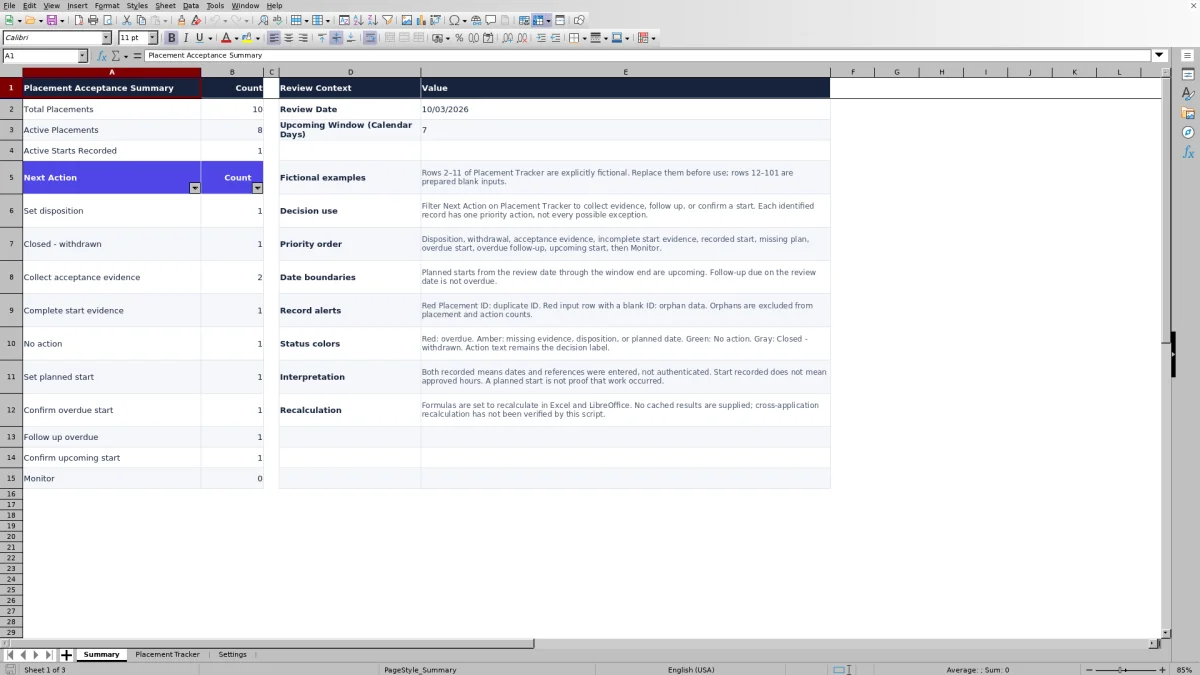
Summary separates Total Placements, Active Placements, and Active Starts Recorded. Total Placements counts populated Placement IDs, including withdrawn records. Active Placements requires a populated ID and an Active disposition. Active Starts Recorded counts active rows whose Start Check is Start recorded; that measure does not require Acceptance Check to be Both recorded.
The action totals answer a different question: how many identified records currently carry each priority label? Filter Next Action on Placement Tracker to inspect the records behind a count. Because each identified row has one priority action, those totals should not be interpreted as counts of every missing field or exception.
The supplied calculation range is rows 2–101. Adding a record below row 101 does not, by itself, extend the summary ranges or provide the same formulas, filters, validation, and formatting. If you need more capacity, extend and test all affected ranges deliberately rather than assuming the workbook grows automatically.
Status colors support the review: red indicates overdue actions, amber indicates missing information, green marks No action, and gray marks Closed - withdrawn. Use the action text as the decision label, and check the separate red ID and orphan-row alerts before interpreting totals.
Comparison: this workbook or a blank spreadsheet?
Choose this workbook when your team wants a defined acceptance-to-start review process and can maintain the inputs manually. A blank spreadsheet fits a process that needs different fields or status rules, provided someone is responsible for designing and checking them. Neither approach should be treated as proof that acceptance or work has occurred.
| Method | Initial setup | Evidence handling | Review method | Best fit |
|---|---|---|---|---|
| Placement acceptance workbook | Prepared inputs and formulas for 100 placement rows | Manual dates and internal references, with completeness checks | Calculated priority actions, filters, and summary counts | A team using the supplied Active/Withdrawn workflow and review-date rules |
| Blank spreadsheet | You define the fields, formulas, and review rules | You decide how references and missing evidence are recorded | Manual review unless you build calculations and filters | A team needing a different structure and willing to maintain it |
The workbook’s advantage is its prepared structure, not a guarantee of better outcomes. Its fixed priority order may not match every agency’s process. If you need automated communication, source-record verification, payroll, or billing, those needs are outside this file’s scope and require a separate process or appropriately evaluated system.
Frequently asked questions
Does the workbook send reminders or contact candidates?
No. Follow-up Due Date and Next Action support your manual review. The file does not send messages, schedule calls, or confirm starts with a client or candidate. Make the contact through your normal process, then update the relevant inputs.
What should I enter as an evidence reference?
Enter an internal identifier for the acceptance or start record your team maintains elsewhere. The workbook instructions call for internal identifiers only. A reference is manually entered text, not an attachment or a verified connection to the source. Use a reference your authorized team members can locate and check.
Can I use the XLSX file in LibreOffice?
The workbook is set to recalculate in Excel and LibreOffice, but cross-application recalculation has not been verified. It also contains no cached formula results. Open it in your spreadsheet application, allow recalculation, and check the example results before replacing the fictional data or relying on the counts.
Should I delete a placement that is withdrawn?
If you want it to remain in this working log, choose Withdrawn rather than deleting the row. Its priority action becomes Closed - withdrawn, it remains in Total Placements, and it is excluded from Active Placements. Keeping a row is not an automatic change history; if your process needs dated versions, save them separately as a manual practice.
Does Start recorded confirm attendance or approved hours?
No. Start recorded means a numeric Actual Start Date and a nonblank Start Evidence Reference were entered. The workbook does not authenticate that evidence, track attendance, approve hours, or calculate payroll or billing. Verify work performed and approved time through your separate assignment and timekeeping processes.
Editorial contributors

Miriam HaldenRecruiting & assignment workflows
Explore this editorial focus →
Wesley CorbinBilling & agency finance
Explore this editorial focus →