Before you return to a client or candidate with revised terms, check where the offer still differs from expectations. This staffing agency offer negotiation worksheet keeps expected, initial and negotiated terms together for each candidate–job-order negotiation.
The Staffing Worksheets Excel workbook compares annual base salary, signing bonus, paid time off (PTO) and start date. You record the decisions and dates; formulas show term differences, agreement checks and follow-up status. It is a direct-hire offer record, not an approval request system or proof of placement.
When to use this worksheet
- See which negotiated terms remain below candidate expectations before the next conversation.
- Keep client approval and candidate acceptance separate so one decision does not stand in for both.
- Identify open negotiations with overdue or missing follow-up dates.
- Review agreement counts and term warnings without treating a shortfall as an automatic rejection.
What the workbook includes
How to use the workbook
1. Set your review date and warning thresholds
Open Settings and check the Review Date in B2. It defaults to TODAY(); replace it with a date if you need a fixed review date. Set your shortfall tolerances in B3:B6. Salary and bonus tolerances are in USD, PTO is in whole days, and the start-date tolerance applies to differences in either direction.
2. Enter one negotiation per row
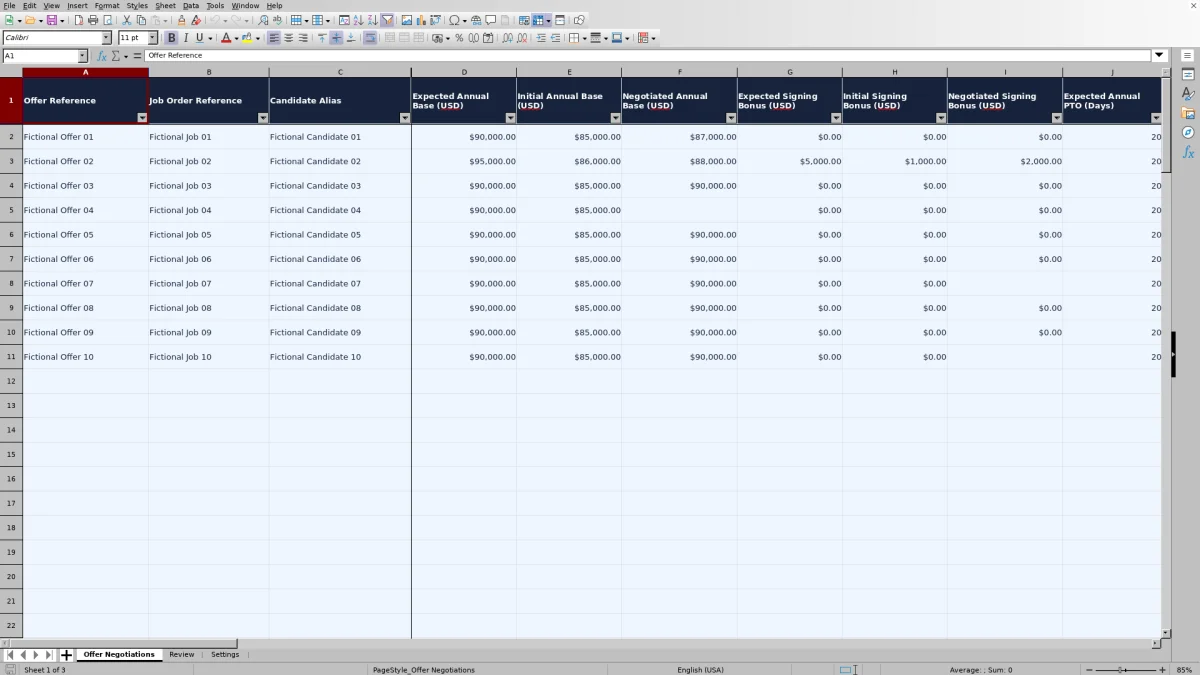
On Offer Negotiations, rows 2–11 contain fictional examples and rows 12–101 are prepared for entry. Enter a unique Offer Reference, the Job Order Reference and aliases for the candidate and recruiter. Use the pale blue input cells and leave the calculated columns V–AA intact.
3. Compare expectations with the latest terms
Enter expected, initial and negotiated values for annual base salary, signing bonus, annual PTO and start date. Use annual salary amounts in USD and dates in MM/DD/YYYY format. Leave unknown negotiated terms blank; enter numeric zero when no signing bonus or no PTO is actually agreed. Review the calculated differences before deciding what to discuss next.
4. Record decisions and plan the next contact
Select the Client Approval and Candidate Response values, then enter the actual decision dates. Add a Follow-Up Date for negotiations that remain open. Use Review for the counts, then filter Offer Negotiations by Agreement Check or Follow-Up Alert to inspect and act on the relevant records. Calls, messages and approval requests remain your manual tasks.
Read the differences before choosing your next request
The shortfall calculations compare candidate expectations with the negotiated values, not with the initial offer. For annual base salary, signing bonus and PTO, the calculation is expected minus negotiated. A positive result means the negotiated term is below expectations; zero means it matches; a negative result means it exceeds expectations.
For example, the base calculation in row 2 uses D2-F2 once the Offer Reference and both amounts are present. The initial annual base in E2 remains available for context, but it is not part of that shortfall formula. You can manually compare the initial and negotiated amounts to discuss movement during the negotiation.
The start calculation reverses the direction: negotiated start minus expected start. Positive days mean a later start; negative days mean an earlier start. These are calendar-day differences, not business-day calculations. Check availability with both parties rather than assuming that an earlier date is always preferable.
Settings starts with zero tolerance for salary, bonus and PTO shortfalls and a seven-day tolerance for start differences. These are editable workbook thresholds, not recommended negotiation standards. Start warnings use the absolute difference, so a date too early can be flagged just like one too late. The workbook does not combine the four differences into a single offer score.
Example: a higher offer can still leave several gaps
The fictional second negotiation shows a candidate expecting a $95,000 annual base, a $5,000 signing bonus, 20 PTO days and a 10/24/2026 start. The initial offer has an $86,000 base, a $1,000 bonus, 15 PTO days and a 10/31/2026 start. The negotiated entries are $88,000, $2,000, 15 days and 11/03/2026.
The resulting gaps are a $7,000 annual base shortfall, a $3,000 bonus shortfall, five fewer PTO days and a start 10 days later than expected. Although the base and bonus have increased from the initial offer, the remaining differences still need discussion. At the supplied tolerances, all four results exceed their warning thresholds.
Both decision fields are Pending, so Agreement Check returns Pending approvals. The row also has a 10/02/2026 follow-up date. If you set the review date to 10/05/2026, its Follow-Up Alert is Overdue. A practical next step is to ask which unresolved terms matter most to the candidate, then confirm what the client can authorize. The worksheet displays the gaps; it does not choose a counteroffer for you.
What a recorded agreement actually means
Recorded agreement is a completeness check based on what you enter. The formula requires Client Approval to be Approved, Candidate Response to be Accepted, all four negotiated terms to be numeric, and both decision dates to be numeric dates on or before the review date. Excel stores a valid start date as a number, so that date is one of the four required negotiated terms.
If either party is marked Declined, the result is Not agreed. If neither has declined but both required decisions are not present, it is Pending approvals. Once Approved and Accepted are entered, the formula checks for missing agreed terms, then missing approval dates, then dates later than the review date. Correcting one issue may therefore reveal the next one.
Agreement status does not require the offer to match every expectation. The first fictional record has a $90,000 expected base and an $87,000 negotiated base. With its approvals, terms and decision dates complete, it can show Recorded agreement while retaining a $3,000 shortfall.
Treat that distinction carefully: an accepted compromise is different from a missing approval. The workbook records decisions but does not obtain signatures, verify authorization or establish that the candidate started work.
Use the review date to organize follow-up
Follow-Up Alert treats Recorded agreement and Not agreed as Closed. Other negotiations need a follow-up date. A blank produces Missing follow-up date; a date before the review date produces Overdue; an equal date produces Due today; and a later date produces Scheduled.
Due today means due on the review date, which may differ from the actual day if you replace Settings!B2 with a fixed date. Check that setting before using the counts to plan your calls. To return to a moving date, restore =TODAY() in B2.
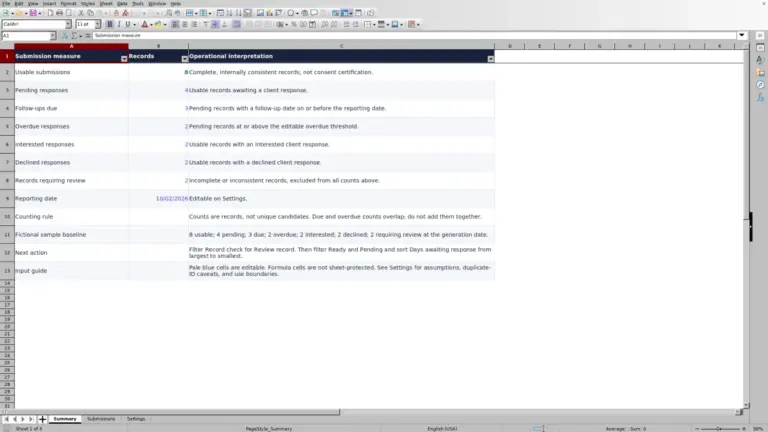
On Review, the agreement categories divide the referenced negotiations into recorded, pending, incomplete and declined groups. Follow-up counts overlap those groups. Do not add all the counts together as if each represented a different offer.
Start with overdue and missing-date records, filter the main sheet, and check the recruiter alias before assigning the next action manually. A follow-up alert is worksheet text, not a sent reminder. Also, changing the review date does not reconstruct past versions of a negotiation: current terms and decisions remain in the row.
Common entry problems and how to correct them
- Inputs without an Offer Reference: the calculated results stay blank, and Review does not count the negotiation. Add the reference before relying on the status or totals.
- Duplicate references: the workbook includes a uniqueness validation rule, but Review counts nonblank references rather than unique negotiations. Inspect pasted data and correct duplicates instead of assuming the total has removed them.
- Unknown terms entered as zero: zero is a known numeric value and can satisfy the agreement completeness check. Leave an unknown negotiated term blank; use zero only when it accurately records the term.
- Dates entered as text: a date-looking label may not count as a numeric Excel date. Re-enter a recognized date and confirm the MM/DD/YYYY display when an approval date or negotiated start appears missing.
- Decision dates after the review date: check both the entered dates and Settings!B2. A fixed earlier review date may explain the warning. Do not change a genuine decision date merely to remove it.
- Calculated cells overwritten: V–AA contain formulas. Keep manual entries in the input area and restore damaged formulas from an intact copy before using the results.
A blank difference is not necessarily a zero gap. Each difference formula needs an Offer Reference and both comparison inputs. Check those inputs before concluding that the negotiated term matches expectations.
Keep revisions and offer scope under control
The workbook uses one row for one candidate–job-order negotiation with its latest terms. Update that row as terms change. The initial values provide an opening-offer comparison, but the file does not provide an automatic history of every counteroffer.
If you need the sequence of revisions, a suggested manual workflow is to save a dated copy before changing material terms and retain the supporting correspondence separately under your agency's process. That is a recordkeeping choice, not built-in version tracking.
The comparison covers four offer components: annual base salary, signing bonus, annual PTO and start date. It does not calculate a total compensation value or model commission, equity, relocation, benefits or other conditions. Review those separately when they affect acceptance.
The salary amounts are annual direct-hire figures. They are not temporary assignment pay rates or client bill rates. There are no burden, markup, gross margin, billing or payroll calculations here. An agreed start date is also not proof of attendance or a completed placement.
Comparison: this workbook or a blank spreadsheet?
Use this workbook when your offer review fits the four supported components and you want prepared checks for approvals, dates and follow-up. A blank spreadsheet fits a different need: you can design the record around unusual compensation terms, but you must define and maintain your own comparison and status logic.
| Method | Term comparison | Decision and follow-up checks | Customization and upkeep |
|---|---|---|---|
| Offer negotiation workbook | Prepared differences for annual base, signing bonus, PTO and start date. | Formula-based agreement and follow-up statuses with Review counts. | Ready for the supported scope; extensions require checking formulas, validation and summary ranges. |
| Blank spreadsheet | You choose the components and create any comparison formulas. | You create status rules or review each record manually. | Flexible layout, with setup and maintenance handled by you. |
Neither approach turns an entered approval into independently verified authorization. If you also need electronic signatures, communication history or controlled approval routing, assess a separate tool for those requirements. This file does not provide those functions or connect to an applicant tracking system (ATS).
Frequently asked questions
How many negotiations can I enter?
The prepared range contains 100 record rows, from row 2 through row 101. Ten contain fictional examples, leaving 90 initially blank rows. You can replace the examples with your own inputs while preserving the calculated columns. Adding rows beyond 101 requires extending and checking formulas, validation, formatting, filters and Review ranges; automatic expansion is not provided.
Does the workbook work in LibreOffice?
The workbook's operating notes state that counts and statuses recalculate when loaded in Excel or LibreOffice. After opening it, confirm the review date and calculated results before using them. A static file preview is not a substitute for opening the spreadsheet in a calculation-capable application.
Can I rename the approval dropdown options?
The lists are on Settings, but the agreement formulas depend on the specific terms Approved, Accepted and Declined. Renaming list values without changing the related formulas can produce incorrect statuses. Keep the supplied options unless you are prepared to revise and verify the dependent logic.
Do I need to enter candidate names?
No. The workbook provides Candidate Alias and Recruiter Alias fields, and the sample records use fictional aliases. You can use references that fit your agency's recordkeeping process. Using an alias does not itself provide access control or establish a privacy guarantee.
Will changing a tolerance change the agreement status?
No. Tolerances control term warnings, while Agreement Check uses decisions, negotiated terms and decision dates. A warning can remain on a recorded agreement because the candidate accepted terms below the original expectation. Review that warning as context, not as a reversal of the recorded decision.
Editorial contributors

Miriam HaldenRecruiting & assignment workflows
Explore this editorial focus →
Wesley CorbinBilling & agency finance
Explore this editorial focus →