Before you deepen research for a client search, organize which employers and roles fit the brief and which information needs another look. This staffing agency market mapping worksheet keeps employer-role research, business source references, and verification dates together in Excel.
The Staffing Worksheets workbook supports one client search at a time. Replace the fictional examples with lawfully obtained business information, then use the calculated review flags and summary counts to decide what to complete, refresh, or investigate further. It is a business research map, not a candidate database or recruiting pipeline.
When to use this worksheet
- Keep employer-role research tied to a defined search scope.
- Retain business source references so you can revisit the evidence.
- Identify incomplete records and aging research before relying on them.
- Separate research relevance from freshness when choosing your next research task.
What the workbook includes
How to use the workbook
1. Set the search scope and review assumptions
Open Search Brief and replace the fictional search reference, role scope, and target market. Check As Of Date in B5, which initially uses TODAY(). Keep it for a moving review date or enter a fixed date for a dated review. Set Refresh After (Days) in B6 to an interval appropriate for your search; the supplied 30 days is illustrative.
2. Replace the fictional research records
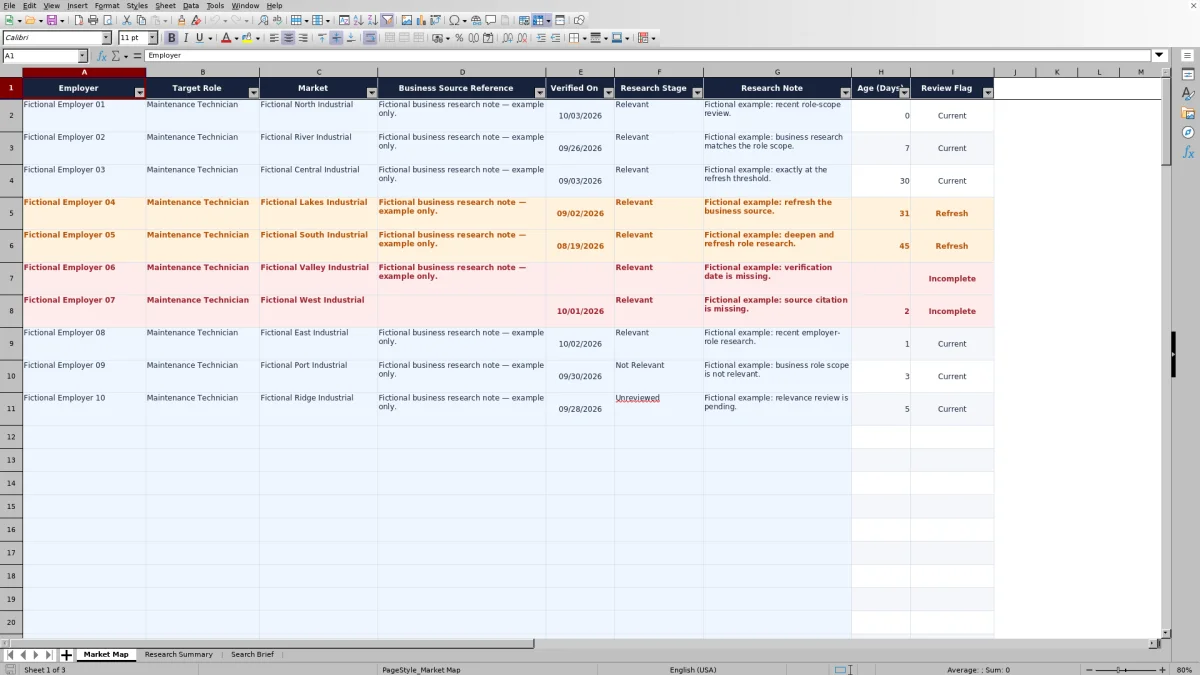
In Market Map, clear or replace the example inputs in columns A–G without removing the formulas in H–I. Enter one employer-role pair per row. Complete Employer, Target Role, Market, Business Source Reference, Verified On, and Research Stage. Research Note is optional. Use business information only, not personal profiles or contact details.
3. Repair flagged records
Use the Market Map filter to inspect Incomplete and Check Date records first. Fill missing required information and correct verification dates. Then review Refresh records against their business sources; update the evidence and verification date only after you have actually revisited the research.
4. Choose the next research action
Read Research Summary to see the recorded workload by review flag. Filter Market Map for Relevant and Current to identify employer-role research you may want to deepen. Review Unreviewed entries separately before treating them as relevant. These are suggested manual actions; the workbook does not conduct research or contact anyone.
Define what belongs in this search
Start with the role scope and market before adding employers. A recognizable job title alone may not show that an employer belongs in the search. Compare the business evidence with the scope you entered in Search Brief, then record your judgment in Research Stage.
Relevance is your research judgment, not a calculated match score. The workbook does not interpret the role scope or test whether an employer fits it. Use Research Note to explain a material distinction, such as evidence of industrial maintenance work rather than general facilities work, when that distinction matters to your brief.
One row represents one employer-role pair. Use separate rows for different target roles at the same employer. Keep the market description consistent enough to filter meaningfully, and check for duplicate pairs manually. A duplicate row can increase the summary counts without adding new research coverage.
Keep sources useful without collecting personal data
A source reference should help you find the business evidence again. In Business Source Reference, enter a plain-text business citation or URL. A useful manual practice is to identify the business page or document clearly, then use Research Note to explain what it supports and what remains uncertain.
Verified On records your review date; entering a date does not cause the workbook to verify the source. Revisit the source yourself before changing that date. If the evidence no longer supports the employer-role relationship, reconsider Research Stage rather than merely making the record look recent.
The workbook's stated boundary excludes names, personal profiles, contact details, sensitive information, and scraped personal data. Use lawfully obtained business research, and do not create external workbook links. Source text is not live synchronization, and the file does not determine whether you have permission to use particular information.
Example: interpret the refresh threshold correctly
Age (Days) subtracts Verified On from the As Of Date in Search Brief. For otherwise complete records with a numeric verification date no later than As Of Date, Review Flag compares that age with Refresh After (Days). A record becomes Refresh only when its age is greater than the threshold.
For a fixed review dated 10/03/2026 with a 30-day interval, a record verified on 09/03/2026 is 30 days old and remains Current. A record verified on 09/02/2026 is 31 days old and becomes Refresh. These dates mirror the workbook's fictional threshold examples, but the results depend on the As Of Date you use.
Exactly at the threshold remains Current. In this example, revisit the 31-day-old source before relying on it. The 30-day-old record passes the freshness test, but you still need to judge whether the evidence supports your search. The interval is a research assumption, not a legal or industry standard.
If B5 retains TODAY(), ages and flags can change when the workbook recalculates on a later date. Use a fixed As Of Date when you need a review anchored to a particular day.
Errors and solutions: repair records in the right order
The flag logic checks missing required information before dates or age. That order matters: a row with both a missing source and a future verification date shows Incomplete first. Once you fill the source, it may change to Check Date.
- Incomplete: fill the missing inputs in columns A–F. A blank Research Note does not make an otherwise complete record incomplete.
- Check Date: on a complete row, correct a nonnumeric verification date or one later than As Of Date. Enter a real Excel date, displayed as MM/DD/YYYY, rather than date-like text.
- Refresh: revisit the business evidence, then update the record as warranted. Changing the date alone is not a research refresh.
- Blank flag: a row with no entries in A–G is unused. A blank Age result can also occur when its verification date is missing, nonnumeric, or later than As Of Date; it does not mean zero days old.
Pasted values may bypass entry validation. The date-entry rule requires a whole-number Excel date of at least 1 that is no later than As Of Date, but the review formula does not repeat every part of that validation rule. Inspect unusual pasted dates and Research Stage values rather than treating Current as a complete data-quality check.
Read the summary as a research workload, not market size
Research Summary counts entered rows through their Review Flag results. Current Records, Refresh Needed, Incomplete Records, and Date Issues divide those entered records into review categories. A partially entered row counts too, even if it contains only a note.
Relevant, Current Records is a subset of Current Records. Do not add it to the other counts when calculating a total. It identifies records that combine your Relevant selection with the formula's Current flag; it does not establish hiring demand or candidate availability.
The fictional baseline is designed for 10 entered records: 6 current, 2 needing refresh, 2 incomplete, and 0 date issues. Of the 6 current records, 4 are relevant. Under those assumptions, a practical next step is to repair the 2 incomplete records, revisit the 2 aging records, and consider whether to deepen the 4 relevant/current records. The counts can change as TODAY() advances or you edit assumptions.
Record counts are not unique-employer counts. Two roles at one employer produce two records. These totals do not measure market size, employer accuracy, placement potential, or how much of the market you have covered.
Workbook limits to plan around
The supplied formulas, filters, and Market Map entry checks cover rows 2–101. The summary formulas also reference that fixed range. Records entered below row 101 are not included automatically. If you choose to extend the workbook manually, extend and test the calculated columns, validations, filter range, and summary references before using the expanded results.
Columns H–I are calculated and visually separated from the blue input cells, but worksheet locks are not applied. Avoid pasting across those formulas. Keeping an untouched copy before replacing the examples is a useful manual precaution, not a built-in backup or version-history function.
The workbook does not include charts, live source updates, automated messaging, or candidate screening. A Current flag reflects completeness and date logic, not a confirmed job order, hiring intention, or recruiting outcome. Keep submission, placement, and assignment activity in the tools you use for those tasks.
Comparison: this workbook or a blank spreadsheet?
Choose this workbook when you want a defined structure for one search and a consistent way to review missing or aging business research. A blank spreadsheet fits when your research model needs substantially different fields or calculations and you are prepared to build and maintain them yourself.
| Method | Starting structure | Freshness review | Summary and scope | Best fit |
|---|---|---|---|---|
| Market mapping workbook | Search brief, business research fields, and stage selections are supplied. | Age and review flags use a shared review date and refresh interval. | Six counts cover 100 research rows for one search. | You want the supplied employer-role research structure and will review sources manually. |
| Blank spreadsheet | You choose and create the fields. | You review dates manually or build your own checks. | You define the research scope and any totals. | You need a different research structure and can maintain its rules and calculations. |
Neither approach makes business evidence accurate merely by storing it. This workbook provides the structure and calculations described here; a blank spreadsheet provides flexibility without those prebuilt checks. If your main task is managing candidates through submissions and placements, use a recruiting system suited to that workflow rather than treating a market research log as a pipeline.
Frequently asked questions
Do I need to keep the fictional employer examples?
No. They illustrate how the review logic behaves, not real employers or research leads. Clear or replace their inputs in Market Map columns A–G before interpreting the summary as your own research. Preserve the calculated cells in columns H–I, and replace the fictional scope in Search Brief as well.
Does Not Relevant remove a record from the summary?
No. Research Stage and Review Flag serve different purposes. A complete, recent record marked Not Relevant can still count as Current, but it will not count in Relevant, Current Records. Retaining it can document a research decision; use filters when you want to view only relevant records.
What refresh intervals can I enter?
Refresh After (Days) accepts whole numbers from 1 through 3650. The initial value is 30, but you should choose an interval based on how quickly the business evidence may change and how you plan to use it. The workbook does not recommend a legally or operationally correct interval for your search.
Can I open the workbook in LibreOffice?
The workbook guidance states that formula results recalculate when loaded in Excel or LibreOffice. Check the As Of Date and resulting counts after opening it, especially when it still uses TODAY(). A change from the fictional baseline may reflect the review date rather than a calculation error.
Can I preserve a review before changing the search assumptions?
As a manual workflow, save a separate dated copy and enter a fixed As Of Date before reviewing that copy. A dated filename alone does not stop TODAY() from advancing. The workbook has no built-in version history, so keep copies deliberately if you need to revisit an earlier research state.
Editorial contributors

Miriam HaldenRecruiting & assignment workflows
Explore this editorial focus →
Wesley CorbinBilling & agency finance
Explore this editorial focus →