When a candidate and client panel need to agree on an interview, keep the proposed time, time offsets and accepted start together. This Excel workbook from Staffing Worksheets helps you coordinate interviews across job orders and identify appointments that still need follow-up.
Enter the scheduling details and each party’s accepted UTC start manually. The workbook calculates UTC and panel-local start times, assigns an appointment status and lets you filter for confirmed appointments. It does not send invitations or collect responses.
When to use this worksheet
- Compare candidate and panel start times using a shared UTC reference.
- See which interview records need completion, confirmation or rescheduling.
- Keep each interview round tied to its candidate, panel and job order.
- Prepare a confirmed-appointment view without mixing it with pending records.
What the workbook includes
How to use the workbook
1. Prepare your working copy
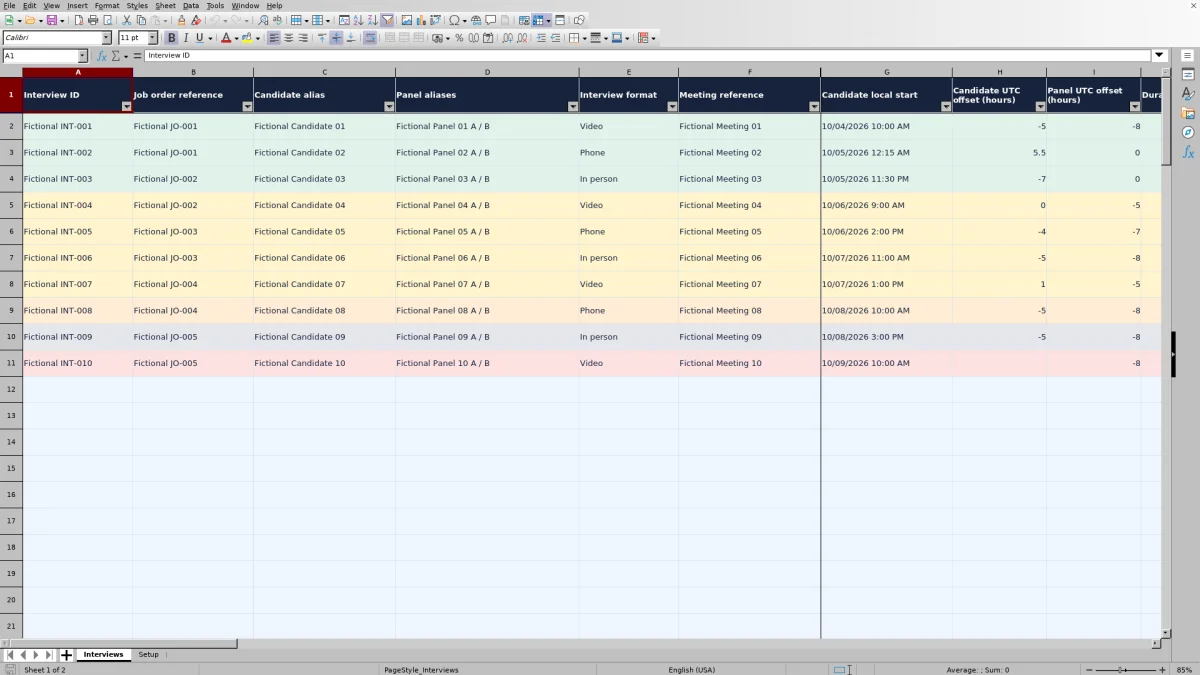
Read the operating instructions on Setup and review the maximum interview duration, initially 240 minutes. Interviews rows 2–11 contain fictional examples; rows 12–101 are prepared for manual entry. Before using the status counts for live work, clear the fictional input values while preserving the formulas in columns K, L and R.
2. Record the interview and proposed time
On Interviews, use a unique Interview ID for one candidate, one client panel, one job order and one interview round. Complete the identifying details, format and meeting reference. Enter the candidate’s local start as a full date and time, both interview-date-specific UTC offsets in decimal hours, and duration in whole minutes. Enter 0 explicitly for a UTC offset of zero.
3. Check the calculated times and obtain acceptance
Review UTC start and Panel local start before contacting the parties through your usual channels. Set Reschedule requested and Cancelled to No when neither applies. Enter Candidate confirmed UTC start and Panel confirmed UTC start only after the respective parties have accepted that exact start. Panel confirmation represents collective acceptance by the panel.
4. Review status and manage changes
Filter Appointment status to Confirmed for the confirmed-appointment output, or review other statuses for follow-up. Before changing appointment details, copy UTC start into Previous UTC start using Paste Values and clear both confirmation fields. Use Setup for status counts, remembering that those counts cover the entire prepared range rather than only the visible filtered rows.
Keep each interview round separate
Use one row for one candidate, one client panel, one job order and one interview round. If the client requests a second round, create another record with a unique Interview ID. If the existing round moves to a different time, update that record instead. This keeps a changed appointment distinct from an additional interview.
Use operational aliases for the candidate and panel, along with a meeting reference. The workbook’s instructions say not to enter personal contact details or sensitive personal information. Keep any alias-to-person reference in your agency’s separately controlled records.
The panel has one agreed reference offset, even when its members work in different locations. The workbook calculates one panel-local start, not a separate local time for every interviewer. Agree on that reference with the client and check individual availability outside the workbook.
Example: an interview crosses a calendar date
The time calculations turn the candidate’s local date and time into a common reference, then translate that reference to the panel’s local time. UTC means Coordinated Universal Time. The workbook subtracts the candidate’s offset to get UTC, then adds the panel’s offset to get the panel-local start. Offsets are divided by 24 because Excel stores time as fractions of a day.
One fictional example starts at 10/05/2026 at 12:15 AM for a candidate with a +5.5-hour offset. Subtracting 5 hours 30 minutes produces a UTC start of 10/04/2026 at 6:45 PM. With a panel offset of 0, the panel-local start is also 10/04/2026 at 6:45 PM. The candidate and panel therefore attend at the same instant on different local calendar dates.
For the first prepared row, the calculations are K2 = G2 − H2/24 and L2 = K2 + I2/24, with blank checks around each calculation. Review the complete date as well as the clock time before sharing the proposal. The workbook uses the offsets you supply; it does not determine geographic time zones or daylight saving time changes.
What a confirmed appointment actually means
Appointment status follows a specific order. A completely unused input row stays blank. Cancelled = Yes takes priority, followed by Reschedule requested = Yes. If neither applies, missing entries in A:J or either blank Yes/No flag produce Incomplete.
Once those required entries are present, the formula compares both manually entered confirmation starts with the calculated UTC start. Both must match to the nearest minute for the status to become Confirmed. Missing or nonmatching confirmations produce Awaiting confirmation. Previous UTC start is not required for confirmation.
Treat Confirmed as a consistency check on the information you entered, not independent evidence of acceptance. The workbook does not read emails or verify a candidate’s response. Record the exact UTC start each party accepted; do not copy the proposed start into the confirmation fields just to change the status. Confirmation also does not establish attendance, interview completion or placement eligibility.
Reschedule without carrying old acceptance forward
Before changing an appointment, copy its calculated UTC start from column K into Previous UTC start in column Q using Paste Values. This stores the old time rather than a formula that could change with the new proposal. Clear both confirmation fields whenever appointment details change.
Set Reschedule requested to Yes while a replacement time is unresolved. After choosing the new time, update the local start and relevant offsets, set the flag to No, and obtain fresh UTC confirmations from the candidate and panel. A changed UTC start makes old confirmations nonmatching, but the workbook does not clear those entries for you.
A change to the panel, format, duration or meeting reference may leave UTC start unchanged. In that case, old confirmations could still match and leave the row marked Confirmed unless you clear them manually. Previous UTC start holds one manually stored value; it is not a complete change history. If you need a record of successive changes, save dated copies or maintain a separate history under your agency’s record-handling process.
Errors to check before sharing the schedule
- Blank calculated times: UTC start stays blank if the candidate local start or candidate offset is missing. Panel local start also needs the panel offset. A zero offset is valid, but an empty offset is not a substitute for 0.
- Wrong date or direction: Check the sign of each offset and whether it applies on the interview date. A negative candidate offset moves UTC later than the candidate’s local time; a positive offset moves it earlier.
- Rejected date-time entries: The input rules require Excel date-time values at whole-minute precision. Enter a full date and time without seconds, using MM/DD/YYYY for the date, rather than text such as “next Monday morning.”
- Unexpected Awaiting confirmation: Check that both confirmation fields contain UTC starts, not the parties’ local times or the times when they replied.
- Unexpected Incomplete: Check all fields from Interview ID through Duration (minutes), plus both Yes/No flags. A meeting reference is required even when the interview format is Phone or In person.
Offsets have decimal validation from −12 to +14 hours. Duration must be a whole number from 1 through the maximum in Setup B3, initially 240 minutes. These rules constrain entries; they do not establish that a proposed time is suitable. Duration is recorded but is not used to calculate an end time or detect overlapping interviews.
Use the counts as a follow-up queue, not an attendance report
Setup counts Confirmed, Awaiting confirmation, Reschedule requested, Cancelled and Incomplete records across Interviews rows 2–101. Active appointments adds the four noncancelled statuses. It does not mean only future interviews: the count has no date condition and includes incomplete records.
For example, an interview that took place yesterday can remain Confirmed and continue to count as active if you leave its inputs unchanged. There is no completed or attended status in this workbook. Use a separate process if you need interview outcomes or attendance reporting.
The prepared range contains 100 records in total, including 10 fictional examples and 90 initially open rows. Clear the sample inputs before relying on operational totals. Filtering Interviews does not narrow the Setup counts. Entries below row 101 are outside the supplied formula, validation, filter and count ranges; extending the workbook requires updating and checking those ranges rather than simply typing on the next row.
Comparison: this workbook, a blank sheet or scheduling software
This workbook fits a coordinator who wants a structured Excel record and is prepared to contact participants, enter their responses and manage changes manually. A blank spreadsheet offers more freedom to design the record, but you must build and check any time conversions or status rules yourself. If your workflow requires connected calendars or response collection, evaluate scheduling software or an applicant tracking system (ATS) with those specific capabilities.
| Method | Time handling | Confirmation handling | Fit and limits |
|---|---|---|---|
| This Excel workbook | Calculates UTC and one panel-local start from manually entered offsets. | Compares manually entered accepted UTC starts with the current proposal. | Fits a manual coordination queue within 100 prepared rows; no invitations or calendar connection. |
| Blank spreadsheet or manual log | You design the time fields and perform or build conversions. | You define and maintain the confirmation record. | Fits a custom layout when you are willing to create and check the process. |
| ATS or scheduling software | Evaluate interview-date time-zone handling and calendar support. | Verify whether the product can collect and retain participant responses. | Consider it for connected scheduling needs; capabilities depend on the product and configuration. |
Choose based on how appointments are coordinated, not just where they are listed. This workbook supplies calculations and status logic, but communications, availability checks and response verification remain your responsibility.
Frequently asked questions
Does the workbook send interview invitations or reminders?
No. It stores a meeting reference and scheduling details, but it does not create meetings, send invitations, issue reminders or collect replies. Use your usual communication tools, then enter the accepted UTC starts manually.
Can I change the interview formats or maximum duration?
Yes. The format dropdown reads Setup G2:G4, initially Video, Phone and In person. You can edit those three source values. Adding more options requires changing the validation source range. Setup B3 controls the maximum duration in minutes and must be a positive whole number.
Can I enter half-hour or quarter-hour UTC offsets?
Yes. The offset fields accept decimal hours within −12 to +14. For example, enter 5.5 for UTC+5:30 or 5.75 for UTC+5:45. Confirm the applicable offset for the interview date rather than assuming it stays the same throughout the year.
What happens if both rescheduling and cancellation are marked Yes?
The status becomes Cancelled because cancellation has priority over rescheduling. Review both flags when an appointment is reinstated so that the row reflects the current decision, and obtain new confirmations if the appointment details have changed.
Can I use this sheet to assess candidates or record interview outcomes?
This workbook is for appointment coordination and follow-up. It does not include candidate assessment, interview feedback, attendance or placement outcome fields. Keep those activities in an appropriate separate record rather than interpreting Confirmed as a hiring or placement decision.
Editorial contributors

Miriam HaldenRecruiting & assignment workflows
Explore this editorial focus →
Wesley CorbinBilling & agency finance
Explore this editorial focus →