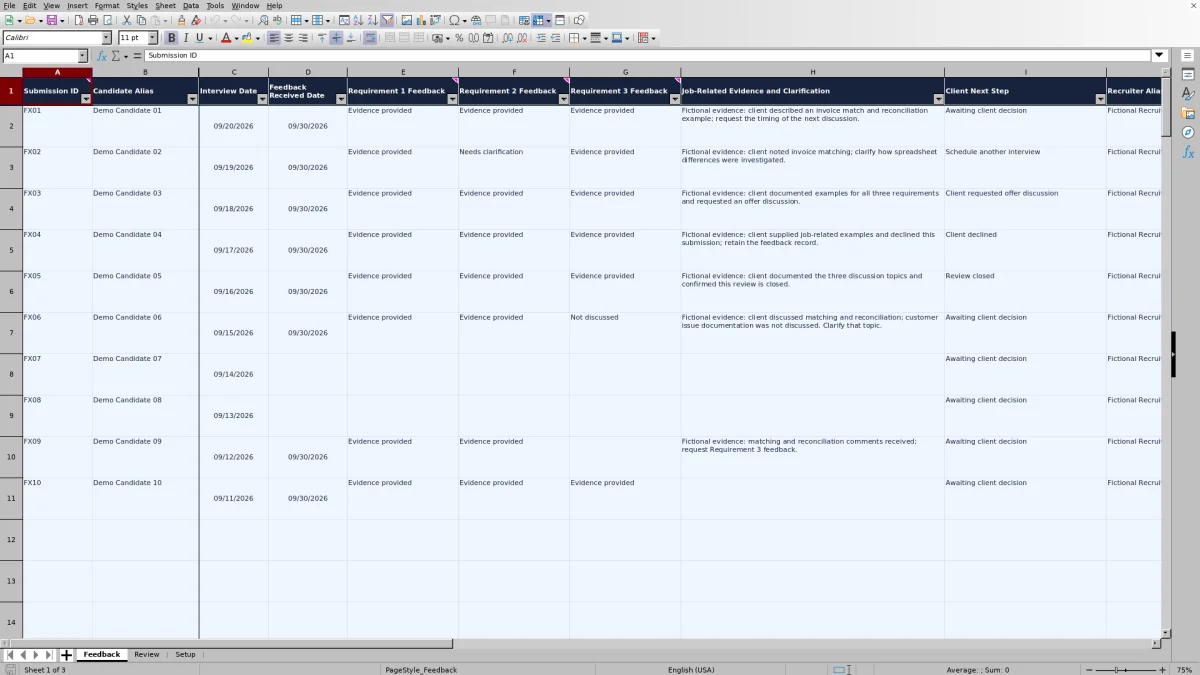
After a client interviews submitted candidates, capture what was discussed and what still needs clarification. This Excel feedback matrix from Staffing Worksheets keeps requirement-specific feedback, job-related evidence, and next steps together for one job order and one interview round.
Use the workbook to check missing feedback and identify records that need follow-up. Its status formulas describe record completeness and timing—not candidate quality. You review the evidence and manually coordinate the next action with the client.
When to use this worksheet
- Keep client comments tied to three defined job requirements.
- Separate missing information from feedback that has been recorded.
- Identify active records with upcoming, overdue, or missing follow-up dates.
- Prepare a client follow-up using recorded evidence, clarification needs, and next steps.
What the workbook includes
How to use the workbook
1. Set the job order and requirements
On Setup, replace the fictional Order ID and Order Title, then define the three requirements in B6:B8. Enter your calendar-day Follow-Up Lead Time in B4. The initial value is 0, which flags active follow-ups dated today or earlier.
2. Replace the fictional submission records
Use the pale blue input cells on Feedback to enter your records. Replace or clear the fictional entries in columns A:K before operational use, but preserve formula columns L:M. Give each submission a unique ID and use candidate and recruiter aliases. Enter dates in MM/DD/YYYY format.
3. Record the client’s evidence and next step
Select a feedback choice for each requirement, then capture the supporting example or unresolved question in Job-Related Evidence and Clarification. Enter the feedback received date, choose the client’s next step, and manually assign a follow-up date for an active record.
4. Review gaps and coordinate follow-up
Open Review to check the counts. On Feedback, filter the requirement columns for Needs clarification or Not discussed and read the evidence notes. Separately filter Follow-Up Flag for Follow-up due or Set follow-up date. Contact the client through your usual process; the workbook does not send messages.
Define the evidence you need before reviewing candidates
Set the three requirements to specific work the client needs performed. For example, the fictional accounts receivable order uses invoice matching, spreadsheet reconciliation, and customer-issue documentation. These give the recruiter concrete topics to clarify rather than relying on a broad comment such as “good interview.”
The requirement dropdowns offer Evidence provided, Needs clarification, and Not discussed. These choices describe the feedback available; they do not assign points or measure candidate suitability. Evidence provided is not a passing score. Read the accompanying note to understand what the client actually observed.
Record only job-related evidence. Do not enter protected traits, medical information, or unnecessary personal details. The workbook includes this guidance, but it does not inspect notes for sensitive content or establish legal compliance.
Example: turn a clarification gap into a client question
The fictional FX02 record contains Evidence provided for Requirements 1 and 3, but Needs clarification for Requirement 2. Its note says the client discussed invoice matching but needs to clarify how spreadsheet differences were investigated. The recorded next step is Schedule another interview.
If all required fields are populated, this record can show Feedback recorded even though the reconciliation evidence is unresolved. That is useful: it distinguishes a completed entry from a completed discussion. The next manual action is to ask a focused question, such as which balance differed, how the candidate investigated it, and what explanation the client heard.
Update the note and requirement choice after receiving clarification. Selecting Schedule another interview only records the client’s intended next step; it does not create an appointment or confirm that another interview occurred.
Read completeness counts without treating them as outcomes
Feedback Status first checks for a Submission ID. Without one, the status stays blank. For an identified record, a blank Feedback Received Date produces Awaiting feedback. Once that date exists, the formula checks columns B:J: any blank produces Incomplete feedback; otherwise it returns Feedback recorded.
Feedback recorded means required fields are populated. It does not mean the evidence is favorable, accurate, or sufficient for a hiring decision. Needs clarification and Not discussed are populated choices, so either can appear in a recorded row. Follow-Up Date is outside the completeness check; a recorded row may still need a follow-up date.
Review counts submission IDs rather than unique candidates. Its feedback categories and follow-up counts serve different purposes and overlap. Do not add all indicators together to calculate total submissions, and correct duplicate IDs before relying on the totals.
Use lead time to decide which follow-ups to address
The follow-up calculation combines the date you enter with today’s date and the lead time in Setup!B4. For an active record with a date, the rule is Follow-Up Date ≤ TODAY() + lead time. A matching record shows Follow-up due; a later date shows Scheduled. Lead time uses calendar days, not business days.
For example, if Excel’s calculation date is 10/03/2026 and lead time is 0, a follow-up dated 10/05/2026 is Scheduled. Change lead time to 2 and that same date becomes Follow-up due. This lets you bring upcoming work into your review window; it does not mean the record is overdue.
An active record without a date shows Set follow-up date. Client declined and Review closed instead produce Closed, regardless of the follow-up date. Review these flags and decide what to do manually. They are worksheet indicators, not alerts, calendar invitations, or a service guarantee.
Errors to correct before using the review totals
Start with highlighted duplicate IDs and orphaned inputs—entries on rows that have no Submission ID. Duplicate IDs can inflate the submitted-record count, while rows without IDs are excluded even if other cells contain information. Assign the correct unique ID or clear an unused row’s input cells without deleting its formulas.
Date validation allows blank dates but restricts entered interview dates to today or earlier. A feedback received date must be on or after its interview date and no later than today. Follow-up dates may be in the future. If a date is rejected, check the event sequence and whether Excel recognizes the entry as a date.
Pasted data may bypass validation. Check imported or pasted IDs, dates, and dropdown values rather than assuming they were verified. Also preserve the supplied Client declined and Review closed wording because the closure formula recognizes those exact choices.
The fictional baseline on Review was recorded for 10/03/2026: with lead time 0, it lists 10 submissions, 6 recorded, 2 incomplete, 2 awaiting, 4 due, and 1 missing date. Follow-up flags change as today changes, so a different due count on another date is not necessarily an error. Replace the sample inputs before interpreting counts as your agency’s activity.
Keep the workbook within its intended scope
The prepared range supports 100 submission records for one order and one interview round. The same three Setup requirements apply to every record. It is not a multi-order database, and adding rows below row 101 does not automatically extend the fixed review ranges and validation coverage.
Use a separate workbook copy for another order or round if you want to preserve this structure. Before changing requirements after feedback has been entered, consider saving a dated copy and documenting the change through your normal process. Otherwise, existing feedback may be interpreted against a requirement that was not used during the interview. This is a suggested manual workflow, not built-in version history.
The file does not screen, rank, recommend hiring, synchronize data, or manage billing and payroll. Treat the client next-step choice as a record of direction—not proof of an offer, placement, assignment start, or attendance.
Comparison: this workbook or a blank spreadsheet?
This workbook fits a bounded feedback review when you want an existing structure for three requirements and manual client follow-up. A blank spreadsheet fits a process whose criteria or layout differ enough that you need to design your own record. The tradeoff is between using prepared checks and maintaining a custom structure.
| Method | Feedback structure | Status and follow-up | Scope and upkeep |
|---|---|---|---|
| This Excel workbook | Three requirement choices plus job-related evidence notes and client next steps. | Prepared completeness counts and date-based flags; outreach remains manual. | 100 prepared records for one order and one round; retain the supplied formulas and choice wording. |
| Blank spreadsheet | You choose the number of criteria, fields, and note layout. | You review entries manually or build and test your own formulas and checks. | You define the record scope and maintain any structure as it changes. |
If your process needs linked candidate histories, many orders, or coordinated activity across a larger team, assess those needs in your existing applicant tracking system or staffing software. This workbook does not connect to those systems or replace a broader recruiting record.
Frequently asked questions
Can I record feedback from multiple client interviewers?
Yes, by manually consolidating their comments into one submission record for the interview round, as directed on Setup. The workbook does not provide separate interviewer records or aggregate their responses. If comments conflict, describe the job-related point that needs clarification rather than turning it into an unsupported consensus.
Can I edit the dropdown choices?
The dropdowns reference the choice cells on Setup, but the workbook instructs you to keep the supplied wording. In particular, Client declined and Review closed are recognized exactly by the follow-up formula. Use the evidence note for additional detail rather than renaming those closure choices.
Does “Client requested offer discussion” close the record?
No. Only Client declined and Review closed trigger the Closed follow-up flag. An offer-discussion record remains active, so its flag depends on whether a follow-up date exists and whether that date falls within the lead-time window. The choice records a requested discussion, not an issued or accepted offer.
Can I use the XLSX file in LibreOffice?
The workbook’s Setup notes state that formulas recalculate in Excel or LibreOffice. Open the file in either application and check the calculation date on Review when interpreting follow-up flags. The fictional baseline is tied to its creation date, not the date you first open the file.
Do candidate aliases make the workbook anonymous?
No. Alias fields let you use labels instead of candidate names, but evidence notes, submission IDs, or other details may still identify a person. Keep notes limited to necessary job-related information and handle the file according to your agency’s access and retention practices. The workbook does not anonymize entered data.
Editorial contributors

Miriam HaldenRecruiting & assignment workflows
Explore this editorial focus →
Wesley CorbinBilling & agency finance
Explore this editorial focus →