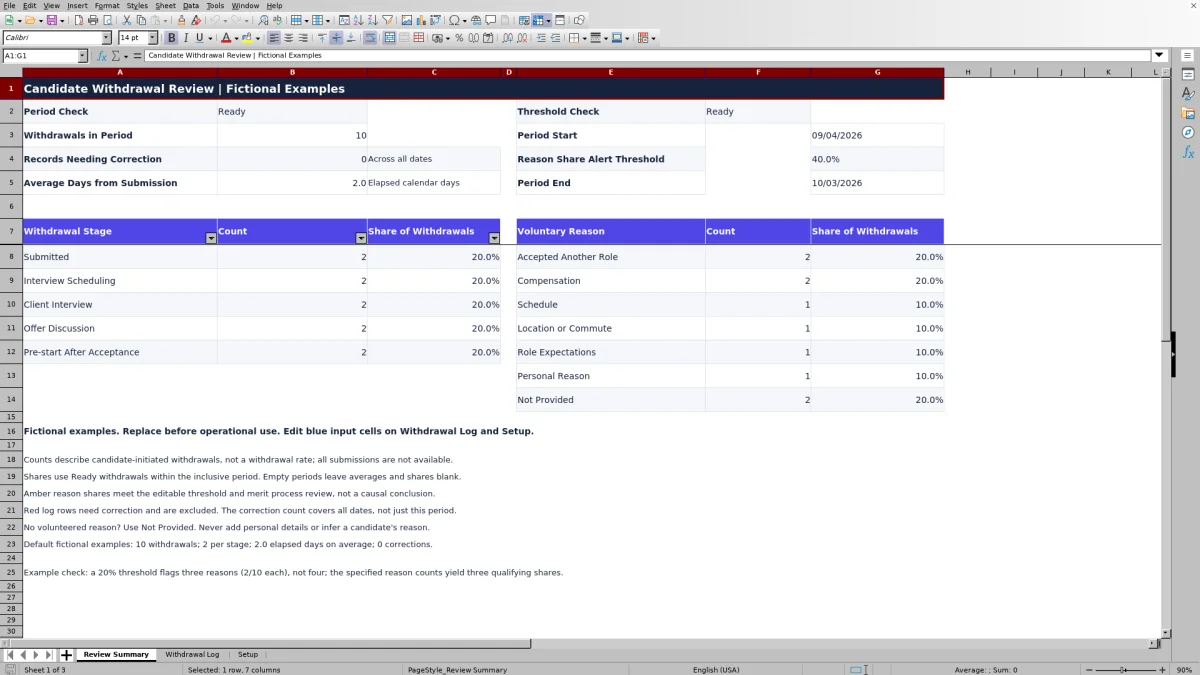
When a candidate withdraws after submission, record where the process stopped and any reason they voluntarily provided. This Excel workbook from Staffing Worksheets helps you review those withdrawals separately from client rejections and sales losses.
Use the log to capture anonymous operational references, then review counts, stage and reason shares, and elapsed calendar days for a selected period. The workbook supports process review, not candidate scoring, and does not calculate a withdrawal rate across all submissions.
When to use this worksheet
- Keep candidate-initiated withdrawals separate from other recruiting outcomes.
- See which stages and volunteered reasons account for the withdrawals in your review period.
- Check elapsed time from submission to withdrawal before deciding what to investigate.
- Identify records needing correction before relying on the summary.
What the workbook includes
How to use the workbook
1. Replace the fictional examples
Open Withdrawal Log and replace or clear the example inputs in columns A:G before operational use. Enter one submitted candidacy per record, using anonymous references rather than candidate names or contact details. Leave the calculated columns H:I intact.
2. Set the review period and threshold
On Setup, review Period Start, Period End, and Reason Share Alert Threshold. The date formulas default to the last 30 calendar days, including today. You can enter fixed dates in MM/DD/YYYY format for a completed review period. The threshold starts at 40%; it is an editable review assumption, not a staffing benchmark.
3. Record the completed withdrawal
Enter the references, submission date, and withdrawal date, then select the withdrawal stage and volunteered reason from the dropdowns. Use Not Provided when the candidate gives no reason. Each withdrawal ID, submission reference, and job-order alias must be unique within its own column and no more than 40 characters.
4. Correct the log, then review the results
Check Record Check for each entered row and resolve red rows before using the summary. On Review Summary, verify Period Check and Threshold Check, then read the counts, shares, and average elapsed days. Any follow-up with recruiters or account managers is a suggested manual workflow; the workbook does not send messages or assign actions.
Decide which outcomes belong in the log
Use this workbook for an actual candidate-initiated withdrawal after submission. For example, a candidate who chooses to stop during interview scheduling belongs in this review. A client declining that candidate, a recruiter screening out an applicant, or an account manager losing a sales opportunity does not.
The unit of record is one submitted candidacy, not a candidate's entire history. A pre-start withdrawal after acceptance can be recorded using the supplied stage, but this is not an attendance or assignment-performance record. Do not enter a planned withdrawal before it happens.
Keep the reason at the category level. If a candidate volunteers a personal reason, the Personal Reason category is available; the workbook does not need the underlying details. Use Not Provided when no reason is volunteered. Anonymous references still require appropriate handling by your agency and are not a guarantee that a person cannot be identified through other records.
Read the reporting period and shares correctly
The summary includes a record only when Record Check is Ready and its withdrawal date falls on or between the selected start and end dates. A submission made before the period can therefore be included if the withdrawal occurred within the period. The reporting dates must be valid whole-day Excel dates, the start cannot follow the end, and the end cannot be after today.
The stage and reason percentages are shares of recorded withdrawals, not withdrawal rates. A reason count of 3 out of 12 Ready withdrawals produces a 25% share. It does not mean that 25% of all submitted candidates withdrew for that reason, because this workbook does not contain the full submission population.
When a valid period has no Ready withdrawals, the count is zero while averages and shares remain blank. Those blanks mean there is no withdrawal population to average or divide, not that elapsed time or reason shares are zero. Invalid reporting dates also leave period results blank, so check Period Check before interpreting an empty summary.
Example: Use reason alerts to choose a review topic
The workbook's fictional example notes describe 10 withdrawals, with two at each of the five stages and an average of 2.0 elapsed calendar days. These are demonstration figures, not agency performance data. Because the reporting dates use TODAY() and the example records have fixed dates, the live summary will only reflect examples that meet the date and record checks.
For a review containing those 10 Ready withdrawals, a reason appearing twice has a share of 2 ÷ 10 = 20%. At a 20% threshold, that share qualifies for an amber alert. The example notes specify three reasons with two records each, so three reason shares qualify at 20%, not four. At the supplied 40% threshold, a 20% share does not qualify.
Treat an alert as a prompt to investigate, not a causal finding. If Compensation reaches your chosen threshold, a reasonable manual next step is to review how pay expectations were discussed before submission. The percentage alone does not establish that the offered pay caused every withdrawal or that changing it would prevent future withdrawals. Consider the underlying count as well: two records can produce a prominent share in a small review period.
Interpret the time from submission to withdrawal
Enter the submission and withdrawal dates to calculate elapsed time. For a Ready record, Days from Submission subtracts the submission date from the withdrawal date. The first log row uses the formula =IF(I2="Ready",E2-D2,""). It returns a day count only after the record passes its checks.
For example, a submission on 01/05/2026 followed by a withdrawal on 01/07/2026 gives 2 elapsed calendar days, assuming the record otherwise qualifies. A same-day withdrawal gives 0. Weekends and holidays are included; this is not a business-day calculation.
The summary adds the elapsed days for Ready withdrawals in the period and divides by their count. Use that average to decide whether to inspect timing more closely, not to assign responsibility. It measures the span from submission to withdrawal, not time spent in the selected stage, recruiter response speed, or time to placement. Review individual dates before drawing conclusions from an unusually short or long average.
Errors and solutions before you rely on the summary
Red log rows need correction and are excluded from the review. The Records Needing Correction count covers all dates, not just the reporting period, so it can remain above zero even when the affected withdrawal is outside your current period.
- For missing or invalid inputs, complete all seven input fields. References must be nonblank text of no more than 40 characters; use a text identifier such as W-001 rather than a bare numeric value.
- For date problems, enter actual Excel dates without a time component. Submission dates cannot be in the future, and withdrawal dates cannot precede submission or follow today.
- For category problems, use a current dropdown choice. Blank, duplicate, or unmatched Setup labels need review, especially after category edits.
- For duplicate references, inspect the corresponding column. The validation requires unique withdrawal IDs, unique submission references, and unique job-order aliases.
The job-order alias rule deserves particular attention: you cannot repeatedly enter the same alias for several submissions to one job order without conflicting with the supplied validation. This file is therefore not a conventional many-candidates-per-job-order register. Do not silently alter your identifiers just to bypass the rule; decide whether the workbook's record structure fits your process.
If a calculated result shows Review calculation, inspect the underlying inputs and formulas rather than treating the message as zero. Formula cells are visually distinguished but not sheet-protected, so accidental overwriting is possible.
Plan for fixed capacity and consistent categories
The supplied log supports 100 records in rows 2–101. Its calculations, validation, and summary references use that fixed range. Entering a withdrawal below row 101 does not make it part of the implemented review. If your volume exceeds that capacity, do not assume that adding rows extends every dependent formula and check.
The dropdowns also use fixed Setup ranges: A2:A6 for five stages and B2:B8 for seven reasons. You can edit those category cells, but adding a label below the ranges does not automatically add a dropdown choice or summary category. Keep labels unique and consistent with the historical entries you intend to analyze.
For a repeatable monthly review, a suggested manual practice is to save a dated copy and use fixed reporting dates. The default rolling dates change as time advances, and the workbook does not provide automatic review snapshots or version history. If you rename a category, review affected log entries so that an old label does not become unmatched or change the meaning of a comparison.
Comparison: This workbook or a blank spreadsheet?
Choose the approach based on how much structure you need and whether the supplied record rules fit your agency. This workbook provides an existing withdrawal review layout and calculations. A blank spreadsheet gives you freedom to design a different record model, but you must build and verify the checks and summaries yourself.
| Method | Starting structure | Review calculations | Capacity and flexibility | Best fit |
|---|---|---|---|---|
| This Excel workbook | Anonymous withdrawal log, fixed stage and reason lists, and record checks | Ready-record counts, shares, elapsed days, and threshold highlighting | 100 supplied record rows; five stage and seven reason slots; unique job-order aliases required | A focused, manually maintained review that fits the supplied rules |
| Blank spreadsheet | You define fields, identifiers, and input rules | You create and check formulas or summarize manually | You choose the layout and extend its supporting calculations | A custom structure, such as repeated job-order references or a broader submission dataset |
If you need a withdrawal rate across all submissions, either approach requires a complete and consistently defined submission population beyond this workbook's log. If you need connected recruiting workflows, evaluate your applicant tracking system or staffing software separately. This workbook includes no integrations, messaging, billing, or payroll functions.
Frequently asked questions
Can I use the workbook in LibreOffice?
The workbook's notes state that its formulas recalculate in Excel or LibreOffice. After opening the XLSX file, check the reporting settings and calculated results before using them for an operational review.
Can I filter the withdrawals by stage or job-order alias?
Withdrawal Log has filters across its supplied columns, so you can narrow the visible records for inspection. The summary formulas use the full fixed log range with their own date and Ready-record criteria; filtering visible rows does not redefine the summary population.
Does Not Provided stay in the reason-share denominator?
Yes. Not Provided is one of the supplied voluntary reason categories. A Ready withdrawal with that reason is included in the total when its withdrawal date is in the period. Reason shares use all qualifying withdrawals, not only those with a specific volunteered explanation.
Does Ready mean someone has verified the withdrawal?
No. Ready is the result of the workbook's input checks, not proof of human verification or confirmation that the candidate withdrew. You remain responsible for recording the correct event, stage, dates, and voluntarily provided reason.
What values can I use for the reason-share threshold?
The threshold must be greater than 0% and no more than 100%. Enter a percentage such as 20%, rather than the whole number 20. The supplied 40% setting is an editable assumption, not an industry standard. Review the Threshold Check before relying on alert highlighting.
Editorial contributors

Miriam HaldenRecruiting & assignment workflows
Explore this editorial focus →
Wesley CorbinBilling & agency finance
Explore this editorial focus →