When previously qualified candidates agree to reconnect later, keep that commitment visible. This Excel workbook from Staffing Worksheets helps you organize candidate reengagement by recruiter, outreach permission, and agreed review date.
Review the workload, resolve incomplete records, and filter the calendar before contacting candidates through their agreed channel. The workbook calculates queue statuses, but permission is maintained manually and no messages are sent.
When to use this worksheet
- Plan follow-up around the date the candidate agreed to review availability.
- Separate due outreach from paused, withdrawn, or incomplete records.
- Give each recruiter a filterable view of their current candidate follow-up queue.
- Check workload totals and input issues before organizing the day's outreach.
What the workbook includes
How to use the workbook
1. Set the review controls
In Settings, check Review Date in B2 and Due Soon Window (Calendar Days) in B3. Review Date starts with =TODAY(); the window starts at 7 days and accepts whole numbers from 0 to 60. Replace the two sample recruiter labels in F2:F3 with your working labels before entering your own records.
2. Replace the fictional inputs
In Outreach Calendar, replace the sample inputs in columns A–F with a text candidate reference, recruiter, permission, agreed channel, last completed contact date, and agreed review date. Enter dates as MM/DD/YYYY. Use one row for each candidate's current agreed cycle, and leave calculated columns G–I intact.
3. Resolve issues before making a contact list
Open Workload to check due-now records, blocked records, missing details, date issues, and input rows missing identifiers. Return to Outreach Calendar and use its filters to locate the affected records. Confirm permission against your records rather than treating a spreadsheet label as evidence of consent.
4. Filter your queue and update after contact
Filter Outreach Calendar by recruiter, queue status, or date to organize the work. Carry out contact separately through the agreed channel. After completed contact, update Last Contact Date and the next agreed review date, along with any permission change. Preserve contact history in your separate recordkeeping system if you need it.
Use the agreed date, not an automatic contact interval
The calendar separates elapsed time from the candidate's agreed follow-up timing. Days Since Contact subtracts Last Contact Date from the Settings review date. It reports calendar days when the candidate reference is present and the last contact date is numeric and no later than the review date. It does not determine when you should contact the candidate again.
Next Outreach Date uses the agreed review date, not a fixed number of days added to the last contact. The formula returns that date only when the row has a candidate reference, a recruiter, Granted permission, an agreed channel, and two numeric dates in the expected order. Last Contact Date must not be later than the Settings review date, and Agreed Review Date must not precede Last Contact Date.
An eligible date before the review date is Overdue; a matching date is Due Today. Dates after it but within the configured window are Due Soon, with later dates Scheduled. Treat these as planning categories. Before acting, check that the underlying agreement and permission are still current.
Example: interpret the fictional follow-up queue
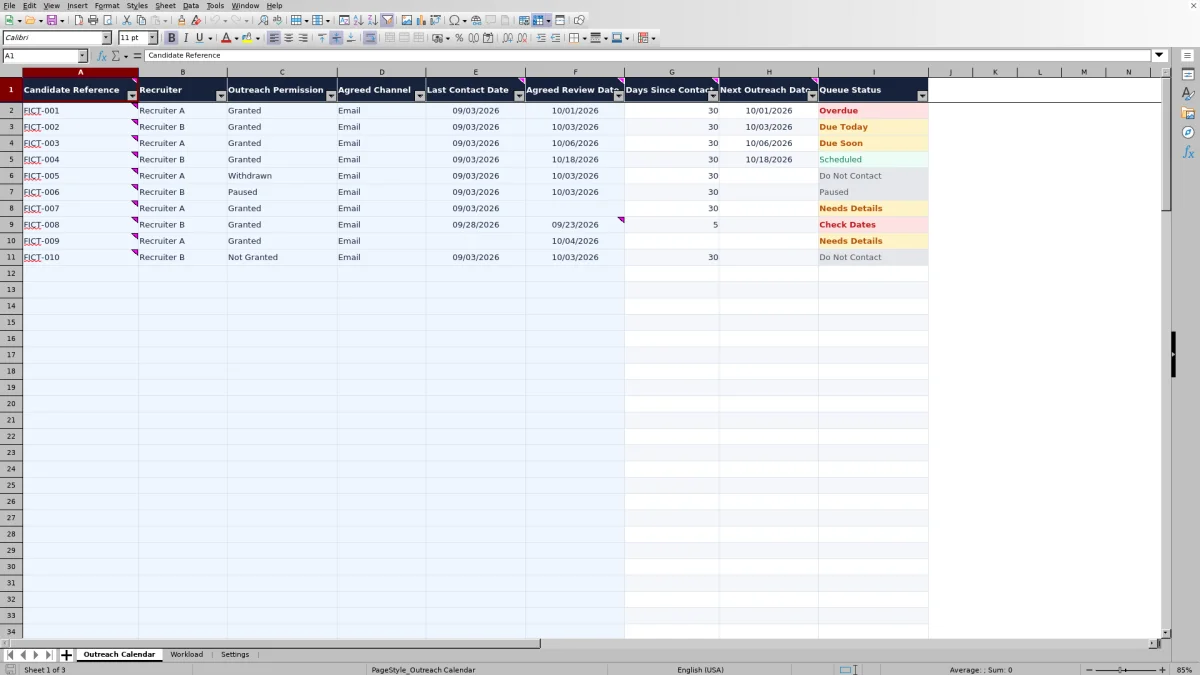
To reproduce the original examples, set Settings B2 to 10/03/2026 and leave B3 at 7. Fictional candidate FICT-001 has a last contact date of 09/03/2026 and an agreed review date of 10/01/2026, with the required details and Granted permission.
The elapsed-time calculation is 10/03/2026 minus 09/03/2026, producing 30 days. Next Outreach Date remains 10/01/2026, so the queue status is Overdue. The practical meaning is that the agreed review date has passed by two days—not that the candidate is available for a job order. Check the record and current permission before following up.
Under the same controls, FICT-002 is Due Today for 10/03/2026, FICT-003 is Due Soon for 10/06/2026, and FICT-004 is Scheduled for 10/18/2026. The sample with Withdrawn permission is Do Not Contact even though it also has an agreed review date. A date does not override a permission restriction.
These results depend on the review controls. With =TODAY() in B2, example statuses change as the workbook recalculates on later dates. Restore the current review date after testing rather than using an old snapshot for live outreach.
Turn workload counts into a manual work plan
Use Workload to distinguish outreach work from record cleanup. Due now adds Overdue and Due Today. Due Soon shows the upcoming queue separately. Blocked combines Paused and Do Not Contact, while Needs Details and Check Dates identify records that need attention before they can support an outreach decision.
At the original fictional review date, the sample has one Overdue record and one Due Today record, so Due now equals two. Its two Do Not Contact records and one Paused record produce a blocked count of three. Those three are not an extra contact target; they are records to keep out of active outreach.
The counts are record totals, not estimates of call time, response rate, or recruiter capacity. Filter the calendar by recruiter to inspect individual queues, then assign time manually based on the work involved. Workload does not allocate tasks or measure completed outreach.
Candidate Records counts text identifiers, and Reconciliation Difference compares that total with the summed status counts. A zero difference is the expected result, but zero does not prove candidate references are unique. Check duplicate highlighting separately.
Errors and solutions before you contact anyone
- Check Dates: A last contact after the Settings review date or an agreed review date before the last contact can trigger this status. Verify the source dates and the review control. Do not simply move a date to make the warning disappear.
- Needs Details: Check for missing recruiter, Granted permission, channel, or valid dates. A date entered as text may look correct while failing the numeric-date checks. Re-enter it as an Excel date and verify the result.
- Missing identifier: A row with other inputs but no candidate reference has blank calculated outputs and is excluded from status counts. Workload counts these rows separately. Add the correct text reference or clear an unused input row.
- Duplicate reference: Red identifier formatting calls attention to duplicates. Decide whether the rows describe the same candidate's current cycle and reconcile them manually; the workbook does not merge them.
- Paused or Do Not Contact: These statuses take priority over date checks. Review the underlying inputs when appropriate, but do not change permission merely to move a record into the due queue.
The fictional row 9 deliberately contains a review date before the last contact date. It is an example of an issue to resolve, not a valid scheduling pattern. Spreadsheet validation can also be bypassed when data is pasted, so inspect imported or pasted records before using them for outreach.
Keep one current cycle without implying contact history
Each row represents one candidate's current agreed cycle. Once contact is completed, updating that row replaces the previous cycle's inputs. This is not a contact-history log, and a planned date is not evidence that outreach occurred.
If you need a record of messages, responses, or permission evidence, maintain it separately and use Candidate Reference to locate the appropriate record. The workbook has no fields for names, email addresses, phone numbers, or detailed conversation notes. Agreed Channel records Email, Phone, or Text; it does not provide the destination or carry out the contact.
For previously qualified candidates, use the conversation to confirm whether their availability or preferences have changed. The calendar does not record qualification evidence, match candidates to job orders, or establish readiness for submission or placement. Those decisions require information outside this file.
Adjust settings within the prepared scope
Keep the four permission labels exactly as supplied: Granted, Paused, Not Granted, and Withdrawn. The queue formulas depend on those words. If you change recruiter or channel labels in Settings, also update existing calendar rows; changing the list does not rewrite earlier entries.
The dropdown sources contain two recruiter cells and three channel cells. Adding a label below those source ranges will not automatically include it in the dropdown. Likewise, the prepared calendar formulas, validation, and Workload calculations cover rows 2–101. An entry below row 101 is outside that prepared scope.
If your operation needs more recruiters or more than 100 candidate rows, expansion requires spreadsheet changes and checks across the affected formulas, validation, formatting, filters, and count ranges. Do not assume that typing more records extends the workbook.
For a dated planning snapshot, you can replace =TODAY() in Settings B2 with a fixed date. That stops the review date from advancing automatically. Restore =TODAY() when you want the controls to follow the current date on recalculation.
Comparison: this workbook or a blank spreadsheet
This workbook fits a bounded, manually maintained follow-up queue where you want permission-aware status formulas and record checks already in place. A blank spreadsheet fits a process whose fields or scale differ substantially, provided you are prepared to design and test its scheduling logic yourself.
| Method | Initial setup | Scheduling and checks | Scope and flexibility | Contact execution |
|---|---|---|---|---|
| This Excel workbook | Replace fictional inputs and set review controls and recruiter labels. | Prepared permission-aware statuses, date checks, duplicate highlighting, and workload counts. | 100 prepared rows with fixed dropdown source ranges; expansion needs spreadsheet changes. | Manual contact outside the workbook; no message sending or contact history. |
| Blank spreadsheet | Design your own fields, formulas, lists, and review process. | Manual review unless you add and test scheduling and checking formulas. | Layout and scope can be designed around your process. | Manual contact unless a separate solution is implemented. |
Neither approach makes an entered permission value legally sufficient or verifies that contact occurred. If your main need is shared communication history, scheduled sending, or synchronized candidate records, assess a system that explicitly supports those functions rather than treating this calendar as a substitute.
Frequently asked questions
Does the calendar send emails, texts, or reminders?
No. It calculates dates, queue statuses, and workload counts. It does not send messages or create external reminders. Use the queue to plan contact that you carry out separately.
Does the due-soon window exclude weekends or holidays?
No. The setting uses calendar days, not business days, and the workbook does not shift agreed review dates around weekends or holidays. If a different contact date is needed, confirm it with the candidate and update the agreed date manually.
What happens if I set the due-soon window to zero?
With a zero-day window, eligible records dated today remain Due Today and earlier dates remain Overdue. Future dates fall outside the Due Soon window and are Scheduled. Zero changes the planning window; it does not suppress overdue or due-today records.
Can I use LibreOffice instead of Excel?
The workbook notes identify Excel and LibreOffice as applications that recalculate its formulas on opening. Before using the queue, confirm that calculated dates and statuses have refreshed. Static previews may not reflect the current review date.
Does Granted permission certify that outreach is compliant?
No. Granted is a manually entered operational label, not a legal determination or stored proof of consent. Confirm the candidate's current permission and agreed channel through your own records and applicable process before contacting them.
Editorial contributors

Miriam HaldenRecruiting & assignment workflows
Explore this editorial focus →
Wesley CorbinBilling & agency finance
Explore this editorial focus →