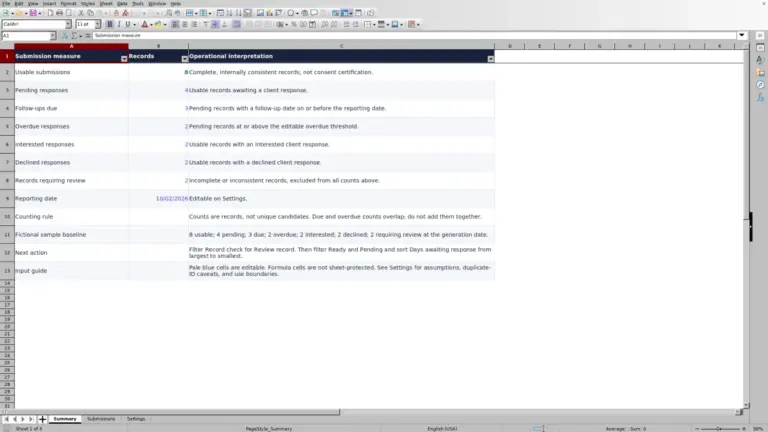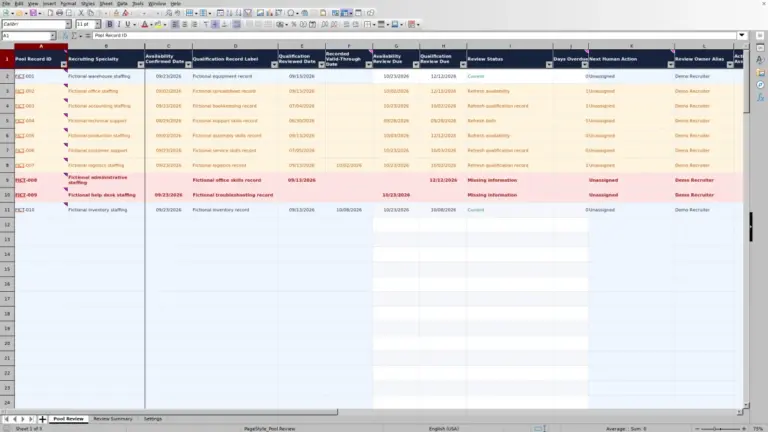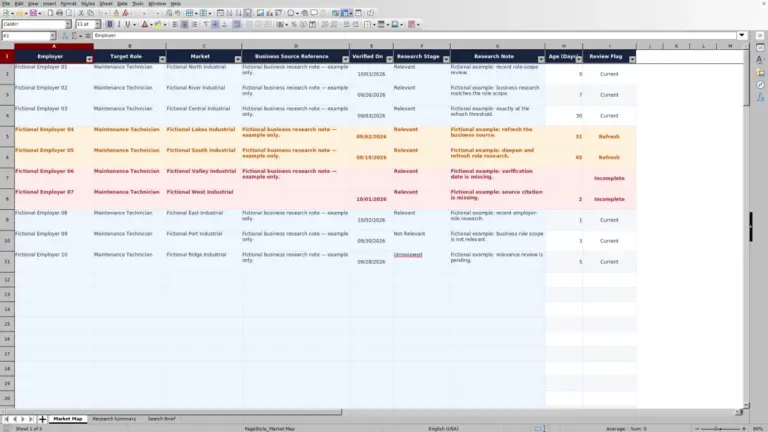
Before a planned placement start, check whether the client is ready, the candidate has confirmed, and the agency handoff is complete. This Excel workbook from Staffing Worksheets helps you turn outstanding confirmations into follow-up actions with an owner and due date.
Use it as an operational start checklist, not a predictive risk score. Calculated statuses show which records need attention based on the confirmations, dates, and review controls you enter; they do not establish that an assignment started.
When to use this worksheet
- Focus follow-up on outstanding confirmations within your chosen start window.
- Keep responsibility and action deadlines beside each planned start.
- Identify missing details and record errors before relying on summary counts.
- Separate confirmation completion from verification of a past planned start.
What the workbook includes
How to use the workbook
1. Set the day and window you want to review
In Settings, check Review Date and Upcoming Window (Calendar Days). The review date uses TODAY() by default; replace it with a fixed date if needed. Choose a window from 0–30 calendar days. Dates display as MM/DD/YYYY.
2. Replace the fictional examples with your planned starts
Save a working copy, then replace or clear the demonstration inputs in Start Review rows 2–11. Enter one planned placement start per row using a unique Placement ID, client and candidate references, and the planned start date. Use the prepared rows through row 101. Keep calculated columns K:N intact; columns A:J are inputs.
3. Record the three operational confirmations
Select Pending or Confirmed for client readiness, candidate confirmation, and agency handoff. Leave an unresolved confirmation Pending rather than treating silence as confirmation. Add follow-up notes, an action owner, and an action due date where work remains.
4. Check exceptions and work the follow-up list
Review Summary for missing IDs, duplicate IDs, and invalid confirmation entries first. Then filter Review Status and check Action Timing in Start Review. Contact the responsible people outside the workbook, record what you learn, and update the confirmation entries and action details manually.
Decide which starts need attention today
Set the review date before interpreting urgency. The workbook compares each planned start with that date and your upcoming window. With complete placement details and valid confirmation entries, a start that still has gaps is marked Follow up now when it falls between the review date and the end of the window, inclusive. A later start is marked Follow up before start.
The default window is three calendar days. It is an operational preference, not a legal deadline, and it does not skip weekends or holidays. A zero-day window focuses Follow up now on starts dated the review day.
Review Status follows a fixed priority: missing controls, missing client or candidate reference or start date, past-start verification, then completion or follow-up timing. This means a past planned start remains Past start - verify plan even when all three confirmations are recorded. Verify what happened rather than assuming the date proves attendance.
Example: a client confirmation needs follow-up
To reproduce the first fictional example, set Review Date to 10/03/2026 and leave the upcoming window at three days. DEMO-001 has a planned start of 10/04/2026. Client Readiness is Pending, while Candidate Confirmation and Agency Handoff are Confirmed. Its action due date is 10/02/2026.
The outstanding count adds Pending entries and blanks across the three confirmation cells. For this row, the calculation is COUNTIF(E2:G2,"Pending") + COUNTBLANK(E2:G2), producing one outstanding confirmation. The full row formula leaves the result blank when there is no Placement ID.
The resulting Review Status is Follow up now, Next Action is Confirm client readiness, and Action Timing is Overdue because the action date precedes the review date. The practical response is to contact the client about reporting arrangements and schedule, then record the outcome. Changing the due date alone does not resolve the confirmation gap.
The fictional start and action dates are fixed. They do not move when TODAY() changes, so set a fixed review date when testing this scenario.
Turn the first gap into an owned action
Next Action provides a starting point, not a complete task list. It first requests missing placement details, then checks client readiness, candidate confirmation, and agency handoff in that order. If several confirmations remain open, it displays only the first gap in that sequence.
Use Outstanding Confirmations alongside that prompt so you do not overlook additional work. In Follow-Up Notes, describe the unresolved issue and the next contact you plan to make. Assign an Action Owner and Action Due Date manually. The workbook does not select an owner, send a reminder, or contact the client or candidate.
Action Timing and Review Status answer different questions. Review Status concerns the planned start; Action Timing concerns the follow-up deadline. An action can be Overdue even when the start is outside the upcoming window. A deadline equal to the review date is Due today, and a later deadline is Scheduled. Check both outputs when deciding what to handle first.
Errors to resolve before trusting the results
A partially completed row without a Placement ID is excluded from the placement calculations. Summary flags these records separately, so a low planned-start count may reflect missing identifiers rather than a smaller workload. Supply the correct ID before interpreting the record's calculated outputs.
Duplicate ID Records counts all populated records sharing an ID, not duplicate groups. If two rows share the same ID, that indicator counts two. Check whether the rows represent an accidental duplicate or separate planned starts that need distinct identifiers.
Use Pending or Confirmed exactly as supplied, and leave the choice labels in Settings unchanged. A blank counts as outstanding. An invalid pasted value such as Done does not count as Pending or blank, but it also does not satisfy the Next Action test for Confirmed. That can produce an understated gap count or a misleading completion status alongside an open-action prompt.
Validation rejects invalid typed entries, but pasting may bypass it. Correct every Invalid Confirmation Entry shown on Summary before relying on completion or timing results. When pasting inputs, also check that dates are valid Excel dates and that calculated columns K:N have not been overwritten.
Read the summary as workload, not completed placements
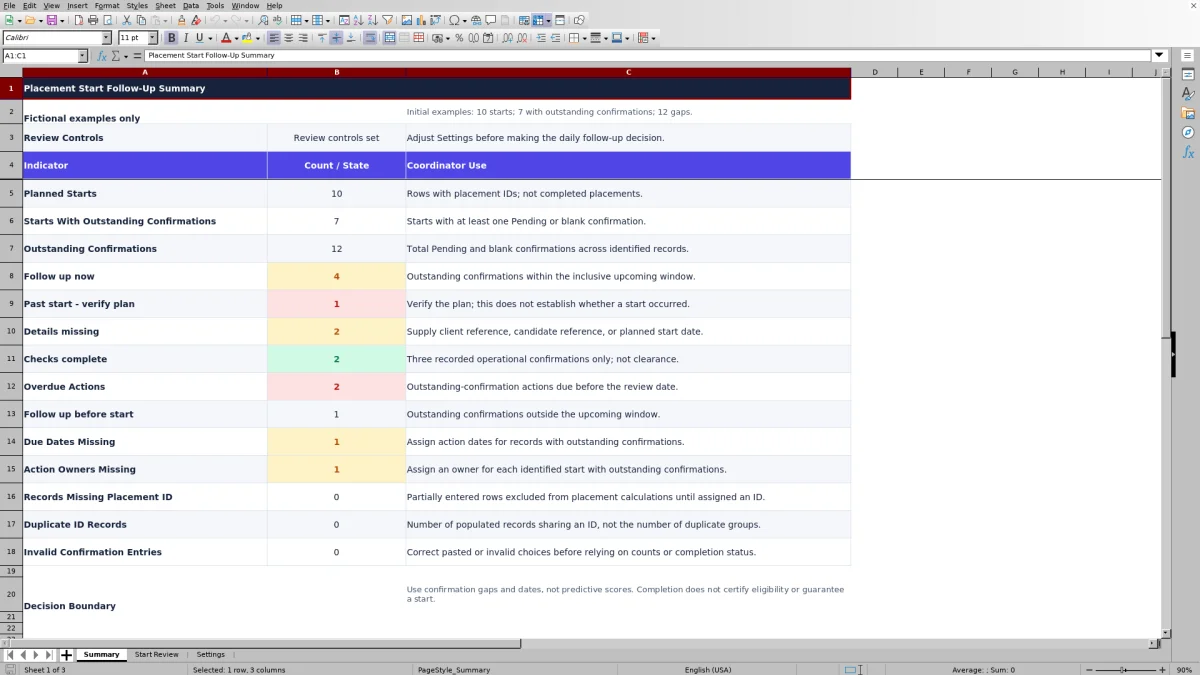
The initial fictional examples contain 10 planned starts, seven starts with outstanding confirmations, and 12 confirmation gaps. These are different measures: seven records need confirmation work, and some have more than one gap. The total does not mean 12 candidates or 12 failed starts.
Planned Starts counts rows with Placement IDs, not completed placements or unique candidates. Resolve duplicate IDs before using that count. Use Action Owners Missing and Due Dates Missing to find identified starts whose outstanding confirmations still lack follow-up responsibility or scheduling.
Checks complete covers only the three recorded operational confirmations. It is not a total of starts that actually occurred. Likewise, a blank Action Timing result means no Pending or blank confirmations remain under the formula's logic; it does not cancel a Past start - verify plan status. Review data-quality indicators first, then use the summary to choose which records to inspect.
Keep the checklist within its decision boundary
The three confirmations have specific meanings: the client has confirmed reporting arrangements and schedule; the candidate has confirmed availability and received start instructions; and the recruiter has confirmed the handoff to the responsible agency coordinator. Checks complete is not clearance or proof of attendance. It does not certify eligibility, guarantee a start, or replace any separate checks your agency requires.
Follow-Up Notes supports work on those confirmations. Adding another requirement in a note does not add it to the formulas, outstanding count, or completion test. Keep any broader checklist in the appropriate separate process rather than assuming free-text notes affect the calculated result.
The prepared formulas, filters, validation, and summary ranges cover rows 2–101. Entries below row 101 are not included in the existing summary ranges. If you need more than 100 records in one file, extend and verify all related ranges or use another recordkeeping approach; simply typing below the prepared area is not enough.
Comparison: this workbook or a manual start log
This workbook fits a repeatable review of the same three operational confirmations. A blank spreadsheet or paper log can fit a less structured process or a checklist with different requirements, but you must define the layout and review logic yourself.
| Method | Review structure | Follow-up timing | Ongoing work and fit |
|---|---|---|---|
| Placement start workbook | Three defined confirmations with calculated statuses and summary indicators. | Uses a review date, calendar-day window, and action due dates. | Manually update inputs; fits a focused review within 100 prepared records. |
| Blank spreadsheet or paper log | You choose the questions, fields, and recording format. | You compare dates manually unless you build spreadsheet formulas. | Maintain your own totals and checks; fits a custom checklist that does not need this workbook's fixed logic. |
Choose the workbook when its confirmation definitions match the decision you need to make. Choose a custom log when those definitions would omit important work or create an awkward fit. Neither approach independently verifies the entries or establishes that the candidate attended the assignment.
Frequently asked questions
Does this checklist calculate a placement start risk score?
No. It counts outstanding confirmations and assigns rule-based statuses using your recorded details and dates. It does not estimate the probability of a no-show, evaluate candidate suitability, or rank candidates.
Can I keep the review date fixed for a meeting?
Yes. Replace TODAY() in Settings cell B2 with the date you want to review. As a manual recordkeeping step, you can save a dated copy before making later changes. A fixed review date does not create automatic version history or preserve earlier input values.
Can I use the workbook in LibreOffice?
The workbook guidance states that formulas recalculate when the file is loaded in Excel or LibreOffice. Open the XLSX in one of those applications and check the calculated results after editing rather than relying on an unrecalculated file preview.
Are the sample clients, candidates, and coordinator real?
No. Rows 2–11 contain fictional reference codes and a fictional Demo Coordinator. The third example intentionally has no action owner. Replace or clear the demonstration inputs before using the summary for your agency's review, while preserving the calculated columns.
Does entering an action owner notify that person?
No. Action Owner records responsibility in the worksheet. It does not send a message or create a task in another system. Share the follow-up through your usual communication process and update the workbook manually when the confirmation changes.
Editorial contributors

Miriam HaldenRecruiting & assignment workflows
Explore this editorial focus →
Wesley CorbinBilling & agency finance
Explore this editorial focus →