When a client requests a candidate work sample, record the approval reference, schedule and handoff details so you can see which administrative step needs attention. This Excel workbook from Staffing Worksheets keeps each request tied to a candidate alias and job order.
Use the staffing agency skills test administration log to track submission receipt, reviewer assignment and administrative completion. It records administration, not assessment results: it does not deliver a test, evaluate answers or recommend a candidate.
When to use this worksheet
- See the next missing administrative step without reading every date in a request.
- Identify unfinished requests whose due dates have passed the selected review date.
- Keep approval references and reviewer handoff details alongside the request.
- Separate completed administration from open follow-up work in the overview.
What the workbook includes
How to use the workbook
1. Set the review date and reviewer aliases
On Settings, check Review Date in B2. Keep the TODAY() formula for a current-date review or enter a specific review date. Replace the five fictional reviewer aliases in A6:A10 with unique operational aliases for your team.
2. Replace the examples with your requests
Clear the fictional input values in columns A:K of Administration Log before using the workbook for live tracking. Preserve the formulas in columns L:M. Use one row per request for one candidate alias and one client job order, with a unique text Request ID such as REQ-101.
3. Record approval before scheduling
Enter the candidate alias, job order ID, work-sample label and a reference to the agency-held client approval record. Then enter Scheduled Date and Due Date as Excel dates displayed in MM/DD/YYYY format. The due date must be on or after the scheduled date.
4. Update receipt, assignment and completion
Record Submission Received Date when the work sample arrives. Select the reviewer alias and enter Reviewer Assigned Date when you make that assignment. Enter Completion Recorded Date only after receiving confirmation that administration is finished; the workbook does not obtain that confirmation for you.
5. Review the follow-up queue
Use the Administration Log filters to inspect Administrative Status and Attention, then check the totals on Overview. Follow up outside the workbook, update the relevant input fields and let the formulas recalculate. Do not overwrite columns L:M; these calculated columns are unprotected.
Keep the request identifiable without copying the test
Each row represents one request for one candidate alias and one client job order. Choose a work-sample label that lets your team distinguish the request without putting the test itself in the log. If you need to track a separate request for the same candidate and job order, give it a separate Request ID rather than overwriting the earlier record.
The Client Approval Reference field is for a reference to an agency-held approval record. Keep the supporting record elsewhere; the workbook instructions say not to embed documents or hyperlinks. An entered reference is not verified approval. Confirm that it identifies the correct approval before scheduling the work sample.
Use operational aliases rather than personal data. The file's stated scope excludes test content, answers, scores, rankings, hiring recommendations and sensitive traits. That keeps this log focused on coordination rather than turning it into an assessment record.
Read status as the first missing step
Administrative Status checks the request in a fixed sequence. Once a Request ID exists, it first checks for the candidate alias, job order ID and work-sample label. Missing any of these returns Needs details. It then checks approval, scheduling, receipt, reviewer assignment and completion, in that order.
- Awaiting approval means the approval reference is blank.
- Needs scheduling means Scheduled Date or Due Date is blank.
- Awaiting receipt means Submission Received Date is blank.
- Needs reviewer means the reviewer alias or assignment date is blank.
- Awaiting completion means the preceding fields are present but Completion Recorded Date is blank.
- Complete means all fields required by this status sequence are populated.
This is a first-missing-step status, not a list of every issue in the row. For example, a request can show Awaiting receipt even if no reviewer has been assigned. After you record receipt, the status will expose the missing reviewer information. Use the status to choose your next check, not as proof that every recorded detail is correct.
Example: follow up on an overdue submission
The fictional REQ-02 example has a Scheduled Date of 09/29/2026 and a Due Date of 10/02/2026. It already names a reviewer and records an assignment date, but its submission receipt and completion dates are blank. If you set Review Date to 10/03/2026, the row shows Awaiting receipt and Overdue.
The overdue calculation asks whether the due date is a numeric Excel date, whether it is earlier than Review Date, and whether the status is anything other than Complete. In practical terms, due today is not overdue. With Review Date set to 10/02/2026, that same example would not yet receive the Overdue label.
If you receive the submission on 10/03/2026, enter that receipt date. Because the reviewer and assignment date are already present, the status advances to Awaiting completion. The Overdue label remains until the row is Complete; it is not limited to late submissions. After you obtain confirmation that administration is finished, a Completion Recorded Date of 10/03/2026 would make this example Complete and remove the overdue flag. None of these changes indicates how well the candidate performed.
Use the overview without confusing active and open requests
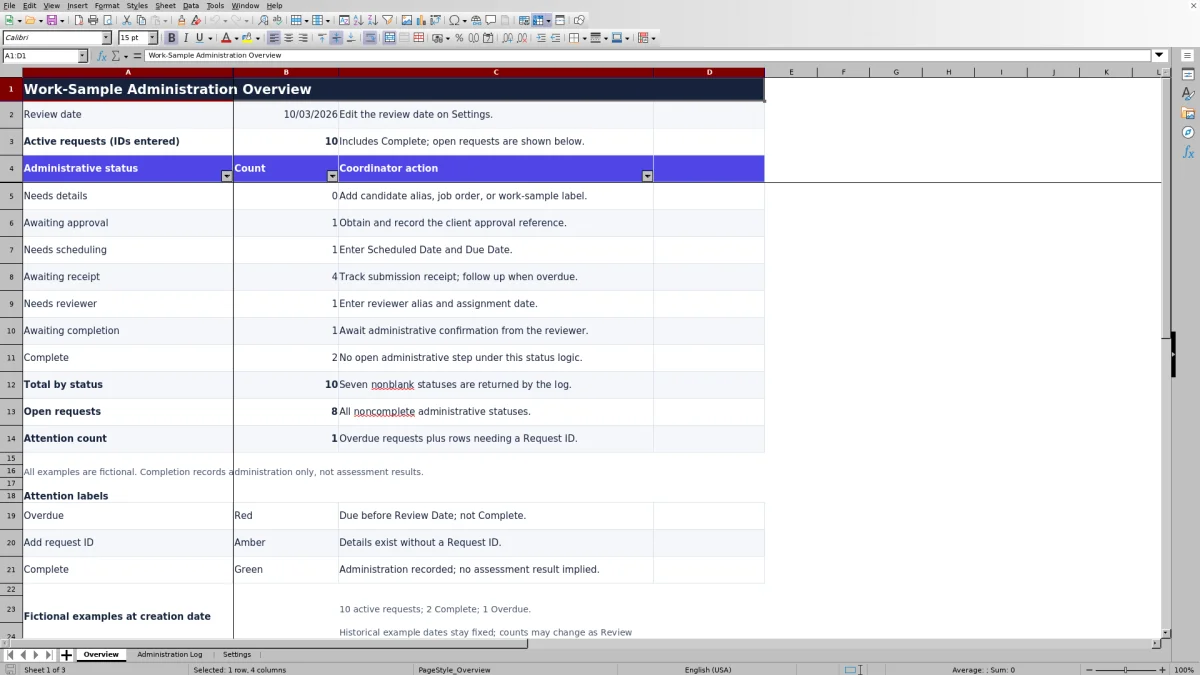
Overview separates the number of entered request IDs from unfinished work. Active requests (IDs entered) counts text IDs in Administration Log rows 2–101, including requests marked Complete. Open requests adds the six noncomplete status counts. For a follow-up workload review, use Open requests rather than assuming the active total means outstanding work.
Attention count counts nonblank Attention labels. It includes both Overdue and Add request ID, so it is not an overdue-only total. A row with details but no Request ID receives Add request ID and has no Administrative Status. It can therefore appear in the attention count without appearing in the status totals.
Check missing-ID rows before relying on the overview as a complete request count. Also distinguish the live formulas from the static note describing the fictional examples at creation. The example dates stay fixed, while overdue results can change as Review Date advances.
Entry problems and how to resolve them
If a scheduling date is rejected, check the approval reference first. The scheduling validation requires that reference, and it checks that Due Date does not precede Scheduled Date. Enter actual whole-date Excel values, not text descriptions or timestamps.
If a receipt or assignment date is rejected, compare it with Review Date. Neither may be later than that date, and Reviewer Assigned Date also requires a reviewer alias. Completion Recorded Date requires scheduling, a due date, receipt, a reviewer and an assignment date. Completion cannot precede receipt or assignment, or be later than Review Date.
If a Request ID causes a problem, use a unique text value such as REQ-101. The validation allows blanks but requires entered IDs to be text and unique within A2:A101. The overview's ID count also expects text IDs, so pasted numeric IDs can create a mismatch between entered requests and the summary.
Validation is an entry aid, not an audit. Pasting data can bypass Excel validation, and the status formula mostly checks whether fields are populated. After a bulk paste, manually inspect IDs, approval references and date sequences. If a calculated status has been replaced with a value, restore the formula from an unchanged copy before relying on that row.
Capacity and workflow limits to plan around
The prepared operating range is 100 requests, in Administration Log rows 2–101. Status formulas, attention formulas, validation and the log filter are set up for that range. Overview formulas also reference those rows. There is no structured Excel table that automatically expands the tracking range.
Typing requests below row 101 does not bring them into the existing overview counts. For more capacity, either start a separate workbook or deliberately extend and test all affected formulas, validation and filter ranges. Simply adding rows is not enough to establish that the summaries cover them.
The date controls cover specific dependencies, not every possible sequence. For example, reviewer assignment can be recorded before submission receipt, as shown in the fictional data. The workbook also does not verify whether a scheduled work sample took place. Receipt and completion remain records you enter based on information obtained outside the file.
Comparison: this workbook or a blank spreadsheet
Use this workbook when your main need is a consistent administrative queue for work-sample requests. A blank spreadsheet fits a process that needs different stages or fields and has someone available to build and maintain the structure. Neither approach carries out the work sample or confirms the underlying events merely because a date is entered.
| Method | Setup | Follow-up visibility | Entry checks | Fit and limits |
|---|---|---|---|---|
| This Excel workbook | Prepared fields, formulas and fictional examples to replace. | Seven calculated statuses, attention labels and overview counts. | Configured ID, reviewer and date validation within the prepared range. | Fits the supplied administrative sequence for up to 100 prepared requests; expansion requires changes. |
| Blank spreadsheet | You choose the fields and create the layout. | Manual review unless you build formulas and summaries. | Only the checks you configure. | Fits a different process when you can design and maintain its controls. |
If your requirement is automated test delivery, candidate evaluation or notifications, this workbook does not provide those functions. Evaluate a separate system for those needs rather than treating an administrative status as an assessment outcome.
Frequently asked questions
Does the workbook send reminders or assign work to reviewers?
No. It records the reviewer you select and the assignment date you enter. Status and attention formulas help you identify follow-up work, but contacting candidates, sending materials and notifying reviewers are manual actions outside the workbook.
Can I use a fixed review date instead of today's date?
Yes. Replace TODAY() in Settings B2 with the date used for your review. That date controls overdue comparisons and the upper date limit for receipt, assignment and completion entries. A fixed date stays fixed until you change it; it does not create a historical snapshot of the log.
How do I change the reviewer dropdown?
Edit the five alias cells in Settings A6:A10. Keep each alias unique. The dropdown references those five cells, so adding a name beneath them does not automatically expand the list. Changing the source list also does not rewrite reviewer values already entered in the log; check existing entries if you rename an alias.
Can I keep the fictional examples for reference?
Keep an untouched copy of the workbook if you want to retain the examples. In your working copy, clear the fictional inputs in Administration Log columns A:K while preserving the formulas in L:M. Leaving example requests in the working range makes them part of the live counts.
Does Complete mean the candidate passed the skills test?
No. Complete means administrative completion only. The formula returns that status when the required fields are populated, including Completion Recorded Date. It does not record a score, a pass/fail result, a hiring recommendation or a placement decision.
Editorial contributors

Miriam HaldenRecruiting & assignment workflows
Explore this editorial focus →
Wesley CorbinBilling & agency finance
Explore this editorial focus →