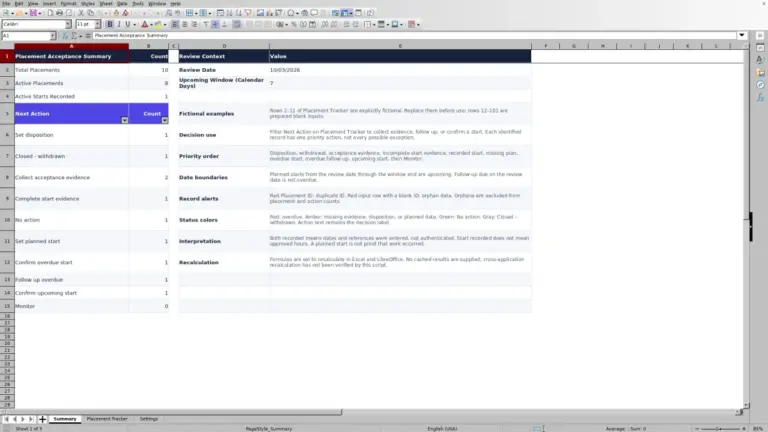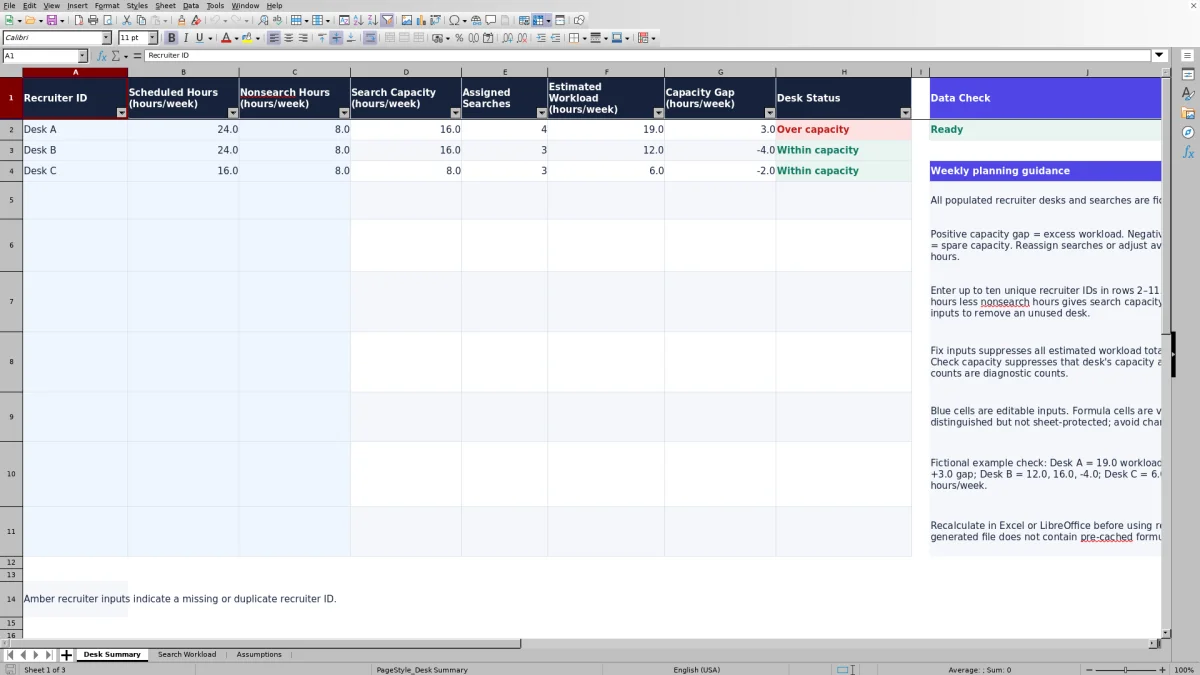
Before assigning another job order, compare the recruiter’s active search workload with the hours available for search work. This Excel calculator from Staffing Worksheets estimates weekly workload by current search stage and shows each desk’s capacity gap.
Use the workbook to review possible reassignments or changes to available hours. It is a weekly planning snapshot, not a time record or a forecast of client headcount demand. Replace the fictional examples with your own desks, searches and stage-hour estimates.
When to use this worksheet
- Compare estimated search workload with hours available after nonsearch commitments.
- Consider stage mix rather than relying only on the number of assigned searches.
- Identify excess workload or spare capacity before discussing search reassignments.
- Spot input problems that need correction before using workload estimates.
What the workbook includes
How to use the workbook
1. Set the planning week and stage estimates
On Assumptions, enter the Planning Week Starting date in MM/DD/YYYY format. Review the five stage-hour estimates in B2:B6. Each number represents total expected hours per active search for that week, not hours per candidate or cumulative hours through the recruiting process.
2. Enter recruiter availability
On Desk Summary, replace the fictional desks with up to ten unique recruiter IDs in rows 2–11. Enter scheduled hours and nonsearch hours for the same week. Search Capacity subtracts nonsearch hours from scheduled hours. Nonsearch hours must be nonnegative and cannot exceed scheduled hours.
3. Record active searches
On Search Workload, use rows 2–101 for up to 100 active searches. Enter a unique Search ID, then select the recruiter and current stage from the dropdowns. Use one row per active search, not one row per candidate. Clear columns A–C for unused example rows while keeping the formulas in D–E.
4. Recalculate, resolve checks and review gaps
Recalculate in Excel or LibreOffice before using results; the generated XLSX does not contain pre-cached formula results. Resolve Check input, Fix inputs or Check capacity messages and inspect any amber recruiter inputs. Then review Capacity Gap on Desk Summary. A positive result indicates excess estimated workload; a negative result indicates spare estimated capacity. Any reassignment is your manual planning decision.
Read the capacity gap as hours, not headcount
The workbook compares two weekly hour estimates. First, scheduled hours minus nonsearch hours gives the time available for search work. Second, each active search receives the hour estimate for its current stage, and those estimates are added for the assigned recruiter.
Capacity Gap = Estimated Workload − Search Capacity. A result of +3.0 means the desk has three more hours of estimated work than available search time. A result of −3.0 means three hours of estimated spare capacity. Zero means the two estimates match; the desk is shown as Within capacity, but there is no modeled buffer.
Use the gap to decide which workload or availability assumptions to review. It does not tell you how many candidates a client needs, how many placements a recruiter will make or how many additional recruiters to hire.
Example: test a search reassignment
The fictional Desk A example has 24 scheduled hours and 8 nonsearch hours, leaving 16 hours of search capacity. Its two Sourcing searches, one Outreach search and one Interviews search produce 6 + 6 + 4 + 3 = 19 estimated hours per week. The resulting +3-hour gap is flagged Over capacity.
Desk B has 16 hours of capacity and 12 hours of estimated workload, leaving four hours of spare capacity. If you manually move Desk A’s Interviews search to Desk B by changing its Recruiter ID on Search Workload, Desk A’s workload becomes 16 hours and its gap becomes zero. Desk B’s workload becomes 15 hours and its gap becomes −1 hour.
This scenario fits the modeled hours, but available hours do not prove a suitable handoff. Before changing ownership in your operating process, check client continuity, recruiter experience and deadlines separately. The workbook does not evaluate those considerations or carry out the reassignment outside the file.
Choose stage-hour assumptions that match your planning week
The starting estimates are fictional: Sourcing is 6 hours, Outreach 4, Interviews 3, Offers 2 and Follow-up 1 per search per week. They are planning inputs, not industry benchmarks. Replace them with estimates appropriate to the work you expect during the selected week.
The model uses only the search’s current stage. A search in Interviews receives the Interviews estimate; it does not also receive the Sourcing and Outreach estimates. Likewise, five candidates in that search do not multiply its hours by five. Set each stage estimate to represent the total weekly effort you expect for a search at that stage.
A change to one stage estimate affects every search using that stage. For example, raising Sourcing from 6 to 7 hours adds two hours to a desk with two Sourcing searches. If searches at the same stage differ substantially in difficulty, this shared-assumption model may be too coarse. The file has no separate per-search hour override or task-by-task estimate inputs.
Problems: why estimates may be blank
A blank estimate is not zero workload. The workbook deliberately withholds estimates when certain inputs are incomplete or invalid, so resolve the checks before interpreting available capacity.
- On Search Workload, Check input can mean a missing or duplicate Search ID, a missing recruiter, a recruiter that does not match exactly one desk, or an invalid stage. Complete or correct the row. If it is no longer needed, clear all three inputs in A–C.
- Fix inputs in the Desk Summary Data Check suppresses workload estimates across the snapshot and therefore the capacity gaps. Check all search rows and confirm that all five stage-hour assumptions are numeric and nonnegative. A blank assumption is invalid; an intentional zero is accepted but assigns no workload to that stage.
- Check capacity identifies a desk whose scheduled and nonsearch hours cannot produce a valid capacity. Enter both as numbers at or above zero, with nonsearch hours no greater than scheduled hours. That desk’s capacity and gap remain blank until corrected.
- Amber recruiter inputs indicate a missing or duplicate recruiter ID. Inspect these separately; the overall Data Check is not a complete audit of unused desk inputs.
Assigned Searches can still display counts while estimates are suppressed. Treat those as diagnostic counts, not evidence that the snapshot is ready for a capacity decision.
Keep each weekly snapshot current
At the start of a new planning week, a useful manual workflow is to save a dated copy, update the planning date and review availability, active searches and stage estimates together. Saving copies is your recordkeeping practice; the workbook does not create a history for you.
Changing the date alone does not advance search stages or remove closed searches. Remove a closed search by clearing its inputs in Search Workload columns A–C, leaving the calculation and check formulas intact. To remove an unused desk, clear its three inputs on Desk Summary; first reassign or remove any searches still referencing that recruiter.
Update the current stage when the planned work changes, then recalculate and review the new gaps. This keeps the snapshot useful for the next allocation discussion without treating it as a log of work actually performed.
Know the model and file limits
The prepared scope is ten desks and 100 active searches. The formulas and validation use fixed ranges. Typing an eleventh desk or a 101st search below those ranges does not bring it into the existing calculations. Expanding the model requires coordinated changes to formulas, checks, dropdown ranges and formatting.
Each search has one recruiter and one current stage. The workbook does not split a search’s hours across multiple recruiters or account separately for candidate volume, task duration or deadline congestion. Two desks with equal estimated hours can still face very different operational demands.
Blue cells identify editable inputs, and formula cells are visually distinguished, but the sheets are not protected. Avoid pasting over formulas. These estimates are not attendance records, approved hours, payroll calculations, billing records or placement guarantees.
Comparison: this calculator or a blank spreadsheet?
Use this workbook when a shared stage-based estimate is a reasonable basis for your weekly desk review. A blank spreadsheet is a practical alternative when you need a different unit of work, such as individual tasks or hours split among several recruiters, and are willing to build and verify the calculations yourself.
| Method | Workload model | Input checks | Scope and fit |
|---|---|---|---|
| This Excel calculator | Shared weekly stage estimates are totaled by recruiter and compared with available search hours. | Prepared search checks, capacity checks and estimate suppression for specified input problems. | Ten desks and 100 searches; suited to a one-owner, one-stage weekly snapshot. |
| Blank spreadsheet | You define task, search or recruiter-level inputs and build the calculations. | You create the validation and error checks needed for your model. | Useful for a different planning structure, with setup and formula verification left to you. |
The choice is about model fit, not a promise of better recruiting results. This workbook provides a prepared calculation structure, while a custom sheet gives you control over a different structure. Neither approach establishes actual hours worked unless you separately collect and verify time records.
Frequently asked questions
Can I use it for a part-time recruiter?
Yes. Enter that recruiter’s scheduled hours for the planning week rather than assuming a full-time schedule. Subtract the expected nonsearch hours through the Nonsearch Hours input. For example, 16 scheduled hours and 8 nonsearch hours leave 8 hours of search capacity.
Does the workbook connect to my ATS?
No ATS connection or automatic import is implemented in this file. You enter and maintain the recruiter IDs, active searches and current stages manually. If you use an applicant tracking system (ATS), reconcile the snapshot with those records before using its estimates.
Can I assign one search to two recruiters?
Not within the implemented model. Each search row accepts one recruiter, and Search IDs must be unique. Duplicating the search to represent a second recruiter triggers an input check rather than dividing the workload. Use a separate allocation method if shared ownership needs to be modeled.
What should I include in nonsearch hours?
Enter the portion of scheduled time that will not be available for the search work represented by your stage estimates. Depending on your workflow, that might include internal meetings or other desk responsibilities. Avoid counting the same activity both in a stage estimate and in nonsearch hours, because that would overstate the pressure on capacity.
Why might a file preview show no calculated results?
The generated XLSX has no pre-cached formula results. Open it in Excel or LibreOffice and recalculate before reviewing the output. If estimates remain blank, inspect the workbook’s input and capacity checks rather than assuming the desk has no workload.
Editorial contributors

Miriam HaldenRecruiting & assignment workflows
Explore this editorial focus →
Wesley CorbinBilling & agency finance
Explore this editorial focus →