When two candidate records raise a possible duplicate-submission question, compare their references and referral history before deciding what happened. This Excel workbook gives you a structured log for recording the evidence and your resolution for one client job order.
The Staffing Worksheets workbook includes review-age calculations, entry checks and summary counts. It supports your manual review; it does not match identities, retrieve source records or decide whether a submission is a duplicate.
When to use this worksheet
- Keep both candidate-record references and their referral dates together for a focused comparison.
- Distinguish a duplicate submission from separate submissions involving the same candidate.
- See review age and data exceptions when deciding which logged items need attention.
- Record the resolution, reviewer identifier and follow-up context for later reference.
What the workbook includes
How to use the workbook
1. Check the controls and fictional examples
On Control Panel, review the Review Target (Calendar Days), initially 7, and Earliest Allowed Input Date, initially 01/01/2000. These are editable operating assumptions, not legal requirements. Read the fictional examples before replacing their input values with your own records; preserve the formulas.
2. Open one review for one pair of records
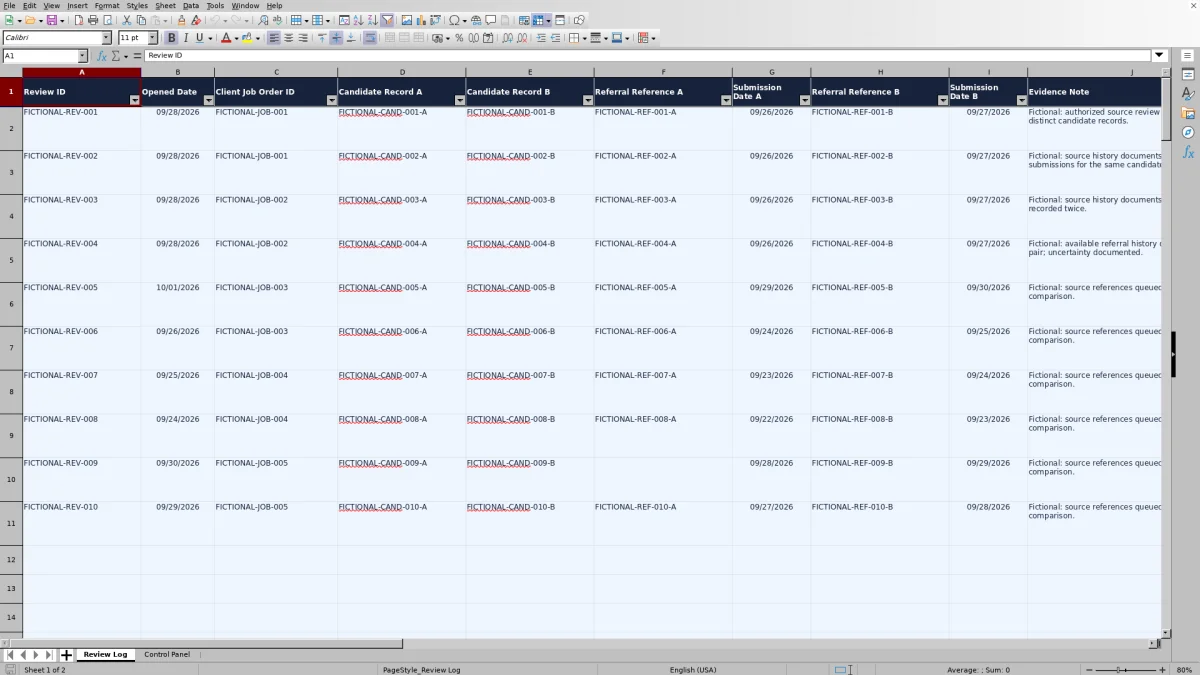
Use rows 2–101 on Review Log. Enter a unique Review ID, the opened date and the client job order reference. Add the two candidate-record identifiers, each referral reference and its submission date. Use opaque identifiers that point to your authorized source records, rather than names or contact details.
3. Compare the source history yourself
Consult the records outside the workbook and summarize the relevant findings in Evidence Note. Select Open or Waiting for information as appropriate. You can record a proposed next action in Follow-up Note, but the workbook does not perform that action or send a reminder.
4. Document the outcome and check the results
When your review is finished, record the Human Resolution, Reviewer ID and Resolved Date, retain the evidence note, and select Closed. Check Review Alert for unresolved entry issues, then use the Control Panel counts to assess the logged workload. Edit inputs in A:O, not the formulas in P:Q.
Separate the record question from the submission question
A possible duplicate can involve two different questions: do the references concern the same candidate, and do they describe the same submission? Treating those as one question can lead you to label legitimate submission history as a duplicate.
The log places two candidate-record references alongside two referral references and submission dates for one client job order. Use those references to locate the source history yourself. Similar identifiers or nearby submission dates are reasons to investigate, not proof of identity or duplication.
In Evidence Note, describe what the authorized source history established and what remains uncertain. Keep the note focused on the basis for your decision. Record references, not sensitive candidate details. The workbook instructions exclude names, contact details, Social Security numbers, medical records and protected-class information from identifiers and notes.
Scenario: the same candidate does not always mean a duplicate
One fictional example pairs two candidate-record references for FICTIONAL-JOB-001. The referral dates are 09/26/2026 and 09/27/2026, and the evidence note states that the source history documents separate submissions for the same candidate. Its resolution is Same candidate, separate submissions.
Another fictional example states that the source history documents one submission recorded twice. That row uses Duplicate submission. The distinction comes from the recorded evidence, not from a formula comparing the identifiers or dates.
The available resolution choices also include Distinct candidate records and Unable to determine. Choose the outcome your review supports rather than forcing an uncertain case into a duplicate label. If more information is still being gathered, Waiting for information is an available review status. Any later source-record correction remains a separate manual task.
Read review age as elapsed calendar time
Review Age (Days) measures time since the review opened, not time since either candidate submission. For a row whose status is not Closed, the calculation is today's date minus Opened Date. For a Closed row with an acceptable resolved date, it is Resolved Date minus Opened Date.
For example, a review opened on 09/28/2026 and resolved on 10/02/2026 has an age of 4 calendar days, once the current date is on or after 10/02/2026. A still-open review with that same opened date would also show 4 days on 10/02/2026, but its age would continue to increase as Excel recalculates on later dates. The closed review's age remains tied to its resolved date.
Use this measure to identify cases worth checking against your operating target. It does not measure hours worked, business days or candidate response time. The Control Panel target starts at 7 calendar days and accepts whole numbers from 1–365; select a target appropriate to your process rather than treating the supplied value as a legal deadline.
A blank age is not zero days. The formula returns blank when the Review ID is missing, the opened date is not numeric or is in the future, or a Closed row lacks an acceptable resolved date. A genuine zero can represent a review opened and resolved on the same date.
Errors to fix before relying on the log
Pasted data can bypass validation. After a paste, check that every populated row has a unique Review ID, required references are present, and status and resolution values use the exact available wording. A row without a Review ID can contain other entries while its formula outputs remain blank.
- For Incomplete review, check the opened and submission dates, job order, paired candidate and referral references, and review status. A Closed row also needs an evidence note, resolution, reviewer identifier and numeric resolved date.
- For Check dates, inspect future dates and any resolved date that precedes the opened date. Enter whole Excel dates, displayed as MM/DD/YYYY, rather than text or date-time values.
- For Check closure fields, inspect whether resolution or resolved-date entries conflict with a review that has not been marked Closed. Correct the row to reflect the actual state of the review.
The opened and submission dates must fall between the editable lower date boundary and today. The resolved date must fall between the opened date and today. Check these rules manually after importing or pasting data; an alert is not a complete verification of every validation rule.
The fictional examples use dates in September and October 2026. If you open the file before those dates, date alerts or blank ages can be expected. Do not change real review dates merely to remove an alert.
Use the summary counts without mistaking them for findings
On Control Panel, Total Reviews counts nonempty Review IDs within the prepared range. Completed Reviews counts rows whose calculated Review Alert is Closed, rather than simply counting rows where you selected Closed in Review Status. Reviews Not Complete is total reviews minus completed reviews.
This distinction matters when someone has marked a row Closed but omitted the evidence note or reviewer identifier. That row can remain incomplete for the summary even though the status entry says Closed. Resolve the missing information rather than interpreting the discrepancy as a counting error.
Overdue Reviews counts alerts labeled Overdue. Data Exceptions combines the alerts Incomplete review, Check dates and Check closure fields. Use these totals to choose what to inspect, then filter Review Log to locate the relevant rows.
These are workflow counts, not duplicate findings. A completed review can conclude that records are distinct, that submissions are separate, that a submission is duplicated or that the available evidence is inconclusive. The summary does not calculate how many candidates are duplicates.
Keep source-record changes separate from review closure
Closing a review records your conclusion in this workbook. It does not merge candidate records, delete a submission, update a referral history or notify an account manager. The fictional closed examples explicitly note that no source records were changed.
A useful manual workflow is to use Follow-up Note for the next step or a reference to work completed elsewhere. For example, after documenting a duplicate submission, you might note that the source-system record still needs attention under your agency's process. Do not treat the presence of that note as proof the correction occurred.
The file provides 100 prepared review rows, including rows occupied by fictional examples. Its formulas, validation ranges, filter and summary counts are scoped to rows 2–101. Entries below row 101 are not covered by those configured ranges. If you need to retain more reviews, use a deliberately managed additional copy or have the ranges extended and tested before relying on added rows.
Comparison: this workbook or a blank spreadsheet?
A blank spreadsheet can suit an occasional review when you want to design your own fields and checks. This workbook suits a repeatable two-record review where you want an existing layout, consistent resolution choices and calculated workload indicators. Both approaches still require you to inspect the underlying evidence.
| Method | Review structure | Checks and calculations | Source-record work | Best fit |
|---|---|---|---|---|
| This Excel workbook | Prepared paired-reference log with evidence, reviewer and resolution fields | Configured validation, age and alert formulas, and summary counts for 100 rows | You inspect and change source records separately | A defined manual review process using the supplied fields |
| Blank spreadsheet | You choose and maintain the layout | You build checks and calculations or review entries manually | You inspect and change source records separately | An occasional case or a process needing a different structure |
The trade-off is structure versus customization. This workbook supplies a defined review log, but it is not a candidate database or an automatic matching tool. If you need review decisions attached directly to records in an applicant tracking system (ATS), evaluate your existing system's actual capabilities rather than assuming this XLSX file connects to it.
Frequently asked questions
Does the workbook automatically detect duplicate candidates?
No. You manually identify the two records to compare and consult authorized source information outside the workbook. The formulas calculate review age and entry-related alerts; they do not verify identity or determine the resolution.
Can I close a review with Unable to determine?
Unable to determine is an available Human Resolution choice. A Closed row still needs the required evidence note, reviewer identifier and acceptable resolved date, along with the core review entries. Explain the uncertainty in the note. If you are still awaiting information rather than finishing the review, use Waiting for information instead.
Can I rename the status and resolution choices?
Keep the exact wording supplied on Control Panel. The operating instructions call for this, and formulas specifically depend on Closed. Renaming choices without reviewing the dependent formulas can make alerts and counts unreliable.
Does Reviewer ID prove who approved the decision?
No. Reviewer ID is an entry field for an opaque identifier. It is not a verified signature, access-control record or proof that a person reviewed the source evidence. Use your agency's separate approval process if that level of confirmation is needed.
Are the fictional example counts live totals?
No. The Fictional Example Check area is labeled Expected at creation. Use the calculated Review Counts area for the current log. Because review-age and date checks use today's date, live results can differ from the creation-time examples as time passes or you edit the records.
Editorial contributors

Miriam HaldenRecruiting & assignment workflows
Explore this editorial focus →
Wesley CorbinBilling & agency finance
Explore this editorial focus →