Before recruiters begin sourcing, define what the client needs and when it must be filled. This staffing agency job order template from Staffing Worksheets keeps one client requisition’s duties, shifts, requested headcount, hourly pay ranges and fill deadlines in an Excel workbook.
Use the line checks to resolve missing or invalid entries, then record the client’s approval decision. The linked Recruiter Brief summarizes demand and release status; share it with Order Lines so recruiters receive the detailed scope as well as the summary.
When to use this worksheet
- Keep the client’s overall requisition and line-level staffing needs together.
- Spot incomplete lines before handing the job order to recruiters.
- Review near-term fill deadlines against your chosen planning date.
- Separate requested headcount from confirmed placements or assignments.
What the workbook includes
How to use the workbook
1. Replace the fictional order details
Save a working copy and replace the training information on Order Details with your order ID, client, job title, worksite and ownership references. Use operational aliases for the client approver and agency owner. Keep Approval decision set to Pending while preparing the requisition.
2. Enter the client’s coverage needs
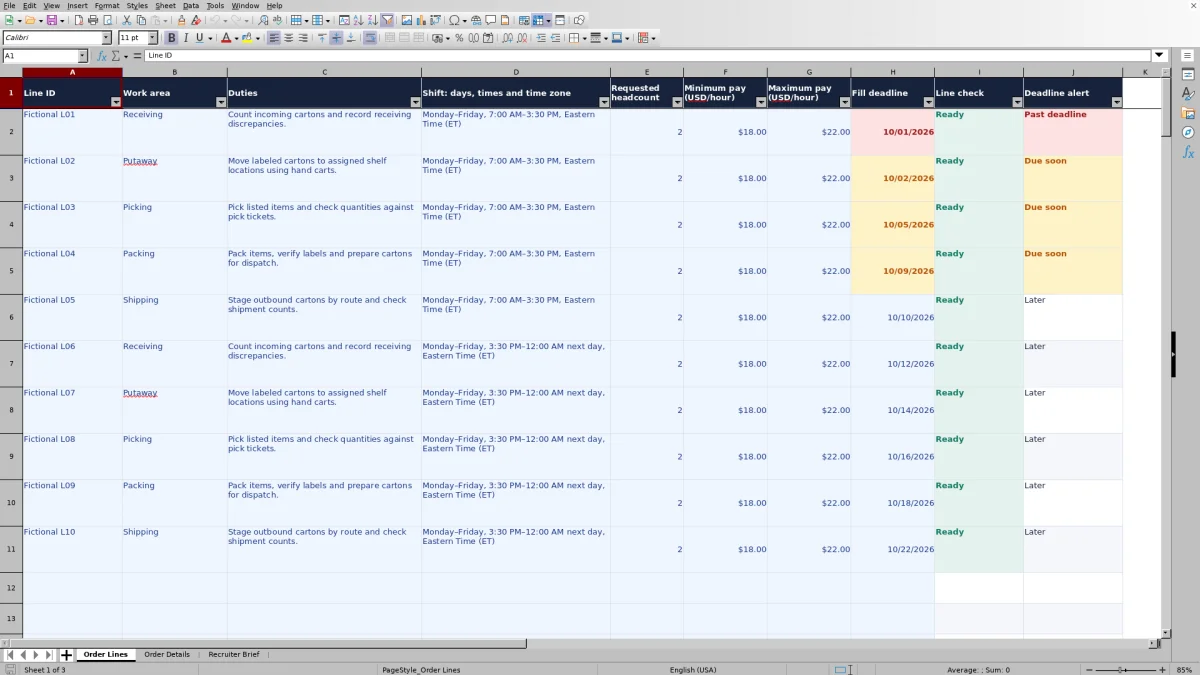
Replace the ten fictional coverage lines on Order Lines. Give each line a unique ID, describe the work and shift, and enter requested headcount, minimum and maximum pay in USD/hour, and the fill deadline. Clear unused example inputs in columns A–H without deleting the formulas in columns I–J.
3. Set the planning date and resolve checks
Review the Review date and Warning window (days) on Order Details. The review date initially uses TODAY(), while the warning window starts at a fictional seven-day example. Check Line check and Deadline alert on Order Lines. Correct incomplete lines, then review the headcount and deadline counts on Recruiter Brief.
4. Record approval and prepare the handoff
Obtain the client’s decision through your normal process, then record the decision and actual approval date. Confirm that Release status on Recruiter Brief reads Approved for recruiter use before issuing it with Order Lines. The workbook records approval; it does not authenticate it.
Define one requisition without losing line-level detail
Use the workbook for one client requisition with a common job title and worksite. Split that requisition into coverage lines when work areas, duties, shifts, pay ranges or fill deadlines need separate instructions. For example, a warehouse associate order can have separate receiving and putaway lines even when both use the same shift.
Write enough in the shift field for the recruiter to explain the schedule accurately: days, start and end times, and time zone. The workbook checks that the field has content, but it does not interpret whether the schedule is clear or operationally correct. Resolve ambiguous details with the client before release.
The line ID identifies a coverage need, not a candidate, placement or assignment. Keep the order’s requested scope separate from the records you use to track submissions and actual worker assignments.
Example: interpret requested headcount and hourly pay
The fictional receiving, putaway and picking lines each request two workers at $18.00–$22.00 per hour. If your working copy retained only those three lines and all three were Ready, the brief would show three ready lines and a requested headcount of six.
The headcount calculation adds column E only where column I says Ready: only ready lines contribute to the total. Its formula is SUMIF('Order Lines'!I2:I101,"Ready",'Order Lines'!E2:E101). If the picking line became incomplete, the displayed headcount would fall to four even though the client’s intended demand might still be six. Correct that line before treating the summary as the full request.
The $18.00–$22.00 range is worker pay in USD/hour. It is not a client bill rate, a cost estimate or a margin calculation. The workbook does not calculate employer burden, payroll or billing. Use your separate pricing process before quoting the client.
Read deadline alerts against a deliberate review date
Deadline alerts compare each ready line’s fill deadline with the Review date in Order Details B10 and the Warning window (days) in B11. A deadline before the review date is Past deadline. A deadline from the review date through the end of the warning window, inclusive, is Due soon. A later date is Later. Incomplete lines show Review line instead of a timing category.
For example, set the review date to 10/02/2026 and the warning window to seven days. The fictional receiving deadline of 10/01/2026 is Past deadline. Putaway on 10/02/2026, picking on 10/05/2026 and packing on 10/09/2026 are Due soon, assuming those lines are Ready. A ready line dated 10/10/2026 would be Later.
Past deadline does not cancel approval. The release formula does not use the deadline-alert counts as a blocking condition. Contact the client to confirm whether overdue demand is still active, needs a revised deadline or should be removed. The seven-day window is an editable planning assumption, not a promised fill period.
Problems that leave a line incomplete
A used line needs all eight inputs in columns A–H. Its ID must be unique, headcount must be a positive whole number, minimum pay must be positive, maximum pay must be at least the minimum, and the deadline must be a valid whole-number Excel date within the supported range.
- Duplicate line IDs: give each coverage line its own ID. Both occurrences of a duplicated ID fail the uniqueness check.
- Headcount entered as zero, a fraction or text: enter the positive whole number of workers requested. If the line is no longer needed, clear its inputs rather than leaving a zero-headcount line.
- Maximum pay below minimum pay: confirm the intended range with the client and correct the values. Equal minimum and maximum values are allowed for a fixed hourly rate.
- Deadline stored as text or including a time component: enter a date Excel recognizes, using MM/DD/YYYY, without a time.
- Partially cleared example rows: clear all inputs in A–H for unused lines. Leaving a duty or line ID behind creates an incomplete line.
Completely unused rows leave both check outputs blank and do not block release. A Ready result confirms the formula’s completeness and numeric checks; it does not establish that duties, pay or shift instructions are accurate or legally appropriate.
Understand what releases the recruiter brief
Release status in Recruiter Brief B7 changes to Approved for recruiter use when there is at least one ready line, no incomplete lines, and the required order identity and ownership fields are present. Approval decision must be Approved, and the recorded approval date must be numeric, positive and no later than the review date. Otherwise, the result is Not released.
If the brief remains Not released, first check the incomplete-line count. Then check the order ID, client name, job title, worksite, client approver reference and agency owner reference on Order Details. Finally, verify the approval decision and date. An approval date after the planning review date prevents release even if all coverage lines are ready.
This is a calculated status, not an authenticated approval or a file-access restriction. Obtain the actual client decision outside the workbook and record it accurately. Recruiters still need the detailed Order Lines sheet because the brief does not reproduce each line’s duties, shifts, pay range or deadline.
Control revisions and stay within the prepared range
Reset Approval decision to Pending before any order change. The workbook does not detect edits made after approval. A changed duty, pay range or headcount can still pass the line checks while the old Approved selection remains in place.
As a suggested manual workflow, save a dated copy before revising an issued order if you need to retain the earlier scope. Reset the decision, make the changes, check the updated brief, and obtain and record client reapproval. If recruiters already received the earlier version, tell them which instructions have changed. These are manual controls, not automatic version history or notifications.
The prepared checks, filters and summary ranges cover Order Lines rows 2–101. Do not assume entries below row 101 will be validated or included in the brief. If you need more than 100 coverage lines, use a deliberately revised and tested workbook or another system suited to the larger scope.
Comparison: this workbook, a blank spreadsheet or staffing software
Choose the approach that matches the handoff you need. This workbook fits a defined, single-requisition brief with prepared input checks and a manually recorded approval decision. A blank spreadsheet fits a highly customized layout if you are willing to build and verify the checks yourself. An applicant tracking system (ATS) or staffing platform is worth evaluating when the order must connect with candidate submissions and ongoing assignment records.
| Method | Order structure | Checks and approval | Best-fit workflow |
|---|---|---|---|
| This Excel workbook | One requisition with up to 100 prepared coverage lines | Line checks, deadline alerts and a release status based on recorded inputs; no approval authentication | A file-based recruiter handoff with manual revision control |
| Blank spreadsheet | You design the fields and layout | You create and test any formulas, validation and approval record | An unusual order format that needs custom structure |
| ATS or staffing software | Depends on the product’s requisition model | Verify the available approval, permission and history functions | A connected workflow spanning orders, candidates and assignments, if supported |
The workbook does not include an ATS connection, candidate tracking or assignment management. If those are necessary, evaluate them directly in your operational system rather than treating the recruiter brief as a replacement.
Frequently asked questions
Do I need to write formulas to use the template?
No formula writing is needed for the prepared workflow. Enter order and coverage details in the editable cells and review the calculated outputs. Leave the line-check, deadline-alert and recruiter-summary formulas intact.
Can I use a fixed review date instead of today?
Yes. Order Details B10 initially contains TODAY(), which advances when the workbook recalculates. You can replace it with a fixed planning date. The deadline alerts will then use that date until you change it again; replacing the formula also stops that cell from following the current date automatically.
Should candidate names or personal contact information go in this file?
This file defines client demand rather than candidate records. The client approver and agency owner fields call for operational aliases, not personal contact information. Keep candidate details and submissions in the separate records you use for recruiting.
Does the workbook assign workers or confirm that an order is filled?
No. Requested headcount represents planned demand, not confirmed workers. The workbook has no candidate-to-line assignment or filled-position calculation. Track placements, assignment acceptance and attendance separately.
Editorial contributors

Miriam HaldenRecruiting & assignment workflows
Explore this editorial focus →
Wesley CorbinBilling & agency finance
Explore this editorial focus →