When a recruiter or account manager needs the agreed rate for a client job code, the effective date matters. This staffing agency client rate card template keeps negotiated hourly pay and bill rates in an Excel workbook and retrieves the applicable agreement period for a date you choose.
The Staffing Worksheets workbook is a negotiated rate lookup, not a pricing simulation. Enter your agreements, review input and overlap warnings, then use the lookup schedule to check the recorded rates. Included examples are fictional, not client agreements.
When to use this worksheet
- Check the recorded hourly pay and bill rates for a specific client, job code, and date.
- Keep successive agreement periods separate rather than replacing every rate change.
- Identify overlapping periods before relying on an ambiguous lookup.
- See incomplete or invalid records that need attention before they can participate in the lookup.
What the workbook includes
How to use the workbook
1. Set up your permitted codes
On Lists, enter unique text client codes in D2:D101 and job codes in F2:F101. Codes must be no more than 20 characters and have no extra surrounding spaces. Replace the fictional examples with your own codes and agreement inputs before operational use.
2. Enter each agreement period
Use the input columns A–F on Rate Card, within rows 2–101. Each row holds one client–job-code agreement period with its start date, end date, hourly pay rate, and hourly bill rate. Enter dates as whole Excel dates, displayed as MM/DD/YYYY, and rates as positive USD/hour amounts. Leave unused input rows blank and preserve the formulas in columns G–I.
3. Review the records before looking up rates
Check Record Status and Period Alert. Correct incomplete inputs and investigate overlapping periods against your agreement records. Ready means the input rules pass; it does not confirm that the rates were approved or entered correctly from the agreement.
4. Retrieve and verify the applicable rate
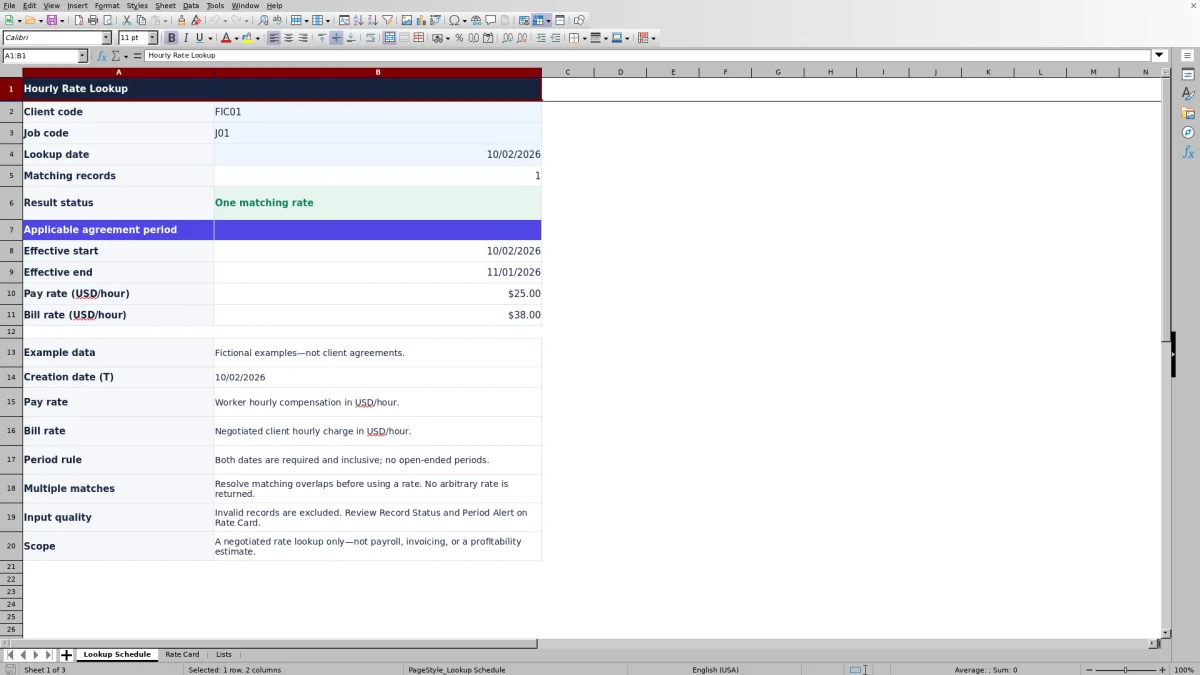
On Lookup Schedule, select the client and job codes and enter the lookup date in B2:B4. Read Result status before using the outputs. Exactly one matching record returns the effective dates and hourly rates. Compare those results with the agreement and the assignment context before manually using them elsewhere.
Example: check a rate at the agreement changeover
The fictional FIC01/J01 records show how the lookup distinguishes consecutive periods. The first period runs from 09/02/2026 through 10/01/2026, with pay of $24.00/hour and billing of $36.00/hour. The next runs from 10/02/2026 through 11/01/2026, with pay of $25.00/hour and billing of $38.00/hour.
With FIC01, J01, and 10/02/2026 selected, the lookup finds one record and returns the second period and its $25.00 pay and $38.00 bill rates. Changing only the lookup date to 10/01/2026 returns the earlier rates. The result is date-specific; it is not simply the last row entered or the highest rate.
The matching calculation checks that the row is Ready, that both codes match, and that the lookup date falls between the recorded start and end dates. It then counts the qualifying rows. Exactly one match is required before the agreement dates and rates appear. Use the returned period to confirm that you selected the date relevant to your task rather than assuming today's rate applies to earlier work.
Manage effective dates without creating overlaps
Both period boundaries are inclusive. A rate applies on its start date and its end date. If one agreement ends on 10/01/2026 and the next begins on 10/02/2026, the periods are consecutive without overlapping. If both include 10/02/2026, that date belongs to both records.
Period Alert checks Ready records for intersecting dates under the same client and job code. It can flag an overlap even when your current lookup date is outside the conflicting portion. The lookup itself suppresses its date and rate outputs when more than one record matches the selected date; it does not choose the newest record or give one row priority.
Resolve a conflict by checking the underlying agreements, then correcting a mistaken boundary or removing an accidental duplicate. Do not change dates merely to clear the warning. Both dates are required, so open-ended agreements cannot be represented with a blank end date. If an agreement has no confirmed end date, establish how to represent it in your operational records before entering it here.
Problems and solutions: blank outputs and invalid records
A blank rate output is not a zero-dollar rate. Read Result status to identify the next action:
- Complete valid selectors: Choose codes present in the permitted lists and enter a valid whole-date value. A text date or a date containing a time component may fail the lookup rules.
- No matching rate: The selectors are valid, but no Ready record covers that client, job code, and date. Check for a missing agreement, a gap between periods, or an excluded invalid record.
- Multiple matches—resolve overlap: More than one Ready record covers the selection. Review the matching periods before using a rate.
On Rate Card, an Incomplete or invalid status can result from a missing or unlisted code, missing dates, an end date before the start date, a nonnumeric rate, or a rate of zero or less. Check those inputs together rather than assuming the problem is the lookup formula.
Excel data validation is an input safeguard, not a complete audit. Pasted values can bypass validation, so review the calculated status after importing or pasting agreement data. Even a Ready row still needs a manual check against the source agreement for transcription errors.
Maintain rate history within the prepared range
For a new negotiated period, add a separate row rather than overwriting a prior period if you need historical lookups. That is a suggested recordkeeping workflow, not automatic version history. The workbook returns the data currently entered; it cannot reconstruct a rate or date that you replaced.
The prepared capacity is 100 agreement-period records in Rate Card rows 2–101. Each new period consumes a row, even for an existing client and job code. The lookup, overlap checks, and validation use fixed ranges. Typing additional agreements below row 101 does not automatically include them in those checks or results. If you outgrow the file, use a deliberately revised workbook or another system rather than assuming extra rows work.
Code maintenance also affects existing records. Removing or changing a permitted code can make previously Ready rows invalid. Before changing the Lists sheet, check where the code is used, coordinate any corresponding edits, and review Record Status afterward. If preserving an earlier state matters, save a dated copy before editing; this is a manual safeguard, not an audit-trail feature.
Use the schedule as a reference, not a financial model
Pay rate means the worker's hourly compensation. Bill rate means the negotiated hourly charge to the client. Both are entered values; the workbook does not derive one from the other or recommend a price.
For example, the fictional $25.00 pay and $38.00 bill rates are agreement inputs, not a profitability conclusion. The workbook has no burden input for employer costs, no overhead calculation, and no markup or gross-margin calculation. It also does not apply hours to rates. A displayed bill rate is therefore not an invoice amount, and a displayed pay rate is not a payroll total.
For an assignment-related check, you can manually verify the client, job code, relevant date, and agreement terms, then use the confirmed rate in your separate workflow. The file does not create assignments, establish attendance, calculate overtime, or send rates to payroll or invoicing software. Positive-rate checks are operational rules, not a determination that a rate meets contractual or legal requirements.
Comparison: this workbook or a blank spreadsheet?
A blank spreadsheet can fit a small reference list or an unusual agreement structure when you are prepared to design and check it yourself. This workbook fits a narrower task: maintaining positive hourly pay and bill rates for dated client–job-code periods, then retrieving one applicable record.
| Method | Setup and structure | Date-specific retrieval | Input and conflict checks | Best fit |
|---|---|---|---|---|
| This Excel rate card | Prepared inputs for 100 agreement periods and editable code lists | Returns one matching period and its hourly rates for selected codes and date | Calculated validity and overlap checks; multiple matching records suppress outputs | A bounded hourly-rate lookup maintained manually in Excel |
| Blank spreadsheet | You choose the fields, layout, and record capacity | Manual searching unless you build lookup formulas | You must create checks or review entries manually | A custom rate log whose structure you are willing to design and maintain |
The prepared checks do not make this workbook a contract repository or a staffing operating system. If your task requires assignment-specific exceptions, approval history, or rates connected to billing and payroll, evaluate a system that explicitly supports those needs. Keep this file as a reference only where its fixed structure matches your agreements.
Frequently asked questions
Can I use the workbook in LibreOffice?
The workbook instructions state that formulas calculate when the file is loaded in Excel or LibreOffice with automatic calculation enabled. If results appear stale after an edit, confirm that automatic calculation is on before relying on the lookup.
Does the job-code dropdown change when I select a client?
No. Client and job dropdowns use separate permitted-code lists. The workbook checks whether a selected client–job combination has a Ready agreement covering the lookup date; it does not maintain a client-specific job dropdown. A valid code in each field can still produce No matching rate.
Will the workbook reject a bill rate below the pay rate?
No. Both rates must be numeric and greater than zero, but the record rules do not require bill rate to exceed pay rate. A row can be Ready with billing below pay. Review commercial terms separately; Ready is not a profitability assessment.
Does the lookup date automatically advance to today?
No. The lookup date is an input, not a TODAY formula. The included example uses 10/02/2026. Enter the date relevant to the agreement or assignment you are checking each time you need a different period.
Editorial contributors

Miriam HaldenRecruiting & assignment workflows
Explore this editorial focus →
Wesley CorbinBilling & agency finance
Explore this editorial focus →