When several clients need attention, compare their open job orders before deciding where to spend recruiting time. This Excel workbook from Staffing Worksheets scores direct-hire openings using target start dates, your estimated fill probability, placement fees and remaining recruiter effort.
Use the resulting Desk Rank to build a ranked desk workload, not a candidate tracker. You enter the estimates, review alerts and manually sort the orders after changes; the workbook calculates scores and ranks for up to 100 orders.
When to use this worksheet
- Compare urgent openings with orders that have stronger estimated fill prospects or fee-to-effort value.
- Make the assumptions behind your desk priorities visible and adjustable.
- Identify incomplete, duplicate and inactive orders before relying on their rank.
- Use a consistent score to guide workload discussions without treating it as a placement guarantee.
What the workbook includes
How to use the workbook
1. Set your planning assumptions
On Assumptions, update Planning Date and review the urgency window, fee-per-hour target and three scoring weights. The supplied values are illustrative. Keep the window and target positive, and make the weights total 100%. Model Check must show Ready before eligible orders can receive scores.
2. Replace the fictional job orders
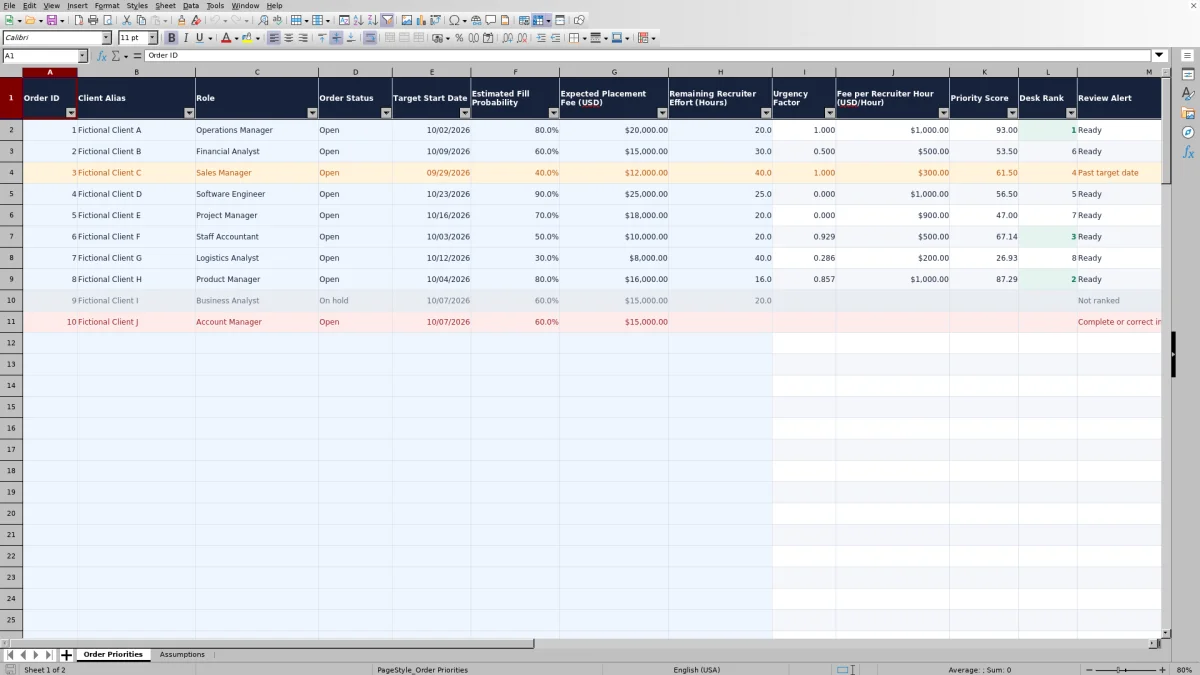
On Order Priorities, edit the pale-blue input cells in columns A–H, leaving formula columns I–M intact. Give each opening a unique positive whole-number Order ID. Enter a fictional client alias, role, status, target start date, estimated fill probability, expected placement fee in USD and remaining effort in hours. Use MM/DD/YYYY for dates and enter probability as a percentage such as 80%, not the number 80. Do not enter personal or sensitive information.
3. Resolve alerts and recalculate
Read Review Alert before using a score. Correct missing fields, duplicate IDs and invalid estimates; check Assumptions if an order says Fix assumptions. A Past target date alert does not exclude an otherwise eligible open order, so confirm that its start date and open status still make sense. Recalculate in Excel before reviewing results.
4. Sort the full workload
Sort the entire A1:M101 range on Order Priorities by Desk Rank ascending, with blanks last and row 1 treated as the header. Sorting only the rank column would separate results from their orders. Use the available filters to focus your review, then manually decide which client follow-ups and recruiting tasks to take next. Recalculate and sort again whenever inputs change.
Choose how urgency, fill probability and value affect the score
Start by deciding what should drive attention during this planning period. The workbook combines three factors: urgency, your estimated fill probability, and placement fee relative to remaining recruiter effort. Each factor runs from 0 to 1 before its weight is applied.
Urgency measures how close the target start date is to Planning Date. It equals 1 minus the days until the target divided by the urgency window, bounded between 0 and 1. With the supplied 14-day window, a target seven days away has urgency 0.5. A target on or before Planning Date has urgency 1, while a target 14 or more days away has urgency 0. Dates use calendar-day differences, not business-day scheduling.
The score is 100 × (urgency × urgency weight + fill probability × probability weight + capped value-and-effort factor × value-and-effort weight). The supplied weights are 40%, 35% and 25%, respectively. They are planning choices, not industry standards. If you increase one weight, reduce another so the total remains 100%, then review how the changed assumptions affect the workload.
A Priority Score of 93 is a weighted planning score on a 0–100 scale. It does not mean the job order has a 93% chance of being filled.
Estimate fee and effort on a consistent basis
Use the placement fee you expect for the opening and the recruiter hours you estimate are still needed. The workbook divides the fee by remaining effort to produce Fee per Recruiter Hour. For example, a USD 15,000 fee divided by 30 remaining hours produces USD 500 per recruiter hour.
The score then compares that ratio with the Fee per Hour Target on Assumptions. At the supplied USD 1,000-per-hour target, USD 500 per hour contributes a value-and-effort factor of 0.5. Ratios at or above the target contribute a factor of 1; exceeding the target does not add further points to this part of the score.
Fee per recruiter hour is not profit or gross margin. It does not deduct recruiter compensation, overhead or other costs, and it is not the client bill rate. The formula also does not multiply the fee by fill probability; probability is a separate weighted input.
For a useful comparison, estimate remaining effort on the same basis across orders. As a suggested manual practice, agree which remaining activities you include, such as sourcing, submissions and interview coordination. Update the estimate when the work changes rather than entering hours already spent. The workbook does not record time or validate the realism of your estimates.
Example: why an urgent order can lead the desk
The fictional baseline uses a Planning Date of 10/02/2026, a 14-day urgency window, a USD 1,000 fee-per-hour target and weights of 40% urgency, 35% fill probability and 25% value and effort.
Order ID 1, Operations Manager, has a target start date of 10/02/2026, an 80% estimated fill probability, a USD 20,000 fee and 20 remaining hours. Its urgency is 1 because the target falls on Planning Date. Its fee-per-hour ratio is USD 1,000, so its value-and-effort factor is also 1. The calculation is 100 × (1 × 0.40 + 0.80 × 0.35 + 1 × 0.25) = 93.00 points.
Order ID 2, Financial Analyst, starts on 10/09/2026 and has a 60% estimated fill probability, a USD 15,000 fee and 30 remaining hours. Seven days out gives urgency 0.5; USD 500 per hour gives a value-and-effort factor of 0.5. Its score is 100 × (0.5 × 0.40 + 0.60 × 0.35 + 0.5 × 0.25) = 53.50 points.
In the supplied baseline, these orders rank first and sixth, respectively. The first order leads because it combines immediate urgency with stronger estimated fill probability and a higher fee-to-effort ratio. Before acting, confirm that the immediate start is still realistic. The rank supports that discussion; it does not prove that the client is ready to interview or that a placement will occur.
Errors and alerts: correct the cause before using the rank
A blank rank is not necessarily an error. Empty rows remain blank, and orders marked On hold or Closed are not ranked. Incomplete or invalid open orders also receive no score or rank, so read Review Alert to distinguish them.
- Complete required fields: supply the Order ID, client alias, role and status.
- Duplicate order ID: assign a distinct ID to each opening. Duplicate IDs prevent the affected orders from being ranked.
- Complete or correct inputs: check that the target date is a real Excel date, probability is between 0% and 100%, the fee is zero or greater, and effort is a positive number.
- Fix assumptions: inspect Model Check on Assumptions. The date and settings must be numeric, the urgency window and fee-per-hour target must be positive, and the three weights must each be between 0 and 1 and total 1.
- Past target date: confirm the target with the client. The order remains eligible and receives maximum urgency, but an overdue date may no longer describe the actual need.
Pasting can bypass input validation. After importing values manually, inspect IDs, status labels and dates as well as alerts. The formulas do not replace every entry safeguard. If a calculated cell displays Check inputs, review the relevant numeric inputs and assumptions before relying on downstream results.
The color cues help locate corrections, past dates and top-three ranks, but the text alert and numeric rank are the decision references. Do not interpret an unranked row as a low-priority scored order.
Turn the ranking into a practical desk plan
Use the sorted list to decide what deserves attention first, then translate each priority into a specific next action outside the workbook. A high-ranking order might need sourcing work, a client response or confirmation that the opening is still active. The file ranks job orders; it does not identify which of those actions will move an order forward.
Desk Rank recalculates from scores, but rows do not automatically rearrange. Recalculate and sort after changing dates, estimates, statuses or assumptions. Filters can narrow what you see, but the rank formulas still compare scored orders across rows 2–101. Filtering to one client does not create a new client-only ranking.
The workbook does not match workload to recruiter availability or allocate hours among people. If the first few orders collectively require more effort than your team can provide, use their ranks as a starting point for a manual capacity discussion rather than assuming the list is a feasible schedule.
There are 100 supported order rows, including the fictional examples. Adding an order below row 101 is outside the supplied formula, validation and ranking ranges. Do not assume the model expands automatically.
Scope and calculation checks before live use
This workbook is designed for one direct-hire opening per row. Its value measure is an expected placement fee, not recurring assignment billing. It has no pay-rate, bill-rate or burden model, so it should not be used as a temporary-staffing margin calculator without a separately designed model.
It also does not track candidates, submissions, interviews or placements. Estimated Fill Probability is your estimate for an order, not an assessment of a named candidate. Keep personal and sensitive information out of the file and retain the fictional organization-label approach specified in its instructions.
The Assumptions sheet includes fictional baseline results and acceptance-check instructions. Its verification note states that generation checks used a separate reference model and checked workbook structure, but did not run Excel or LibreOffice. Confirm recalculated results in the spreadsheet application you use before relying on the ranking.
As an initial check, the unchanged example should produce scores of 93.00 for Order ID 1 and 53.50 for Order ID 2. The baseline ranked IDs are 1, 8, 6, 3, 4, 2, 5 and 7. Order ID 3 is past target, ID 9 is not ranked, and ID 10 requires corrected inputs. If your results differ, check calculation settings, inputs and formulas. Perform temporary error tests in a disposable copy so they do not alter your working plan.
Comparison: this workbook or a blank spreadsheet?
A blank spreadsheet can be enough when you only need to write down a few orders and choose their sequence manually. This workbook fits a different need: comparing direct-hire orders through a defined, adjustable scoring method without building the formulas yourself. Both approaches still depend on current information and judgment.
| Method | Priority method | Setup and upkeep | Best fit and limits |
|---|---|---|---|
| Job order prioritization workbook | Weighted urgency, estimated fill probability and capped fee-to-effort value, with formula-based ranks. | Enter orders, adjust assumptions, correct alerts, recalculate and manually sort the full range. | Direct-hire desk comparisons within 100 rows; not candidate tracking or capacity scheduling. |
| Blank spreadsheet or manual order log | A manually chosen sequence, unless you build your own scoring formulas. | Create the fields and any checks you need; update priorities yourself. | A short list or a custom review process; formulas, validation and alerts must be added if needed. |
Choose the workbook when you want the same calculation applied across orders and can maintain its estimates. Choose a simpler log when written context and a short manual sequence are sufficient. If your main requirement is candidate and submission workflow, evaluate an applicant tracking system or staffing software for those functions rather than treating this ranking workbook as a replacement.
Frequently asked questions
Does Planning Date advance automatically each day?
No. Planning Date on Assumptions is an editable date, not a rolling TODAY formula. Update it at the start of each planning review, then recalculate and sort. Otherwise, urgency continues to reflect the saved planning date rather than the date you open the workbook.
How does the workbook handle equal scores?
Lower numeric Order IDs receive earlier ranks when scores are equal. Use unique positive whole-number IDs and keep them stable. The tie-break provides a consistent order; it does not mean the lower-ID opening has greater business value.
Can an order with zero fill probability or zero fee still rank?
Yes. Zero probability and zero fee are valid inputs. Because the score adds weighted factors, an otherwise eligible open order can still earn points from the other factors. Effort must be greater than zero. If an order is no longer being worked, review whether its status should be On hold or Closed rather than expecting a zero estimate to remove it from the ranking.
Can I compare different weighting scenarios or preserve prior priorities?
You can manually save separate, dated copies and change the assumptions in each copy. Recalculate and sort each version before comparing it. This is a suggested file-management workflow, not built-in scenario management or change history; the workbook does not automatically preserve earlier inputs or ranks.
Will the workbook update from my ATS?
No ATS integration or automatic data refresh is included. Enter or paste the supported order inputs manually, leaving the formula columns intact. Check pasted IDs, statuses and dates because pasting can bypass validation, and do not bring candidate or sensitive personal data into this workbook.
Editorial contributors

Miriam HaldenRecruiting & assignment workflows
Explore this editorial focus →
Wesley CorbinBilling & agency finance
Explore this editorial focus →