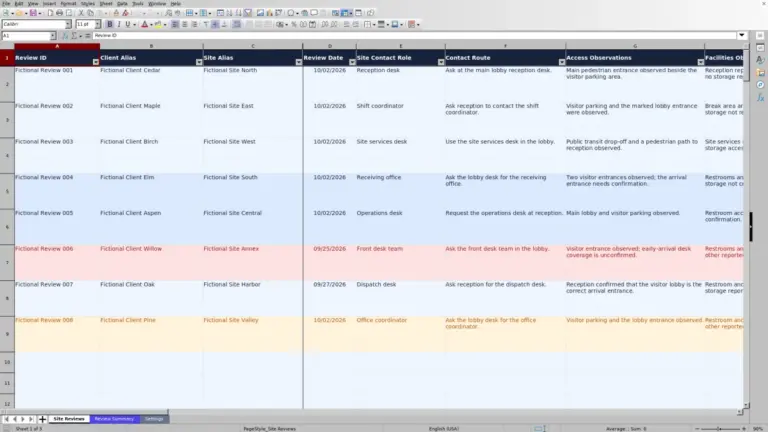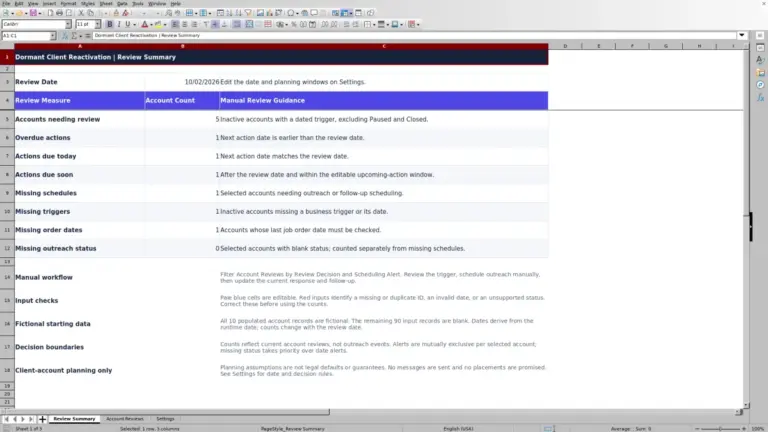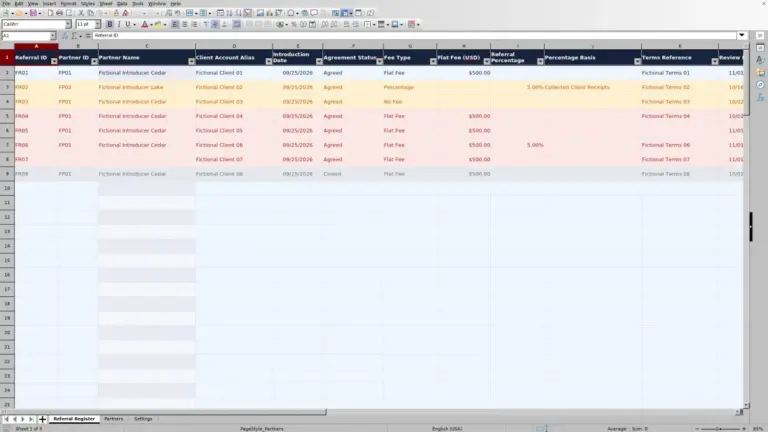
When a client site issue, payroll inquiry or service problem needs attention, you need to know whom to contact and when to move to the next person. This Excel workbook maps each route to three named client contacts, their business contact channels and response waits.
The Staffing Worksheets escalation matrix gives you a selected contact route and flags records that need attention before displaying their details. Use it as a contact reference, not an incident tracker; you make the calls, send the messages and record follow-up elsewhere.
When to use this worksheet
- Find the contact sequence for a specific client, site and issue type.
- Give assignment coordinators and account managers a shared reference for escalation waits.
- Identify incomplete or out-of-date routes before relying on their contact output.
- Keep routine contact guidance separate from worker details and issue histories.
What the workbook includes
How to use the workbook
1. Set your review assumptions
On Settings, review the Review Interval (days), Reference Date and three editable issue types. The supplied 90-day interval is an operating assumption, not a legal requirement. The reference date defaults to TODAY() when Excel recalculates.
2. Replace the fictional routes
Replace all ten fictional examples before use. Edit the pale blue input cells on Routes. Give each route a unique name, enter the client and site, and choose an allowed issue type. Add the first, next and final contacts with their business contact channels.
3. Confirm waits and review dates
Enter positive numeric waits in elapsed hours for the first and next contacts. Confirm the route details with the client as part of your manual setup, then enter Last Reviewed in MM/DD/YYYY format. Leave the Review Status and Route Status formulas intact.
4. Resolve checks and select a route
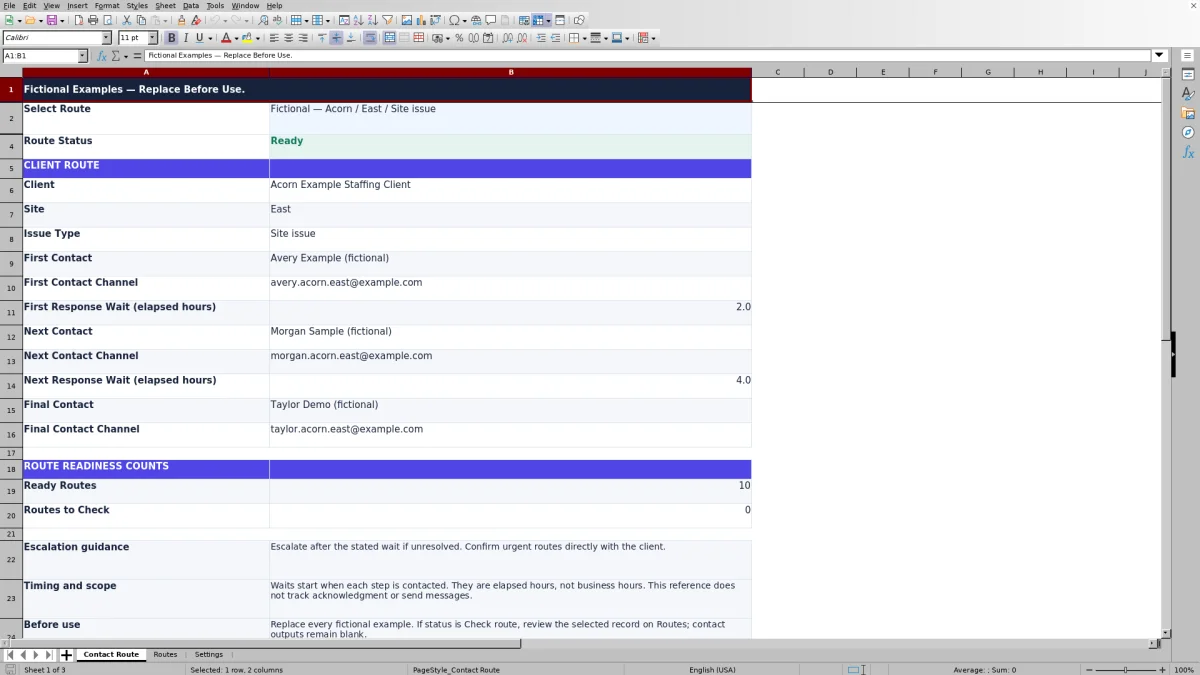
Filter Routes for Check route and correct the affected records. Then use Select Route in Contact Route cell B2. When its status is Ready, the sheet displays the contact sequence and waits. Contact each person yourself and move to the next step only if the issue remains unresolved after the stated wait.
Build routes around the decision your coordinator needs to make
Use a separate route when the client, site or issue type changes the escalation sequence. A payroll inquiry for one location may need different contacts from a service issue at that same location. The route name is the selector’s lookup key, so make it recognizable without opening the full record.
A practical naming pattern is Client / Site / Issue Type, following the structure of the fictional examples. Route names must be unique across the prepared range. If two records share a name, the readiness check flags them rather than treating them as interchangeable.
Before entering a route, agree with the client on who belongs at each step and which business channel to use. The workbook stores that agreement; it does not determine who has authority to resolve an issue or whether someone is available after hours.
Example: apply the two response waits correctly
The fictional Acorn / East / Site issue route uses a first response wait of 2 hours and a next response wait of 4 hours. These are example values, not recommended service standards. Each wait starts when you contact that particular step.
Suppose you contact the first person at 9:00 AM. If the issue is still unresolved at 11:00 AM, the example guidance points you to the next contact. If you actually contact that person at 11:15 AM, the 4-hour wait runs to 3:15 PM before the final step—not to 3:00 PM. The second wait does not begin automatically when the first wait ends.
Waits are elapsed hours, not business hours. They do not pause overnight or for weekends. The workbook displays the wait values but does not calculate these clock times, start timers or send reminders. Record actual contact times and follow-up actions in your separate issue log.
Use review age to decide which routes need reconfirmation
Review age is the Reference Date minus Last Reviewed, measured in days. The workbook compares that age with your Review Interval. With the supplied 90-day interval, a route reviewed exactly 90 days before the reference date remains Current; at 91 days, it requires review and cannot be Ready.
This check depends on the dates you supply. If you replace TODAY() in Settings B3 with a fixed date, the workbook evaluates age against that date until you change it. A fixed date can support a dated review snapshot, but it is not a live aging reference.
When a route needs review, reconfirm the contacts, channels and waits before updating Last Reviewed. Simply advancing the date would make the record look recent without establishing that its information is still usable. Ready does not verify reachability or prove that the client approved the route.
Errors and solutions: why a selected route stays blank
The Contact Route sheet deliberately suppresses contact details when the selected record is not Ready. Check Route Status before assuming that a blank output means no contacts were entered.
- Select a route: B2 is empty. Choose a route from the dropdown.
- Route not found: the selected text does not match a name in Routes A2:A101. Reselect it, especially after renaming a record.
- Check route: inspect the selected row on Routes. All 13 input fields from Route Name through Last Reviewed must be populated, and the name must be unique.
- Invalid waits or issue type: both waits must be positive numbers, and the issue type must match one of the three entries on Settings.
- Review problems: check Review Status for date or settings errors. Future or nonnumeric review dates, an expired review and invalid review assumptions prevent readiness.
Pasting data can introduce values that do not satisfy the intended inputs. The formulas flag nonpositive or nonnumeric waits, but they cannot establish whether a typed phone number or email address is correct. Correct the source record rather than typing over the contact output formulas.
Keep escalation guidance separate from live issue handling
Once a route is displayed, use your normal communication process to contact the first person. A suggested manual workflow is to record the issue, actual contact time, response and next action in a separate log. This workbook has no acknowledgment, resolution or incident-history tracking.
An acknowledgment is not necessarily a resolution. The workbook’s guidance is to escalate after the stated wait if the issue remains unresolved. Agree with the client how that guidance applies to an issue that has been acknowledged but still needs action.
Confirm urgent routes directly with the client. The file does not classify urgency or provide emergency procedures. Do not interpret a stored routine wait as authorization to delay a matter that requires immediate attention.
Maintain the prepared range without breaking the reference
The workbook supports 100 prepared route rows, from row 2 through row 101. The selector, readiness counts and lookup formulas use fixed ranges. Adding a record below row 101 does not automatically bring it into those functions.
Keep routine entries inside the prepared area and edit the pale blue inputs. The formulas are not locked, so an accidental overwrite can remove a check or displayed result. If you need a larger capacity, the relevant formulas and validation ranges require deliberate maintenance; inserting more rows is not a verified expansion process.
Use Ready Routes and Routes to Check as a maintenance overview, then filter Routes to inspect records needing attention. These counts describe route records—not open issues, successful contacts or completed escalations. Completely empty input rows are not counted as routes needing correction.
Comparison: this workbook, a blank spreadsheet or an issue log
Choose the format based on whether you need a reusable contact reference or a record of what happened. This workbook fits the reference task when a three-level route is sufficient. A blank spreadsheet offers more layout freedom, while a separate manual issue log serves a different purpose: recording individual cases and follow-up.
| Method | Contact routing | Checks | Live issue history | Best fit |
|---|---|---|---|---|
| This Excel workbook | Selected three-contact route with two waits | Built-in completeness, review and readiness checks | Not included | A repeatable reference within 100 prepared routes |
| Blank spreadsheet | You design the structure and lookup approach | You create any validation or review rules | You can design fields for it | A custom layout or different number of escalation levels |
| Separate manual issue log | Can reference a maintained contact route | Depends on your review process | You record contact times, responses and outcomes | Following individual issues through resolution |
The workbook and an issue log can be used together through a manual process. Neither the comparison nor that suggested workflow implies a connection between files: this workbook does not transfer case details or send communications.
Frequently asked questions
Can I use a route with only one or two contacts?
Not as a Ready route under the supplied checks. The first, next and final contacts and their channels are all required. If the client only provides two escalation levels, resolve that process question with the client or use a structure designed for two levels rather than inventing a third contact to pass the check.
Can I change the issue categories?
Yes. The three editable issue types are in Settings D2:D4, initially Site issue, Payroll inquiry and Service issue. The route dropdown and readiness check refer to those three cells. After changing a label, update affected route records so their issue types still match. Adding a fourth category outside that range does not automatically extend the checks or dropdown.
Should I enter worker pay details for a payroll inquiry?
No. Keep this file limited to business contact routing. Its entry guidance excludes worker identifiers, pay details, sensitive information and issue narratives. A Payroll inquiry route identifies whom to contact; it does not process payroll or provide a place to document the worker’s payroll case.
Does the workbook send emails or connect to an ATS?
No messaging or applicant tracking system integration is implemented. Contact channels are stored as reference information. You use your own email, phone or other agreed channel, and you maintain any issue history separately.
Are the sample contacts and response times ready for operational use?
No. All ten sample routes and contacts are fictional, and the sample email addresses use example.com. Replace every example and confirm your own contact sequence and waits before use. A sample can satisfy the workbook’s data checks without representing a real, reachable client contact.
Editorial contributors

Miriam HaldenRecruiting & assignment workflows
Explore this editorial focus →
Wesley CorbinBilling & agency finance
Explore this editorial focus →