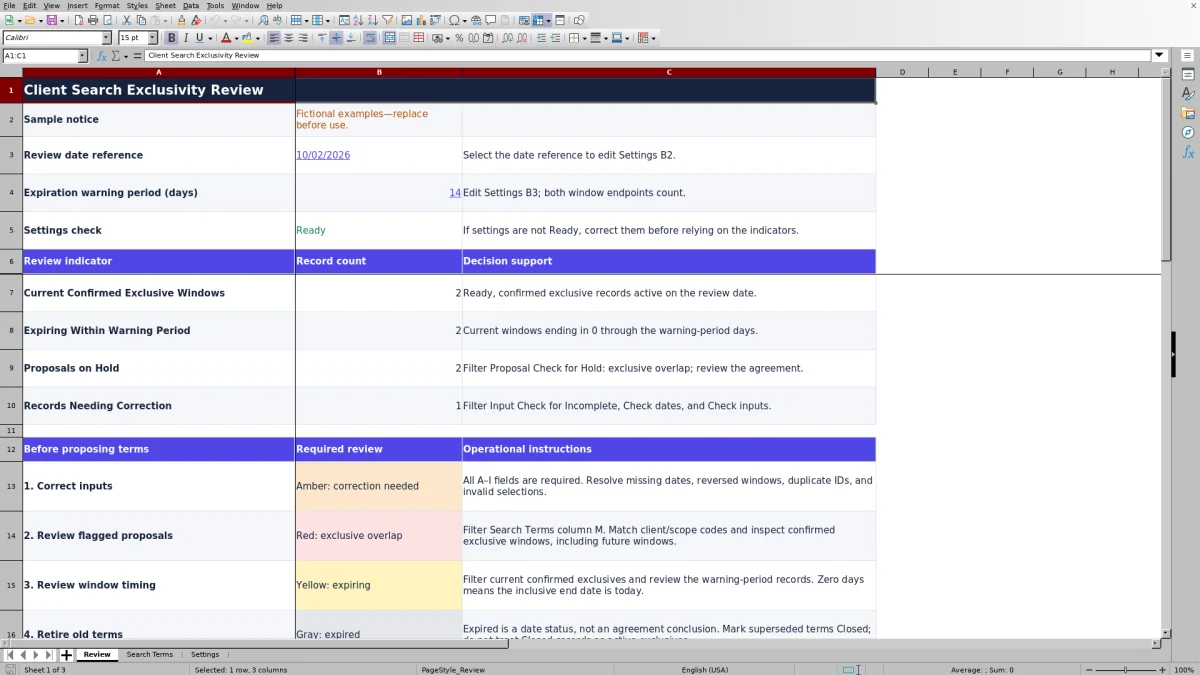
Before proposing nonexclusive search terms, check whether your agency has a confirmed exclusive window for the same client and role scope. This Excel workbook from Staffing Worksheets keeps those terms together and flags recorded overlaps for review.
Enter the scope, dates and status of each set of terms, then review current windows, approaching expirations and proposals on hold. The tracker supports a check before you pitch; it does not interpret agreements or approve a proposal.
When to use this worksheet
- Check recorded exclusive commitments before discussing nonexclusive terms.
- Prioritize current exclusive windows approaching their end date.
- Keep role scope and account ownership together for follow-up.
- Find incomplete or inconsistent records before relying on the review counts.
What the workbook includes
How to use the workbook
1. Set the review date and warning period
On Settings, keep the TODAY() formula in B2 for the current date or replace it with a specific review date. Enter a whole number from 0 through 365 in B3 for Expiration Warning Days. The starting value is 14 days, not a required business rule. Confirm that Settings check on Review says Ready.
2. Replace the fictional examples with your terms
Enter records in Search Terms A2:I101, using one row for one set of terms for one client and precisely defined role scope. All nine input fields are required: a unique Term ID, Client Code, Scope Code, Role Scope, Terms Type, Record Status, Window Start, Window End and Account Owner Alias. Use the supplied selections for type and status and enter dates in MM/DD/YYYY format. Leave formula columns J–M intact.
3. Resolve input problems
Filter Input Check for Incomplete, Check dates or Check inputs. Fill missing values, correct reversed or unrecognized dates, and resolve duplicate IDs or invalid selections. Correct records before assessing overlap, because records that are not Ready do not participate in the exclusive-overlap check.
4. Review holds and upcoming expirations
Use Review to identify the work queue, then filter Search Terms for the relevant records. Inspect proposals marked Hold: exclusive overlap against the recorded exclusive terms and the agreement itself. Review current confirmed exclusive windows near expiry, and manually mark superseded terms Closed when appropriate.
Define scope before relying on a match
Decide what the exclusive search actually covers before assigning a Scope Code. A role title alone may not distinguish separate sites, shifts or search arrangements. Use Role Scope to describe those boundaries so the account manager can compare the entry with the client agreement.
The overlap formula matches Client Code and Scope Code; it does not interpret the Role Scope description. Reuse codes for equivalent scopes. If two descriptions refer to the same covered work but have different codes, the formula will not recognize that equivalence.
The fictional examples distinguish a warehouse associate day shift from a night shift at the same Columbus site. That distinction is useful only if it reflects the actual terms. If an agreement covers both shifts, separate codes could conceal a meaningful conflict. Split partially overlapping scopes into precise records where practical, or review the overlap manually before proposing terms.
Example: a nonexclusive proposal overlaps an exclusive window
The fictional T01 record is a confirmed exclusive search for client C01 and scope S01 from 09/12/2026 through 10/09/2026. T02 proposes nonexclusive terms for the same codes from 10/02/2026 through 10/16/2026. With both records Ready, T02 returns Hold: exclusive overlap.
The check asks whether the exclusive window starts on or before the proposal ends and ends on or after the proposal starts. Both conditions are true here. The next action is to inspect the scope and agreement before discussing the proposed terms; the flag does not itself change either record or stop a proposal from being sent.
Both endpoints count. A proposal starting on 10/09/2026 would still overlap this exclusive window. A proposal starting on 10/10/2026 would not overlap T01, though another recorded exclusive window could still trigger a hold.
This check is not restricted to windows active on the review date. It also checks future confirmed exclusive windows. It runs only for Ready records marked Nonexclusive and Proposed, so it is not a general duplicate detector or a check for conflicts between two exclusive records.
Read expiration timing without assuming the terms have ended
Use the review date to decide which confirmed exclusive windows need attention now. For a Ready, confirmed exclusive record whose end date has not passed, Days Until Expiration subtracts the review date from Window End. In the T01 example, a review date of 10/02/2026 and end date of 10/09/2026 produce 7 days. With a 14-day warning period, this current window is included in Expiring Within Warning Period.
Zero days means the inclusive end date is the review date. It does not mean the window has already expired. The warning count includes current windows ending from zero through the selected number of days away. A warning period of zero therefore identifies current windows ending on the review date.
An upcoming confirmed exclusive record can also show Days Until Expiration, but that number measures time until its end, not time until it starts. Upcoming records are excluded from the current-window and expiring-window counts. Check Window Status alongside the day count before deciding whom to contact.
Keep the TODAY() setting when you want the reference date to follow the current date as Excel recalculates. For a fixed-date review, enter a specific date instead. If you need to retain that review, saving a dated copy is a suggested manual practice, not built-in review history.
Errors to fix before trusting the indicators
Input Check separates several common entry problems. Completely empty input rows remain blank; a partly entered row is Incomplete. Check dates identifies nonnumeric date entries or an end date earlier than the start date. Check inputs identifies duplicate Term IDs or values outside the supported type and status choices.
- For Incomplete, finish every input field in A–I, including the account owner alias.
- For Check dates, re-enter recognizable Excel dates and confirm that the start is not after the end.
- For Check inputs, assign a unique Term ID and use Exclusive or Nonexclusive for type, and Proposed, Confirmed or Closed for status.
- If Settings check says Correct settings, enter a valid review date and a whole-number warning period from 0 through 365 before using the timing indicators.
A row can have more than one problem, and another message may appear after the first correction. Keep reviewing until it is Ready. Ready means the implemented input checks passed, not that the agreement or scope has been verified.
An incomplete exclusive record is excluded from overlap matching. As a result, a proposal can show No recorded overlap even when missing information would reveal a conflict. Resolve the correction queue and inspect scope consistency before treating that result as useful decision support.
Handle changed terms and understand the tracker’s limits
When terms change, decide which record still represents the agreement before editing dates or status. The workbook instructs you to mark superseded terms Closed. Closed records do not act as confirmed exclusive windows in the overlap check. If you need the earlier terms available, retaining that row as Closed and entering replacement terms under a new unique ID is a manual recordkeeping option within the prepared capacity.
Expired is a date status, not an agreement conclusion. Passing Window End does not automatically change Record Status to Closed. A Ready, confirmed exclusive record can still match a proposal whose dates intersect its historical window, even when that exclusive window is now expired.
The tracker records search terms, not candidate submissions, placements or assignment activity. It does not interpret renewal clauses, determine whether an agreement is enforceable, or decide whether partially overlapping role descriptions are equivalent. Verify the agreement and any relevant changes outside the workbook before proceeding.
Changing the displayed vocabulary on Settings alone is also insufficient. The workbook’s instructions call for updating list validations and review formulas together if those values change. For routine use, keep the supplied type and status choices.
Comparison: this workbook or a blank spreadsheet?
A blank spreadsheet can work when you only need a flexible list and are prepared to check dates and scope manually. This workbook fits a more structured review: it supplies a consistent entry layout and formulas for the specific exclusive-versus-proposed-nonexclusive check. Neither approach removes the need to maintain accurate records and read the agreement.
| Method | Initial setup | Overlap review | Timing and capacity |
|---|---|---|---|
| This Excel workbook | Prepared inputs, dropdowns and review indicators; replace fictional examples and set the review date. | Flags Ready nonexclusive proposals that intersect Ready confirmed exclusive records with matching client and scope codes. | Provides current-window and expiration counts across 100 prepared record rows. |
| Blank spreadsheet | You choose the fields, layout and any validation rules. | Manual unless you create and test your own matching formulas. | You define the date checks, summaries and working range. |
Choose the prepared workbook when its code-based scope matching and fixed review structure fit your process. Choose a blank spreadsheet when your terms need a substantially different layout and you are willing to build the checks yourself. If your process requires shared approvals, reminders or connections to other systems, evaluate tools for those requirements separately; those functions are not implemented here.
Frequently asked questions
How many search-term records can I track?
The prepared range holds 100 records in Search Terms rows 2–101, including any fictional examples you retain. The review counts and overlap formulas reference that range. Entering data below row 101 does not automatically include it in the checks; extending capacity requires updating and testing the formulas, validation and filter range.
Does No recorded overlap mean I can propose nonexclusive terms?
No. It means the formula found no qualifying recorded exclusive window for that proposal’s client code, scope code and dates. Missing records, incomplete inputs or inconsistent scope codes can leave a real conflict undetected. Verify the agreement and equivalent scopes before proceeding.
Why is Proposal Check blank for some completed records?
Proposal Check produces a result only for Ready records with Terms Type set to Nonexclusive and Record Status set to Proposed. It remains blank for other combinations, including confirmed nonexclusive terms and exclusive records. A blank result is not an approval or an indication that every kind of conflict was checked.
Does the workbook send expiration reminders or sync with an ATS?
No reminders, email actions or applicant tracking system connections are implemented. Expiration counts and color indicators appear within the workbook. Reviewing those indicators and contacting the account owner are manual actions.
Are the Review counts totals of unique clients?
No. They count qualifying records. One client may have several separate scopes or sets of terms and therefore contribute more than one record to a count. Expiring records are also part of the current confirmed exclusive count, so those two figures should not be added together as separate workloads.
Editorial contributors

Miriam HaldenRecruiting & assignment workflows
Explore this editorial focus →
Wesley CorbinBilling & agency finance
Explore this editorial focus →