Before a client agreement expires, decide who will lead the renewal conversation and when the review should begin. This Excel workbook keeps agreement expirations, review dates, negotiation owners, and next action dates together for your staffing agency.
The Staffing Worksheets renewal calendar calculates review dates and priority alerts from your entries and planning settings. Use it for client agreement renewal cycles, not assignment end dates, and filter the calendar to prepare each owner's follow-up list.
When to use this worksheet
- Plan renewal reviews ahead of agreement expiration using a default lead time or an agreement-specific override.
- Keep negotiation ownership and follow-up dates visible during client account reviews.
- Separate incomplete records, overdue work, and resolved agreements with priority-based alerts.
- See approaching expirations even when a higher-priority issue controls the agreement's alert.
What the workbook includes
How to use the workbook
1. Set your review assumptions
In Settings, review the default 60-calendar-day review lead and 90-calendar-day expiration lookahead. Keep both values and the As-of Date populated. The as-of date uses TODAY() initially; replace it with a fixed date if you need a dated review. Replace the fictional owner aliases in D2:D11 with the names or aliases you will use.
2. Replace the fictional examples with agreement records
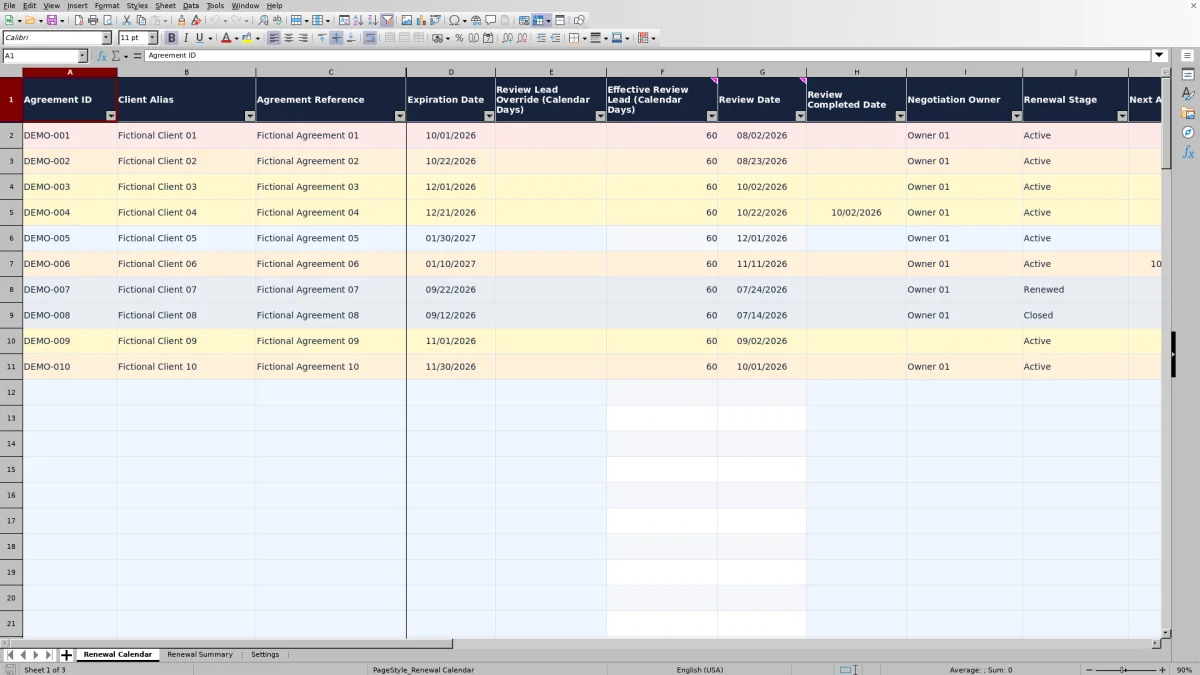
In Renewal Calendar, enter Agreement ID first, then the client alias, agreement reference, expiration date, negotiation owner, and renewal stage. Use one row per agreement's current renewal cycle. The first ten records are fictional examples; remove or replace their input values before relying on totals for your agency.
3. Check the calculated review schedule
Leave Review Lead Override blank to use the default, or enter a whole number from 0 to 365 for that agreement. Check the resulting Review Date and Days to Expiration. Enter dates as Excel dates displayed in MM/DD/YYYY format, and preserve the formulas in columns F, G, L, and M.
4. Review alerts and record follow-up
Use Renewal Summary to identify the types of work needing attention. In Renewal Calendar, filter Negotiation Owner and Action Alert, then sort Expiration Date ascending. After taking action, manually update the review completion date, next action date, stage, and notes as appropriate. The workbook calculates alerts; it does not carry out the follow-up.
Keep agreement renewals separate from assignment planning
A client may have several job orders and assignments under one agreement. Enter the agreement's expiration here, rather than the end date of an individual placement or assignment. If the client has multiple agreements, use separate rows and distinct Agreement IDs so each renewal cycle has its own owner and dates.
Use Agreement Reference to identify the underlying document and Operational Notes to record the immediate issue or proposed next step. Check the agreement itself before choosing your review lead. The workbook does not read contract terms or determine notice requirements, and its planning defaults are not contractual or legal deadlines.
Before replacing a record with a new renewal cycle, preserve the previous cycle outside the workbook. Updating a row is not automatic renewal history tracking.
Choose lead time and lookahead for different decisions
Review lead and expiration lookahead serve different purposes. Review lead determines when you intend to start reviewing a particular agreement. Expiration lookahead determines which upcoming expirations fall within the summary's planning window.
The effective review lead uses the agreement's override when entered; otherwise, it uses Settings!B2. The review date is the expiration date minus that effective lead. For the first record, the date formula is D2-F2. These are calendar days, not business days, so weekends and holidays are not skipped.
A blank override uses the default, while an override of 0 schedules the review on the expiration date. Choose zero only if that is intentional. Changing the default affects records without overrides; it does not replace their agreement-specific values.
The initial lookahead is 90 calendar days and can be set from 1 to 365 in Settings!B3. Its date window includes both the as-of date and the final lookahead date. Adjust this window for your planning meeting without changing when individual reviews are scheduled.
Example: turn an expiration into a review decision
Suppose a complete, Active agreement expires on 12/01/2026. With the default lead of 60 calendar days and no override, the calculated Review Date is 10/02/2026. If you set the as-of date to 10/02/2026, Days to Expiration is 60: the expiration date minus the review's as-of date.
With no Review Completed Date and no overdue Next Action Date, the alert is Review Due Today. That tells the negotiation owner to conduct or arrange the review; it does not mean the agreement expires today.
After the review actually occurs, enter its completion date. With the same dates and the default 90-day lookahead, the alert becomes Expiring Soon if no higher-priority condition applies. The completed review removes the review-due condition, but it does not mean the client has renewed. Record the next follow-up date and update the stage only when the agreement's situation changes.
Read action alerts in their priority order
Each row with an Agreement ID receives one priority-based alert, not a separate flag for every issue. The order is Incomplete, Resolved, Expired, Next Action Overdue, Review Overdue, Review Due Today, Expiring Soon, then Scheduled.
- Incomplete takes precedence when a required client alias, agreement reference, expiration date, owner, or stage is missing—even if the stage is Renewed or Closed.
- Resolved applies to complete records marked Renewed or Closed.
- Expired takes precedence over overdue next actions and reviews when expiration is before the as-of date.
- Next Action Overdue applies when the next action date is before the as-of date. An action dated today is not overdue.
- Review Overdue and Review Due Today apply only when review completion has not been recorded.
Start with the displayed priority, but also inspect the row's dates before deciding what to do. For example, an Expired record can also have a missed follow-up date that is not separately counted as Next Action Overdue. Scheduled means no higher-priority condition applies; it is not confirmation that someone has contacted the client.
Use summary counts without double-counting the workload
Unresolved agreements counts identified rows except those classified as Resolved. It includes incomplete records and agreements marked Not Renewing. A Not Renewing decision therefore stays on the unresolved list until the record is marked Closed and its required fields are complete.
Approaching expirations — all priorities counts identified records expiring from the as-of date through the lookahead date, excluding stages Renewed and Closed. It can include a record whose displayed alert is Review Overdue or Next Action Overdue. Incomplete records with an expiration date may also qualify; those missing a usable expiration date may be absent from this date-based count.
Do not add approaching expirations to the alert totals. They overlap. An Active agreement expiring in 30 days with an overdue next action contributes to both the approaching expiration measure and the Next Action Overdue category. Use the first measure to gauge upcoming expiration volume and the alert categories to choose the immediate work.
For an individual action list, filter the calendar by owner. The summary is an overall set of measures, not an owner-by-owner workload report.
Common errors and practical fixes
- Missing Agreement ID: A row without an ID is excluded from all alerts and counts, even if other inputs are present. Enter the ID first, then complete the required fields.
- Duplicate records: Red, bold Agreement IDs indicate duplicates. Counts are row counts, not deduplicated agreement counts. Check whether the rows represent an accidental repeat or different agreements that need distinct IDs.
- Unexpected review dates: Check the override before changing the default lead. A populated override controls that row, and zero is a valid override rather than a request to use the default.
- Unexpected alert changes: Check the as-of date. With TODAY(), alerts can change as Excel recalculates on later dates. Notes in fictional examples describe expected results at creation, not permanent results.
- Missing or incorrect calculations: Formula cells are not protected. If a formula was overwritten, restore it from an untouched copy rather than typing a result into the cell.
After correcting inputs, inspect both the affected row and the summary. Data validation helps guide entry, but it does not verify the agreement's terms or confirm that the recorded action actually happened.
Comparison: prepared renewal workbook or blank spreadsheet?
This workbook fits an agency that wants a defined agreement-renewal list with date calculations and consistent alert rules. A blank spreadsheet fits a team that needs a different record structure and is willing to build and check its own calculations. Neither approach, by itself, performs negotiation or sends client follow-ups.
| Method | Initial setup | Review and alert logic | Capacity and history | Best fit |
|---|---|---|---|---|
| This renewal workbook | Replace examples, set assumptions, and enter agreements. | Prepared review-date formulas, priority alerts, and summary counts. | 100 prepared rows; preserve prior cycles separately. | A consistent current-cycle renewal review process. |
| Blank spreadsheet | Choose fields and build the layout yourself. | Dates can be tracked manually; formulas and alert rules must be created. | You design the ranges and approach to historical records. | A custom process with someone responsible for maintaining the spreadsheet logic. |
If you need shared task notifications, linked contract documents, or a retained activity history, evaluate software specifically for those needs. Those capabilities are not supplied by this workbook. Its role is to organize the renewal review and show calculated priorities from the information you enter.
Frequently asked questions
Does the workbook send calendar reminders or email owners?
No. It displays calculated alerts and supports filtered action lists, but it does not send email, create calendar events, or notify owners. As a separate manual workflow, you can copy an agreed follow-up date into the calendar or task system your team uses.
How many agreements can I track?
Rows 2–101 are prepared for 100 records. Ten fictional examples occupy the first ten record rows, leaving rows 12–101 initially available. Replace or clear the example inputs while preserving formulas to use the full capacity. Rows beyond 101 are outside the prepared formulas, validation, filters, and summary ranges; do not assume that appending a row extends those functions.
Can I customize negotiation owners and renewal stages?
You can replace the ten owner aliases in Settings!D2:D11; that range supplies the owner dropdown. Review existing records manually if you rename an owner. Keep the five stage labels unchanged: Active, Negotiating, Renewed, Not Renewing, and Closed. The formulas depend on exact stage labels, particularly Renewed and Closed.
How can I preserve the results from a monthly renewal meeting?
Replace Settings!B4 with the meeting's fixed as-of date and save a dated copy containing that meeting's inputs. A fixed date alone does not preserve history if you later edit the agreement records. Keep prior-cycle information outside the working workbook before replacing it.
Does Expired establish that an agreement is no longer legally in effect?
No. Expired means the entered expiration date is before the as-of date and no higher-priority alert applies. The workbook does not interpret extensions, automatic renewal provisions, notice clauses, or other contract terms. Check the underlying agreement and confirm its disposition before changing the record.
Editorial contributors

Miriam HaldenRecruiting & assignment workflows
Explore this editorial focus →
Wesley CorbinBilling & agency finance
Explore this editorial focus →