Before your team acts on a client's staffing request, record what is needed, where the work will happen and who makes the approval decision. This staffing agency client intake worksheet keeps those details together as an Excel service brief.
Use this Staffing Worksheets workbook to capture client requirements, check for missing entries and review follow-up dates. It is a client intake record, not a candidate tracker, job-order authorization or pricing worksheet.
When to use this worksheet
- Keep each worksite's staffing need and approval path together for recruiter handoff.
- Spot missing brief details before deciding what to clarify with the client.
- Review overdue and approaching follow-ups against a shared review date.
- See counts of briefs needing attention without manually tallying each row.
What the workbook includes
How to use the workbook
1. Prepare the workbook for your clients
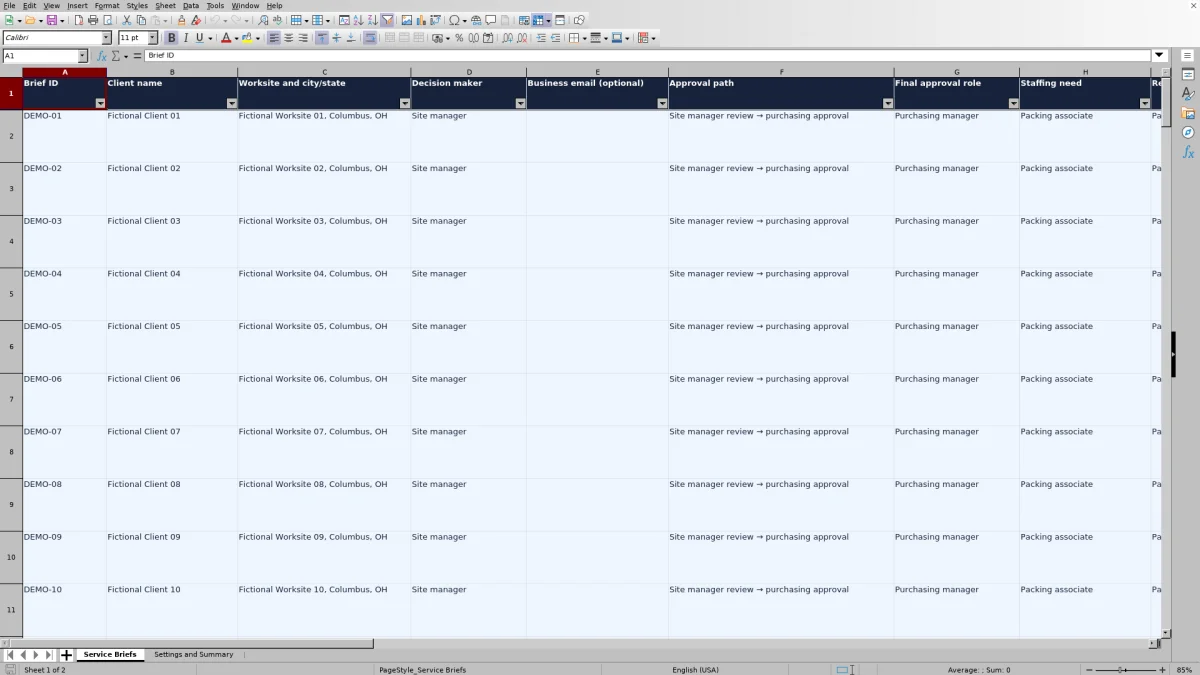
Save a working copy and review the fictional DEMO-01 through DEMO-10 records. Replace or clear their input cells in columns A–O on Service Briefs before relying on the summary. Preserve the formulas in columns P–Q.
2. Set your follow-up review window
On Settings and Summary, check Review date in B2 and Follow-up horizon (days) in B3. The review date uses TODAY(), and the supplied horizon is 3 days. These settings determine which open briefs show Overdue, Due soon or Scheduled.
3. Record one worksite and staffing need per row
Enter a unique Brief ID, then capture the client request and approval responsibilities on Service Briefs. Use a business role rather than a personal name for Decision maker. Record requested headcount as people and specify the shift and requested hours clearly. Enter dates in MM/DD/YYYY format.
4. Resolve gaps and plan the next contact
Select the manual Intake status and enter Last confirmed date and Next follow-up date. Read Field check and Follow-up alert, then use the sheet's filters to review relevant rows. The alerts are worksheet labels; you still make the client contact and update the record afterward.
Keep separate staffing needs in separate briefs
The workbook's record scope is one worksite and one staffing need. If a client requests packing associates at one location and forklift operators at another, use separate rows and unique Brief IDs. That keeps each request's skills, headcount, start date and approval path attached to the right need.
Consider separate rows when shifts have materially different requirements or follow-up dates, even at the same worksite. This is a suggested recording practice, not an automatic split performed by Excel. Use consistent client names so filtering brings related briefs together.
Describe the request precisely enough for another recruiter to understand it. For example, “Day shift, 40 requested hours/week” states the requested schedule; it does not establish actual hours worked or an assignment's attendance.
Record the approval path without implying authorization
A client contact may describe the need without having final approval authority. Use Decision maker for the business role responsible for the brief, Approval path for the ordered review steps, and Final approval role for the role making the final client decision.
The fictional examples use “Site manager review → purchasing approval,” with Purchasing manager as the final approval role. That gives the account manager a practical question to resolve: has the request reached purchasing, or is it still with the site manager?
An approval path is not an approval record. The workbook stores the process you enter; it does not route the request, collect sign-off or authorize a job order. Likewise, selecting Confirmed records your manual intake status rather than proving that a separate commercial or operational approval has occurred.
Problems to resolve when a brief looks complete
Field check tests whether required input cells contain entries. It returns Needs details when any input other than Business email (optional) is missing, and Fields present when those entries are present. An entirely empty input row leaves the calculated check blank.
Fields present means populated, not verified. A placeholder such as “TBD” can satisfy a presence check without answering the client's requirement. A headcount of 0 is also present, so this check alone cannot establish that the request represents an active need. Read the entries before using the brief for a handoff.
- If Needs details appears, review the required inputs in columns A–D and F–O. A blank optional email is not the cause.
- If a brief is populated but still uncertain, use Clarification needed and arrange the next client contact rather than treating the presence check as confirmation.
- If you reuse a row, replace all relevant inputs. Old dates or approval roles can remain populated while no longer describing the current request.
Example: interpret the follow-up window
The alert compares Next follow-up date with Review date and the horizon in days. A date before the review date is Overdue. A date from the review date through review date plus horizon, inclusive, is Due soon. A later date is Scheduled. The formula uses calendar days, not business days.
For a review date of 10/02/2026 and a 3-day horizon, the Due soon window runs through 10/05/2026. The fictional records illustrate the boundaries: DEMO-01 has a follow-up date of 10/01/2026 and would be Overdue; DEMO-02 has 10/02/2026 and would be Due soon; DEMO-03 has 10/05/2026 and would also be Due soon. A follow-up on 10/06/2026 would be Scheduled.
Use those results to decide which clients to contact during your review. A populated, non-closed row without a follow-up date shows Set follow-up. Closed status takes priority over the date and returns Closed. These labels do not send reminders or reschedule contacts.
Read the summary as an attention list
Settings and Summary counts Briefs entered, Needs details, Overdue, Due soon and Set follow-up. Briefs entered counts rows whose Field check is either Fields present or Needs details, so a partially completed row can count as a brief. It is not a count of confirmed requests or approved job orders.
Do not add the attention counts together to find a total. One brief can have missing details and an overdue follow-up, so it can appear in both counts. Review the underlying rows to see whether one client contact could resolve both issues.
Closed rows remain in Briefs entered and can still count as Needs details. Closing a brief stops its active follow-up alert; it does not remove the row or fill its missing entries. Remove fictional examples from the input area if you want these counts to describe only your own records.
Maintain dates, revisions and the 100-row limit
The prepared formulas, validations and filter range cover rows 2–101 on Service Briefs. The summary formulas also reference those 100 rows. Typing a new record below row 101 does not, by itself, extend the workbook's checks or summary coverage. If you need more capacity, extend and verify all related ranges rather than only copying a formula.
Date validation checks for numeric, whole-date Excel values in the date fields. Last confirmed date must also be no later than Review date. If Excel rejects that entry, check both the date you entered and the review setting. The rules do not establish that every date is sensible relative to every other date in the brief.
When a client revises the requested start, headcount or approval path, update the affected inputs and confirm what changed. If you need the previous brief, save a dated copy before editing. That is a manual versioning practice; the workbook does not provide a revision history.
Comparison: this workbook or a blank spreadsheet?
Both approaches can hold client intake notes. This workbook fits a repeatable service-brief process when you want prepared fields, presence checks and date-based attention counts. A blank spreadsheet fits a different intake structure when you are prepared to design and maintain the layout and any calculations yourself.
| Method | Initial setup | Review support | Fit and limits |
|---|---|---|---|
| This Excel workbook | Prepared client brief fields, status choices and reference notes | Field checks, follow-up labels and five summary counts | Repeatable client intake within 100 prepared rows; no candidate pipeline or job-order authorization |
| Blank spreadsheet | You choose the fields, layout and recording rules | Manual review unless you build checks and summaries | Flexible for a different brief structure; consistency and formula coverage depend on your setup |
If you need candidate submissions, placements or assignment activity alongside client intake, assess a system designed for that broader workflow. This workbook can serve as a separate service brief, but it has no implemented connection to an applicant tracking system or staffing platform.
Frequently asked questions
Can I keep the review date fixed for a particular review session?
Yes. Settings and Summary B2 initially contains TODAY(). You can replace it with a valid fixed date to evaluate follow-ups against that date. Replacing the formula means it will no longer advance with the current date; restore =TODAY() when you want that behavior again.
Is a client's business email required?
No. Business email (optional) is excluded from the required-field presence check. The fictional examples leave it blank. Use it for a business contact address if useful, but leaving it empty does not cause Needs details.
Does the workbook change Intake status automatically?
No. You select Draft, Clarification needed, Confirmed or Closed. Field check and Follow-up alert calculate separately; neither automatically changes the manual status when a date passes or all required entries are present.
Does it store candidate records or calculate pay and bill rates?
No. The workbook is limited to client intake. It has no candidate records, submission tracking, pay rate, bill rate, burden calculations or financial totals. Keep those activities in the appropriate separate records or systems.
Can the same client have several briefs?
Yes. Repeat the client name for separate worksite and staffing-need records, but assign each brief its own reference. Brief ID has a uniqueness validation rule within A2:A101. Use the client-name filter to review that client's related rows together.
Editorial contributors

Miriam HaldenRecruiting & assignment workflows
Explore this editorial focus →
Wesley CorbinBilling & agency finance
Explore this editorial focus →