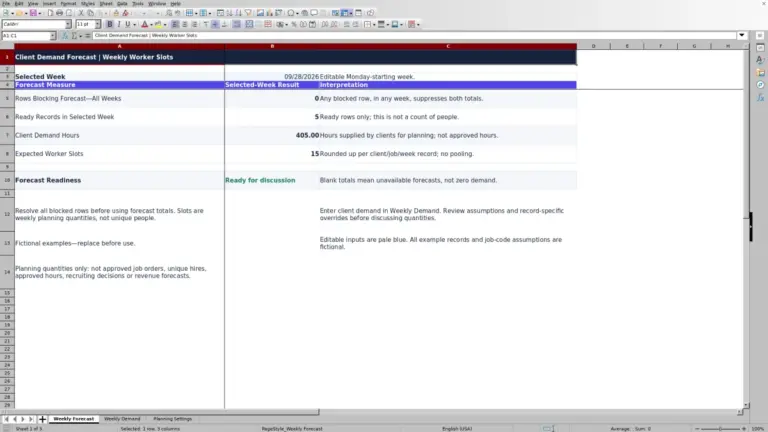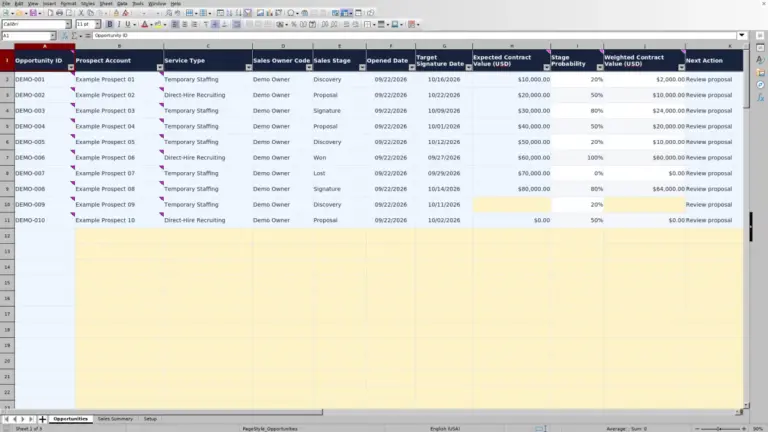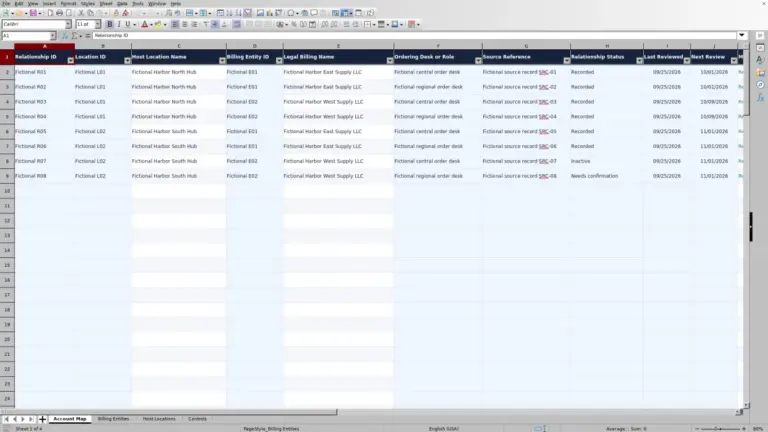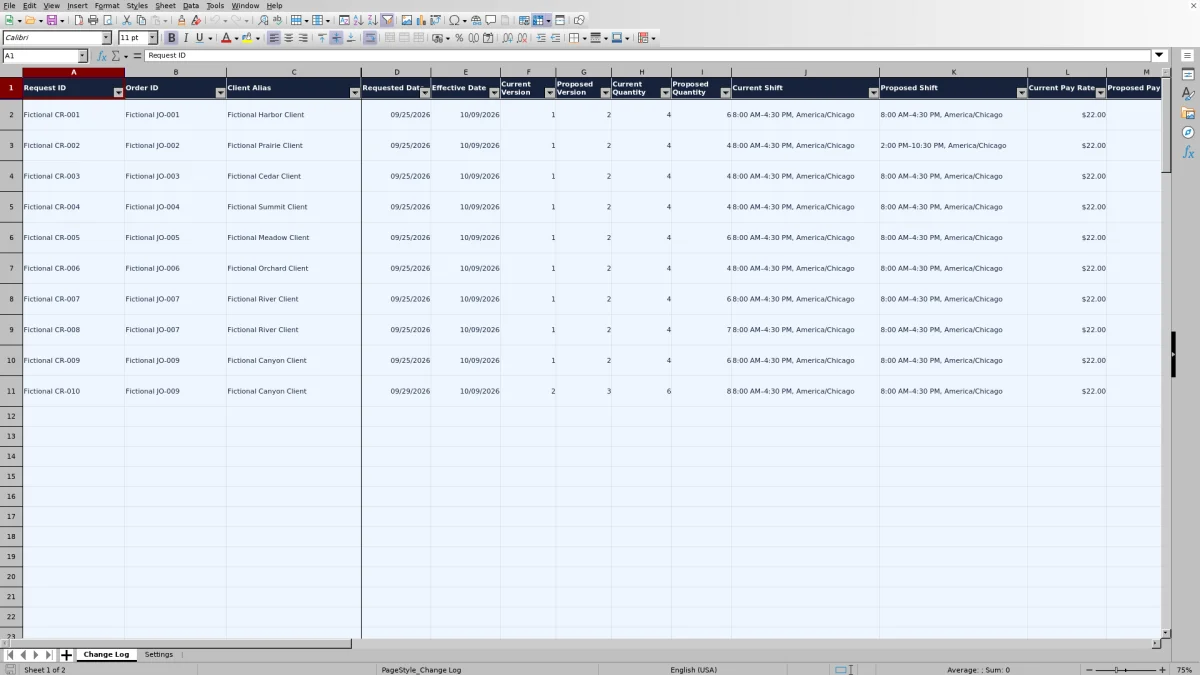
When a client changes a job order, record the revised terms and approval before passing the update to a recruiter. This Excel workbook keeps current and proposed quantity, shift, pay rate and duties together so you can review what changed.
The Staffing Worksheets order change request log uses one row per requested revision. Calculated checks flag incomplete details, duplicate keys and handoff exceptions, while approval and handoff remain manually documented.
When to use this worksheet
- Compare current and proposed terms before updating the recruiter’s brief.
- Spot duplicate request IDs and competing entries for the same order version.
- Separate revisions ready for handoff from those needing correction or approval.
- Review recorded handoffs when a revision is incomplete, unapproved or superseded.
What the workbook includes
How to use the workbook
1. Prepare your working copy
Read the operating instructions on Settings and replace the 10 fictional records before operational use. Use Change Log rows 2–101. Enter information in the pale blue input cells and leave the calculated columns U:X intact.
2. Record the requested revision
Verify current terms against your authoritative job order. Enter the request and order identifiers, client alias, dates and versions, followed by both current and proposed terms. Repeat unchanged values rather than leaving them blank. Proposed Version must be a positive whole number greater than Current Version.
3. Document approval and resolve exceptions
Select the Approval Status and, when approval is received, enter Approval Date and Approved By. Review Detail Check, Uniqueness Check and Handoff Readiness. Correct missing or conflicting information and verify the client’s terms before treating a Ready result as a handoff cue.
4. Pass along the revision and record the handoff
Send the approved revision through your normal communication process; the workbook does not send it. Enter both Handoff Date and Handed Off By afterward. Review Handoff Review on Change Log and the revision counts on Settings to identify entries needing follow-up.
Capture a complete revision, not just the changed value
Use each row to describe one requested revision to an existing client job order. Check the current terms against the record your agency treats as authoritative, then enter the complete proposed terms. There is no external order-system connection to supply or verify those values.
Repeat every unchanged term. If only the quantity changes, still repeat the shift, pay rate and duties in the proposed fields. Detail Check requires all fields from Request ID through Approval Status to be filled, and it compares the four current/proposed pairs to determine whether a change exists.
Quantity means requested positions, not placements, attendance or approved hours. Shift descriptions should include local start and end times plus a time zone. Duties should describe the work scope without medical or protected-class information. These are entry practices you follow; the workbook does not interpret the shift text or assess the suitability of the duties.
Example: a client increases the requested quantity
Suppose a client increases a job order from 4 positions to 6, effective 10/09/2026. The current version is 1 and the proposed version is 2. The shift remains 8:00 AM–4:30 PM, America/Chicago, the pay rate remains USD 22.00/hour, and the duties remain packing and labeling outbound cartons.
Enter 4 and 6 in the quantity pair and repeat the unchanged shift, pay and duties. The difference is two additional requested positions; it is not evidence that two candidates have been placed. The workbook records the two quantities but does not calculate a separate quantity-change total.
With all required details present and version 2 greater than version 1, Detail Check returns Complete. If the request ID and order/version combination are unique, Uniqueness Check returns Unique. Selecting Approved and entering an approval date and approver produces Ready only if no higher approved version exists for that order.
Your next action is to verify the request and pass the approved terms to the recruiter. Until you enter handoff details, Handoff Review remains Not recorded—even when the revision is Ready.
Control versions before choosing a revision to hand off
Use a distinct Request ID for each revision and keep the Order ID consistent across revisions to the same job order. Uniqueness Check flags either a repeated Request ID or a repeated combination of Order ID and Proposed Version within rows 2–101. Different request IDs alone do not resolve two entries proposing the same version of one order.
Handoff Readiness first requires Complete details and Unique keys. Otherwise it returns Hold. It then checks for the exact status Approved, followed by an approval date and approver. Only after those checks does it look for a higher approved version of the same order.
A higher approved version supersedes a lower eligible revision, even if that higher row has its own missing details or other exceptions. The superseding test looks at the order ID, Approved status and proposed version—not whether the higher row is itself Ready. Investigate that newer row rather than assuming it is suitable for handoff.
As a manual recordkeeping practice, keep approved records unchanged and use a new request and version for corrections. The workbook does not enforce an immutable history or confirm that one revision’s Current Version matches the preceding approved revision.
Errors and solutions: resolve the reason for a hold
Use the calculated indicators to identify the next correction rather than replacing their results with typed labels. Common exceptions include:
- Check required fields: Fill missing inputs from Request ID through Approval Status and confirm that Proposed Version exceeds Current Version. Missing approval date or approver is handled separately by the readiness check.
- No change: All four tracked current/proposed pairs match. Verify whether a real quantity, shift, pay or duties change was omitted. Changing only a date or version does not count as a terms change.
- Duplicate: Review both Request ID and the Order ID/Proposed Version pair. Confirm whether you entered a request twice or assigned the same version to different requests before correcting it.
- Not approved: Confirm the actual approval decision. Do not select Approved merely to clear the flag.
- Missing approval: An otherwise eligible row is marked Approved but lacks an approval date or approver. Add the real documentation details or correct the status.
A completely unused row leaves its calculated indicators blank. Once you start a row, drafting blanks can produce exceptions. Do not fill missing terms with arbitrary zeros to make the row appear complete; quantities require positive whole numbers, and pay must reflect the actual request.
Use handoff review and summary counts for follow-up
Handoff Review separates the recorded communication from the revision’s readiness. It returns Not recorded when both handoff fields are blank. It returns Recorded when both fields are filled and Handoff Readiness is Ready. A partial handoff, or any entered handoff on a non-ready row, returns Review recorded handoff.
If a newer approved version later supersedes a previously handed-off revision, that historical handoff can move to review. This is a reason to check whether the recruiter has the latest terms—not proof that the earlier handoff was improper when it occurred.
Settings counts Ready Revisions and Handoffs Needing Review. These counts represent revisions, not distinct orders. The Ready count includes ready revisions whose handoffs are already recorded, so it is not a count of unsent updates. To find a working handoff queue, manually filter Change Log for Ready and Not recorded together.
The supplied fictional examples are intended to show 3 Ready revisions and 1 handoff needing review. Those are demonstration results, not agency operating targets.
Limits to check before relying on a Ready label
Ready is a worksheet result, not verified authorization. The formula checks completeness, changed terms, unique keys, entered approval details and higher approved versions. It does not authenticate the approver, verify the client’s request or determine whether the effective date has arrived.
Validation supports ordinary data entry, but pasting can bypass it. After importing or pasting rows, manually check numeric types, positive quantities, version order, dates, pay, status and identifiers. A Ready label does not repeat every validation rule, so an invalid pasted value may not be caught by the readiness formula.
Formula cells are visually separated and carry locked metadata, but sheet protection is not enabled. Accidental edits are not technically blocked. Avoid overwriting Change Log columns U:X or the summary formulas in Settings E2:E3. If you need a historical snapshot, save a dated copy yourself; that is a suggested manual practice, not automatic version history.
Comparison: this workbook or a blank spreadsheet?
A blank spreadsheet can suit an occasional request or a process with substantially different fields. This workbook fits a repeatable review of the four supported job-order terms, with prepared checks for versions, approval details and handoff records. Both approaches still depend on someone verifying the source request and communicating the approved change.
| Method | Initial setup | Revision checks | Approval and handoff | Best fit |
|---|---|---|---|---|
| Staffing Worksheets workbook | Prepared fields and formulas for 100 revision rows | Built-in detail, duplicate, readiness and handoff indicators within the prepared range | Manual entries with formula-based exception flags; no message delivery | Recurring quantity, shift, pay and duties revisions using a consistent format |
| Blank spreadsheet or manual log | You choose and create the fields | Manual review unless you build your own formulas | You define how approval and communication are recorded | Occasional changes or a different record structure you are prepared to maintain |
If your agency needs an enforced approval workflow, automatic communication or a shared authoritative job-order record, assess software specifically for those requirements. This workbook is a separate revision log, not a replacement for those functions.
Frequently asked questions
How many change requests can I record?
The prepared range is Change Log rows 2–101, providing 100 revision rows, including the 10 fictional examples you should replace. Duplicate checks, higher-version checks and summary formulas reference that range. Adding rows below it does not automatically extend all controls; revise and test the formulas and validation ranges before relying on a larger log.
Does the workbook calculate bill rates, payroll or margin?
No. Current Pay Rate and Proposed Pay Rate record worker compensation in USD/hour. They are not client bill rates. The workbook does not calculate burden, payroll, billing, markup or gross margin, so review the financial effect of a pay change separately before quoting or processing it.
Can I rename the approval statuses?
Settings A2:A5 supplies the dropdown options Pending, Approved, Rejected and Withdrawn. The readiness formulas recognize the exact label Approved. Do not rename that option without also updating and testing the dependent formulas. Adding a label outside A2:A5 will not automatically include it in the existing dropdown source.
What date order does the workbook check?
Enter Excel dates displayed as MM/DD/YYYY. The validation rules require effective and approval dates to be on or after the requested date. When both approval and handoff dates are entered, handoff cannot precede approval. These checks do not establish an approval deadline relative to the effective date or schedule a future handoff.
Will this update the job order in my ATS or notify the recruiter?
No. The workbook has no external order-system connection and does not send notifications. After verifying the approved revision, manually update your applicant tracking system (ATS) or other authoritative job-order record and communicate the change through your normal process. Handoff Date and Handed Off By document what you enter; they do not confirm receipt.
Editorial contributors

Miriam HaldenRecruiting & assignment workflows
Explore this editorial focus →
Wesley CorbinBilling & agency finance
Explore this editorial focus →