When clients provide weekly demand in hours, translate it into staffing quantities before discussing a job order. This Excel workbook from Staffing Worksheets calculates expected worker slots for each client, job code and Monday-starting week.
Enter demand, review planned hours per worker and select a week to see the totals. The results are planning quantities, not approved job orders; they do not forecast sales probability, cash flow or unique hires.
When to use this worksheet
- Turn client-provided hours into weekly worker-slot quantities for discussion.
- Use job-code assumptions while allowing a different hours plan for an individual record.
- Identify missing, invalid or duplicate records before relying on forecast totals.
- Keep zero demand distinct from a forecast that is unavailable because inputs need attention.
What the workbook includes
How to use the workbook
1. Replace the fictional planning assumptions
Open Planning Settings and review the three job-code entries in A5:B7. Replace the example codes and planned weekly hours per worker with assumptions appropriate to your client work. Keep all three codes unique and nonblank, and use positive numeric hours. These are operational assumptions, not legal limits.
2. Enter one record per client, job code and week
Replace the fictional DEMO records in Weekly Demand. Use rows 2–101 to enter the Monday week-start date, client code, job code and client demand hours. Enter a positive Planned Hours per Worker Override only when that record needs a different assumption. Leave formula columns F–H intact.
3. Resolve input problems across all weeks
Review Input Status and use the sheet filters to locate Needs review or Duplicate records. Check highlighted settings and overrides after editing, especially after pasting data. Any blocked row in any week suppresses both forecast totals.
4. Select a week and review the quantities
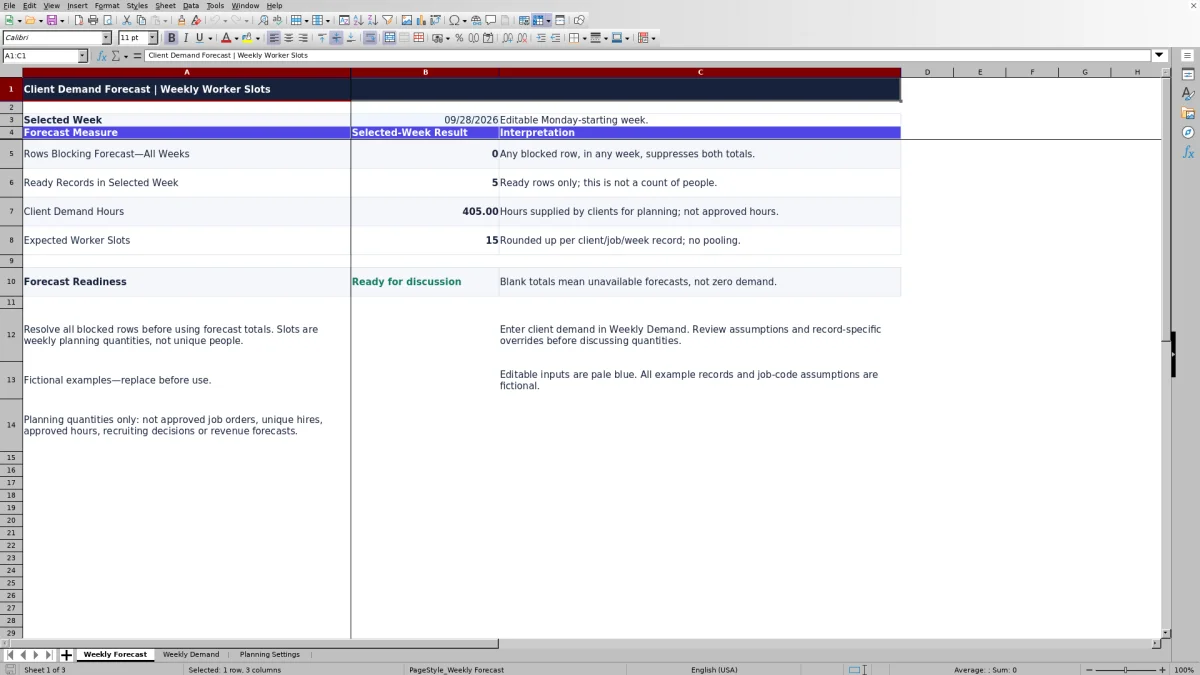
In Weekly Forecast, enter the Monday date in Selected Week. Once the forecast is Ready for discussion, review Client Demand Hours and Expected Worker Slots. Confirm the demand and hours assumptions with the client before using the quantities in a separate job-order process.
Example: turn 405 demand hours into 15 worker slots
The fictional records for 09/28/2026 show how hours become weekly quantities. For each ready record, the workbook divides client demand hours by effective planned hours per worker and rounds the result up to a whole slot. In the first demand row, the calculation is ROUNDUP(D2/F2,0).
- DEMO-A, PICKER: 160 hours ÷ 40 hours per worker = 4 slots.
- DEMO-A, PACKER: 100 ÷ 32 = 3.125, rounded up to 4 slots.
- DEMO-A, DISPATCHER: 0 ÷ 24 = 0 slots.
- DEMO-B, PICKER: 81 ÷ 40 = 2.025, rounded up to 3 slots.
- DEMO-B, PACKER: 64 ÷ the 16-hour override = 4 slots.
Together, these records produce 405 demand hours and 15 expected worker slots. There are five ready records, but that count is neither five workers nor five hires. Slots are rounded up per record, with no pooling. For the 81-hour picker requirement, discuss whether the client really needs three planned slots and how those hours would be distributed; the file does not build that schedule.
Choose between a shared assumption and a record override
Use Planning Settings for the planned weekly hours that normally apply to a job code. Use Planned Hours per Worker Override when one client/job/week record needs a different figure. Effective Planned Hours per Worker takes the override when entered; otherwise, it looks up the matching job-code setting.
The fictional PACKER assumption is 32 hours. For DEMO-B's 64-hour requirement, that would yield two slots. The sample record instead uses a 16-hour override, producing four slots. The client demand has not changed; the planned capacity of each slot has changed.
A shared assumption change affects matching records without overrides, including records in other weeks. Before changing a setting, decide whether you mean to revise the general planning basis or just one requirement. If you need to preserve a previous forecast, save a dated copy before editing. That is a suggested manual workflow, not built-in version history.
Problems: blank totals and records that need review
If the totals disappear, start with Rows Blocking Forecast—All Weeks on Weekly Forecast. It counts both Needs review and Duplicate statuses across the entire prepared demand range. A problem in a later week can therefore block the week you are currently discussing.
For a Needs review record, check that the week is a valid Monday date, the client code is present, and the job code appears exactly once in the three-entry settings list. Demand hours must be numeric and at least zero. Effective planned hours must be numeric and greater than zero. Also review any override and the setting it would replace.
Excel validation helps with entry, but pasting or clearing cells can bypass it. Review Input Status and highlighted settings after those edits rather than assuming the entries were accepted correctly.
Blank totals do not mean zero demand. They also occur when no week is selected or the selected week has no ready records. Forecast Readiness distinguishes Blocked, Select a week, No ready records and Ready for discussion so you can choose the appropriate next action.
Resolve duplicates without discarding real demand
The workbook expects one record for each combination of week, client code and job code. Repeating that combination triggers Duplicate when the row otherwise passes its input checks. It does not matter whether the repeated rows contain different demand hours.
If two entries represent the same client request entered twice, confirm the correct record and remove the extra input values while preserving the formulas. If they represent separate portions of one weekly requirement, confirm with the source that both portions should count before consolidating the hours into one record.
Do not change a client code merely to make a duplicate warning disappear. The workbook has no separate shift or location field, and one record can use only one effective hours-per-worker assumption. If the requirement depends on distinct shifts or different worker-hour plans within the same client/job/week combination, retain that detail in a separate planning process rather than forcing it into a misleading total.
Capacity and scope to check before extending the file
The prepared calculation area contains 100 demand records and three job-code settings. The demand formulas, duplicate checks and summary totals reference rows 2–101. Job-code lookups and the dropdown reference Planning Settings A5:B7.
Typing a demand record below row 101 or adding a fourth job code below the settings range does not automatically include it in those calculations. Expansion requires deliberate changes to the relevant formulas and validation ranges, followed by checks of the results. Do not treat added rows as supported merely because they look similar.
The workbook converts supplied demand into quantities; it does not predict demand from historical trends. It also does not check candidate availability, assign workers, record attendance, approve hours or calculate payroll and revenue. Those tasks require separate records or systems.
Use the forecast in a client quantity discussion
When the status is Ready for discussion, use the selected-week totals as a starting point, not as an authorization. That status means the workbook's input checks have passed and the selected week has ready records. It does not mean the client has approved the requirement or that candidates are available.
A practical manual review is to confirm that the hours cover the intended week, explain any record-specific override and discuss the effect of rounding. Then record any approved job order in your normal process. The workbook has no external connections or automated action that creates that order.
Keep the distinction between worker slots and unique people clear. One person might be considered for more than one requirement, while another requirement might need several people to cover its timing. This workbook does not resolve either situation, so its slot total should not be presented as a unique hiring target.
Comparison: this workbook or a blank spreadsheet?
This workbook fits a defined task: translating weekly client demand hours into worker slots using a small, fixed job-code list. A blank spreadsheet is a realistic alternative when your planning structure needs different fields or calculation rules, but you must build and check those rules yourself.
| Method | Calculation setup | Input checks | Structure and fit | Follow-up work |
|---|---|---|---|---|
| Client Demand Forecast workbook | Prepared per-record round-up formulas and selected-week totals. | Ready, Needs review and Duplicate statuses; blocked rows suppress totals. | 100 records and three job codes for client/job/week planning. | Client confirmation and job-order entry remain separate manual steps. |
| Blank spreadsheet | You define the conversion, rounding and summary formulas. | No task-specific checks until you add them. | You design fields and ranges for your requirements, including any shift or location detail. | You define how quantities are reviewed and transferred to operational records. |
Choose the prepared workbook when its record structure matches the question you need to answer. Choose a custom sheet when the demand cannot reasonably be represented by one client/job/week record and one hours assumption. Neither approach should be treated as proof of attendance or an approved assignment.
Frequently asked questions
Can I use the XLSX file in LibreOffice?
The workbook instructions state that formulas recalculate when loaded in Excel or LibreOffice. Calculated results are not cached in the generated file, so a preview that does not calculate formulas may not show them. Open the workbook in a calculating spreadsheet application before reviewing the forecast.
How should I enter the week-start date?
Use the Monday that starts the planning week in both Weekly Demand and Selected Week. Dates display as MM/DD/YYYY. Enter a real spreadsheet date without a time component, rather than a text label such as “Week 40.” The selected date must match the demand records you want to summarize.
Can I record a confirmed week with no demand?
Yes. Zero is a valid demand-hours value and produces zero worker slots when the other required inputs are valid. That row still counts as a ready record. Use zero for a known zero requirement, not as a substitute for hours the client has not yet provided.
Can I filter the forecast total to one client?
Weekly Demand has filters for reviewing individual clients, but Weekly Forecast selects only a week and totals matching records across clients. Filtering the demand sheet does not change those summary formulas into client-only totals.
Are the example hours staffing or legal standards?
No. The initial PICKER, PACKER and DISPATCHER settings of 40, 32 and 24 hours are fictional planning assumptions. Replace them before operational use. The workbook does not determine legal working-hour limits, overtime treatment or regulatory compliance.
Editorial contributors

Miriam HaldenRecruiting & assignment workflows
Explore this editorial focus →
Wesley CorbinBilling & agency finance
Explore this editorial focus →