When a client proposal includes several job codes and service charges, assemble the forecast before sharing a price. This Excel workbook from Staffing Worksheets combines approved bill rates and forecast quantities into labor amounts, service charges and a proposal total in USD.
Enter your agency-authorized rate catalog, select the codes you want to quote and add the expected hours or service counts. The workbook checks entered pricing lines and separately checks proposal details. It uses rates you supply; it does not derive a bill rate from pay, burden or margin.
When to use this worksheet
- Bring multiple labor codes and service charges into one client proposal forecast.
- Keep forecast labor hours separate from service-charge quantities and amounts.
- Identify unresolved pricing lines before relying on the proposal total.
- Keep an approval reference beside each catalog rate for your own authorization checks.
What the workbook includes
How to use the workbook
1. Replace the fictional proposal details
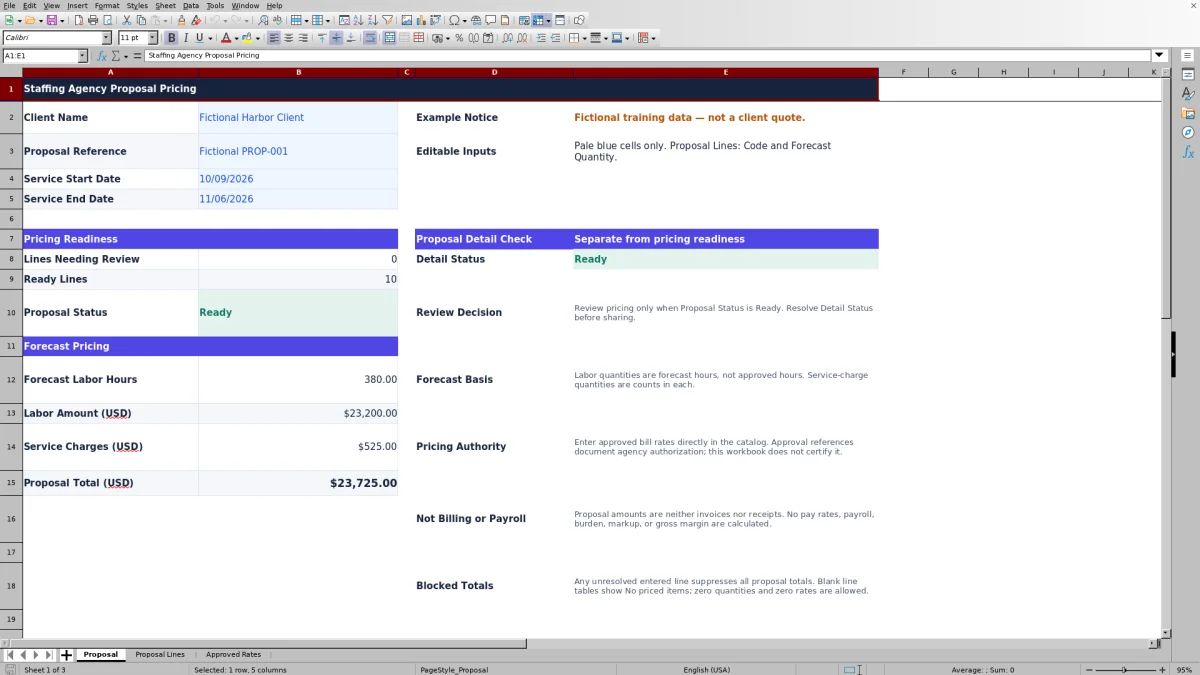
On Proposal, enter the client name, proposal reference and service start and end dates in the pale blue input cells. Dates display as MM/DD/YYYY, and the end date must be on or after the start date. Replace the fictional training inputs before using the workbook for a client.
2. Enter your authorized rate catalog
On Approved Rates, enter a unique code, description, item type, unit, approved bill rate and approval reference for each item you may quote. Pair Labor with hour and Service charge with each. Use a numeric rate of zero or greater, and resolve any Check rate status before using that code.
3. Build the forecast lines
On Proposal Lines, edit only Code and Forecast Quantity. Select a catalog code and enter forecast hours for labor or a count for a service charge. When the line is Ready, formulas retrieve the catalog details and rate, then calculate the amount. Clear both inputs from any fictional line you do not need; leave the formula cells intact.
4. Check pricing and details before sharing
Return to Proposal and review Lines Needing Review, Ready Lines and Proposal Status. Pricing totals appear only when Proposal Status is Ready. Also resolve Detail Status separately: pricing readiness does not confirm proposal details. Check the scope and quantities against the client's request before using the figures in your proposal.
Use the catalog to carry approved prices, not set them
Start with rates your agency has already authorized for the proposal. Approved Rates is a catalog you maintain, not a pricing model. Its checks establish that the required information is present and internally consistent; they do not determine whether a rate is commercially appropriate.
For a catalog row to be Ready, the code must be unique, the description and Approval Reference must be present, and the rate must be numeric and nonnegative. Labor must use hour, while Service charge must use each. A description or reference alone is not enough if the type and unit do not match.
An approval reference is documentation, not certification. As a manual review step, confirm that the reference supports the rate you intend to offer this client. The workbook does not validate the authorization behind that reference or determine whether it applies to the service dates.
Keep forecast hours, service counts and dates distinct
Enter the total expected labor hours for each pricing line, not the number of candidates or assignments. For example, if your planning assumption is two workers at 40 hours each, enter 80 forecast hours for the applicable labor code. That staffing assumption is something you establish outside the workbook; the file does not convert headcount or service dates into hours.
Service-charge quantities use each. A quantity of 2 for a reporting package means two units at the catalog price, not two labor hours. Only lines classified as Labor contribute to Forecast Labor Hours, while service-charge amounts appear in their own subtotal.
The service dates provide proposal context. Detail Status checks for a client name, proposal reference and valid whole-date entries with the end date on or after the start date. This check is separate from pricing, so totals can appear while proposal details still need attention. Forecast hours are not approved hours worked; confirm the planning basis with the client rather than treating the total as attendance or timekeeping evidence.
Example: interpret the fictional proposal total
The included training lines show how repeated labor codes and different service charges combine. They are fictional examples, not suggested market rates or a client quote.
- LAB-A appears twice at 80 hours each. At USD 50 per hour, its 160 forecast hours produce USD 8,000.
- LAB-B has 120 hours plus 40 hours. At USD 65 per hour, its 160 hours produce USD 10,400.
- LAB-C has 40 hours plus 20 hours. At USD 80 per hour, its 60 hours produce USD 4,800.
Together, those labor lines represent 380 forecast hours and USD 23,200. The service lines add one USD 250 setup charge, two USD 100 reporting packages, one USD 75 orientation session and one included service at USD 0. Service charges total USD 525, bringing the proposal total to USD 23,725 when all entered lines are Ready.
Each ready line multiplies its quantity by its rate and rounds the result to cents. In the first line, the formula is =IF(H2="Ready",ROUND(E2*F2,2),""). It returns the rounded amount only when the line is Ready; otherwise it leaves the amount blank. The proposal sums those rounded line amounts. Use the result to review the expected client price, then confirm that the hours and service counts cover the intended scope. It is not a profitability calculation.
Problems that hide totals—and how to resolve them
A blank total is not a zero-price proposal. Any unresolved entered line changes Proposal Status to Review required and suppresses all forecast summary totals, even if other lines are Ready. Start with Line Status on Proposal Lines to find the cause.
- Missing code: a quantity has been entered without a code. Select the intended code, or clear both inputs if the line is not needed.
- Check approved rate: the code is not found in the catalog or its catalog entry is not Ready. Check the code, then inspect Rate Status on Approved Rates. Correct missing information, duplicate catalog codes, invalid rates or mismatched type and unit values.
- Check quantity: the quantity is missing, nonnumeric or negative. Enter the intended numeric quantity of zero or greater.
- No priced items: no entered line is Ready and no entered line needs review. Add at least one valid code-and-quantity pair to produce pricing totals.
A line can show the rate problem before the quantity problem, so check its status again after each correction. Separately, Review details means the proposal identification or dates need attention; it does not itself suppress pricing totals. Review both status areas rather than using the presence of a dollar total as your only release check.
Revise a proposal without losing the original assumptions
If the client changes expected hours, update Forecast Quantity for the affected lines. If the authorized rate changes, edit the catalog entry. Ready lines that use that code retrieve the catalog rate, so a rate change affects every matching line in that workbook. Review all affected amounts, not just the first occurrence of the code.
As a suggested manual workflow, save a dated copy before changing an already-shared proposal. Use the proposal reference to distinguish the revision and keep the supporting scope assumptions with your agency's records. The workbook does not provide automatic version history or preserve earlier rates after you overwrite them.
Both input areas cover rows 2–101: up to 100 catalog entries and 100 proposal lines. Keep working inputs within those ranges. Entering data below them does not automatically extend the existing lookups, checks or summary formulas. If your proposal needs more capacity, use a separately adapted and tested workbook or another tool rather than assuming extra rows are included.
What this pricing forecast does not establish
The proposal total answers a narrow question: what is the forecast client amount for the entered quantities at the supplied rates? It does not establish that the client has accepted the proposal, that a candidate has been placed or that an assignment has been worked.
The workbook does not calculate pay rates, employer burden, markup or gross margin. Markup and gross margin are different pricing measures, and neither can be inferred as a workbook output here. If you need to assess the economics of a rate, perform that cost and margin analysis separately before entering the authorized bill rate.
These figures are also neither invoices nor receipts, and the workbook does not process payroll. Use the file for the proposal pricing stage. Keep contract terms, acceptance, actual hours and subsequent billing or payroll records in the appropriate separate process.
Comparison: this workbook or a blank spreadsheet?
This workbook fits proposals that can be expressed as catalog labor rates multiplied by forecast hours, plus service charges priced per unit. A blank spreadsheet may fit a more unusual pricing structure, but you would need to create and verify its calculations and checks yourself.
| Method | Pricing setup | Review controls | Scope and flexibility |
|---|---|---|---|
| This proposal pricing workbook | Enter an authorized catalog, then select codes and forecast quantities. | Includes catalog and line statuses, blocked totals for unresolved lines, and a separate proposal detail check. | Supports labor per hour and service charges per each, within 100 catalog rows and 100 proposal lines. |
| Blank spreadsheet | Design the input layout, rate references and amount formulas. | Add and test any checks, warnings and total-suppression rules you need. | Can be designed around a different pricing structure, with the formulas and maintenance left to you. |
Choose this workbook when its units and capacity match the proposal and you want the supplied calculation structure. Choose a custom spreadsheet when the pricing logic itself is different and you can maintain that model. Neither approach, by itself, verifies rate authorization or replaces the broader client agreement and assignment workflow.
Frequently asked questions
Can the same job code appear on more than one proposal line?
Yes. The training example repeats labor codes across multiple proposal lines, and each ready line contributes its own quantity and amount. The uniqueness rule applies to Approved Rates, where each code must identify one catalog entry. Avoid duplicating a catalog code to represent a different rate; use a distinct code for a distinct authorized item.
Can I include a service with no charge?
Yes. A numeric zero rate is allowed, and the training catalog includes a fictional service priced at USD 0. With a valid catalog entry and quantity, that line can be Ready and show a zero amount. Zero quantities are also allowed. Check that a zero is intentional rather than a placeholder for an undecided price or quantity.
Does an unused catalog item affect the proposal total?
No. A catalog item is not priced unless it is entered on Proposal Lines. An invalid unused catalog row does not block unrelated proposal lines. However, a duplicate catalog code can make that code invalid, so it can affect a quoted line using the same code.
Can I enter partial hours or fractional service quantities?
The quantity input accepts nonnegative decimal numbers rather than only whole numbers. Partial forecast hours can therefore be entered. The workbook also permits decimals for service-charge quantities, but you should confirm that a fractional unit makes sense for the authorized service; it does not enforce whole counts for each.
Does selecting a code lock its rate for that proposal?
No. Ready proposal lines look up rates from Approved Rates in the same workbook. If you change a catalog rate, matching ready lines use the changed rate. To retain the pricing you previously shared, save a separate copy before editing; that is a manual recordkeeping step, not an automatic rate-locking function.
Editorial contributors

Miriam HaldenRecruiting & assignment workflows
Explore this editorial focus →
Wesley CorbinBilling & agency finance
Explore this editorial focus →