When a client cancels a job order, check the notice against the contract before proposing a charge. This Excel worksheet applies the cancellation window, boundary and flat USD fee you enter, then separates proposed charges from your recorded approval or waiver decisions.
Use one record per cancelled client job order. The workbook supports one flat fee within one notice window; you must transcribe the terms and review whether they apply. Its calculations do not establish enforceability or create invoices.
When to use this worksheet
- Keep each cancellation linked to its client, job order and contract terms reference.
- See whether the entered notice falls inside or outside the specified fee window.
- Separate proposed fees from charges you have approved or waived.
- Focus follow-up on incomplete records, late cancellations and pending decisions.
What the workbook includes
How to use the workbook
1. Prepare a working copy
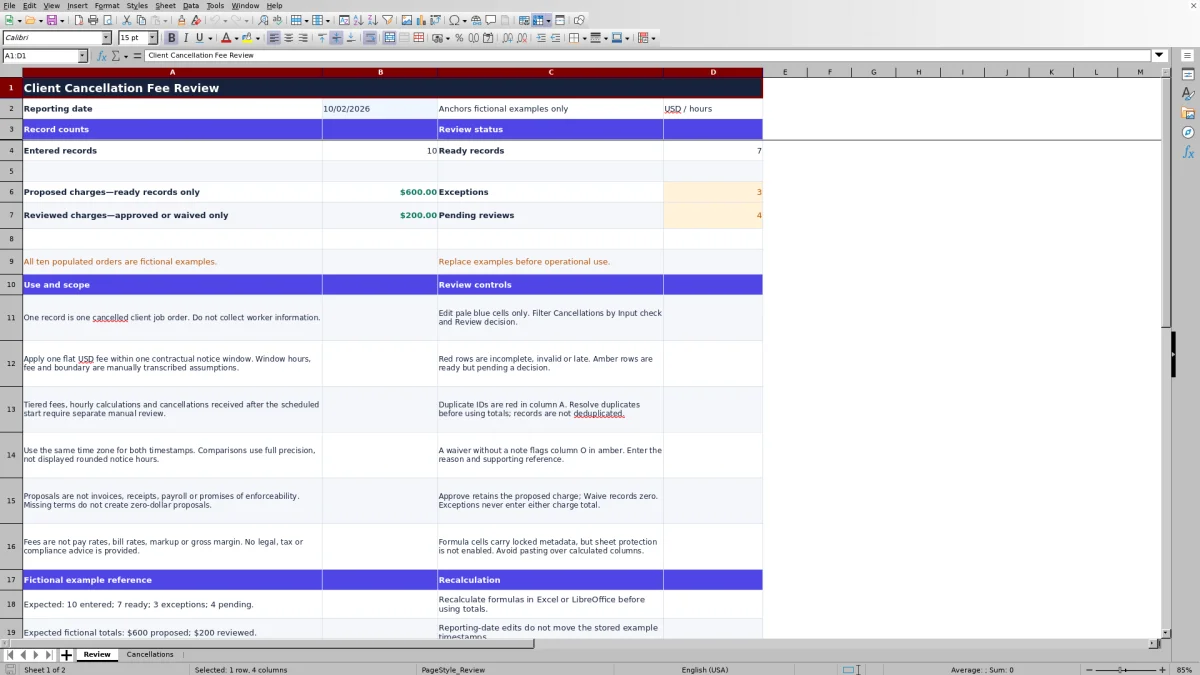
Save a copy and read the instructions on Review. The ten populated orders are fictional examples. Replace their input values before operational use, preserving the calculated columns. Edit pale blue cells only; sheet protection is not enabled.
2. Record the cancellation and its terms
On Cancellations, enter the cancellation ID and the client, order and contract terms references. Enter Scheduled start and Cancellation received as dates and times using the same time zone. Transcribe the contractual window in hours, flat fee in USD and boundary choice: Less than or At or below. Do not use the example terms as defaults.
3. Resolve input and timing exceptions
Recalculate in Excel or LibreOffice, then filter Input check. Correct incomplete or invalid records and resolve duplicate IDs. Route cancellations received after the scheduled start to separate manual review; the workbook excludes those records from charge totals.
4. Record your decision and check totals
For Ready records, inspect the timing result and proposed charge before choosing Pending, Approve or Waive. Add the reason and supporting reference in Review note when waiving a fee. Check the proposed and reviewed totals on Review before using the results in a separate billing process.
Translate the contract into a notice-window calculation
Start with the applicable contract provision, not a general agency policy you have not confirmed for that client. Enter a reference that lets you locate the provision again. The worksheet uses the hours, fee and boundary you supply; it does not retrieve or interpret contract language.
Notice is the time between receiving the cancellation and the scheduled start. Excel stores date-time values in days, so the calculation (scheduled start − cancellation received) × 24 converts that interval to hours. On Cancellations, the row 2 calculation is (E2-F2)*24.
The worksheet then compares notice hours with Cancellation window (hours). Less than applies the fee only when notice is strictly below the window. At or below includes notice exactly equal to the window. For a Ready record, an inside-window result proposes the entered flat fee; an outside-window result proposes $0. Confirm the boundary against the contract before acting on that result.
Comparisons use full precision, not the rounded Notice (hours) display. If a result appears inconsistent near a boundary, inspect the underlying timestamps rather than changing the fee to match the displayed hours.
Example: a 24-hour boundary changes the proposed charge
The first fictional order starts at 9:00 AM on 10/03/2026, with cancellation received at 9:00 PM on 10/02/2026. That gives 12 hours of notice. With a 24-hour window, a $200 flat fee and Less than selected, the cancellation is inside the window. The proposed charge is $200, and the recorded Approve decision retains $200 as the reviewed charge.
The next two fictional records show why the exact boundary matters. Both provide exactly 24 hours of notice against a 24-hour window and a $200 fee. The record using Less than falls outside the window and proposes $0. The record using At or below falls inside and proposes $200.
That second boundary example, in row 4, has a Waive decision and a note describing a fictional goodwill waiver. Its proposed charge remains $200 while its reviewed charge is $0. This preserves the distinction between the fee calculated from the entered terms and the decision recorded for that order. These are examples, not recommended fee terms.
Problems to resolve before relying on charges
An Incomplete or invalid result can indicate a missing reference, a timestamp stored as text rather than a numeric Excel date-time, a negative window or fee, or an unsupported boundary or decision value. Check the source information and correct the input. Missing terms do not mean a zero-dollar fee: invalid records have blank charges and stay out of both charge totals.
A Late cancellation review result means cancellation was received after the scheduled start. Notice hours can be negative for that record, but the workbook does not apply the flat-fee rule to it. Review the actual terms separately rather than changing the timestamp to make the row Ready.
Duplicate cancellation IDs are highlighted red in column A. The workbook does not deduplicate records or make duplicates exceptions through Input check. Reconcile the IDs and remove unintended duplicate input records before using totals; otherwise both records can contribute charges.
A waiver without a note highlights Review note in amber. Add the reason and supporting reference. This warning does not block a Waive decision or prevent a zero reviewed charge, so it requires your attention.
Keep calculation readiness separate from approval
Ready is an input-check status, not approval. It means the row meets the workbook's required input checks and is not a cancellation received after the scheduled start. It does not verify the contract, confirm that the references are accurate or decide whether you should charge the client.
For a Ready record, Approve copies the proposed charge into Reviewed charge (USD). Waive records $0. Pending, or a blank Review decision, leaves the reviewed charge blank and counts as a pending review on the summary.
A practical manual workflow is to filter Ready records with pending decisions, check each against the contract and cancellation evidence, then record your decision and any explanation. An outside-window $0 proposal can still be pending: calculation completion and decision completion are separate questions.
The decision field records your selection. It is not an approval-routing process or a substitute for any authorization your agency requires.
Read the summary as a review queue, not a billing ledger
Review separates proposed charges for Ready records from reviewed charges for Ready records marked Approve or Waive. The difference between those totals is not necessarily an amount still due: it can reflect pending decisions and waived fees.
After recalculation, the untouched fictional examples are expected to show 10 entered records, 7 Ready records, 3 exceptions and 4 pending reviews. Their expected totals are $600 proposed and $200 reviewed. You can use these figures as an initial calculation check before replacing the examples.
The summary formulas cover Cancellations rows 2–101. Filtering does not narrow the summary totals; those formulas still include qualifying records throughout that range. To investigate a particular client, use the filtered rows for inspection rather than treating the Review total as that client's balance.
A charge total remains blank when there are no numeric charges to sum. Once qualifying calculations produce numeric values, the total can legitimately be $0. Check the status counts alongside the amount so you do not confuse unresolved records with a completed zero-charge review.
Know when the flat-fee model does not fit
This workbook fits a cancelled client job order with one flat USD fee and one notice window. It does not calculate tiered cancellation fees, hourly charges or charges for cancellations received after the scheduled start. Those cases require separate manual review and, where needed, a different calculation model.
Use the same time zone for both timestamps. There is no time-zone conversion in the notice formula. If the source messages use different zones, normalize them before entering the values and retain the supporting context outside the calculation.
The prepared range holds 100 records, including the ten fictional examples. Formulas, validation, highlighting, the filter and summary references are scoped to that range. Typing below row 101 does not automatically extend those controls or the totals.
Keep worker information out of the file. A cancellation record is not evidence of attendance, payroll owed or assignment hours. Cancellation fees here are also distinct from pay rates, bill rates, markup and gross margin.
Comparison: this workbook or a manual cancellation log
Choose this workbook when your terms fit a single flat-fee window and you want prepared calculations plus a visible decision queue. A blank spreadsheet or manual log can fit a smaller or less standardized process, but you must design the calculation and review checks yourself if you need them.
| Method | Fee calculation | Review tracking | Best fit and limits |
|---|---|---|---|
| This Excel workbook | Prepared notice comparison and one flat USD fee per record | Pending, Approve and Waive choices with separate totals and exception flags | Up to 100 prepared records using the supported rule; terms and decisions are entered manually |
| Blank spreadsheet or manual log | Calculated manually or with formulas you create | Notes and statuses you design | A flexible record structure for varied terms; no prepared calculation checks unless you add them |
If your agency needs tiered rules, invoice creation or routed approvals, evaluate a separate process or software against those specific requirements. This workbook's role is narrower: organize cancellations, calculate supported proposals and record review decisions. It does not replace the full billing workflow.
Frequently asked questions
Does changing the reporting date change fees or select a reporting period?
No. The reporting date on Review anchors the fictional examples only. Changing it does not move stored timestamps, change the notice calculation or restrict the summary to a date period.
Are the formula cells protected from accidental edits?
No. Formula cells carry locked metadata, but sheet protection is not enabled. Edit the pale blue inputs and avoid pasting over calculated columns J, K, L, N and P on Cancellations. Keep a clean copy so you can recover formulas if they are overwritten.
Can I use the workbook in LibreOffice?
The workbook instructions call for recalculation in Excel or LibreOffice before you use totals. With the original fictional examples still present, compare the recalculated summary with the expected counts and amounts listed on Review before replacing the example inputs.
Does an approved charge mean the client has been invoiced or paid?
No. Approve retains the proposed amount in the reviewed-charge calculation. It does not issue an invoice, record a receipt or confirm payment. Use your separate billing records to track those events after completing the appropriate review.
Does a contract terms reference verify that the fee is enforceable?
No. The reference is entered text, not verification of the contract or its legal effect. Check the applicable terms and seek appropriate advice when necessary. The workbook provides no legal, tax or compliance determination.
Editorial contributors

Miriam HaldenRecruiting & assignment workflows
Explore this editorial focus →
Wesley CorbinBilling & agency finance
Explore this editorial focus →