When another recruiter takes over your desk, they need to know what the client expects and which candidate actions remain unresolved. Use this Excel workbook to record search context, assign the next steps and review deadlines before the transfer.
The Staffing Worksheets recruiter handover worksheet separates search background from individual commitments. Linked client names, days-past-due calculations and attention messages support your review; you still confirm ownership, contact clients and candidates, and update the records yourself.
When to use this worksheet
- Give the receiving recruiter search background alongside specific next steps.
- Keep client commitments and candidate follow-ups tied to the relevant search.
- Identify missing action details and search-reference problems before handover.
- Review open work and approaching or missed deadlines from a shared review date.
What the workbook includes
How to use the workbook
1. Replace the fictional examples and set your review controls
Replace the example action and search records before operational use. In Review Settings, edit the recruiter aliases in G2:G11 and check the Review Date. It uses TODAY() by default. Set the Due Soon Window (Calendar Days) to your preferred value from 0 to 30; the supplied value is 3.
2. Establish the background for each search
Enter one row per search in Search Context, using a unique Search ID. Record the client, role, current context, commitments and open questions. Identify the outgoing recruiter and enter the Context Updated date so the receiving recruiter can judge how current the background is.
3. Record each unresolved action separately
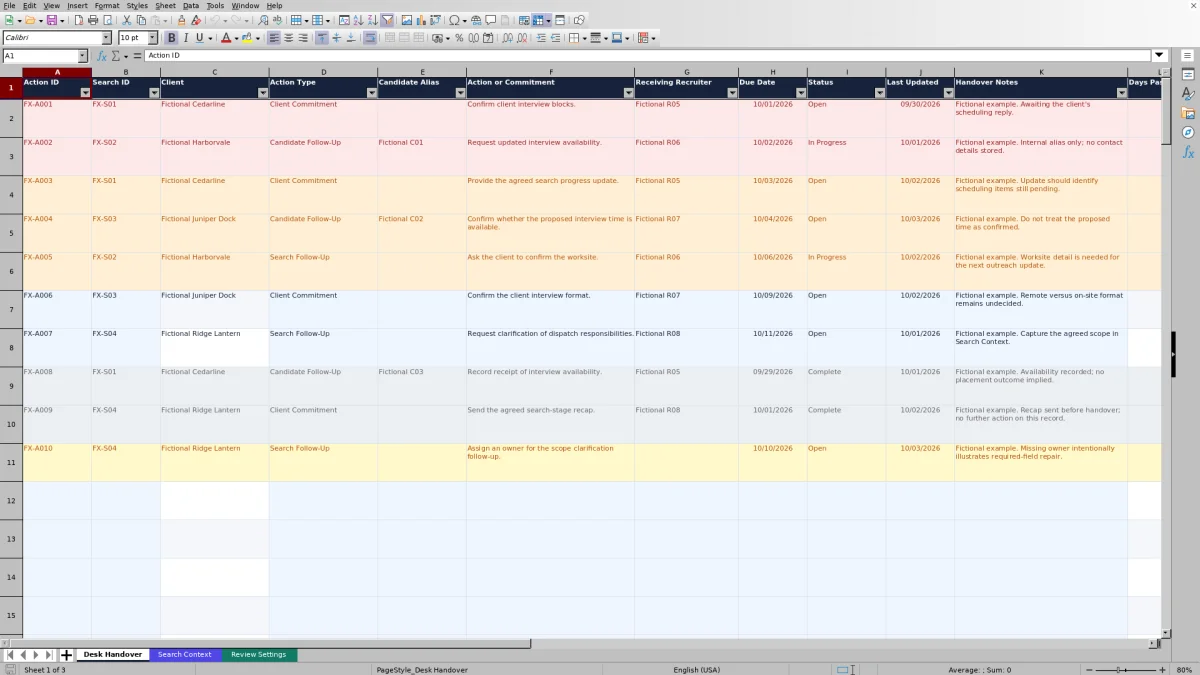
In Desk Handover, create a unique Action ID and select the relevant Search ID, action type, receiving recruiter and status. Enter a specific Action or Commitment, Due Date and Last Updated date. Add a Candidate Alias when useful and use Handover Notes for dependencies or supporting detail. Leave the calculated Client, Days Past Due and Attention columns intact.
4. Resolve record problems, then agree on priorities
Review Attention for required-field and search-context repairs before reviewing Overdue and Due soon items. Sort due dates oldest first within each group. As a suggested manual handover process, have both recruiters confirm who owns each next step and what must happen next. Update status and dates as the work progresses.
Separate search background from the next action
A recruiter taking over a search needs both the current situation and a concrete task. Use Search Context for background that applies across the search, such as an unresolved worksite question or the client's interview process. Use Desk Handover for the individual steps someone must own and complete.
One action per row keeps separate commitments visible. For example, confirming interview blocks and sending a progress update can belong to the same Search ID but have different due dates. Combining them in one action makes it harder to show that one is finished while the other remains open.
The Search ID brings the client name into the action row. It does not copy all search notes or turn the Client Commitments text into tasks. When a background commitment requires follow-up, manually create an action for it and check that its wording matches the current agreement.
Example: interpret a missed interview-scheduling deadline
The fictional action FX-A001 asks the receiving recruiter to confirm client interview blocks. Its due date is 10/01/2026 and its status is Open. If you set the Review Date to 10/04/2026, Days Past Due calculates 3.
The calculation subtracts the due date from the review date and prevents a negative result: MAX(0, Review Date − Due Date). It measures calendar days, not business days. A result of 3 means the recorded action deadline was three calendar days before the review date. It does not prove that an interview was missed or that the client failed to respond.
The example notes say the client scheduling reply is still awaited. The receiving recruiter should check the current correspondence, confirm whether the reply has arrived and then update the action. If the deadline has genuinely changed, record the agreed date and explain the change in Handover Notes rather than silently treating the old commitment as resolved.
A zero means the due date is on or after the review date; it does not mean the action is complete. Completed actions show a blank Days Past Due result. Missing inputs can also leave this calculation blank, so use Attention and the row details before deciding that no follow-up is needed.
Errors to fix before the desk changes hands
Repair the record before prioritizing it. Attention checks required action details before showing later review results. A row marked Complete can still show a repair message if essential information is missing or its search reference is invalid.
- Complete required fields: Check the Action ID, Search ID, Action Type, Action or Commitment, Receiving Recruiter and Status. Due Date and Last Updated must also be numeric Excel dates. Candidate Alias and Handover Notes are optional.
- Check search context: Inspect the Client result. Check search ID means the selected ID does not occur exactly once within Search Context rows 2–101. Correct a missing reference or duplicate Search ID. Missing client means the matched search record needs a client name.
- Date entry problems: Enter real dates rather than text such as “next Friday.” The workbook displays dates as MM/DD/YYYY and validates whole-date entries.
Keep the supplied action-type and status labels consistent with the formulas. In particular, replacing Open, In Progress or Complete with your own wording can change how the indicators interpret the records. Recruiter aliases are intended to be edited.
Read the action indicators without overstating the workload
The Review Settings indicators count actions, not unique searches or candidates. If one search has four action rows, those rows contribute four recorded actions when their Action IDs are populated. That is a count of recorded work items, not a measure of search difficulty or recruiter productivity.
- Recorded Actions counts populated Action IDs.
- Open Actions counts rows with an Action ID and a status of Open or In Progress, including records that still need repair.
- Overdue Actions counts positive Days Past Due values. An incomplete record can contribute to this count if it has the inputs needed for that calculation.
- Due Soon Actions counts rows whose Attention result is Due soon.
This explains why the overdue indicator can differ from the number of rows showing Overdue in Attention: a repair message can take priority there while Days Past Due remains positive. Resolve missing information before using the totals to divide work among receiving recruiters.
Agree on ownership outside the worksheet
Search Context records the outgoing recruiter, while each handover action records a receiving recruiter. That distinction lets you describe who supplied the background and who is expected to take the next step. Selecting an alias, however, is not evidence that the person has accepted the work.
As a suggested manual workflow, review unresolved actions together and ask the receiving recruiter to confirm the next contact or decision. Put relevant dependencies in Handover Notes, such as waiting for the client to confirm interview format before offering candidate time slots. The workbook records that explanation; it does not enforce the sequence.
A named owner is not a notification. Send any required handover message through your normal communication process. If you need a record of what was transferred on a particular date, save a dated copy before later edits. That is a manual snapshot, not built-in version history.
Work within the prepared ranges
The workbook provides 100 prepared search rows and 100 prepared action rows, from row 2 through row 101. Several formulas and validation lists explicitly reference those boundaries. Adding a row below the tables should not be assumed to extend every lookup, check or indicator.
Before using a larger desk log, review and test the affected formulas and validation ranges, or use a separate workbook for a clearly defined handover scope. Simply extending the visible table does not establish that the rest of the workbook covers the new records.
The recruiter selection list uses ten cells in Review Settings, G2:G11. Edit those aliases before assigning live records and use consistent identifiers. This file is an action handover record, not a full candidate database, job order system or placement history. Keep the detailed source records in your established operating system and manually verify that the handover reflects them.
Comparison: this workbook or a blank spreadsheet?
This workbook fits a handover where you want a prepared structure for search background, individual commitments and deadline review. A blank spreadsheet fits a different need: you can design a highly specific layout, but you must also decide how to link records, validate entries and interpret dates.
| Method | Starting structure | Deadline review | Scope and upkeep |
|---|---|---|---|
| Recruiter handover workbook | Prepared search and action tables with linked client names and controlled selections | Days Past Due, Attention and action indicators based on review controls | 100 prepared rows per input table; users maintain context, ownership and status |
| Blank spreadsheet | You choose the fields, layout and record relationships | You review dates manually or build and test your own calculations | You define the scope and maintain any formulas or validation you add |
Choose the prepared workbook when its action-based structure matches the desk transfer. Start from a blank spreadsheet when your required record structure is materially different and you are prepared to maintain it. Neither approach, by itself, sends follow-ups or confirms that a client commitment has been fulfilled.
Frequently asked questions
Can I review the handover as of a fixed date?
Yes. Review Settings B2 is editable and defaults to TODAY(). Replace it with a valid fixed date to review actions against that date. Doing so replaces the formula; restore =TODAY() when you want the review date to follow the current day on recalculation.
Does Last Updated change automatically when I edit an action?
No. Last Updated in Desk Handover and Context Updated in Search Context are manual date fields. Update them when you revise the corresponding record. They are not automatic edit timestamps or an audit trail.
Is the three-day due-soon window mandatory?
No. The supplied window is 3 calendar days, and Review Settings B3 accepts whole numbers from 0 to 30. Choose a window that suits your review cadence. It is an operational preference, not a legal deadline or a client-agreed response standard.
Do I need to enter candidate names or contact details?
No. Candidate Alias is optional, and the examples use fictional internal aliases. You can use an identifier that the receiving recruiter can resolve in your existing records. The workbook does not provide candidate contact lookup, and using an alias does not by itself establish privacy protection. Limit notes to what the handover needs and follow your agency's data-handling practices.
Should I delete an action once it is complete?
The workbook supports keeping completed actions in the record. Change Status to Complete after confirming that the work is finished. The row remains part of Recorded Actions, no longer contributes to Open Actions and has a blank Days Past Due result. Retaining the row can preserve useful handover context, but it is not proof of delivery or client acceptance.
Editorial contributors

Miriam HaldenRecruiting & assignment workflows
Explore this editorial focus →
Wesley CorbinBilling & agency finance
Explore this editorial focus →