When a client opportunity is lost, record the reason and the offer while the details are still available. This Staffing Worksheets Excel workbook keeps lost temporary-staffing opportunities, quoted terms and supplied competitor information together for review.
Use the reason distribution to decide which pricing, timing or sales-process questions deserve a closer look. The workbook also flags specified record problems, but its Ready status is a completeness check, not verification of the client's explanation or competitor information.
When to use this worksheet
- See which recorded loss reasons account for the largest shares of logged opportunities.
- Keep your quoted offer beside competitor details actually supplied to you.
- Find duplicate IDs, incomplete records and missing competitor sources before drawing conclusions.
- Use consistent reason labels to support a focused discussion about lost client business.
What the workbook includes
How to use the workbook
1. Replace the fictional examples
Read the entry guidance on Setup, then replace or clear the 10 fictional records in the editable cells on Lost Opportunities. Preserve the Review Status formulas in column L and the formulas on Loss Summary. The prepared input area is rows 2–101.
2. Record one lost opportunity per row
Assign a unique Opportunity ID and enter the client alias, loss date, requested role and primary loss reason. Enter a valid loss date no later than today; dates display as MM/DD/YYYY. Use the reason dropdown rather than creating variations of the same label.
3. Add the offer and supplied evidence
Record your quoted bill rate in USD per hour and the terms actually quoted. Add competitor information only when it was supplied, and select its source if either a competitor name or rate is entered. Leave unknown rates blank rather than entering zero.
4. Resolve record issues and review the distribution
Use Review Status and the sheet's filters to locate records needing attention. Check amber rows for missing IDs, because those rows are excluded from the summary. On Loss Summary, review the reason shares alongside Missing reason and Unmatched Reason Labels before choosing a follow-up question or process change.
Choose a loss reason that reflects the client's explanation
Use one row for one lost temporary-staffing client opportunity, not one row for every candidate submission associated with it. This keeps the distribution focused on lost client business rather than recruiting activity. If several factors contributed, select one primary reason and use Operational Notes to preserve relevant context.
The starting reasons are Price, Timing, Role canceled, Filled internally, Competitor selected, No decision and Other. A competitor's lower rate does not establish a Price loss. If the client only confirmed that another agency was selected, record what is known rather than assuming why.
As a suggested manual review practice, agree with your team on when to classify an opportunity as lost, especially for No decision. Apply that convention consistently; the workbook does not decide whether an opportunity has closed or establish the loss reason for you.
Example: interpret the reason distribution before acting
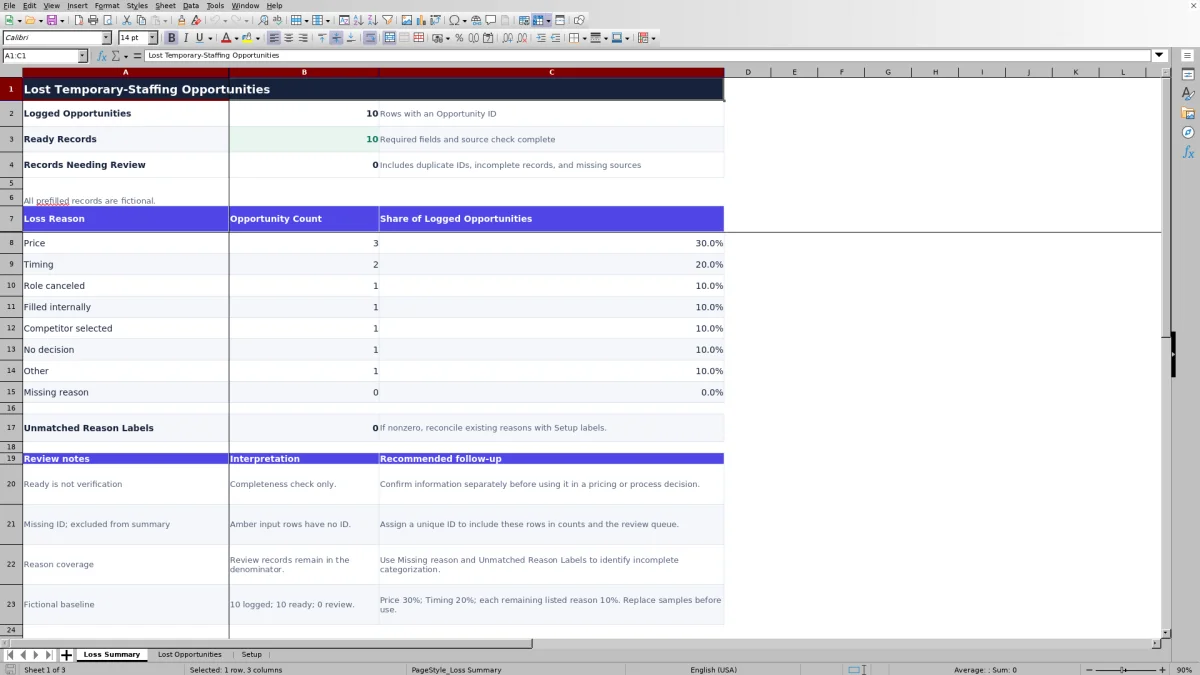
The fictional baseline contains 10 logged opportunities, all marked Ready. Three are recorded as Price, two as Timing, and each of the other five listed reasons has one record. The resulting shares are 30%, 20% and 10% respectively. These are sample results, not staffing-industry benchmarks.
The calculation divides each reason's count by all rows with an Opportunity ID. For example, the first reason's share uses B8/B2 on Loss Summary: three Price records divided by 10 logged records equals 30%. Records needing review remain in the denominator. If you added an eleventh record with an ID but no reason, the Price share would become 3 ÷ 11, or 27.3%, and Missing reason would show one record.
Use a high Price share as a prompt to inspect the underlying offers and client explanations, not as an instruction to lower rates. The result describes recorded lost opportunities; it is not a win rate, revenue-loss estimate or measure of all client demand. Shares remain blank when no opportunities are logged.
Read quoted rates and terms together
The two bill-rate fields record client charges in USD per hour, not worker pay. In fictional record FIC-003, your quoted bill rate is $36.00 per hour and the supplied competitor bill rate is $35.00 per hour, with Client statement recorded as the source. The $1.00-per-hour difference is a manual comparison you can make from those entries; the workbook does not calculate a rate gap.
That difference alone does not show whether the offers covered equivalent staffing services or whether price caused the loss. Confirm the scope and the information supplied before using it in a quote decision. The record's primary reason is Competitor selected, which preserves that distinction.
Bill rates do not establish gross margin. This workbook does not collect pay rate and employer burden inputs or calculate assignment costs, markup or margin. Assess those separately before changing a client rate. Quoted Terms provides context for your offer, not a billing or payroll function.
Errors and solutions: clear the review issues in order
Review Status checks identified rows in this order: Duplicate ID, Incomplete, then Source missing. A row can have more than one issue, but only the first applicable status appears. After you correct that issue, check the status again.
- For Duplicate ID, determine whether the same opportunity was entered twice or two different opportunities received the same ID. Remove an accidental duplicate from the editable inputs or assign the correct unique ID. Duplicate rows still contribute to logged counts until corrected.
- For Incomplete, complete the client alias, loss date, requested role or loss reason that is missing.
- For Source missing, identify the actual source of the supplied competitor name or rate. Do not select a source merely to clear the warning; remove unsupported competitor entries if necessary.
- For an amber row with a blank status, add a unique Opportunity ID. Without it, the row is excluded from both logged counts and the summary review count.
A Ready row may still contain inaccurate information or a reason label that no longer matches Setup. The status formula checks specified entries and source presence; it does not independently validate the facts.
Change reason labels without breaking historical categories
Setup lets you edit the seven reason labels in A2:A8 and the three competitor-source labels in C2:C4. Keep those fixed slots nonblank and unique. The dropdowns refer to those cells, and the summary uses the reason labels to count matching records.
Renaming a label does not rewrite existing records. If you change Price to Pricing, existing entries that still say Price need to be updated manually. Otherwise, the renamed category will not count them, and Unmatched Reason Labels will flag the categorization gap.
Before changing a label, save a dated copy if you need to preserve the earlier classification. Then use the input sheet's filter to find and update affected entries, and recheck the summary. Keep label changes separate from substantive reclassification: changing the wording of a category is not the same as deciding that a client's loss reason was different.
Understand the reporting boundary before expanding the log
The prepared workbook supports 100 records in rows 2–101. Its status formulas, summary references, validation ranges and filter area are set to that boundary. Entering data below row 101 does not automatically extend those functions. For another batch, use a separate workbook copy, or have the relevant ranges deliberately extended and checked before relying on a larger log.
The summary counts identified rows across the prepared range. Filtering Lost Opportunities can help you inspect a client, role or date group, but it does not change the formula-based summary to that filtered subset. There is no built-in date-period selector or trend chart.
For a period-specific manual workflow, keep clearly labeled copies containing only the relevant records and apply the same category definitions. Treat any combined or period-over-period analysis as separate work; the file does not consolidate workbooks or synchronize records with staffing software.
Comparison: this workbook or a blank spreadsheet?
A blank spreadsheet can suit an agency that needs a different record structure and is prepared to define its own checks. This workbook fits a narrower task: logging lost temporary-staffing opportunities and reviewing their reason distribution using a prepared layout. Neither approach establishes whether the recorded explanation is true.
| Method | Starting structure | Record checks | Reason reporting | Best fit |
|---|---|---|---|---|
| This workbook | Prepared fields and 100 input rows | Specified completeness, duplicate-ID and source checks | Counts and shares for seven reason slots, with categorization warnings | A focused log using the existing fields and reporting boundary |
| Blank spreadsheet | You choose the fields and layout | You create checks or inspect entries manually | You build formulas or summarize records manually | A custom process whose structure differs from this workbook |
If you already maintain opportunities in an applicant tracking system (ATS) or other staffing software, decide which record will be authoritative before maintaining a second log. This workbook has no implemented connection to those systems. Any transfer and reconciliation would be a manual process you manage separately.
Frequently asked questions
Do I have to know the competitor's name and rate?
No. Enter only the competitor information actually supplied. A name may be present without a rate, or a rate without a name. If either is entered, the workbook requires a Competitor Information Source for Ready status. If neither was supplied, leave both blank rather than guessing.
Can a record be Ready without a quoted bill rate or terms?
Yes. The required-entry check covers Opportunity ID, Client Alias, Loss Date, Requested Role and Loss Reason, along with the conditional competitor-source check. Quoted rate and terms are not required for Ready status. Their absence may still limit a pricing review, so assess whether the available information is sufficient for the decision you want to make.
Are weekly billing and net 30 required terms?
No. Those terms appear in fictional examples only. Replace them with the terms you actually quoted, or leave the field blank if the information is unavailable. The workbook does not prescribe payment terms, create an agreement or determine whether terms are legally appropriate.
What information belongs in Operational Notes?
Use relevant sales or operational context, such as the client's stated concern or a capacity issue that affected the proposed start. Follow the workbook guidance not to enter candidate information, personal contact details, protected-class information or medical information. The client field is an alias field, so you can use an internal reference appropriate to your own recordkeeping process.
Why do some dates fail validation?
The loss-date validation is set for valid Excel dates no later than today. Enter the actual loss date and check that Excel recognizes it as a date rather than text; the displayed format is MM/DD/YYYY. The prefilled dates are fictional examples based on the workbook creation date and should be replaced. Ready status checks whether the date field is filled, not whether its value is factually correct.
Editorial contributors

Miriam HaldenRecruiting & assignment workflows
Explore this editorial focus →
Wesley CorbinBilling & agency finance
Explore this editorial focus →