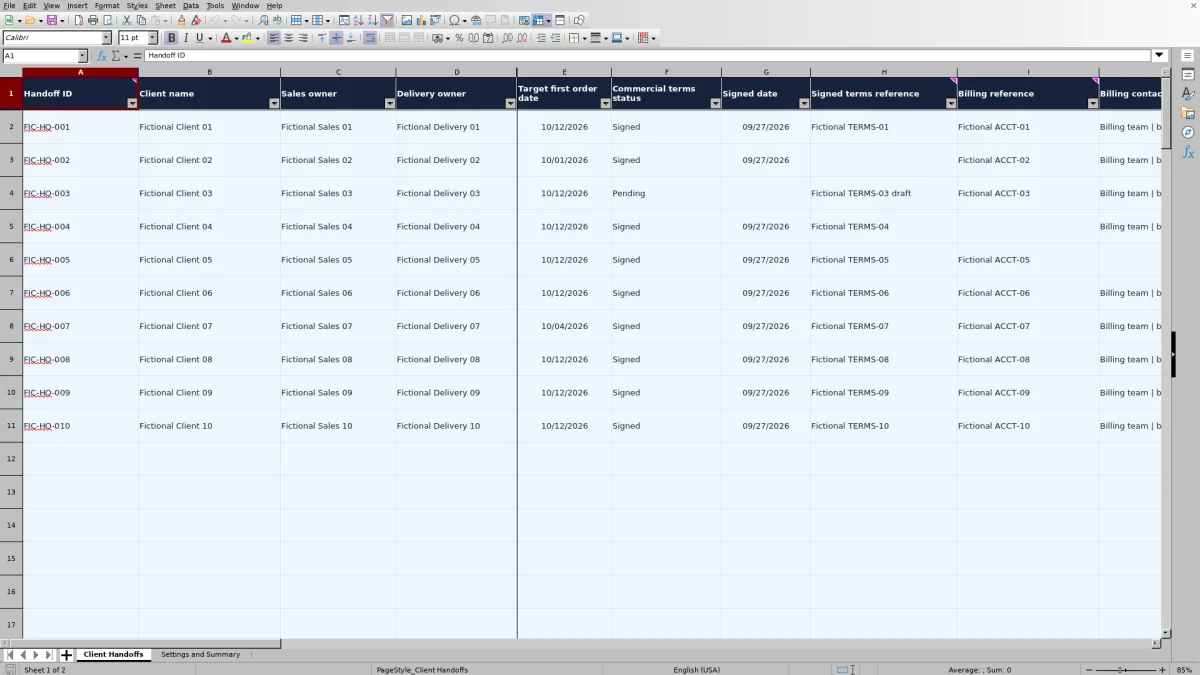
Before opening a client’s first job order, check that sales has passed the signed commercial terms, billing references and operating contacts to delivery. This Excel workbook from Staffing Worksheets helps you record that handoff and identify missing information.
Use one row per client onboarding handoff to record ownership, delivery review and follow-up. Calculated readiness and timing alerts support your review, but documented completeness is not authorization to open an order.
When to use this worksheet
- Keep sales and delivery ownership together with the references needed for the handoff.
- See missing required information before treating the handoff as complete.
- Prioritize unfinished handoffs against the target first order date.
- Review status counts without tallying each handoff manually.
What the workbook includes
How to use the workbook
1. Set the review date and warning window
Open Settings and Summary. The Review date in B2 initially uses TODAY(); retain it for a current-date review or enter a specific date for a dated check. Confirm the Warning window (days) in B3, initially 3. Timing calculations use calendar days.
2. Replace the fictional records with your handoffs
On Client Handoffs, use one row per handoff within rows 2–101. Replace or clear the ten fictional examples in the input columns A:P before relying on the summary for your agency. Enter a unique Handoff ID, the client and owners, then the commercial, billing and contact details. Use internal reference identifiers rather than external links.
3. Record delivery’s actual review
Manually confirm the signed terms and billing references before recording completion. Choose Pending, Accepted or Returned in Delivery review. Accepted and Returned require a Review date. Use Next action to name the person responsible and the missing item or follow-up; this is a suggested manual practice, not a notification function.
4. Review the calculated results
Check Missing required fields, Handoff readiness and Timing alert, then use the column filters to focus on outstanding work. Preserve the formulas in Q:T and the summary counts. The sheets are not protected, so inputs and calculated cells can both be overwritten.
Confirm the references delivery will need
A handoff should give delivery enough context to locate the agreed terms and reach the right client contacts. Record the signed terms reference separately from the billing reference. The first identifies the commercial document; the second records the internal billing identifier you use. Neither field verifies the underlying record.
Confirm references manually before treating them as complete. Check that the signed document belongs to the client and that the billing reference is the intended one. Keep the billing contact distinct from the operating contact so your team can direct billing questions and service questions appropriately.
Payment terms are entered as client-specific whole days, including zero where applicable. They are a record of the agreed terms, not an invoice due-date calculation or a legal default. Use internal owner identifiers and only the necessary business role and channel for contacts; do not enter sensitive personal data.
Understand what each readiness result means
The workbook first counts blank required fields in A:N. It adds one more missing field when Delivery review is Accepted or Returned but Review date is blank. Next action is optional and does not affect completeness. A zero count means those fields are populated, not that their contents have been verified.
Handoff readiness then applies these rules in order:
- Returned takes precedence, even if other required information is missing.
- Missing required fields or a Commercial terms status other than Signed produce Incomplete.
- A complete row with signed terms and a pending delivery review produces Awaiting delivery review.
- A complete row with signed terms and an accepted delivery review produces Ready for first order.
Review the missing-field count alongside the status, especially for returned handoffs. Do not fill an unknown signed date or reference with a placeholder merely to remove an Incomplete result. The missing information is the reason to follow up.
Example: acceptance does not replace a missing terms reference
The seeded FIC-HO-002 record has Signed commercial terms, an Accepted delivery review and a review date, but its Signed terms reference is blank. The required-field calculation returns 1, so readiness is Incomplete despite delivery’s acceptance.
For a dated review using 10/01/2026 in Settings and Summary, this record’s 10/01/2026 target gives 0 days until target: target date minus review date. With the warning window set to 3, its unfinished status produces Due soon. The practical response is to ask sales for the signed terms reference, as the sample’s Next action indicates.
Once you have checked and entered the correct reference, the missing count becomes 0 and readiness becomes Ready for first order, provided the other entries remain complete. The timing alert then becomes No alert. That change reflects the recorded handoff conditions; it does not prove that a job order has been opened.
Use timing alerts to prioritize unfinished handoffs
Days until target subtracts the settings Review date from Target first order date. A negative result means the target is earlier than the review date; zero means the target is that day. These are calendar days, not business days, and the calculation does not exclude weekends or holidays.
For unfinished handoffs, negative days produce Past target date. Values from zero through the warning-window boundary produce Due soon. With a 3-day window, both a target today and a target three days away qualify. A missing target produces Target date missing.
Ready handoffs show No alert, even when their target date has passed. Use this output to prioritize handoff completion, not to confirm whether the first order happened on schedule. If you retain TODAY() in settings, timing results change as Excel recalculates on later dates. Entering a fixed review date makes the timing basis fixed until you change it again.
Common entry problems and how to resolve them
If an ID is rejected or receives a red duplicate warning, check whether you are adding a new handoff or re-entering an existing one. Nonblank IDs are checked for uniqueness within the prepared range. Pasting can bypass validation, so inspect pasted entries manually rather than assuming they passed the entry rules.
If a date is rejected, check it against the settings Review date. Signed and handoff received dates cannot exceed that date. A delivery Review date also cannot be later than the settings date or earlier than the received date when one is present. Enter real Excel dates, displayed as MM/DD/YYYY, rather than text that only looks like a date. Correct the source entry or confirm the intended review basis; do not alter an actual event date just to pass validation.
If counts seem inflated, check for remaining fictional records or partially entered rows. Any entry in A:P activates that row’s completeness calculation, including a note entered only in Next action. Entirely empty input rows leave the calculated outputs blank and are not counted as recorded handoffs.
Keep the handoff separate from order and billing activity
This workbook records one client onboarding handoff per row, not individual job orders, candidates, submissions, placements or assignments. Ready for first order means the documented handoff meets the workbook’s completeness rules. It does not verify that your agency’s separate approval process is complete or authorize you to open a job order.
A billing reference is not evidence of an invoice, payment or payroll activity. The workbook does not calculate pay rates, bill rates, markup, gross margin, approved hours, invoices or receipts. Continue those tasks in the records or systems your agency uses for them.
The prepared scope is 100 handoff rows. Formulas, validation and the summary ranges cover rows 2–101. Entries below that range should not be assumed to receive the same checks or appear in the summary. For ongoing use, plan a separate workbook or deliberately extend and verify the affected ranges before relying on additional rows.
Comparison: this workbook or a blank spreadsheet?
A blank spreadsheet can suit a small, flexible handoff process where you want to choose every field and perform the checks yourself. This workbook fits a process that uses the supplied completeness rules and benefits from calculated readiness and date-based follow-up. Both approaches still require your team to verify the underlying terms and references.
| Method | Setup | Completeness checks | Timing and capacity | Best fit |
|---|---|---|---|---|
| Client onboarding handoff workbook | Prepared fields, dropdowns, formulas and summary | Counts required blanks and applies defined readiness rules | Calendar-day alerts across 100 prepared rows | A team whose handoff requirements match the supplied rules |
| Blank spreadsheet or manual log | You choose and maintain the structure | Manual review unless you build checks | You establish date tracking and reporting | A custom process that needs a different field set or review method |
The tradeoff is flexibility versus prepared logic. For example, this workbook always treats A:N as required; a manual log can use a different checklist, but someone must consistently apply it. Neither approach, by itself, verifies that a referenced agreement is signed or that delivery has actually reviewed it.
Frequently asked questions
Does the workbook include real client records?
No. The ten seeded records, owners, contacts and reference identifiers are fictional. Their expected readiness baseline is 10 recorded handoffs: 2 ready, 6 incomplete, 1 awaiting delivery review and 1 returned. Timing alerts vary with the settings Review date. Replace or clear the sample inputs before using the summary for live work.
Is the settings Review date the same as the delivery Review date?
No. The Review date in Settings and Summary is the common date used for timing calculations and date checks. Review date on Client Handoffs records when delivery reviewed that particular handoff. Changing the settings date does not enter a delivery review date for any row.
Does the workbook send reminders or retrieve signed agreements?
No reminder-sending or agreement-retrieval function is provided. Timing alerts are worksheet results, and references are entered manually. Use your usual communication and document process to request missing items and confirm the records behind the references.
Can I preserve what the handoff looked like before an update?
You can save a dated copy before changing a record if you need a snapshot. This is a suggested manual workflow, not built-in version history. Keep the review date and file naming clear so a later reader can distinguish the snapshot from the working workbook.
What should I do if calculated results stop updating?
Check that Excel is recalculating the workbook and that the formulas in Q:T and the summary cells have not been replaced with typed values. Because sheet protection is not applied, accidental edits are possible. Compare affected formulas with an untouched copy and restore them before relying on the status counts or alerts.
Editorial contributors

Miriam HaldenRecruiting & assignment workflows
Explore this editorial focus →
Wesley CorbinBilling & agency finance
Explore this editorial focus →