When a commercial partner introduces a client to your staffing agency, record who made the introduction and which referral terms apply. This Excel workbook keeps the client account alias, agreement details and review date together so you can check the arrangement before taking the next step.
The Staffing Worksheets register is for commercial client introductions, not candidate referral bonuses. It looks up partner names and flags records needing attention, but it does not calculate referral payments or authorize them.
When to use this worksheet
- Keep each client introduction connected to its commercial referral partner.
- Distinguish flat-fee, percentage and no-fee arrangements before reviewing terms.
- Use review-day counts and attention labels to organize your follow-up.
- Spot missing details, duplicate referral IDs and partner-entry problems.
What the workbook includes
How to use the workbook
1. Prepare the partner directory
Save a working copy and replace the fictional sample inputs before relying on the register. On Partners, enter a unique Partner ID followed by its Partner Organization Alias. Use the editable pale blue cells and leave calculated lavender cells intact.
2. Set your review reference date
On Settings, check As of Date and Review Window (Days). As of Date initially uses TODAY(); you can replace it with a fixed valid date for a dated review. The supplied 14-day window is editable and is an operational choice, not a required deadline.
3. Record the introduction and terms
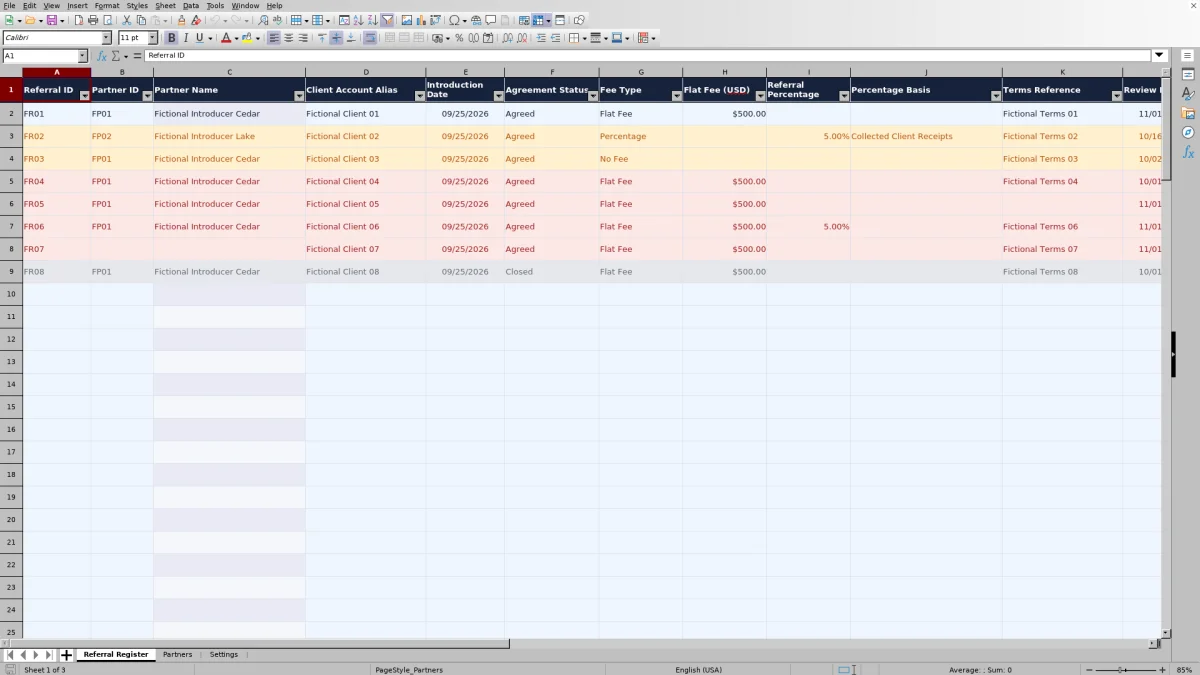
On Referral Register, give the introduction a unique Referral ID and select its Partner ID. Confirm that Partner Name appears, then enter the client account alias, introduction date, agreement status and fee terms. Add a Terms Reference that lets you locate the supporting agreement separately, and enter a Review Date. Dates display as MM/DD/YYYY.
4. Review exceptions before follow-up
Read Attention and Days Until Review, using the register filters to focus your review. Correct identity, partner and fee-term problems first, then check time-sensitive records. Any contact with the partner, agreement verification or payment review is a separate manual action.
Keep the introduction separate from the client account
Use one row per introduction under one set of terms. A client may have more than one introduction, so the Referral ID identifies the individual record rather than serving as the client account identifier. The workbook does not automatically merge separate introductions for the same client.
Partner ID connects that record to the Partners directory. The Partner Name result displays the organization alias found there; it is not a separate contact record. If you change an alias in the directory, linked referral rows will display the revised alias when Excel recalculates.
If two partners claim the same client introduction, keep the records identifiable while you check the supporting terms. A suggested manual check is to filter by Client Account Alias and compare the relevant introductions. Duplicate Referral ID detection does not resolve competing claims or identify every repeated client relationship.
Record the fee basis without implying a payment
Choose the fee type that matches the recorded agreement. For Flat Fee, enter the USD amount and leave Referral Percentage and Percentage Basis blank. For Percentage, enter the percentage and choose its basis, leaving Flat Fee (USD) blank. For No Fee, leave all three fee-detail fields blank.
The supplied percentage bases are Collected Client Receipts, Invoiced Client Revenue and Gross Profit. These describe different contractual measures, so select the one stated in the terms rather than treating them as interchangeable. Enter 5% as 5% or 0.05, not as the number 5.
The fictional percentage example records 5% of Collected Client Receipts. If an agreement separately established USD 20,000 of eligible receipts, a manual calculation of 0.05 × USD 20,000 would equal USD 1,000. The workbook does not perform that fee calculation: it has no receipt amount input and does not determine eligibility or whether a fee is due.
Use Terms Reference to identify the supporting document. A referral percentage is not staffing markup or gross margin, and the reference alone does not verify the agreement.
Example: interpret the review-day count
Days Until Review subtracts the Settings As of Date from the record’s Review Date. The calculation uses whole dates: INT(Review Date) − INT(As of Date). The result is a calendar-day difference, not a business-day deadline or the age of the introduction.
For a reproducible example, set As of Date to 10/02/2026 and leave the review window at 14 days. The fictional record with a Review Date of 10/16/2026 will show 14 days. If no earlier exception applies and the record is not closed, it falls within Due soon because the window includes both zero and 14 days. The sample review date of 11/01/2026 will show 30 days and fall outside that window.
Zero means review today; a negative result means the review date has passed relative to your chosen As of Date. Use that result to decide which agreement to check next. It does not establish that a referral fee is overdue.
The day count stays blank when Referral ID, Review Date or As of Date is missing. Calculation errors also return a blank, so an empty result is not evidence that the record needs no review.
Errors and fixes: read Attention in priority order
Attention reports the first applicable condition, not every issue at once. Its sequence starts with missing or duplicate referral IDs, then partner problems, incomplete records and fee-term problems. Closed status comes next, followed by settings and review-date conditions. Fix the displayed issue, then check again; another condition may become visible.
- For Missing referral ID or Duplicate referral ID, supply an identifier that is unique within the prepared register. Reusing a client alias is different from reusing a Referral ID.
- For Check partner, confirm that the selected ID exists in Partners and has an organization alias. An unmatched lookup can leave Partner Name blank.
- For Incomplete, check the client alias, introduction date, agreement status, fee type, terms reference and review date.
- For a fee-term problem, make the detail fields agree with the chosen type. For example, remove a leftover flat-fee amount when changing a record to Percentage.
A record with a past review date may still display an identity or fee-term exception because those checks have higher priority. Closed records also take priority over review timing, but closing a record does not conceal earlier data problems.
Use a fixed review date when you need a dated record
The initial TODAY() setting means the reference date advances as Excel recalculates. The fictional introduction and review dates are fixed, so their day counts and timing labels can change over time. This is expected behavior, not a change to the underlying sample terms.
For a periodic account-management review, you can manually save a dated copy and replace Settings B2 with the date of that review. The same referral dates will then be measured against that fixed date. Replacing the formula stops that cell from following today’s date until you restore =TODAY().
Changing Review Window (Days) changes which reviews fall within the due-soon range; it does not move the recorded Review Dates. Agree on a useful window for your own follow-up process. A saved copy is a manual recordkeeping approach, not built-in version history or an audit trail.
Where the register stops
An Agreed status is a recorded choice, not verification that the commercial terms have been approved or that a payment condition has been met. Likewise, Closed is a register status, not evidence of settlement. Check the referenced agreement and relevant business records before making a financial decision.
The workbook contains no pay rates, bill rates, assignment hours, invoices or receipt amounts. It does not calculate fees earned, owed or payable, and it does not process billing or payroll. There are no charts or referral-performance summaries.
The directory stores partner IDs and organization aliases, not personal contact details. Keep contact information and supporting documents in your existing records as needed. Review flags remain inside the workbook; contacting a partner, sending a reminder or updating another system is a separate task.
Comparison: this register, a blank spreadsheet or staffing software
Choose the approach based on whether you need a focused terms register or a broader client workflow. This workbook provides a prepared structure for manually maintained introduction records. A blank spreadsheet offers more freedom to define the log, while an existing client relationship management system or applicant tracking system may fit better when referral activity must sit alongside other client work.
| Method | Setup and maintenance | Review support | Terms and financial scope | Best fit |
|---|---|---|---|---|
| This Excel register | Prepared fields and 100 rows per input area; you maintain entries and references. | Partner lookups, day counts and prioritized attention flags. | Records fee conditions but does not calculate or authorize payments. | A focused, manually maintained commercial referral log. |
| Blank spreadsheet | You design the fields, formulas and checks. | Depends on the review process and calculations you build. | You decide how much detail to include and how to verify it. | A custom structure when you are willing to maintain its logic. |
| Existing CRM or staffing software | Depends on available fields, configuration and your team’s process. | Check whether your system supports the referral review workflow you need. | Confirm whether it can distinguish recorded terms from payment calculations. | Teams that need referral activity within broader shared client records. |
If shared assignments, reminders or financial links are essential, evaluate those requirements in your existing software rather than assuming this file supplies them. If you mainly need a consistent record of introductions and terms for periodic review, the workbook supports that narrower task without requiring you to design the register from scratch.
Frequently asked questions
Can I use this workbook for candidate referral bonuses?
It is designed for commercial partners who introduce client accounts to a staffing agency. It does not include candidate identities, placement milestones or candidate-bonus payment fields. Use a separate process for candidate referral bonuses.
Can one partner refer several clients?
Yes. Reuse the partner’s ID on separate referral rows and give each introduction its own unique Referral ID. The partner lookup will retrieve the same organization alias for each matching ID.
Can I add more than 100 referrals or partners?
The prepared capacity is 100 referral rows and 100 partner rows, covering rows 2–101. Lookup, dropdown and duplicate-check ranges are bounded to that capacity. Adding entries below row 101 does not establish that formulas, validation, filters or formatting cover them; those ranges would need to be extended and checked before use.
Can I rename the dropdown choices?
Retain the supplied choice labels. The dropdowns reference visible lists on Settings, and the Attention formulas use exact labels in their logic. Renaming a choice without reviewing the dependent formulas can make the checks unreliable.
Are the supplied examples real client or partner records?
No. The workbook includes eight fictional referral examples and two fictional partner examples. Replace or clear the sample inputs before using the register for your agency, while preserving the calculated columns.
Editorial contributors

Miriam HaldenRecruiting & assignment workflows
Explore this editorial focus →
Wesley CorbinBilling & agency finance
Explore this editorial focus →