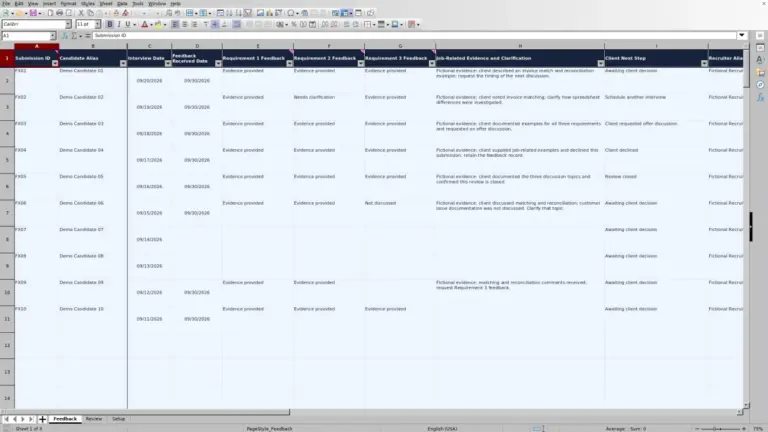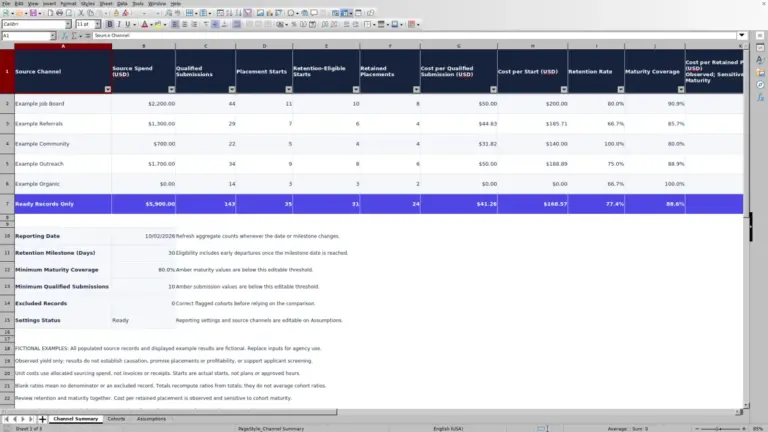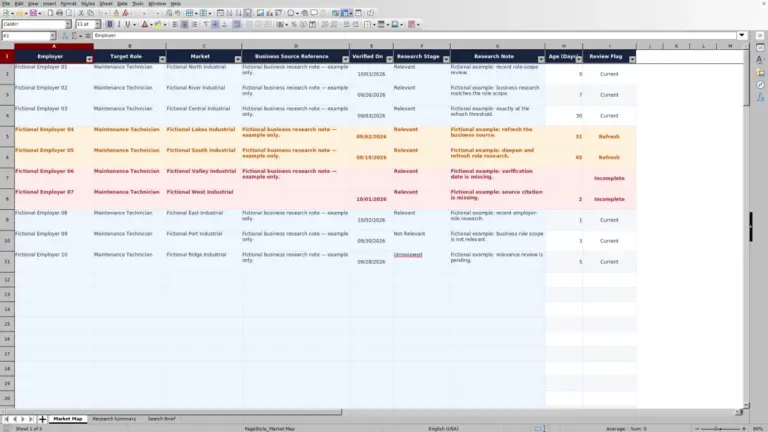
When you send a candidate to a client job order, record the submission so you can see who is awaiting a response and what needs follow-up. This staffing agency candidate submission tracker from Staffing Worksheets keeps candidate, client and job references together with consent, submission and response dates in an Excel workbook.
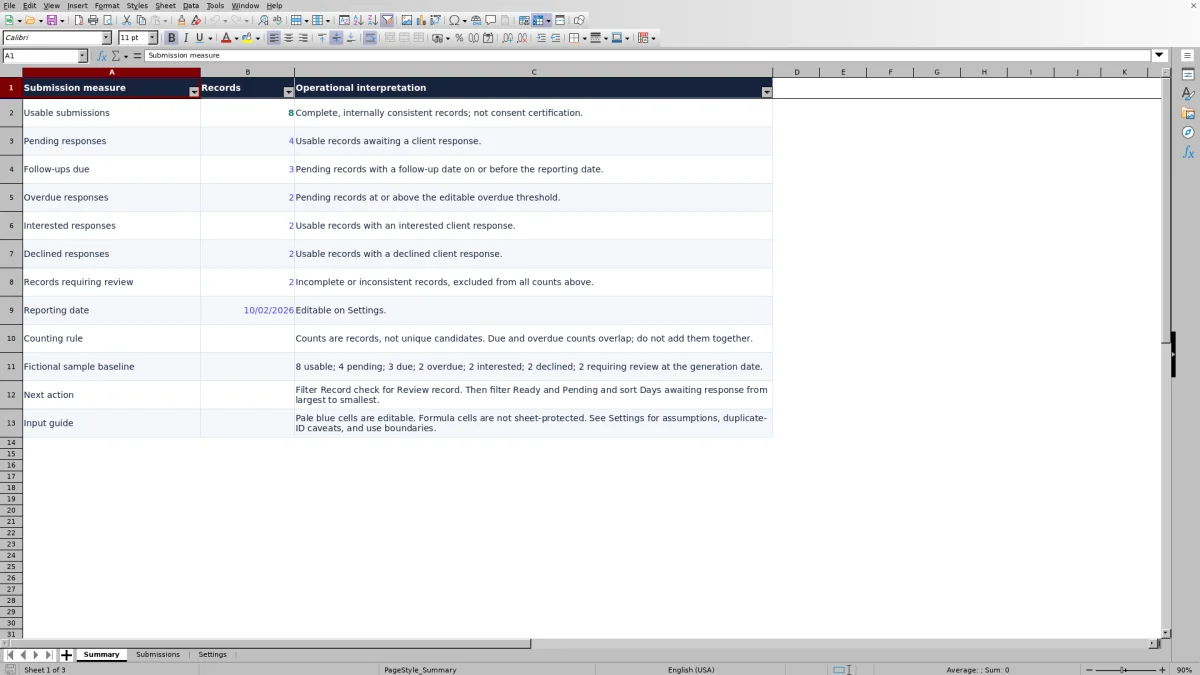
Use the calculated waiting days, follow-up dates and summary counts to plan your next calls or emails. The workbook checks records for completeness and date consistency, but you enter the activity and contact the client yourself. It does not send submissions or messages.
When to use this worksheet
- Keep each candidate-to-client-job submission separate, including when one candidate is sent to several jobs.
- Identify usable pending records that have reached your follow-up interval or overdue threshold.
- Find incomplete or inconsistent records before relying on operational counts.
- Review interested and declined client responses alongside pending submissions.
What the workbook includes
How to use the workbook
1. Set the reporting date and follow-up assumptions
On Settings, review B2:B4. The reporting date initially uses TODAY(); you can replace it with an Excel date for a fixed review date. The initial follow-up interval is 3 calendar days and the overdue threshold is 7 calendar days. Choose nonnegative whole-number intervals appropriate to your workflow. These are editable assumptions, not required standards.
2. Remove the fictional inputs
Save a working copy, then clear the ten fictional records from columns A:I on Submissions. Clear input values only; leave the formulas in J:L intact. Formula cells are visually distinguished but are not sheet-protected.
3. Enter one record for each submission
Use rows 2–101 on Submissions. Enter a submission ID, candidate reference, client, client job reference and recruiter reference, together with the consent and submitted dates. Dates display as MM/DD/YYYY. Select Pending while awaiting a response and leave Response date blank. When the client responds, select Interested or Declined and enter the response date.
4. Resolve warnings and work the pending queue
Filter Record check for Review record and correct the underlying inputs. Resolve duplicate-ID warnings as well. Then filter for Ready and Pending, and sort Days awaiting response from largest to smallest using the full record range. Use Summary to review totals, then make your calls or send your emails outside the workbook.
Count submissions, not unique candidates
Use one row for one candidate reference submitted to one client job. If you send the same candidate to two different job orders, create two records with different submission IDs. This preserves the separate client responses and waiting periods.
Summary counts are records, not unique candidates. Two usable submissions for one person count as two usable records. The workbook does not produce a deduplicated candidate total or establish that a candidate has been placed.
Give each submission a distinct ID and check duplicate warnings after pasting data. Direct-entry validation blocks duplicate IDs, and pasted duplicates are flagged, but the Ready formula does not exclude them. A duplicate can therefore remain Ready and contribute to the counts until you resolve it.
Example: decide when a pending submission needs attention
Suppose you set the reporting date to 10/02/2026, keep the 3-day follow-up interval and 7-day overdue threshold, and enter a complete pending record with consent dated 09/24/2026 and submission dated 09/25/2026. Leave its response date blank.
The workbook calculates elapsed waiting time by subtracting the submitted date from the reporting date: 10/02/2026 minus 09/25/2026 gives 7 calendar days awaiting response. It calculates the follow-up date by adding the interval to the submitted date: 09/25/2026 plus 3 days gives 09/28/2026.
This record is both due for follow-up and overdue. Its follow-up date is on or before the reporting date, and its waiting time has reached the overdue threshold. Review the client conversation and contact the client as appropriate; the calculation does not send a reminder or confirm that contact occurred.
Both calculations run only when Record check is Ready and Client response is Pending. They use calendar days, so weekends and holidays are not skipped.
Use due and overdue counts as two views of the same queue
Follow-ups due identifies usable pending records whose calculated follow-up date has arrived. Overdue responses identifies usable pending records whose waiting time meets or exceeds your chosen threshold. These answer different questions: whether a planned contact date has arrived, and how long the client has been silent.
Do not add due and overdue counts together. The same submission can appear in both. With the initial 3-day follow-up interval and 7-day overdue threshold, a pending record that reaches seven days is also due for follow-up.
A practical manual review order is to correct record and duplicate warnings first, examine overdue responses next, and then work other due follow-ups. Filter by recruiter reference or client when assigning the work. Once you record an Interested or Declined response with a valid response date, that record leaves the pending calculations and contributes to the corresponding response count instead.
Problems to fix before trusting the summary
A populated row displays Review record when required references are missing or its dates and response status do not meet the formula checks. Those rows are counted separately as records requiring review and excluded from the operational counts. A low pending count can therefore reflect incomplete records, not just fewer outstanding submissions.
- Enter all four identifying fields in A:D and a recruiter reference in I. A partially entered record is not Ready.
- Use actual Excel dates. The consent date must be positive and on or before the submitted date; the submitted date cannot be after the reporting date.
- For Pending, leave Response date empty. For Interested or Declined, supply a response date on or after submission and on or before the reporting date.
- Use the supplied response labels. An unsupported label causes the record check to fail.
After a bulk paste, inspect the records rather than assuming validation accepted every value. Pasting can bypass validation, including settings restrictions. Keep Settings B2:B4 populated and valid, and avoid pasting into formula columns J:L or the Summary formulas.
Record consent without treating the date as certification
The Consent date field records an agency-entered event date. The workbook checks its presence and its order relative to the submitted date, but it cannot determine what the candidate agreed to, which documents support that agreement or whether a submission was authorized.
Ready means internally consistent, not consent-certified. Keep any supporting records required by your agency's process separately and verify them before relying on the entered date. The same distinction applies to the submitted date: an entry in the tracker is not independent proof that a profile reached the client.
This is a staffing agency submission log, not an employer's internal applicant-screening system. It does not score candidates, determine eligibility or establish legal compliance. An Interested response is a client response, not a confirmed placement or assignment.
Keep a stable review date and preserve history manually
Settings B2 initially contains TODAY(), so waiting days and due counts can change as the workbook recalculates on later dates. For a fixed review, replace it with the intended reporting date. The fictional sample dates remain fixed, so their counts will not necessarily match the generation-date baseline shown in the workbook notes.
Changing the reporting date is not a historical status rollback. The workbook evaluates the current inputs. For example, a response dated after an earlier reporting date makes the record inconsistent for that date; it does not restore the row to its former Pending state.
If you need a record of what your team saw at a particular review, a suggested manual practice is to save a dated copy before making further changes. The workbook has no automatic version history or contact-activity log. Its follow-up date is based on the original submitted date, not the date of your last call.
Comparison: this workbook or a blank spreadsheet?
Choose this workbook when your process fits a defined submission log with three response choices and date-based follow-up review. A blank spreadsheet fits when you need to design different fields or stages and are prepared to build and check your own calculations.
| Method | Initial setup | Follow-up review | Checks and counting | Best fit |
|---|---|---|---|---|
| This Excel workbook | 100 prepared rows with supplied fields and editable timing settings | Calculates waiting days and follow-up dates for Ready, Pending records | Includes record checks, duplicate-ID warnings and summary formulas | A manually maintained candidate-to-client-job submission queue |
| Blank spreadsheet | You choose the layout, fields and record range | You review dates manually or build the calculations | You create any validation, warnings and summaries needed | A custom process that does not fit the supplied structure |
Neither approach alone sends candidate profiles or maintains a client conversation. If you need communication history, broader recruiting stages or connected workflows, assess an applicant tracking system (ATS) or staffing software against those requirements. This workbook has no integrations, messages or macros and should not be treated as a substitute for functions it does not contain.
Frequently asked questions
Can I use more than 100 submission records?
The supplied formulas, validation and Submissions filter cover rows 2–101, and the Summary formulas reference that same record range. Typing below row 101 does not automatically extend those features. To expand the file, you would need to extend the formulas, validation, formatting and filter range and update the Summary references, then test the results.
Why are Days awaiting response and Follow-up date blank?
Those fields calculate only for records marked Ready with a Pending response. They remain blank for unused rows, records requiring review, and Interested or Declined responses. Check Record check and Client response before treating a blank as an error. A valid pending submission entered on the reporting date shows zero days awaiting response, not a blank.
Can I rename the response choices or add another status?
Keep Pending, Interested and Declined each exactly once in Settings D2:D4. The dropdown reads that range, and the calculations depend on those labels. Adding or renaming a status is not a supported settings-only customization; it would require changes to the relevant validation and formulas.
Can I open the workbook in LibreOffice?
The operating notes identify Excel and LibreOffice as applications that recalculate the workbook when it is loaded. After opening it, check the reporting date, calculated values and dropdown behavior in the application you intend to use. The manifest does not establish identical behavior across every application or version.
Does the tracker calculate response rates or placement conversion?
No. Summary provides record counts for the supplied response categories, pending work and record checks. It does not calculate response percentages or placement conversion, and there is no placement outcome field. Do not interpret an Interested count as a count of hires or assignments.
Editorial contributors

Miriam HaldenRecruiting & assignment workflows
Explore this editorial focus →
Wesley CorbinBilling & agency finance
Explore this editorial focus →