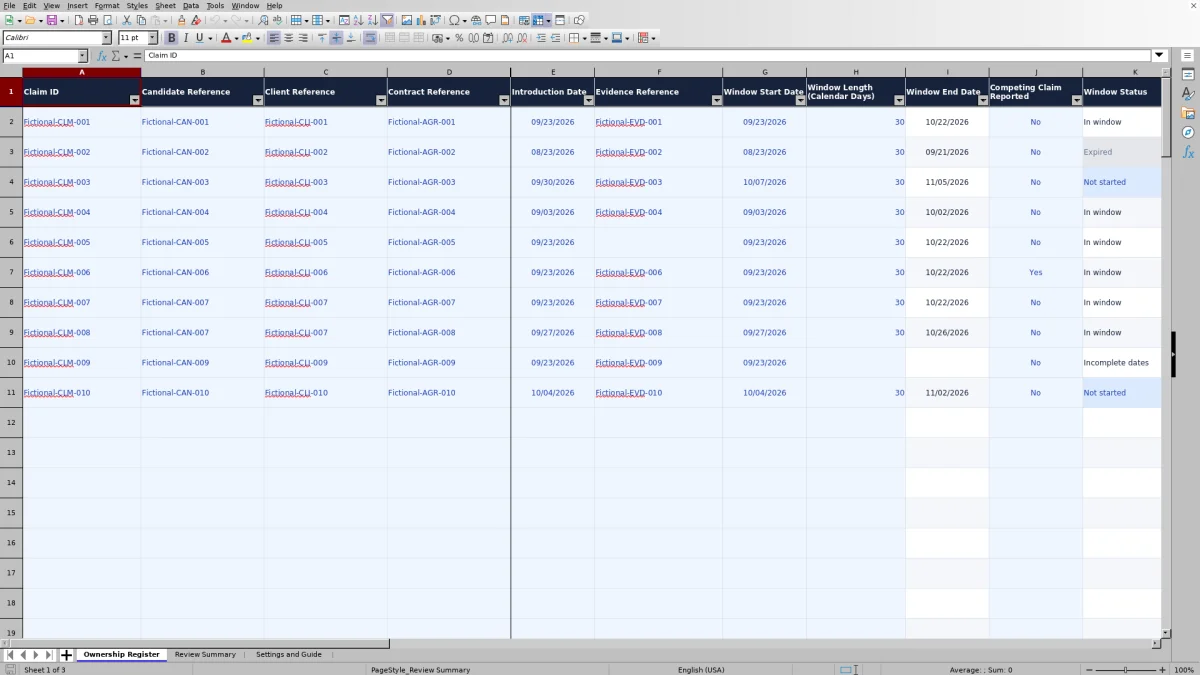
When a client questions who first introduced a candidate, bring the recorded introduction, evidence reference and agreement reference together before reviewing the claim. This Excel candidate ownership register from Staffing Worksheets organizes candidate-client claims and their recorded contractual windows.
The workbook calculates window end dates, compares them with a review date and flags records for attention. It supports manual dispute review only: a date status does not establish ownership, validate evidence or decide entitlement to a fee.
When to use this worksheet
- Keep introduction evidence and agreement references together for each candidate-client claim.
- See whether a recorded contractual window has started, is in progress or has expired.
- Find incomplete records, reported competing claims and repeated candidate-client pairs.
- Record review progress and procedural notes alongside the underlying claim.
What the workbook includes
How to use the workbook
1. Prepare the review date and remove examples
In Settings and Guide, check Review Date in B2. It initially uses TODAY(); replace that formula with a valid date if you need a fixed review snapshot. Replace or clear the ten fictional records before operational use, leaving the formulas in columns I, K and L intact.
2. Record the claim and its supporting references
On Ownership Register, enter one candidate-client introduction claim per row. Use a unique Claim ID and consistent internal candidate, client, contract and evidence identifiers. Enter the evidence-supported Introduction Date separately from the Window Start Date, then enter the agreement's duration as a positive whole number of calendar days. Dates display as MM/DD/YYYY.
3. Check the calculated results
Choose Yes or No for Competing Claim Reported and select a Manual Review Status. Review the calculated Window End Date, Window Status and Review Flag. The pale blue cells are inputs; do not overwrite columns I, K or L. Worksheet protection is not enabled.
4. Review the supporting records and document follow-up
Use Review Summary to see the current counts, then filter Ownership Register by Review Flag to inspect the relevant claims. Retrieve the evidence and agreement through your own recordkeeping process. Update Manual Review Status and Review Note after checking them; closing a review does not clear factual flags.
Build a claim record that you can check against the evidence
Record an introduction claim when you need to preserve its factual basis for a later client discussion. One row represents one candidate-client claim, not a candidate's entire recruiting history. Separate competing claims receive separate Claim IDs, even when they concern the same candidate and client.
Use internal references rather than names for the candidate and client. The Contract Reference identifies the agreement you intend to rely on; the Evidence Reference identifies the supporting document in your own records. The workbook stores those identifiers, not imported documents, and does not verify that an introduction was first or that the evidence supports the entered date.
Before relying on a record, retrieve the referenced material and check the candidate, client and introduction date against it. Keep Review Note focused on procedural context and evidence follow-up. Do not include personal, medical or protected-class information.
Example: interpret an inclusive ownership window
Enter the start date and duration from the referenced agreement only after checking how that agreement defines the window. The calculation is start date + calendar days − 1, so the start date counts as day one. The Introduction Date is recorded separately and does not drive the end-date formula.
For the workbook's fictional claim starting on 09/23/2026 with a 30-day duration, the calculated Window End Date is 10/22/2026. With Review Date set to 10/01/2026, Window Status is In window. It remains In window on 10/22/2026 and changes to Expired on 10/23/2026. A review date before 09/23/2026 produces Not started.
This result tells you where the review date falls relative to the recorded interval. It does not tell you whether the agreement is enforceable or whether another claim takes precedence. A one-day window ends on its start date. If your agreement uses business days, calendar months, exclusions or another counting rule, handle that interpretation separately rather than treating this calculation as a match.
Read review flags in priority order
The register displays only the first applicable flag for each populated record. The order is Missing information, Competing claim, Multiple records, Future introduction, then No flag. Use the displayed flag to begin the review, not as a complete list of everything that needs attention.
- Missing information takes priority when required claim inputs, a calculated end date, the competing-claim choice or Manual Review Status are missing.
- Competing claim appears when Competing Claim Reported is Yes, provided the record passes the missing-information check.
- Multiple records identifies repeated candidate-client reference pairs within rows 2–101, including records with different Claim IDs.
- Future introduction identifies an Introduction Date later than Review Date when no higher-priority flag applies.
For example, a record with a missing Evidence Reference and Competing Claim Reported set to Yes first shows Missing information. After you supply the reference, it can show Competing claim. Inspect the remaining inputs as well. Multiple records does not compare contract terms or window overlap, and No flag is not an ownership approval.
Use the summary without confusing flags with open reviews
Review Summary counts populated claim records, including incomplete ones. It also shows windows in progress, expired windows, future windows and incomplete dates. These date categories describe the entered windows; they are not counts of valid contractual rights.
The separate flagged-claim count includes records with any formula flag. Closed does not remove a factual flag or exclude that record from the flagged count. If you mark a repeated candidate-client record Closed after investigating it, Multiple records can still appear because the matching records remain in the register.
To find work still awaiting action, filter the register using both Review Flag and Manual Review Status. This is a suggested manual workflow, not an automatic assignment or escalation process. Use Review Note to explain why a review was closed or what evidence is still needed.
The guide's generation-date example counts are illustrative. Live summary results can change as the review date changes, so check the displayed Review Date before sharing the counts.
Errors and fixes after entering or pasting records
If Window End Date is blank and Window Status says Incomplete dates, inspect Window Start Date and Window Length (Calendar Days). The end-date formula requires a numeric start date of at least 1 and a positive whole-number duration. A blank, text value, zero duration or fractional duration prevents a valid end-date result.
Enter dates as actual Excel dates, not text that merely looks like a date. Entry validation is provided for introduction dates, start dates, durations, the review date and unique Claim IDs. However, validation is an entry aid, not protection against pasted data. After a bulk paste, check dates, identifiers, durations and dropdown values manually.
Use consistent candidate and client identifiers so repeated-pair checks can find the intended matches. Keep the supplied dropdown labels: Yes and No for competing claims, and Not reviewed, Under review and Closed for manual review. Changing list labels without revising dependent formulas can change how records are interpreted.
Also check that calculated cells still contain formulas. Because the sheets are unprotected, an accidental paste over columns I, K or L can replace the calculations with static values.
Plan for the register's fixed range and changing review date
The implemented register covers 100 claim rows, from row 2 through row 101. Its formulas, duplicate-pair checks, validations, filter range and summary references are set to that range. Adding entries below row 101 does not mean they are included in those checks or totals.
If you need more capacity, extending the file requires updating the relevant formulas and ranges and checking the results. Alternatively, use a recordkeeping system sized for your ongoing claim volume. Splitting claims across separate workbook copies also separates the repeated-pair checks; this file does not compare claims across copies.
Review Date initially uses TODAY(), so date-based results can change when Excel recalculates on a later day. For a dated review, enter a fixed date in Settings and Guide B2 and save a separate dated copy if you need to retain that version. This is a manual snapshot practice, not built-in version history or a tamper-proof audit record.
Comparison: this workbook or a blank spreadsheet?
A blank spreadsheet can suit a small, occasional claim log when you only need to record references and notes. This workbook fits a more structured review using an inclusive calendar-day window, consistent statuses and a defined set of factual flags. Neither approach determines contractual ownership.
| Method | Window calculations | Review support | Best fit and limits |
|---|---|---|---|
| This Excel workbook | Prepared inclusive calendar-day end dates and statuses against an editable review date. | Prioritized flags, manual review fields, filters and summary counts. | Structured manual review within 100 prepared rows; evidence retrieval and contract interpretation remain manual. |
| Blank spreadsheet | You calculate dates manually or create and check your own formulas. | You define the fields, review labels, checks and totals. | A simple custom log or a different recording structure; calculation and review logic must be built if needed. |
Choose based on the process you actually need. The prepared workbook gives you defined date and flag logic to work with, but that logic has a specific scope. If your contracts require different counting rules, start with those requirements rather than forcing them into the supplied calendar-day calculation.
Frequently asked questions
Does an In window status prove that our agency owns the candidate introduction?
No. In window means only that Review Date falls between the entered start date and calculated end date, inclusive. You still need to inspect the evidence and agreement and resolve any competing claims manually. The workbook does not establish ownership or fee entitlement.
Is there a standard ownership duration built into the workbook?
No. Enter each duration from the referenced agreement as a positive whole number of calendar days. The 30-day values in the fictional examples are examples, not a recommended or default contractual term.
Can the introduction date differ from the window start date?
Yes. They are separate inputs. Record Introduction Date from the supporting evidence and Window Start Date from your interpretation of the referenced agreement. The end-date calculation uses Window Start Date, while the future-introduction flag compares Introduction Date with Review Date.
Does the workbook attach evidence or connect to an applicant tracking system?
No document import or applicant tracking system connection is implemented. Evidence Reference is an internal document identifier. Keep the supporting material in your own records and retrieve it separately during review.
Can I leave Review Note blank?
Yes. A blank Review Note does not itself trigger Missing information, but Manual Review Status is required for a populated claim to pass that check. Use the note when procedural context or follow-up needs to be recorded, especially when a closed review still has a factual flag.
Editorial contributors

Miriam HaldenRecruiting & assignment workflows
Explore this editorial focus →
Wesley CorbinBilling & agency finance
Explore this editorial focus →