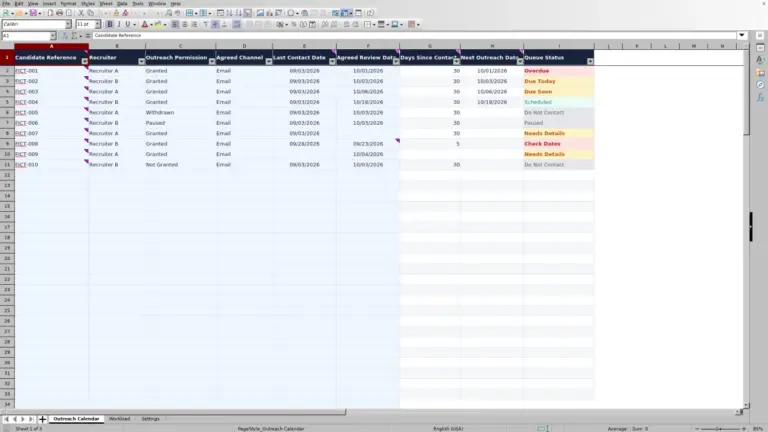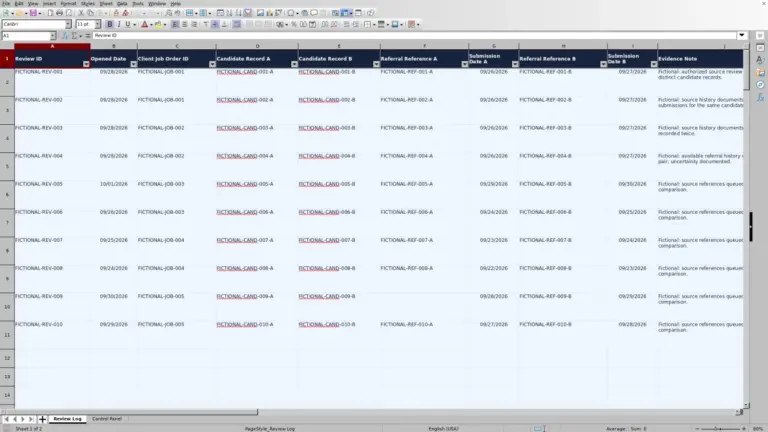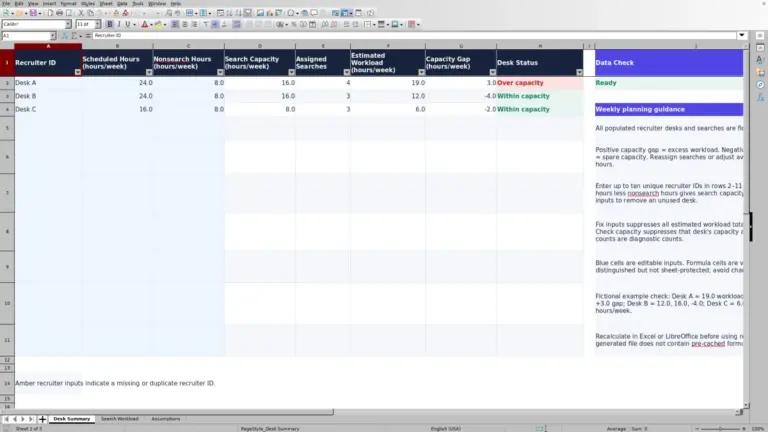
Before presenting a candidate to a client, check the permission record for that specific job order. This Excel workbook from Staffing Worksheets lets you log the request, recorded permission, withdrawal, and source reference together.
The workbook calculates record checks, status, and pending follow-up indicators for 100 prepared cases. It is a recordkeeping aid, not authorization to present: review the underlying source before making a submission.
When to use this worksheet
- Keep permission tied to a specific candidate, client, and job order.
- Identify incomplete, date-conflicted, or duplicate records for review.
- See which pending cases have reached your chosen follow-up threshold.
- Keep withdrawal visible rather than treating an earlier permission date as the current status.
What the workbook includes
How to use the workbook
1. Set up your working copy
Save a working copy and replace or clear the fictional inputs in Permission Log rows 2–11 before operational use. Edit the blue input cells in columns A–I, preserving the formulas in J–M. In Settings, replace the fictional recruiter references in D2:D11 with your internal identifiers.
2. Choose the review date and follow-up threshold
Settings B2 defaults to TODAY(), so it changes with the current date when recalculated. You can enter a fixed review date instead. Set B3 to your chosen number of calendar days from 0 to 365. The supplied value of 7 is an example, not a legal deadline.
3. Record each permission case
Enter a case ID, candidate reference, client reference, job order reference, recruiter reference, request date, and source record reference. Add permission or withdrawal dates only when supported by the source. Use internal identifiers rather than names, contact information, consent wording, or external links.
4. Resolve checks and review follow-ups
Recalculate the workbook in Excel or LibreOffice. Check Record Check before relying on Recorded Status, then use Review to see case counts and pending follow-ups. Resolve flagged inputs against the source record. Any candidate contact or submission decision remains a manual action outside the workbook.
Keep permission specific to the intended submission
Use one row per candidate–client–job order case. A candidate reference alone does not establish which client or role the recorded permission concerns. If the same candidate is being considered for a different client or job order, record that separate case rather than assuming the existing entry covers it.
The Source Record Reference connects the row to the material you need to inspect outside the workbook. Enter an internal identifier that lets you locate that material through your existing records process. The workbook stores the reference; it does not retrieve the source, assess its wording, or confirm that its scope matches the proposed submission.
Before presenting a profile, manually check that the candidate, client, and job order in the source match the case you are reviewing. The log is not a record of a completed submission or placement.
Interpret permission and withdrawal without losing the history
Recorded Status first depends on the result in Record Check. A flagged case becomes Review record, even if you have entered a permission or withdrawal date. For a case marked Ready, a withdrawal date produces Withdrawn; otherwise, a permission date produces Permission recorded. With neither date, the case is Pending.
Withdrawal takes precedence on a ready record, including when no earlier permission date is present. This prevents an earlier grant from remaining the displayed status after a withdrawal is recorded. It does not mean the workbook has notified a recruiter or stopped a submission.
Retain withdrawn cases. If permission is later renewed, do not erase the earlier withdrawal simply to obtain a Permission recorded status. A renewed case with the same candidate–client–job order combination may trigger duplicate review. Preserve the source history outside the workbook and resolve that flag deliberately; the log is not a full permission-event history system.
Example: decide when a pending case needs follow-up
Suppose you set the review date to 10/08/2026 and record a request dated 10/01/2026. The required references are complete, Record Check is Ready, and both permission and withdrawal dates are blank. Recorded Status is Pending.
Pending Days subtracts the request date from the review date: 10/08/2026 minus 10/01/2026 equals 7 calendar days. With the threshold set to 7, Follow-up displays Follow up because the elapsed time is at or beyond the threshold. If you change the threshold to 8, the same case displays Not due.
Follow up is a prompt for your next action, not a sent reminder. Check the source and decide whether to contact the candidate through your normal process. The calculation includes weekends and does not apply a business-day calendar. Pending Days and Follow-up remain blank for cases that are not Pending, so a blank indicator should not be read as a zero-day wait.
Errors and solutions: resolve the record before using its status
A populated row needs the identifying references, recruiter reference, request date, and source record reference to pass the completeness check. Permission and withdrawal dates may remain blank when neither event has been recorded. Do not fill those dates merely to remove an alert.
- Missing information: compare the row with the source and supply the missing required input. A source reference is required even for a pending case.
- Check dates: use actual spreadsheet dates, displayed as MM/DD/YYYY. Check for dates after the review date, permission or withdrawal before the request, or withdrawal before recorded permission. Correct an entry only when the source supports the correction.
- Duplicate cases: inspect repeated case IDs and repeated candidate–client–job order combinations. Correct accidental duplication, but do not delete a legitimate withdrawal or renewed case solely to make the flag disappear.
A displayed check may need to be resolved before another issue becomes visible. Recalculate and recheck the row after making a correction. Input validation helps constrain entries, but it does not verify the truth of a reference or the substance of the source record.
Use the review counts to plan the next pass through the log
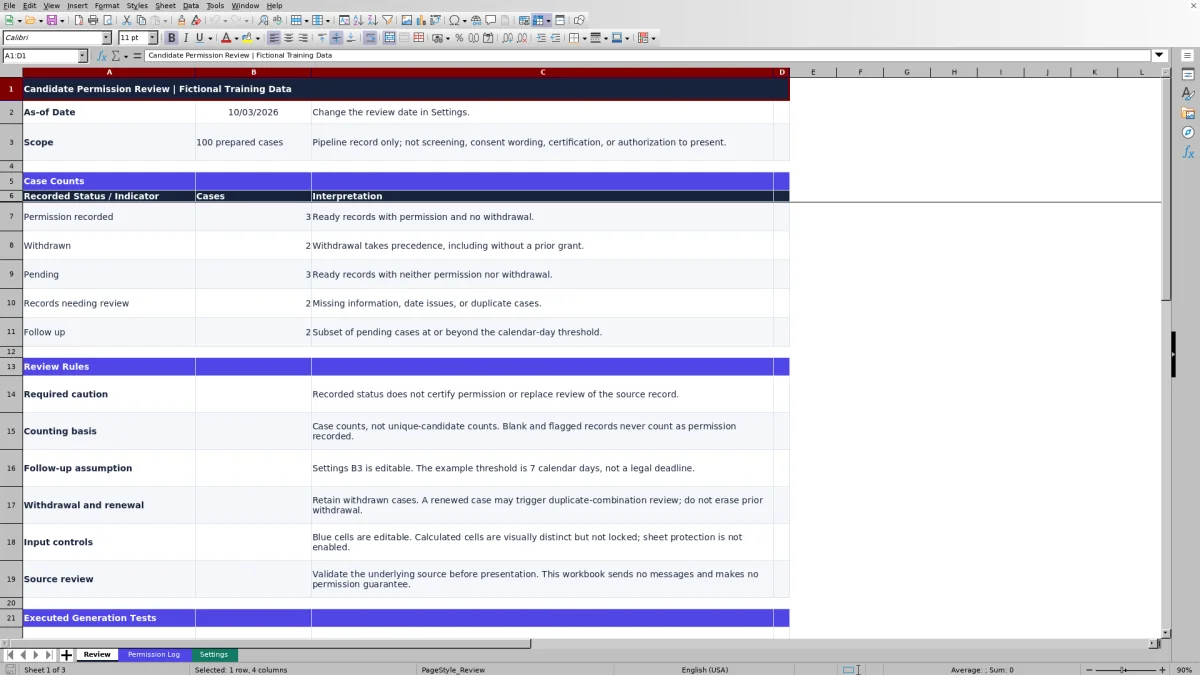
The Review sheet counts Permission recorded, Withdrawn, Pending, and Review record statuses across Permission Log rows 2–101. It also counts Follow up indicators. These are case counts, not unique-candidate counts: a candidate with cases for two different job orders can contribute two cases.
Follow up is a subset of Pending, not an additional status to add to the other categories. For example, if the review shows three pending cases and two follow-ups, two of those three pending cases have reached the threshold. It does not mean there are five unresolved cases.
A practical manual review sequence is to inspect records needing review, address pending follow-ups, and then check the source for any case you intend to use for a submission. Blank rows do not count, and flagged rows do not count as Permission recorded. The summary helps you choose where to look; it does not certify the cases that remain.
Capacity, formula safety, and date limits
The prepared scope is 100 cases in rows 2–101. Ten rows contain fictional examples, with rows 12–101 prepared for additional entries. Clearing or replacing the example inputs gives you the full prepared capacity. Summary formulas and duplicate checks cover that same range.
Do not assume a row beyond 101 is covered. Extending the log requires checking formulas, validation, duplicate-check ranges, and summary ranges together. For routine use, stay within the prepared scope rather than treating table expansion as proof that every dependent check has expanded correctly.
Calculated cells are visually distinct but not locked, and sheet protection is not enabled. Avoid pasting across entire rows because that can replace formulas in J–M. Keep a clean copy available so you can recover the prepared formulas if needed.
The review date affects both date checks and pending age. Setting an earlier date is not a historical snapshot feature: permission or withdrawal entries after that date can be flagged as future dates. If you need to retain a review as it stood on a particular day, save a dated copy with a fixed review date as a manual recordkeeping step.
Comparison: this workbook or a blank spreadsheet
This workbook fits a bounded, manually maintained permission log when you want prepared record checks and follow-up calculations. A blank spreadsheet fits a process whose fields or history structure you need to design yourself, provided you are prepared to build and maintain any checks you require.
| Method | Setup and structure | Checks and follow-up | Scope and source review |
|---|---|---|---|
| Staffing Worksheets workbook | Prepared candidate–client–job order cases with reference and date inputs. | Included record checks, status calculations, pending age, and threshold indicators. | 100 prepared cases; you review the underlying source manually. |
| Blank spreadsheet | You choose the fields and design the record structure. | You build formulas and validation or perform checks manually. | You define the coverage and maintenance process; source review remains separate. |
Neither approach makes a spreadsheet entry proof of permission. If your workflow requires message delivery, source-document management, or a detailed event history, evaluate a system specifically for those requirements. This workbook sends no messages and provides no demonstrated connection to an applicant tracking system.
Frequently asked questions
Does this workbook include candidate consent wording or a consent form?
No. It records references and dates for permission and withdrawal. It does not supply consent wording, certify legal compliance, or authorize you to present a candidate. Review the actual source and its scope before acting.
Can I add my own recruiters to the dropdown?
Yes. Replace the fictional identifiers in Settings D2:D11 with your internal recruiter references. The Permission Log dropdown reads those ten cells. Reference inputs are set up for text of up to 60 characters. Adding recruiters outside that range would require changing the dropdown validation; typing below the list does not extend its configured source.
Why do the fictional example counts differ from the notes on Review?
The example dates were anchored to the workbook's generation date, while Settings B2 defaults to TODAY(). A different review date or follow-up threshold can change the results, including whether example dates are treated as future dates.
The generation notes report reference-rule tests, but spreadsheet formulas were not recalculated during generation. Recalculate in Excel or LibreOffice and check the settings before interpreting displayed results. The stated example counts are not guaranteed counts for the day you open the file.
Should I put candidate names or source-document links in the log?
No. The workbook's use notes call for identifiers only, not names, contact information, consent wording, or external links. Use Candidate Reference and Source Record Reference to locate the relevant records through your separate records process. Those identifiers help organize the log but are not access controls.
Editorial contributors

Miriam HaldenRecruiting & assignment workflows
Explore this editorial focus →
Wesley CorbinBilling & agency finance
Explore this editorial focus →