When an employee or candidate refers someone to your staffing agency, record the referral and check the qualifying placement milestone before approving a bonus. This Excel workbook keeps referral IDs, approved hours and manual review evidence together so you can see what still needs attention.
The Staffing Worksheets candidate referral bonus tracker calculates review statuses and an approved bonus total from your entries. It supports internal bonus review, not client introducer fees, candidate screening or payment processing. You supply verified placement information and make the approval decision.
When to use this worksheet
- See which referrals need missing information, milestone confirmation or a review decision.
- Keep each referral’s hour requirement and proposed bonus as a record-specific snapshot.
- Separate proposed bonuses from amounts supported by complete approval entries.
- Use internal IDs to connect referral, candidate and placement records without entering names or contact details.
What the workbook includes
How to use the workbook
1. Prepare a working copy
Save a copy of the workbook and review the fictional examples in Referrals rows 2–11. Before using the summary for agency reporting, clear or replace those sample inputs while keeping the formulas in columns O and P. Rows 2–101 are prepared for 100 records in total.
2. Set your policy inputs and review date
On Settings, enter your Default Required Approved Hours, Default Proposed Bonus (USD) and As of Date. The supplied 80-hour requirement and $250 bonus are fictional examples, not recommended policy. As of Date initially uses TODAY() and sets the latest date allowed by the record-date validation.
3. Create the referral record
Use one row for one candidate referral tied to one qualifying placement. Enter a unique Referral ID, the referral date, internal referrer and candidate IDs, and the referrer type. Copy the applicable defaults into Required Approved Hours and Proposed Bonus using paste values, not formulas. Select Pending while the decision remains open.
4. Confirm the milestone and record the decision
Add the placement reference and start date, then enter approved hours from an existing verified agency record. After checking the milestone, enter Milestone Confirmed Date. For an approval, enter Approved as the Review Decision, a Reviewer ID and a Decision Date on or after confirmation. Check the calculated Review Status, then use Referral Summary and the Referrals filter to work through exceptions and pending records.
Keep the bonus terms attached to each referral
Before entering a new referral, decide which hour threshold and proposed bonus apply under your agency’s policy. Settings provides a convenient place to hold the defaults, but the review calculation uses the values entered on each referral row. This lets you preserve the terms recorded for that referral rather than having every existing record change when you update a default.
For example, if your policy changes from an 80-hour threshold to a different requirement, update the default for future entries and copy it as a value when creating each new record. Changing Settings alone does not populate new rows or revise existing referral terms. If you need to amend an existing record, check the applicable policy first and edit that record deliberately.
Required Approved Hours must be greater than zero. Proposed Bonus is entered in USD and may be zero or greater. These are input rules, not a determination that your policy or bonus amount is appropriate.
Separate approved hours, milestone confirmation and approval
The hour comparison answers a narrow question: have the entered Approved Placement Hours reached the entered Required Approved Hours? It does not establish that the candidate attended an assignment or that the hours were approved elsewhere. Use verified approved hours, not scheduled hours, and keep the supporting record in your agency’s existing recordkeeping process.
A placement reference, start date and sufficient hours are not the entire approval record. A person must check the milestone and enter Milestone Confirmed Date. Reaching the threshold without that confirmation leaves the milestone incomplete under the tracker’s logic.
Once the milestone is complete, the referral still needs a manual decision. An approval requires a Reviewer ID and a Decision Date on or after confirmation. Entering these fields records your review evidence; the workbook does not perform the review or certify eligibility. If the milestone is complete but approval has not been recorded, Review pending identifies the next task.
Example: how two approved referrals total $500
The first fictional referral has 80 approved placement hours against an 80-hour requirement and a proposed bonus of $250. Its milestone confirmation is dated 10/01/2026, followed by an Approved decision with a reviewer and a decision date of 10/02/2026. With the required entries complete and no duplicate Referral ID, its calculated status is Approved and its approved bonus is $250.
The second fictional referral has 120 approved hours against the same 80-hour requirement and the same $250 proposed bonus. It also contributes $250 when approved. Extra hours do not multiply the bonus. The approved amount copies the proposed amount; it is not an hourly rate calculation.
For the first row, the formula is =IF(A2="","",IF(O2="Approved",J2,0)). A blank Referral ID leaves the output blank. Otherwise, an Approved status includes the proposed bonus from J2, and any other status contributes zero. Referral Summary adds these outputs with =SUM(Referrals!P2:P101).
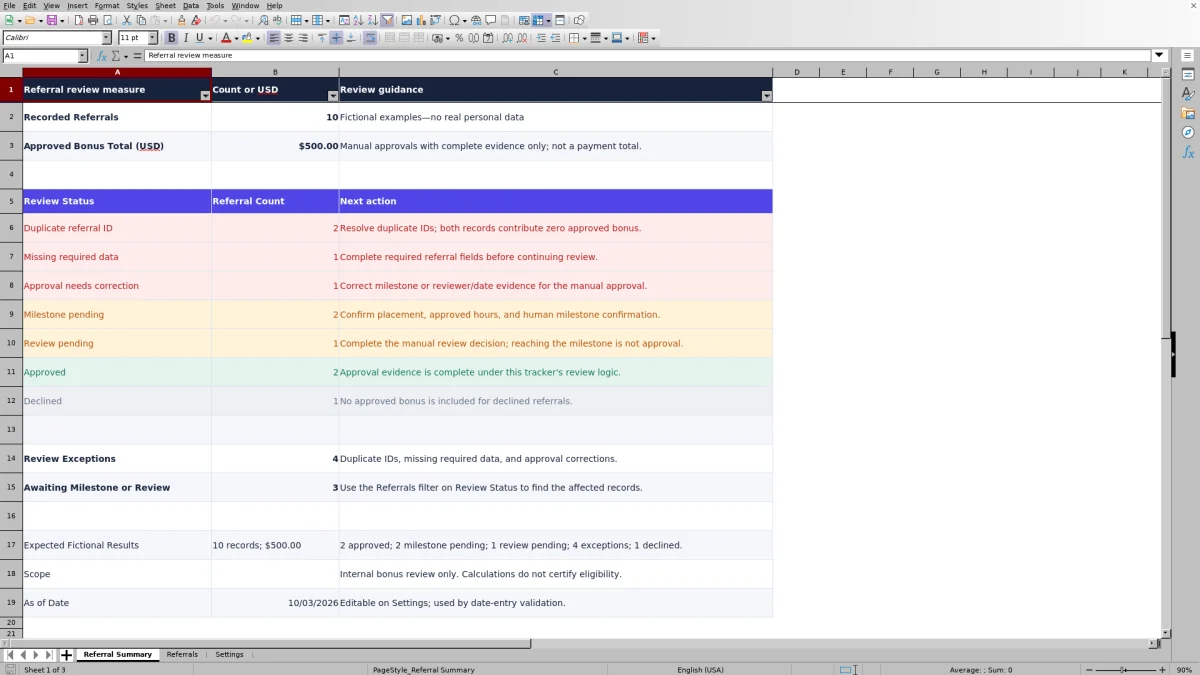
The workbook’s stated fictional expectation is 10 referrals and a $500 approved bonus total: two approved records at $250 each. That expectation is a sample reference, not a live result to preserve after replacing the examples. Use the calculated summary for your current records, and treat the amount as an approval total, not a payment total.
Errors and corrections: work from the displayed status
When an amount is excluded from the approved total, filter Review Status on Referrals before changing the bonus value. The tracker checks problems in a defined order, so a record can reveal another issue after you resolve the first one.
- Duplicate referral ID: Both records with the repeated ID contribute zero approved bonus. Check the source records to determine whether you entered the same referral twice or assigned one ID to two distinct referrals. Correct the underlying record; do not simply rename a duplicate to make it pass.
- Missing required data: Complete the referral date, referrer ID and type, candidate ID, required hours and proposed bonus. A row without a Referral ID behaves differently: its formula outputs are blank, and it is not included in the recorded-referral count.
- Approval needs correction: An Approved decision is present, but the milestone or required reviewer/date evidence is incomplete or inconsistent. Verify the evidence and correct the entry, or revise the decision if it was entered prematurely.
- Milestone pending: Check the placement reference, start date, approved hours and confirmation date. Sufficient hours alone are not confirmation.
- Review pending: The milestone entries are complete, but a manual approval or decline still needs attention.
Duplicate IDs and missing required data take precedence over a Declined decision. The duplicate check is based on Referral ID; it does not establish that two different IDs represent different referral events. Checking for duplicate submissions of the same underlying referral remains part of your manual review.
Use dates as entry controls, not historical reporting
Enter dates as Excel dates displayed in MM/DD/YYYY format. Settings B4, As of Date, initially contains =TODAY(). You can replace it with a fixed date when you need a defined entry cutoff. The date-validation rules allow blanks while a record is being completed, but nonblank record dates cannot exceed that cutoff.
The entry sequence also matters. Placement Start Date requires a referral date and cannot precede it. Milestone Confirmed Date requires a placement start date and cannot precede that start. Decision Date requires a referral date and cannot precede it; for an approval, the review logic also requires the decision to be on or after milestone confirmation.
If a date entry fails validation, check the cutoff, the preceding required date and whether Excel recognizes your entry as a date rather than text. Do not move the cutoff merely to accommodate an incorrect record. As of Date is not a summary filter: the summary formulas count and total the prepared referral range, rather than reconstructing what was approved on a past date.
Manage the prepared range and preserve the calculations
The workbook is prepared for 100 referrals in rows 2–101. Ten rows initially hold fictional examples, leaving rows 12–101 ready for new entries. You can reuse the sample rows by clearing their inputs without deleting the Review Status and Approved Bonus formulas in columns O and P.
Keep operational records within that prepared range unless you deliberately extend and test the workbook. The summary formulas and duplicate-ID checks refer to rows 2–101, and the validations and Referrals filter are also set up for that range. Typing a record below row 101 does not by itself include it in those functions.
Before relying on a report, check that sample inputs have been removed, each live row has its Referral ID, and the calculated columns remain intact. If a displayed result seems stale, recalculate in Excel and inspect the source entries. The workbook records the current state of your entries; if you need a dated review snapshot, saving a dated copy is a suggested manual workflow, not automatic version history.
Comparison: this workbook or a blank spreadsheet
Choose based on whether your referral process fits an approved-hours milestone and a manually recorded decision. This workbook supplies a defined review structure. A blank spreadsheet gives you more freedom to design a different process, but you must create and check its calculations and controls yourself.
| Method | Review structure | Totals and checks | Capacity and upkeep | Best fit |
|---|---|---|---|---|
| This Excel workbook | Referral and placement IDs, approved-hours milestone, confirmation and manual decision evidence | Calculated statuses, duplicate Referral ID checks and approved bonus totals | 100 prepared records; inputs and supporting evidence need manual upkeep | An internal review queue using the workbook’s hour-based milestone structure |
| Blank spreadsheet | Whatever fields and review stages you design | No referral-specific checks or totals until you build them | You define the range, formulas, validation and maintenance process | A process with materially different milestones or reporting requirements |
If you need source-system connections, automatic approval routing or payment processing, this file does not provide them. Assess those requirements separately when considering staffing software or another system. Neither the presence of an approval field nor a calculated total substitutes for checking your agency’s policy and supporting records.
Frequently asked questions
Can I track both employee and candidate referrers?
Yes. Referrer Type offers Employee and Candidate, and Referrer ID identifies the person who made the referral. Candidate ID identifies the referred candidate. Enter internal IDs rather than names or contact details. The workbook is for candidate referral bonuses, not client introducer fees.
How should I handle a candidate with more than one placement?
The workbook’s row structure is one candidate referral tied to one qualifying placement. If your policy recognizes separate referral events for different placements, record each applicable event with its own unique Referral ID after checking the policy. Do not assume that another placement automatically creates another bonus entitlement; the workbook does not make that determination.
Does Approved mean the bonus has been paid?
No. Approved means the entered record has complete approval evidence under the tracker’s review logic. There is no paid-date or payment-status field, and the file does not process payroll or disburse funds. Record and verify any actual payment in your separate payment process.
Do I need to rely on the status colors?
No. Review Status provides a text label as well as color coding. Green represents approved, amber pending, red an exception and gray declined. Use the text label and the filter to identify the next action, especially when printing or when colors are difficult to distinguish.
Editorial contributors

Miriam HaldenRecruiting & assignment workflows
Explore this editorial focus →
Wesley CorbinBilling & agency finance
Explore this editorial focus →