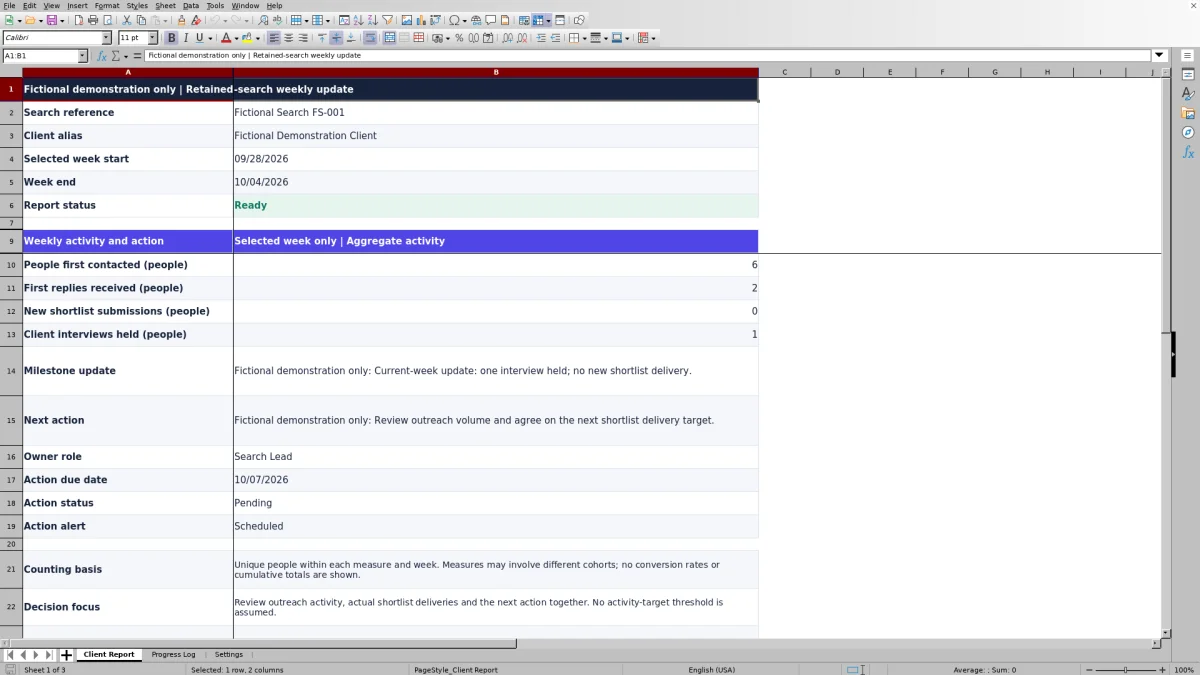
Prepare a weekly client update that separates outreach activity from actual shortlist delivery. This Excel workbook brings aggregate search counts, a milestone note and a dated next action into a selected-week report for one retained search.
Enter your weekly figures in the Progress Log, then select the reporting week in Settings. The Client Report displays the matching record when required inputs are complete. It is an aggregate reporting workbook, not a candidate database, and its populated examples are fictional.
When to use this worksheet
- Give the client a focused view of one reporting week rather than mixing weekly and cumulative results.
- Keep actual shortlist deliveries distinct from outreach activity and planned submissions.
- Pair the next action with an owner role, due date and current timing alert.
- Keep candidate-level details out of the intended reporting workflow.
What the workbook includes
How to use the workbook
1. Set up one search
Save a working copy and replace the fictional search reference and client alias in Settings. Set Reporting Anchor Monday to your first reporting Monday, choose an aligned Selected Week Start, and set the Due Soon Window in days. The supplied window is 3 days; it is editable from 0 to 30.
2. Enter one weekly record
Use an available row in Progress Log rows 2–101. Enter the week start and four whole-person activity counts. Count shortlist submissions only when profiles have actually been delivered to the client. Add a milestone note when useful, then enter the next action, owner role, due date and Pending or Done status. Replace or clear fictional sample inputs before using the copy for your search.
3. Resolve incomplete records
Check Record Status before reading the client output. Every input except Milestone Update is required for an occupied record. Enter zero for confirmed no activity, rather than leaving a required count blank. Leave the Week End, Record Status and Action Alert formulas intact.
4. Check the selected report before sharing
Confirm the search identity, reporting dates, counts and action in Client Report. Review any pasted data and free-text notes manually. If the client needs only the weekly update, prepare and inspect a report-only printout or PDF rather than sending the entire working workbook.
Count weekly activity without implying a conversion funnel
Use each activity measure to answer a separate question: how many people were first contacted, how many first replies arrived, how many new shortlist profiles were delivered, and how many people had client interviews. Counts represent unique people within each measure and week, not messages sent or interview appointments booked.
The measures may involve different cohorts. A reply received this week may come from someone first contacted earlier. An interview may relate to a profile delivered in a previous report. Do not add the four measures together as a unique-candidate total or divide them to claim a response or conversion rate.
The workbook displays the figures you enter; it does not count or deduplicate candidate records. Establish the counts from your source records before entering them. Read those figures alongside the milestone note to decide whether the next action should address outreach, client feedback or shortlist delivery. No activity-target threshold is built into the report.
Example: an interview week with no new shortlist delivery
The fictional record for 08/10/2026 contains 10 people first contacted, 2 first replies, 0 new shortlist submissions and 1 person interviewed by the client. Adding six days to the week start gives a reporting period ending 08/16/2026.
The zero shortlist count does not contradict the interview count. The preceding fictional week records one delivered profile, while the 08/10/2026 milestone says the first client interview was held and outreach continued. These entries illustrate why outreach, delivery and interview activity should remain separate.
The example's next action is to adjust the outreach message using aggregate response themes, with Search Lead as the owner role. For your own search, use the same decision pattern: describe what actually happened, identify the issue that needs attention, and state an action someone can carry out. The figures alone do not establish whether the search is on target or likely to produce a placement.
Problems to resolve when the report is blank or incomplete
Client Report uses an exact match between the selected week and a Week Start in Progress Log. Its status helps you distinguish setup problems from missing activity:
- Complete settings: supply the search reference, client alias and selected week start.
- No weekly record: enter the selected week's record or select a week already present in the log.
- Incomplete: check the matching row for numeric dates, all four numeric counts, a next action, an owner role and an action status.
Suppressed report details are not evidence of zero activity. A properly entered zero remains visible when the record is Ready. Milestone Update is optional, so leaving that note blank does not itself make the row incomplete.
Ready is a basic completeness result, not an accuracy certification. The checks do not establish that the counts agree with your source records. Validation is intended to stop invalid typed entries, but pasted values can bypass it. Review whole-person counts, Monday dates and Pending or Done status values after pasting. Also check for duplicate weeks: the lookup returns the first matching week rather than combining duplicate rows.
Use action alerts to decide what needs attention now
For a Ready record, the alert first checks whether Action Status is Done. If so, it shows Complete. Otherwise, it compares the due date with today's date: a past due date is Overdue, today through the end of the configured window is Due soon, and a later date is Scheduled.
For example, suppose the workbook recalculates on 08/17/2026 with the supplied 3-day window. A pending action due 08/16/2026 is Overdue; one due 08/20/2026 is Due soon; one due 08/21/2026 is Scheduled. Marking an action Done changes its alert to Complete regardless of its due date.
Alerts use today, not the selected reporting week. An older report can therefore show a different alert when reopened and recalculated later. Use an overdue result to prompt a manual follow-up or a documented revision of the action. These cells do not send reminders, contact the owner or verify that the work was completed. Preserve a dated report copy if you need a record of what was shared at the time.
Keep the log within its one-search, weekly scope
Use one workbook copy for one search. The search reference and client alias come from Settings, while the log rows contain no separate search identifier. Mixing several searches into the same log would not create a multi-search report and could associate activity with the wrong client context.
The prepared range contains 100 weekly rows, from row 2 through row 101. Week starts are intended to be unique Mondays at or after the reporting anchor. Each calculated week end is the start date plus six days, so the report covers a seven-day period rather than a custom date range.
The client lookup references only those 100 rows. Do not assume an entry below row 101 will appear in the report. For continued use beyond the prepared range, start another copy and retain the earlier file, or have the formulas and validation ranges deliberately extended and tested. The workbook has no cumulative totals or cross-search consolidation.
Prepare a client-facing copy without adding candidate details
Keep milestone and action text focused on the search process. For example, describe a feedback delay or an outreach adjustment without naming candidates or recording screening assessments. The workbook's guidance calls for aggregate activity, a client alias and owner roles rather than personal names.
Aggregate fields are not an automatic privacy filter. Free-text cells can still contain identifying information if someone enters it. Before sharing, check the narrative, remove unrelated details and confirm that the selected week belongs to the intended client.
A practical manual workflow is to create a printout or PDF containing only the intended Client Report output, inspect every page, and retain the editable workbook internally. Selecting a week changes the report view; it does not remove other weeks from Progress Log. Sending the full XLSX also sends its other sheets and retained entries. The supplied report includes fictional-demonstration notices, so review those labels as well when adapting your working copy.
Comparison: this workbook, a manual log or recruiting software
Choose the tool based on whether you need a weekly client summary or a system for managing the underlying candidate activity. This workbook provides a defined aggregate reporting structure, but the figures still need to be assembled and entered by you.
| Method | Weekly reporting setup | Underlying records | Action follow-up | Best fit |
|---|---|---|---|---|
| This Excel workbook | Selected-week report, completeness checks and fixed activity measures | Manually entered aggregate counts; no candidate-level database | One action per weekly row with a date-based alert | One retained search needing a consistent weekly client update |
| Blank spreadsheet or manual log | You define the layout, counting rules and checks | You choose what to record and how to summarize it | Manual review unless you build additional logic | An irregular reporting format or a small, ad hoc update |
| Applicant tracking system or staffing software | Available reports depend on the product and configuration | Evaluate support for candidate, submission and interview records | Evaluate task ownership and reminder functions | A team that needs operational records as well as client reporting |
A blank spreadsheet leaves you free to define different measures, but you must also define how they are checked and presented. This workbook fits the narrower task of a weekly aggregate update. If your main need is candidate history, shared task management or reporting across searches, evaluate an applicant tracking system (ATS) against those requirements. No connection to an ATS is implemented here.
Frequently asked questions
Does the workbook include real client or candidate information?
The populated examples concern one fictional retained search. They contain aggregate activity and process notes, not candidate-level or screening information. Replace the fictional inputs before using a copy for your own client update.
Can I edit the formulas accidentally?
Yes. Settings identifies pale blue cells as editable and formula cells with neutral shading. Although formula cells have locked-cell metadata, worksheet locking is not enabled. Keep an untouched copy and avoid overwriting Week End, Record Status, Action Alert and the report formulas.
Can I track several next actions for the same week?
Each weekly row provides one Next Action with one owner role, due date and status. Use it for the action you want featured in that week's client update. Maintain a separate task list if several actions need independent owners or deadlines; do not duplicate the reporting week to create extra tasks.
Which date format and spreadsheet application should I use?
The workbook displays dates as MM/DD/YYYY. Enter actual spreadsheet dates rather than text that only looks like a date. Excel or LibreOffice recalculates the workbook formulas; after opening, confirm the selected report and current-date alerts before preparing the client copy.
Does this report manage retained-search fees or billing?
No. The workbook covers weekly search activity, a milestone and the next action. It does not calculate retained-search fees or include billing, payroll, screening or employer HR functions.
Editorial contributors

Miriam HaldenRecruiting & assignment workflows
Explore this editorial focus →
Wesley CorbinBilling & agency finance
Explore this editorial focus →