Prepare for a quarterly client meeting by bringing service results, client feedback, and agreed follow-up together. This Excel template from Staffing Worksheets helps you review a selected client and quarter before deciding what needs attention.
The workbook calculates service totals and fill rate from manually entered records, then counts recorded open and overdue actions. It is a quarterly review snapshot, not a live operational dashboard; you confirm the source results and maintain the feedback and action records.
When to use this worksheet
- Focus the meeting on results for the selected client and quarter.
- Identify matching service records that need correction before using totals.
- Keep client feedback beside the agreed action, owner role, and due date.
- Discuss service gaps using editable targets and a defined review date.
What the workbook includes
How to use the workbook
1. Set the client, quarter, and review date
On Settings, replace the two fictional client choices in D2:D3, enter the first day of the calendar quarter in Quarter Start, and set Review As Of. Quarter End calculates from the start date. Review the illustrative discussion thresholds, then choose the client in Review!B2. Dates display as MM/DD/YYYY.
2. Replace the fictional service inputs
On Service Results, replace the sample inputs with source-confirmed results. Use one row for each client, quarter, and job order reference. Enter requested and filled position counts, approved hours, and reported issue counts. Use the prepared rows 2–101 and leave the Fill Rate and Record Check formulas intact.
3. Resolve record checks before reading totals
Check the Record Check column for entries marked Check. Correct missing inputs, duplicate client-quarter-job order combinations, or fills that exceed requests. Also inspect rows without a client or quarter: they may not appear in the selected review's check count. Confirm the Review totals against your source records.
4. Record feedback and agree on follow-up
On Feedback and Actions, replace the fictional examples and complete all seven input fields for each item. Record the feedback, agreed action, owner role, due date, and status under the appropriate client and quarter. Use Review to discuss results and outstanding work. If you need to retain the meeting snapshot, save a dated copy manually before later updates.
Define the period before comparing service results
Use the same reporting period for every record you want included in the meeting. The summary matches the selected client and the exact Quarter Start value; it does not sort individual activity dates into a quarter. For a July–September review, enter 07/01/2026 as the quarter start on the applicable input rows and in Settings. The calculated quarter end is 09/30/2026.
Quarter Start and Review As Of have different jobs. The first selects the service and action records. The second sets the date used to assess whether recorded actions are overdue. A meeting held on 10/02/2026 can therefore review July–September results while showing which actions were overdue as of October 2.
Before entering results, agree on how your agency attributes confirmed fills and approved hours to the quarter. Apply that definition consistently and reconcile the entries to your source records. The workbook uses your entered period labels; it does not verify when the underlying work occurred.
Example: interpret the fictional client's fill rate
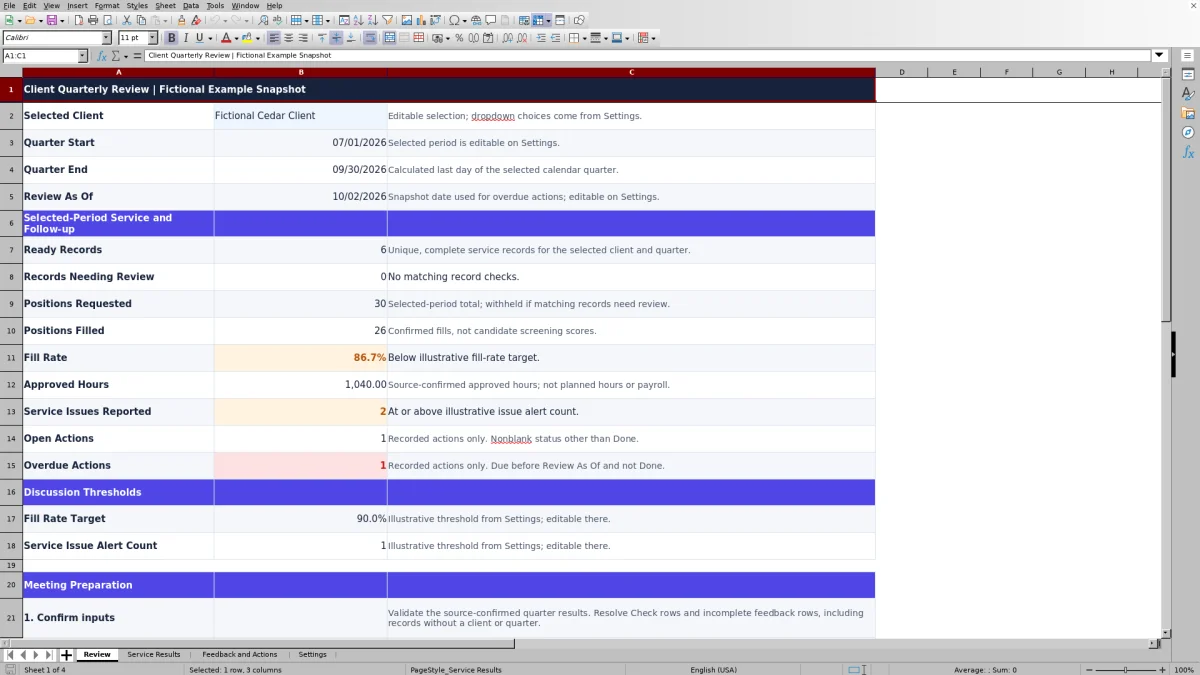
The initial Fictional Cedar Client selection shows 30 positions requested, 26 filled, 1,040.00 approved hours, and 2 reported service issues. The fill-rate calculation is total filled ÷ total requested: 26 ÷ 30 = 86.7%, displayed to one decimal place. Other-client and prior-quarter service records are excluded from this selection.
This is a combined rate across the matching service records, not a simple average of their individual percentages. Using total positions gives larger job orders their appropriate weight. The result means four requested positions were not recorded as filled; it does not establish why they remained unfilled or whether any assignment was attended.
The initial fill-rate target is 90%, so 86.7% is about 3.3 percentage points below it. The issue alert count is 1, so the 2 reported issues also trigger a discussion message. Both thresholds are illustrative discussion aids, not contractual standards or guarantees. Review the affected job orders and underlying feedback before agreeing on follow-up; an issue count alone does not describe severity.
Errors and solutions: missing totals or Check records
If Review shows blank service totals, first inspect Ready Records and Records Needing Review. The workbook withholds service totals when there are no matching ready records or when any matching service record is marked Check. A blank total is not a zero result. It can mean the selected data is not ready to summarize.
- For an incomplete row, supply the client, quarter, job order reference, and all four numeric service inputs. Enter zero only when the source confirms none, such as no reported issues.
- For a duplicate client-quarter-job order key, reconcile the source records into one appropriate service row. Do not change the reference merely to bypass the duplicate check.
- If positions filled exceed positions requested, verify both counts against the source and correct the discrepancy.
- If a record is missing from the selected summary, check its client label and Quarter Start value, including rows where either is blank.
A Ready result means the row passes the implemented formula checks; it is not proof that the source figures are accurate. Entry validation guides dates, whole-number counts, and nonnegative values, but pasted data still needs manual inspection. In particular, the Record Check formula is not a substitute for every entry-validation rule.
Turn feedback into a dated follow-up discussion
Record what the client reported separately from what your agency agreed to do. For example, the fictional feedback about unpredictable fill updates is paired with an action to agree on a weekly job-order update and escalation cadence. The owner role is Account Manager. This makes the proposed response explicit without implying that the workbook sends updates or carries out the action.
Open Actions counts matching rows with a nonblank status other than Done. Due Alert shows Overdue only when an action description, due date, and status are present, the status is not Done, and the due date is earlier than Review As Of. Due on the snapshot date is not overdue. In the initial example, the open action due 09/25/2026 is overdue as of 10/02/2026; the other action is marked Done and is excluded.
Check highlighted partial rows before the meeting. An open count can include a partial record, while a missing action description, date, or status can prevent an overdue alert. Neither count proves that all feedback has been captured. The Review counts also cover only the selected client and quarter, so inspect earlier-quarter records separately if unresolved work needs to be discussed.
Capacity and snapshot limits to plan around
Each input sheet has 100 prepared rows, from row 2 through row 101. The summary and checking formulas use those fixed ranges. Rows added beyond 101 are not automatically included in the existing summary ranges. If your account review needs more records, extending the file requires deliberate changes to formulas, validation, and formatting, followed by checks of the results.
The client dropdowns use Settings!D2:D3, so the supplied setup offers two choices. Renaming a choice does not rename existing records or the selected client. Update those labels consistently to avoid leaving service or action rows outside the intended summary.
Formulas recalculate from the data in the file, but there is no live synchronization or automatic messaging. Review As Of is an editable date, not a daily clock. For a repeatable meeting record, a suggested manual workflow is to confirm the inputs, set the snapshot date, and save a dated copy. That copy preserves what you saved; the workbook does not provide automatic version history.
Comparison: this workbook or a blank spreadsheet?
This workbook fits a recurring quarterly account discussion when you want an established structure for service figures and follow-up. A blank spreadsheet fits a more customized review, such as one organized around different measures or reporting periods, if you are prepared to build and check the calculations yourself.
| Method | Setup and calculations | Feedback and follow-up | Scope and flexibility |
|---|---|---|---|
| This Excel workbook | Prepared service totals, combined fill rate, record checks, and editable discussion thresholds. | Structured action entries with owner role, status, and overdue alerts based on a snapshot date. | Calendar-quarter snapshot with fixed input ranges and two supplied client choices. |
| Blank spreadsheet | You define the measures, formulas, and checks before using the results. | You design the feedback log and any due-date calculations you need. | You choose the layout and reporting periods, and maintain the resulting structure. |
Choose the prepared workbook when its definitions match the meeting you need to run. Choose a custom sheet when those definitions would require substantial changes. Neither approach, by itself, confirms the source data or replaces the operational records used to establish fills, approved hours, and service issues.
Frequently asked questions
Does the template include fictional data?
Yes. It includes eight fictional service rows and two fictional action rows to demonstrate the calculations. Replace the sample inputs before operational use, including the fictional client labels and initial dates. Preserve the result formulas when clearing or replacing entries.
Can I use a fiscal quarter that does not start in January, April, July, or October?
Not in the supplied setup. Quarter Start validation accepts the first day of a calendar quarter, and Quarter End calculates the last day of that three-month period. A different fiscal reporting cycle would require changes to the workbook rather than simply entering a different start date.
What happens when positions requested is zero?
The fill rate remains blank when its requested-position denominator is zero. This avoids presenting an undefined ratio as 0%. With valid matching records, service totals can still show zero; the blank percentage should be interpreted separately from those totals.
Do approved hours calculate payroll or client billing?
No. Approved Hours stores source-confirmed hours for the review. The workbook does not calculate pay, bill amounts, employer burden, or payroll. Planned assignment hours should not be substituted for approved hours.
Can I use the workbook in LibreOffice, and does it include charts?
The workbook guidance states that formulas recalculate in Excel or LibreOffice. It contains no charts; the Review sheet presents results as figures and discussion messages. Check the calculated results after opening the XLSX in your chosen application before using them in a client meeting.
Editorial contributors

Miriam HaldenRecruiting & assignment workflows
Explore this editorial focus →
Wesley CorbinBilling & agency finance
Explore this editorial focus →