Before authorizing additional staffing work, compare the client’s purchase order limit with completed-work consumption and outstanding job order commitments. This Excel register brings those amounts together so you can review available budget before making the next commitment.
The Staffing Worksheets workbook separates proposed and authorized budgets, calculates remaining balances, and flags entry issues, date restrictions, and over-limit proposals. Its results support your review; they do not authorize work or verify the client’s approval.
When to use this worksheet
- See the budget remaining before and after proposed job order commitments.
- Keep proposed work separate from outstanding authorized commitments.
- Identify entry problems before relying on purchase order balances.
- Review PO status and date eligibility alongside budget availability.
What the workbook includes
How to use the workbook
1. Prepare a working copy and review date
Save a copy, then replace or clear the fictional example inputs on both register sheets without deleting formulas. In Settings, check Review Date in B2. It initially uses TODAY(); enter a specific Excel date if you need a fixed review date. Dates display as MM/DD/YYYY.
2. Record the client’s purchase order
Enter your PO details in columns A:H of Purchase Orders. Assign a unique PO Key, record the client’s PO number and valid date range, and enter the approved limit and manually reconciled used amount in USD. Select the current PO status based on your source records. Enter 0 for Used Amount when nothing has been consumed rather than leaving it blank.
3. Add outstanding job order commitments
In columns A:E of Job Order Commitments, give each separately budgeted commitment a unique Commitment ID. Select its PO Key, enter the Job Order ID, choose a commitment status, and enter a positive Budget in USD. Budgets should represent outstanding amounts, excluding completed-work consumption already recorded as used.
4. Resolve issues and review the result
Check Workbook Data Quality in Settings and correct any entry errors. Then review the balances and Decision on Purchase Orders. Compare the result with your client documentation and internal approval process before proceeding. Enter inputs only in the prepared input columns; the visually distinguished formula cells are not password-protected.
Link commitments to the right client PO
Use PO Key as the internal link between the two registers. Client PO Number records the reference supplied by the client, but the commitment totals match on PO Key—not on client name or Job Order ID. Give each PO row a unique key and use that same key for every commitment charged against it.
Each separately budgeted commitment also needs its own Commitment ID. Multiple commitments can reference the same Job Order ID, allowing you to record an authorized amount and a separate proposed addition for one job order. The workbook checks commitment ID uniqueness, but it does not verify a job order against an external job order register.
Before choosing a PO Key, confirm that the PO actually covers the intended work. A valid link is not proof of client authorization. The formulas can recognize a matching key without knowing whether the job order belongs under that client’s purchasing agreement.
Example: a proposal that exceeds the remaining budget
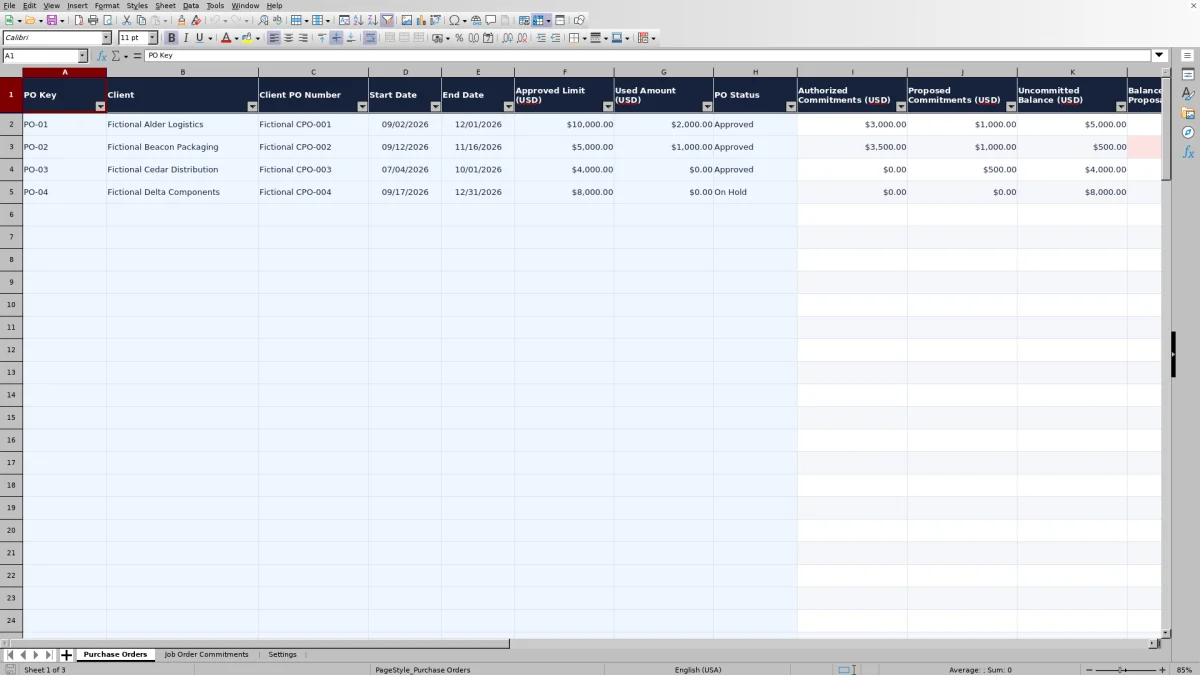
The workbook’s fictional PO-02 example has a $5,000 approved limit, $1,000 used amount, $3,500 authorized commitment, and $1,000 proposed commitment. All amounts are USD. The first balance shows what remains after completed work and outstanding authorized work; the second shows what would remain if the proposals were also included.
- Uncommitted Balance = approved limit − used amount − authorized commitments: $5,000 − $1,000 − $3,500 = $500.
- Balance After Proposals = uncommitted balance − proposed commitments: $500 − $1,000 = −$500.
The proposal therefore exceeds the available budget by $500, even though the PO still has $500 uncommitted before proposals. With valid entries, no commitment entry errors, an Approved PO status, and a review date within 09/12/2026–11/16/2026, this row returns Over Limit.
Use that shortfall to decide whether to reduce or defer the proposed work, or seek a documented PO increase before updating the register. The balance after proposals is a planning result, not an invoice balance or a measure of cash collected.
Read the decision in the correct order
The Decision field applies checks in sequence. Understanding that sequence helps you avoid interpreting a status as a complete assessment of the PO.
- Check Entries means the PO row is not ready, at least one commitment row has an entry error, or the review date is not numeric.
- Hold means the PO is not Approved or the review date falls outside its start and end dates. Both date boundaries are included.
- Over Limit means the preceding checks passed and Balance After Proposals is negative.
- Within PO Budget means the preceding checks passed and Balance After Proposals is zero or positive.
A Hold result takes precedence over the budget test, so a held PO can also have a negative balance. Review the displayed balances as well as the decision. A zero balance passes the budget test but leaves no remaining room for additional commitments.
The date test compares one Review Date with the PO’s date range. There are no commitment-level work dates to test whether a proposed assignment extends beyond PO expiration. Check that timing separately before authorizing work.
Move completed work out of outstanding commitments
Used Amount is a manually reconciled measure of completed-work consumption against the PO, regardless of whether that work has been invoiced or paid. Authorized budgets represent work still outstanding. Do not count the same consumption in both places.
For example, suppose a PO has $2,000 used and a $3,000 authorized commitment. When $600 of that commitment is consumed, increase Used Amount to $2,600 and reduce the outstanding commitment to $2,400. The combined amount remains $5,000, so this transfer alone does not change the uncommitted balance. Increasing only Used Amount would count the $600 twice.
When a commitment is fully consumed, change its status to Released and retain its last positive recorded budget. Released amounts are excluded from both outstanding totals. Do not enter a zero budget: zero and missing budgets fail the commitment entry check.
These are manual maintenance steps, not an automatic transfer from timekeeping or billing. Reconcile your source records before changing the amounts, and save a dated copy if you need to retain the prior position.
Errors and solutions when totals disappear
A blank balance is not zero available budget. An incomplete or invalid PO row suppresses its own totals. More broadly, any commitment row marked Check Entry suppresses budget totals across all POs and changes populated PO decisions to Check Entries. This prevents an unresolved commitment from silently dropping out of the review.
If several balances disappear at once, start with Commitment Entry Errors in Settings B9. Filter Entry Check on Job Order Commitments to find the affected rows. Check for an incomplete row, duplicate Commitment ID, missing or unmatched PO Key, unsupported status, or a budget that is not a positive number. Even a Released commitment must retain a positive budget.
If only one PO is affected, inspect its Input Check. Complete all eight input fields, make the PO Key unique, use numeric Excel dates in the correct order, enter a positive approved limit, and keep Used Amount nonnegative. Check Review Date separately if decisions remain blocked while balances are visible.
Ready for Review in Settings reports data readiness only. It does not mean every PO has available budget, is within its date range, or has approval to proceed.
Keep the register within its intended scope
The file provides 100 prepared input rows on each register, rows 2–101. Its totals, validation ranges, and entry checks use those fixed ranges. Typing below row 101 does not automatically include additional records. If you need more capacity, use a properly extended and checked workbook or another register designed for that volume.
Commitment budgets are editable USD estimates. The workbook does not calculate hours, pay rate, bill rate, employer burden, markup, gross margin, or payroll. Prepare the budget amount separately, then enter the outstanding amount you intend to reserve against the PO.
The file also does not establish attendance, maintain an invoice or cash ledger, or provide an approval history. PO limits, dates, and statuses remain user-maintained records. Keep supporting approvals and any required change history separately; saving dated copies is a suggested manual practice, not a built-in audit trail.
Comparison: this workbook or a blank spreadsheet?
This register fits a defined PO-budget review where you want prepared calculations and consistent entry checks. A blank spreadsheet may fit a different record layout or a simple reference list, but you must create and test any balance logic yourself.
| Method | Budget calculations | Entry checks | Scope and maintenance |
|---|---|---|---|
| This Excel register | Prepared totals for authorized and proposed commitments, with two remaining-balance measures. | Prepared validation, row checks, and a workbook-level commitment error block. | 100 prepared rows per register; you reconcile used amounts and maintain approvals manually. |
| Blank spreadsheet or manual log | You calculate balances manually or build your own formulas. | You establish your own checks and review procedure. | You choose the layout and capacity, then maintain and verify the resulting structure. |
Choose this workbook when its fixed structure matches your review process. Choose a custom log when the required records differ substantially and you can maintain the calculations. If your process requires shared authorization controls, transaction feeds, or detailed change history, evaluate software specifically for those needs rather than treating either spreadsheet approach as a substitute.
Frequently asked questions
Does the workbook include real client data?
No. It includes four explicitly fictional POs and six fictional commitments to demonstrate the register. Replace or clear those inputs before relying on live totals, while retaining the formula columns.
Can I rename the status options in Settings?
The status lists are editable validation sources, but you should keep the supplied labels. The formulas specifically look for Approved, Authorized, and Proposed. Renaming a label without updating and testing the related formulas can change the decision or exclude amounts from the intended totals.
What happens when a proposed commitment is authorized?
If the same proposed scope becomes authorized, change that commitment row from Proposed to Authorized after confirming approval through your normal process. Its budget moves into the authorized total and out of the proposed total. If the amount is unchanged, Balance After Proposals stays the same, while Uncommitted Balance decreases. Do not leave a duplicate proposal for the same scope.
Can I review the PO position as of a past date?
You can replace Settings B2 with a fixed past date to test PO date eligibility. That does not reconstruct historical amounts or statuses: the calculations still use the entries currently in the workbook. For a historical budget position, use a saved copy containing the records from that date. Replacing TODAY() also means the review date will no longer advance automatically.
Can two clients have the same client PO number?
The workbook requires PO Key to be unique, not Client PO Number. You can record a repeated client-issued number under distinct PO Keys and client names. Select the correct internal key when adding commitments, because that key determines which PO receives the budget total.
Editorial contributors

Miriam HaldenRecruiting & assignment workflows
Explore this editorial focus →
Wesley CorbinBilling & agency finance
Explore this editorial focus →