When a client project is billed by deliverable rather than hours worked, you need to track what was promised, when it was submitted, and whether the client accepted it. This Excel milestone planner keeps those records together so you can prepare for billing review.
The Staffing Worksheets workbook supports separately accepted, fixed-fee milestones for one client project. Record the agreed criteria and acceptance details, then use the calculated review status, accepted value, and overdue days to decide what needs attention. It is separate from hourly assignment billing and payroll.
When to use this worksheet
- Keep each milestone’s deliverable and acceptance criteria beside its contracted fee.
- Find missing records or acceptance details before preparing a billing review.
- Separate recorded fees from value supported by the workbook’s acceptance checks.
- Identify overdue milestones using a review date and alert threshold you control.
What the workbook includes
How to use the workbook
1. Set up the client project
In Settings, replace the fictional project reference and client alias. Review the Review Date in B2, which initially uses TODAY(), and the Overdue Alert Threshold in B3, initially set to one day. Replace all ten fictional milestone records before operational use.
2. Enter the agreed milestones
Use the pale blue input cells in Milestones columns A–H. Give each milestone a unique ID, describe its deliverable and acceptance criteria, and enter the due date, contracted fee in USD, and current acceptance status. Dates display as MM/DD/YYYY. Leave calculated columns I–K intact; sheet protection is not enabled.
3. Record submission and the client’s decision
Update the Submitted Date, Acceptance Status, Client Decision Date, and Acceptance Evidence Reference as events occur. Use an internal reference that lets you locate the supporting record outside the workbook. The reference is plain text, not an attached document or hyperlink.
4. Recalculate and review exceptions
Recalculate the file in your spreadsheet application before relying on its results. Use the Milestones filter to inspect records marked Incomplete or Check acceptance, then review the Summary totals and counts. For records marked Ready for billing review, confirm the contracted fee and actual client acceptance documentation before proceeding in your billing process.
Define a milestone around a client acceptance decision
Use one row for one deliverable that the client can accept separately at a fixed fee. In Deliverable and Acceptance Criteria, describe both the work to be delivered and the condition the client will use to accept it. This gives your account manager a reference when following up on a decision.
For example, the workbook’s fictional search strategy milestone describes target roles and the sourcing approach as the required documentation. That is a project deliverable, not evidence that a candidate was placed or that an assignment was worked.
Enter the agreed milestone charge rather than deriving it from a pay rate or bill rate. Fees exclude separately assessed taxes or expenses. If the client changes the scope, a suggested manual practice is to retain a dated copy and the supporting agreement before updating the row; the file does not provide automatic change history.
Read the billing review status before using accepted value
The workbook first checks whether a populated row has an ID, deliverable and criteria, due date, fee, and acceptance status. A missing required item produces Incomplete. Once those fields are present, a status other than Accepted produces Not accepted.
For an Accepted row, the formula also requires a submitted date, client decision date, and evidence reference. The decision cannot precede submission, and neither event date can be later than the Review Date. If those checks fail, the result is Check acceptance. If they pass, it is Ready for billing review.
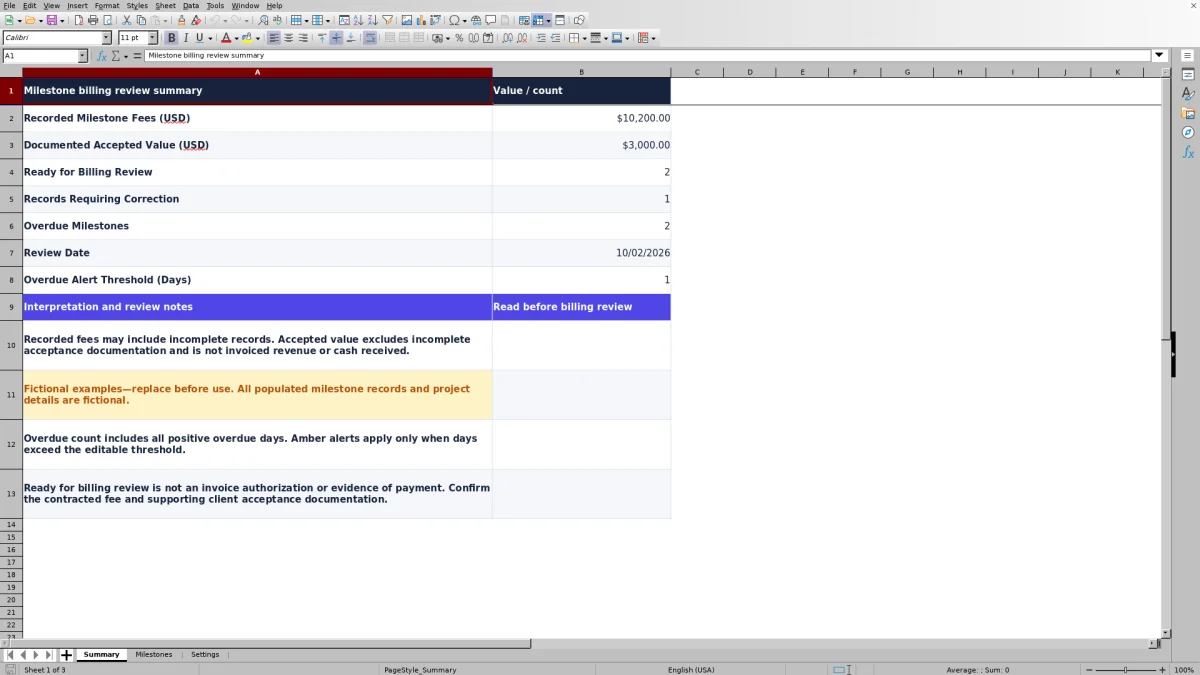
Accepted value is a review measure, not revenue. A ready row contributes its full fee to Documented Accepted Value. A complete row that is not accepted contributes zero. Incomplete and Check acceptance rows leave that value blank, distinguishing an unresolved record from a complete nonaccepted one.
Summary adds all entered milestone fees separately, including fees on incomplete rows. Compare that total with accepted value to understand the difference in record status, but do not treat either total as an invoice balance or cash received. The formulas check entered fields and date relationships; they do not authenticate client acceptance.
Example: an accepted status with missing evidence
To inspect the fictional examples at a fixed point in time, set the Review Date to 10/02/2026 in a working copy and recalculate. Consider only the first three milestones for this illustration:
- FIC-01 has a $1,000 fee, submission on 09/20/2026, a client decision on 09/23/2026, Accepted status, and evidence reference FIC-E01. Its expected accepted value is $1,000.
- FIC-02 has a $2,000 fee, submission on 09/25/2026, a client decision on 09/28/2026, Accepted status, and evidence reference FIC-E02. Its expected accepted value is $2,000.
- FIC-03 has a $1,500 fee and Accepted status, but no evidence reference. Its expected review status is Check acceptance, and its accepted value remains blank.
For this three-row subset, recorded fees total $4,500 while documented accepted value totals $3,000. The $1,500 difference points to missing acceptance documentation, not proof that the client rejected the deliverable. Retrieve and check the supporting record before adding its reference; do not fill the field merely to change the status.
FIC-03 was due on 09/30/2026, so it also shows two days past due at this review date. These are expected formula results, not a claim of native Excel or LibreOffice verification. Other populated rows also contribute to the workbook’s full Summary.
Use overdue days to prioritize follow-up
For a row that is not ready for billing review and has a due date, overdue days are the Review Date minus the Due Date, with a minimum of zero. The calculation is calendar-day subtraction, not a business-day schedule. A ready row returns zero, even if acceptance occurred after the original due date.
This means Days Past Due Without Documented Acceptance is a current follow-up measure, not a history of late delivery. A deliverable may already have been submitted and still appear overdue because acceptance is pending or its documentation is incomplete.
Summary counts every row with more than zero overdue days. Amber alerts apply only when the days are strictly greater than the threshold. With the initial one-day threshold, a row one day overdue is counted but does not receive the amber alert; a row two days overdue does.
Use that distinction to organize follow-up without confusing the color with the overdue count. The threshold is your operational assumption, not a contractual grace period or legal standard. For a repeatable review snapshot, manually replace TODAY() in Settings B2 with a fixed date and save a dated copy.
Errors and solutions before billing review
Direct-entry validation does not secure pasted data. The file includes stop-style checks for unique IDs, positive numeric fees, dates, and permitted statuses, but pasted data may bypass them. Inspect imported or pasted rows before relying on their calculated status.
- Incomplete: Check the required core fields first. A fee entered elsewhere does not compensate for a missing fee in that milestone’s row.
- Check acceptance: Look for missing submission, decision, or evidence details. Then confirm the decision is on or after submission and both event dates are on or before the Review Date.
- Unexpected Not accepted result: Check Acceptance Status. Use the dropdown rather than an alternative label such as Approved.
- Suspicious totals: Inspect duplicate IDs, zero or negative fees, and numbers stored as text. The readiness formula is not a substitute for reviewing these inputs.
- Missing or inconsistent calculated results: Check whether columns I–K were overwritten. Restore the affected formulas from a clean copy and recalculate.
Enter real spreadsheet dates rather than date-like text. If a legitimate event falls after a deliberately fixed Review Date, review the reporting date rather than changing the event to make it pass. Keep the recorded history accurate.
Capacity, evidence, and operational limits
The prepared input area is Milestones rows 2–101. Formulas, validation, and the filter are set up for those 100 records, and Summary formulas reference that range. Rows added below 101 are not included in the existing summary ranges. Extending the file requires manually extending and checking the formulas, validation, filter, and formatting—not just typing another row.
The workbook has one project reference and client alias in Settings, rather than client and project fields on every milestone. A practical manual approach is to keep a separate copy for each project. Avoid collecting candidate personal data, sensitive information, or protected-class information in this planner.
Evidence references help you find records stored elsewhere; the workbook does not verify their contents. It also does not create invoices, calculate payroll or hourly billing, track payment, or turn a readiness result into invoice authorization.
The included instructions call for native recalculation and spot checks before operational use. No native Excel or LibreOffice verification is claimed. Test a pending record, a documented accepted record, and a missing-evidence case in a copy, then restore the intended inputs.
Comparison: this planner or a manual milestone log?
Choose the approach that matches how much structure you need for a client project. This workbook provides a defined acceptance-review process and fixed summary formulas. A blank spreadsheet or paper log leaves the structure to you, which may fit a small or unusual project but also leaves totals and exception checks for you to design or perform.
| Method | Record structure | Review calculations | Acceptance evidence | Best fit |
|---|---|---|---|---|
| This Excel planner | 100 prepared rows for one project, with defined acceptance fields | Formula-based accepted value, review status, overdue days, and summary counts | Plain-text references; supporting records remain outside the file | A fixed-fee project needing a consistent manual billing-review workflow |
| Blank spreadsheet or paper log | You choose the fields and layout | You build formulas or check amounts and dates manually | You choose how to record or file the supporting evidence | A small or atypical project where a custom log is sufficient |
If your process requires shared approvals, invoice issuance, or payment tracking, evaluate a separate system against those requirements. This planner can support preparation for that process, but it does not implement those functions or establish a connection to another system.
Frequently asked questions
Does this workbook write the statement of work for me?
No. It records milestone deliverables, acceptance criteria, dates, and fees for a client project. Use the agreed statement of work as the source for those inputs. The workbook is not a contract generator and does not determine whether the terms are legally sufficient.
Can I record partial acceptance or a percentage-complete payment?
The implemented acceptance statuses are Pending, Accepted, and Revisions requested. Accepted value is the full milestone fee when the readiness checks pass; there is no percentage-complete or partial-value calculation. If the agreement defines separately accepted fixed-fee portions, you can record those as separate milestones. Do not split a fee merely to imply acceptance that the client has not given.
Why do the fictional examples look different from the baseline notes?
The example event dates are fixed, but Review Date initially uses TODAY(). As that date changes, overdue days and checks for future submission or decision dates can change. The baseline notes describe the creation-date review, not a permanent result. Use a fixed review date when checking a historical example, then recalculate.
Does the overdue alert send a reminder to the client?
No. The alert is workbook formatting, and the overdue count is a formula result. A suggested manual workflow is to filter the affected milestones, check whether the next action is yours or the client’s, and send any follow-up through your normal communication process.
Can Ready for billing review be used as invoice approval?
No. It means the entered row passes the workbook’s required-field and acceptance-date checks. You still need to confirm the agreed fee and supporting client acceptance documentation, then follow your billing approval process. The status neither creates an invoice nor proves payment.
Editorial contributors

Miriam HaldenRecruiting & assignment workflows
Explore this editorial focus →
Wesley CorbinBilling & agency finance
Explore this editorial focus →