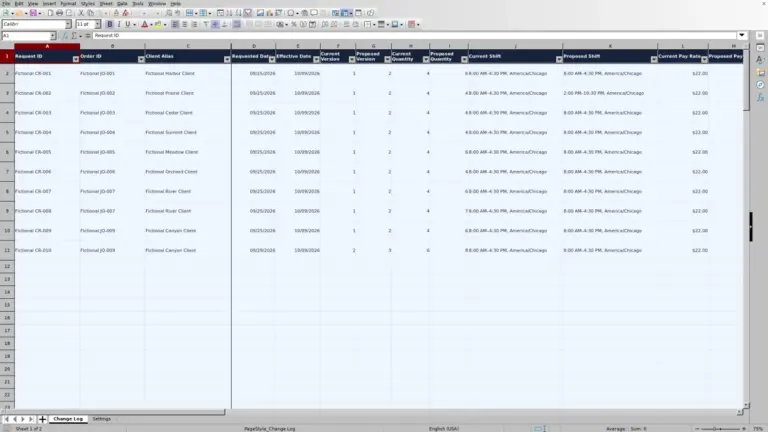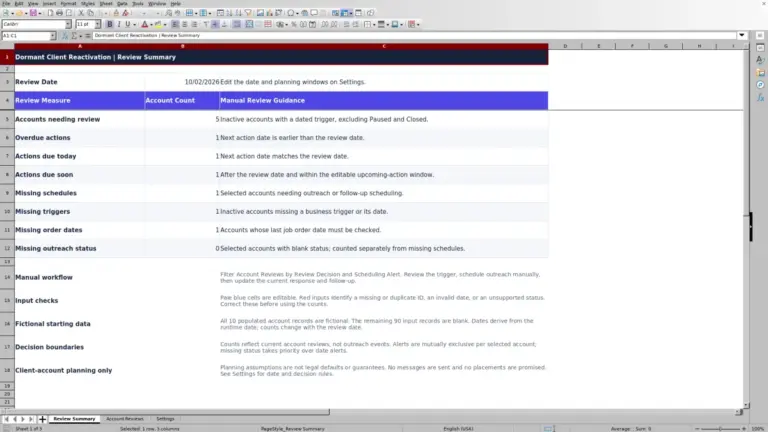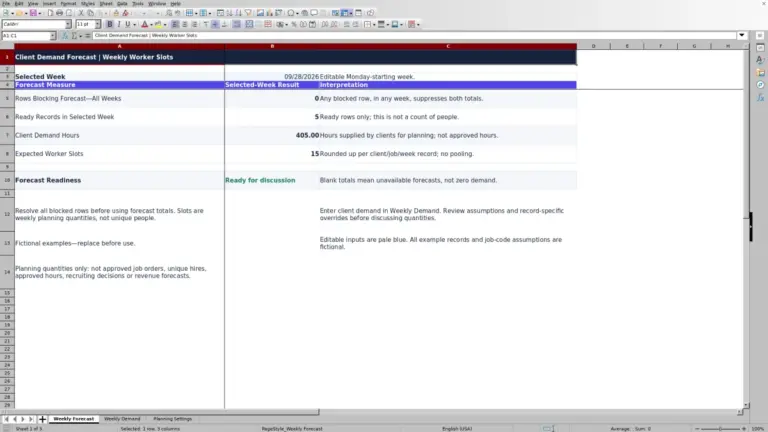
Before a client supplier review, bring the agreed targets, actual results and supporting report references together. This Excel scorecard helps you compare your staffing agency’s performance against those targets and identify measures that need discussion.
The Staffing Worksheets workbook links individual measures to a review summary. It calculates whether each target was met and shows overall target attainment only when the review passes its setup and completeness checks. It supports the review conversation; it does not award preferred supplier status.
When to use this worksheet
- Prepare a client review with targets, actual results and evidence references together.
- Identify missed targets and see how far each result is from the agreed threshold.
- Keep incomplete reviews from displaying an overall attainment percentage.
- Separate a fully assessed review from one where every target was met.
What the workbook includes
How to use the workbook
1. Set up the client review
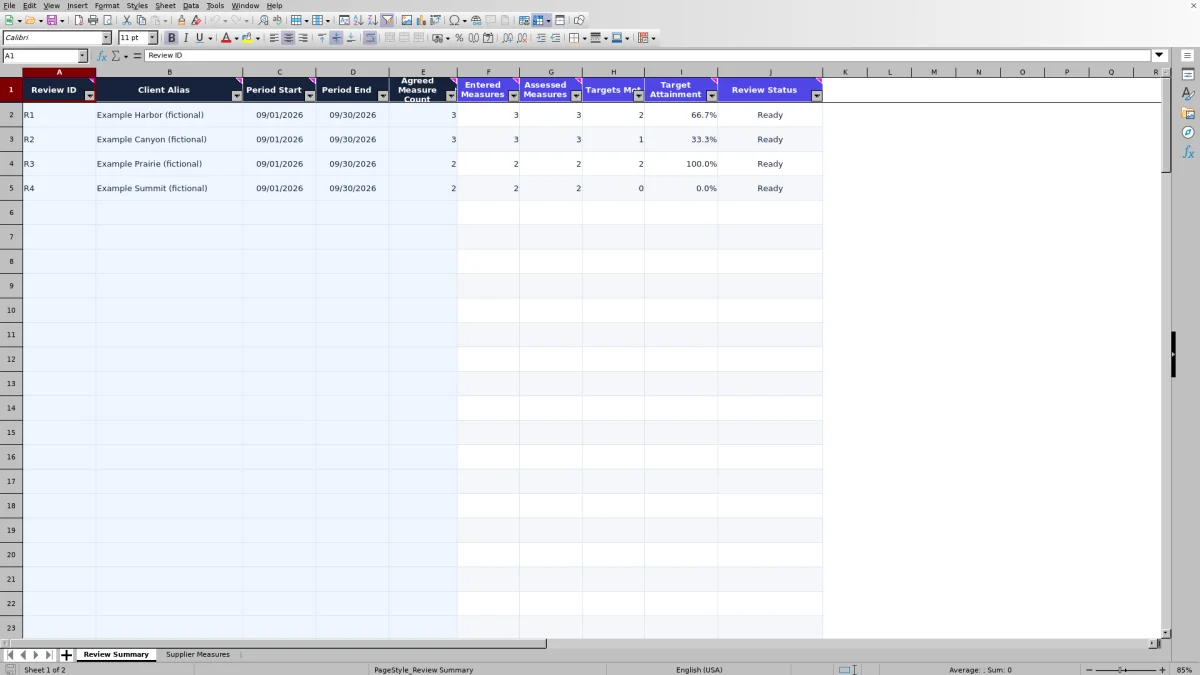
Save a working copy and replace the fictional examples in the input cells. On Review Summary, enter a unique Review ID, Client Alias, Period Start, Period End and Agreed Measure Count. Dates display as MM/DD/YYYY. Use the number of measures actually agreed with the client, not just the number currently available.
2. Enter the agreed measures and results
On Supplier Measures, select the matching Review ID and enter one row per measure. Choose the unit and target direction, then enter numeric Actual and Target values. Add an Evidence Reference that lets you locate the source report. For Percent measures, enter 90% or 0.90, not 90.
3. Resolve incomplete or inconsistent entries
Check Measure Status for Check input messages, then return to Review Summary and resolve Check setup or Check measures. Keep the formula columns intact: F:J on Review Summary and H:I on Supplier Measures.
4. Prepare the discussion
Once Review Status is Ready, read Target Attainment alongside the individual missed targets and favorable gaps. Open the supporting reports to confirm the figures before sharing them. As a suggested manual workflow, save a dated copy and record agreed follow-up actions separately; the workbook has no action-tracking fields.
Agree on what each result represents
Use the scorecard to assess client-agreed supplier measures, not to create new definitions during the review. Before entering an actual result, confirm the reporting period, source and calculation method with the client. For a fill-rate measure, for example, agree which job orders belong in the calculation and what counts as filled. The workbook accepts the resulting figure; it does not calculate fill rate from job order or placement records.
Review ID is the link between the sheets. Give each review a unique ID and use it on every related measure row. If the same client has another review period, use a new ID. The period dates describe the review but do not filter source activity or check whether an evidence report covers those dates.
The supplied measures and targets are fictional examples, not recommended standards. Replace them with the measures your client has actually agreed to use.
Example: two targets met, one submission-time miss
The fictional R1 review for Example Harbor covers 09/01/2026 through 09/30/2026 and expects three measures. Its fill rate is 0.90 against an At least target of 0.85. That result is Met, with a favorable gap of 0.05, meaning five percentage points above target.
Submission time is 2.5 days against an At most target of 2 days. The result is Missed. For this direction, Favorable Gap uses Target − Actual, so 2 − 2.5 = −0.5 days. The negative result means submission time exceeded the allowed threshold by half a day.
The quality review pass rate is 0.96 against an At least target of 0.95, so it is also Met. With all three measures assessed, Target Attainment is 2 ÷ 3, displayed as 66.7%. The review is Ready even though one target was missed. For the client meeting, investigate the submission-time result and its source rather than treating Ready as a performance approval.
Read units and favorable gaps correctly
Choose Percent, Days, Count or USD to describe the values on a measure row. Actual and Target must use the same scale. Numeric validation allows nonnegative values and limits Percent inputs to the range from 0 to 1. The measure cells use a two-decimal numeric format, so an entered 90% appears as 0.90 rather than 90.0%.
Favorable Gap makes the sign consistent across both target directions:
- For At least, it calculates Actual − Target.
- For At most, it calculates Target − Actual.
- A positive gap is favorable, zero exactly meets the threshold, and a negative gap indicates a miss.
The gap keeps the measure’s original unit. A gap of 0.05 on a Percent row means five percentage points; a gap of 0.50 on a Days row means half a day. Do not add these gaps together because they describe different quantities. Selecting USD labels the measure but does not convert currencies or calculate billing, payroll or margin.
Problems to resolve before sharing the scorecard
The status messages help locate incomplete entries, but each message points to a different level of the review:
- Check setup: Inspect the summary inputs. Common causes include a missing client alias, a missing or duplicate Review ID, dates that are not stored as Excel numbers, an end date before the start date, or an invalid agreed measure count.
- Check input: Inspect the individual measure. Each input from Review ID through Evidence Reference is required. Actual and Target must be numeric, the Review ID must match exactly one summary row, and the measure name must be unique within that review.
- Check measures: Compare Agreed Measure Count with Entered Measures, then compare Entered Measures with Assessed Measures. Find missing or extra rows and resolve any measure that has not reached Met or Missed.
A blank Target Attainment value is not zero performance. It means the review is not Ready, or the row has no review entered. A Ready review with no targets met can display 0.0%, which is a valid result.
Use the provided dropdowns rather than pasting arbitrary labels. Input validation is not a complete audit: pasted values can bypass validation, and the status formulas do not repeat every dropdown and range restriction. In particular, confirm Target Direction is exactly At least or At most before relying on the comparison.
What the overall percentage can—and cannot—tell you
Target Attainment is the number of targets met divided by the number of assessed measures. It appears only when the summary setup passes its checks, the entered count equals the agreed count, and every entered measure is assessed. This prevents a partly entered review from presenting an overall score based only on the available rows.
Each measure has equal influence on the percentage. A narrowly missed target and a substantially missed target each count as one miss. The workbook does not apply weights, calculate a supplier ranking or determine whether the client should retain your agency as a preferred supplier. Review the individual gaps and the client’s priorities alongside the percentage.
The provided formula ranges cover rows 2–101 on both sheets: 100 review rows and 100 measure rows total, not 100 measures per review. Rows added below those ranges are not automatically included in the existing calculations. There is also no dedicated supplier-name field for maintaining a multi-agency comparison roster.
Use evidence references to prepare a defensible discussion
Enter a report name, report ID or other usable locator in Evidence Reference. Before the meeting, retrieve each source and confirm its period, scope and calculation. A reference is useful only if you can use it to find the underlying result.
The formula checks that the reference field is populated. It does not retrieve the report, attach evidence or verify the reported figure. A Ready status therefore describes workbook setup and completeness, not independently verified performance.
As a manual preparation step, filter Supplier Measures to the Review ID and review the missed targets first. Note causes, disputed figures and proposed next steps in a separate meeting record. If a target or actual result changes after discussion, preserve a dated copy before editing when you need to retain the earlier version. Version history and approval tracking are not implemented in this file.
Comparison: this scorecard or a blank spreadsheet?
Use this workbook when you already have actual results and need a structured, equal-weight comparison against client-agreed thresholds. A blank spreadsheet fits a review with a substantially different scoring model, provided someone builds and checks the calculations.
| Method | Starting structure | Assessment checks | Best fit | Main limit |
|---|---|---|---|---|
| This scorecard workbook | Linked review summary and measure-entry sheets with formulas already in place | Checks setup, matching counts and assessed statuses before showing attainment | Periodic reviews using At least or At most numeric targets | Equal-weight scoring and 100 total measure rows in the provided ranges |
| Blank spreadsheet | You design the fields, layout and formulas | You must build or manually perform completeness checks | Custom weights, additional review fields or a different supplier comparison structure | Calculation logic and checks require separate setup and testing |
Neither approach supplies trustworthy actual results by itself. Keep the operational source reports available and choose the review format that matches the client’s agreed measures. This workbook provides a prepared assessment structure, not a replacement for the systems that record recruiting activity.
Frequently asked questions
Can I replace the sample measures with my client’s measures?
Yes. The measure name is entered by you, and the workbook supports Percent, Days, Count and USD units with At least or At most targets. Use a distinct measure name within each Review ID. Keep definitions that require more explanation in your supporting review documentation.
Does an actual result exactly equal to the target count as met?
Yes. At least uses Actual ≥ Target, and At most uses Actual ≤ Target. An exact match is Met and produces a Favorable Gap of zero.
What should I enter when a result is unavailable?
Leave the actual result blank while you obtain it rather than entering zero as a placeholder. The measure will remain unassessed and the review will not show overall attainment. If the client agrees to remove a measure from the review, update the measure rows and agreed count consistently, and document that scope change separately.
Does the workbook import data from an ATS?
No integration with an applicant tracking system (ATS) or other staffing software is implemented. You enter the actual results and evidence references yourself. Check source definitions and reporting periods before transferring figures into the scorecard.
Can I use the same measure name in different reviews?
Yes. The duplicate check applies to the combination of Review ID and Measure, so the same measure name can appear under different review IDs. Within one review, duplicate measure names trigger Check input. Use clear, distinct names if the client has agreed to separate measures for different service segments.
Editorial contributors

Miriam HaldenRecruiting & assignment workflows
Explore this editorial focus →
Wesley CorbinBilling & agency finance
Explore this editorial focus →