When a client reports a missed update or an unclear job order follow-up, record the complaint, assign responsibility and set a resolution due date. This Excel workbook keeps account-level service issues together so you can decide what needs attention at your next review.
The Staffing Worksheets register calculates status, age and days overdue from your entries and a selected review date. It supports manual follow-up, not automated messages, and is intended for account-level complaints—not worker grievances, medical details or candidate assessments.
When to use this worksheet
- Keep each complaint tied to one accountable owner and one resolution commitment.
- Separate overdue issues from unresolved items due today or later.
- Find incomplete records before relying on their status or age.
- Review overall issue counts alongside a practical manual follow-up sequence.
What the workbook includes
How to use the workbook
1. Set the review date and available choices
On Settings, check Review Date in B2. It initially uses TODAY(); enter a fixed date if you need an as-of review. Replace the fictional owner options and adjust the existing category and priority options as needed. Use fictional client and staff aliases, without personal contact information.
2. Replace the fictional examples
On Service Issues, clear or replace example inputs in columns A:J before using the register for your own account reviews. Preserve calculated columns K:N. Enter one complaint per row, completing Issue ID through Resolution Due Date. Describe the service problem and the agreed next step in Service Issue Summary.
3. Correct records needing review
Filter Issue Status to Review data and read Record Check for the reason. Correct missing required inputs, duplicate IDs or date problems before treating the row as ready for follow-up. Enter dates as Excel dates displayed in MM/DD/YYYY format.
4. Work through due commitments
Filter Issue Status to Overdue, then narrow the list by Accountable Owner or manually assigned Priority. Next, filter Open issues to those with a Resolution Due Date matching the review date. Contact the responsible person yourself; the workbook does not send reminders.
5. Record closure and review the totals
Enter both Closed Date and Resolution Note when the issue is resolved. Check Service Summary for the updated status counts and Count Reconciliation. Do not type over the calculated status to close an issue.
Define a service complaint the owner can act on
Use one complaint, one accountable owner and one resolution commitment as the unit of work. For example, a client saying that job order updates lack a confirmed next step is an account service issue. Record what was missing and what the owner has agreed to clarify, rather than adding unrelated complaints to the same row.
The workbook has a Service Issue Summary and a Resolution Due Date, but no separate action-plan tracker. A practical manual approach is to state the agreed next step briefly in the summary, then document the completed response in Resolution Note. If a second complaint needs a different owner or deadline, give it a separate issue ID.
Keep the record at the account level. The operating notes exclude worker grievances, medical details, candidate assessments, payroll and billing calculations. An alias does not make sensitive narrative appropriate for this file, so keep those details out of free-text entries as well.
Use the review date to interpret status correctly
All status and aging calculations use Review Date on Settings. The initial formula, TODAY(), supplies the current date when recalculated. Replacing it with a fixed date lets you review the entered records against a chosen cutoff; it does not recreate earlier versions of those records.
A ready, unresolved issue stays Open when its due date is the review date or later. It becomes Overdue only when its due date is earlier than the review date. In practical terms, due today is still Open, so reviewing only the overdue list would miss today's commitments.
Priority is assigned manually and does not change that date-based status. A High-priority issue due tomorrow remains Open, while a Low-priority issue due yesterday becomes Overdue. Use the status to identify timing and priority to guide your manual discussion—not as a calculated risk score.
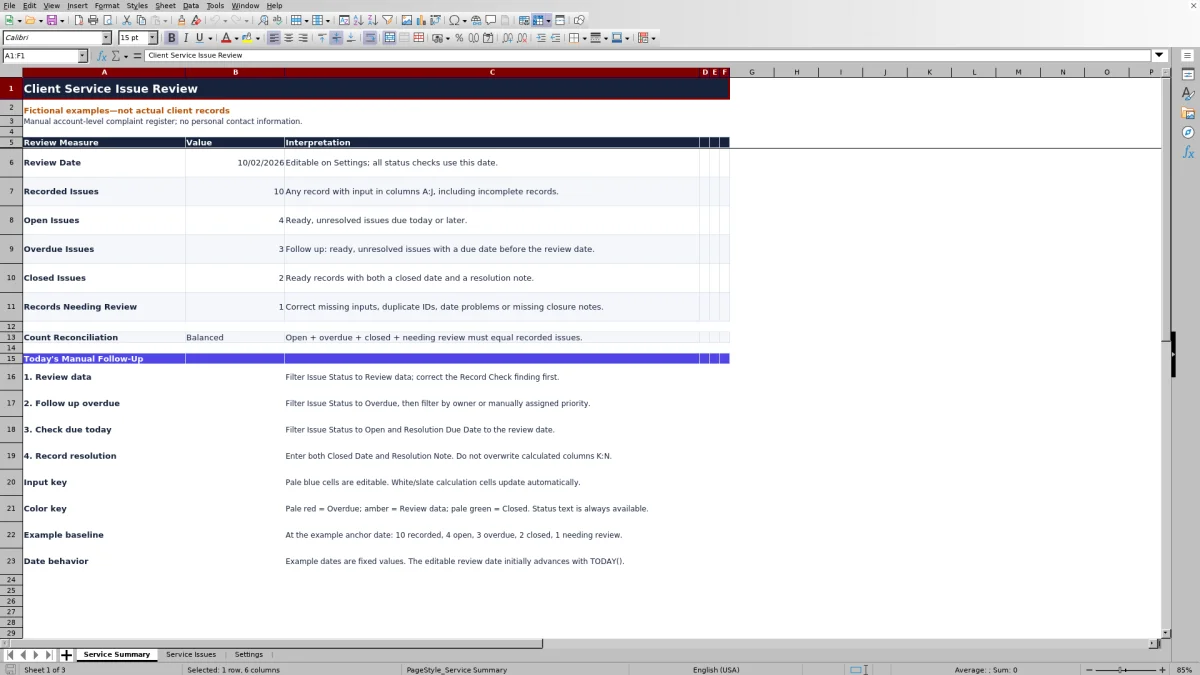
The fictional issue dates are fixed. Changing Example Anchor Date in Settings does not shift them. To inspect the stated example baseline, set Review Date to 10/02/2026; it shows 10 recorded issues: 4 open, 3 overdue, 2 closed and 1 needing review.
Example: turn age and overdue days into a follow-up decision
The fictional record FIC-001 was opened on 09/24/2026 and has a resolution due date of 09/30/2026. With Review Date set to 10/02/2026 and no closure entered, it is Overdue. Its age is 8 calendar days, and it is 2 days overdue.
These measures answer different questions. Age measures time since the issue was opened; Days Overdue measures how far the unresolved commitment has passed its due date. For a ready unresolved row, the calculations are equivalent to MAX(0, Review Date − Opened Date) and MAX(0, Review Date − Resolution Due Date). They use calendar days, not business days, so weekends and holidays are included.
For this example, the next action is to ask the accountable owner what remains unresolved and confirm the next response to the client. The two overdue days indicate a missed deadline, not the severity of the complaint or the quality of the owner's work.
Once a ready record is closed, age stops at Closed Date and Days Overdue is blank. The fictional FIC-003 record opened on 09/20/2026 and closed on 09/28/2026 therefore has an age of 8 days. Although its due date was 09/27/2026, the workbook does not retain a late-closure measure in Days Overdue.
Errors and solutions before the account review
Review data is a correction queue, not another stage of client resolution. Record Check examines whether a row is ready before the workbook assigns Open, Overdue or Closed status. Age and overdue calculations are blank for records that are not ready; those blanks do not mean zero days.
- Missing required input: complete the fields from Issue ID through Resolution Due Date, including category, owner and priority.
- Duplicate issue ID: check whether you entered the same complaint twice or assigned one ID to different complaints. Correct the record rather than hiding one of the rows.
- Invalid date: enter a valid Excel date rather than a text description such as “next Friday.”
- Check date order: confirm that Opened Date is not after Review Date, Resolution Due Date is not before Opened Date, and any Closed Date falls between Opened Date and Review Date.
- Incomplete closure: supply both the closure date and a meaningful resolution note.
Recheck the row after making a correction because another problem may still need attention. If many fictional examples show date-order errors when you first open the workbook, compare Review Date with their fixed 2026 dates. Replace the examples for live use, or use the example anchor date when exploring them.
Close issues with a useful record of the response
Use Resolution Note to explain what resolved the account service complaint. For an unclear update format, a useful note would describe the revised format and the confirmation received. A vague entry such as “done” gives the next account manager little context.
The workbook requires both a closed date and a resolution note for closure, along with a ready record. That check establishes that the required entries are present; it does not verify the response, contact the client or prove client acceptance. Your team must decide whether the issue is actually resolved before entering those details.
On Service Summary, Recorded Issues includes incomplete records with input in columns A:J. Count Reconciliation compares that total with the sum of Open, Overdue, Closed and Records Needing Review. Balanced means those counts agree—not that every record is complete or every complaint is resolved. A balanced summary can still contain records needing review.
Capacity and editing limits to plan around
The supplied calculations, validation and filter range cover 100 issue rows, from row 2 through row 101. Summary counts and duplicate-ID checks also use that fixed range. A record typed below it is outside the configured register and will not be included in those existing checks and totals.
If you need more capacity, extending the file requires more than adding input rows. Formula coverage, summary references, duplicate checks, validation, filtering and formatting would need to be extended and tested. For a manual archive approach, save a dated copy before clearing old inputs, and decide how you will locate records across files.
The dropdown sources are fixed ranges on Settings: D2:D4 for priorities, E2:E5 for categories and F2:F4 for owners. You can edit those existing option cells, but adding choices below them does not automatically expand the dropdowns. Changing an option also does not rename existing records; review earlier entries manually if you need consistent labels.
The file is a current register rather than an automatic change history. If you need to preserve a due-date commitment before revising it, save a dated copy as a separate manual step.
Comparison: this workbook or a blank spreadsheet
Use this workbook when your team wants a defined account-level complaint process with ready-made status calculations and a manual review sequence. A blank spreadsheet fits a team that needs a different record structure and is prepared to define its own checks and reporting. Neither choice removes the need to assign ownership or carry out follow-up.
| Method | Starting structure | Status and review | Capacity and upkeep | Best fit |
|---|---|---|---|---|
| This Excel issue register | Defined complaint fields, option lists and fictional examples | Calculated status, age, overdue days, record checks and summary counts; follow-up is manual | 100 configured rows; extensions and option-range changes need testing | Account-level service reviews using one owner and one due-date commitment per issue |
| Blank spreadsheet | You choose the fields and layout | You enter status manually or build your own formulas and checks | You design and maintain the ranges and reporting | A custom process whose fields or review rules differ from this register |
If the task instead requires automated notifications, integrated account records or a detailed change history, evaluate software that explicitly provides those functions. This workbook has no integrations or automated messaging, so it should not be treated as a replacement for those requirements.
Frequently asked questions
Can I track several complaints for the same client?
Yes. Use the same Client Alias on separate rows, with a unique Issue ID for each complaint. Each row should have its own accountable owner and resolution due date. Filter Client Alias when you want to review that account's issues together.
Does selecting an owner send them a notification?
No. Accountable Owner records responsibility and supports manual filtering. It does not send a message, create a task in another system or confirm that the owner has accepted the work. Agree on responsibility outside the workbook.
Can I use this as a worker grievance or candidate assessment log?
No. Its stated scope is account-level client service complaints. Keep worker grievances, medical information, candidate assessments and personal contact information out of the register. Use an appropriate separate process for those matters.
Will the example counts stay the same every day?
No. The examples use fixed dates, while Review Date initially uses TODAY(). As that date changes, unresolved issues can move from Open to Overdue, and examples dated after the review date can need correction. The documented baseline applies at a review date of 10/02/2026.
Can I open the workbook in LibreOffice?
The workbook's operating notes state that Excel or LibreOffice recalculates its formulas when the file is loaded. After opening it, check Review Date and the summary before using the results. The file remains a manual register in either application.
Editorial contributors

Miriam HaldenRecruiting & assignment workflows
Explore this editorial focus →
Wesley CorbinBilling & agency finance
Explore this editorial focus →