Before negotiating a client service agreement, compare the proposed commercial terms against the same baseline. This Excel workbook from Staffing Worksheets checks cancellation, replacement guarantee, payment and conversion terms so you can identify differences to discuss with the client.
Enter each proposal version separately and record any exceptions to the comparison assumptions. The workbook produces neutral commercial flags, not recommendations to accept an agreement. Its populated examples and benchmark values are fictional, and its numeric comparisons do not replace reading the agreement.
When to use this worksheet
- Identify which commercial term groups differ from your chosen benchmarks.
- Separate comparable numeric terms from proposals needing manual assessment.
- Keep proposal versions together for a focused client negotiation discussion.
- See counts of proposal versions by review status without treating proposed fees as revenue.
What the workbook includes
How to use the workbook
1. Establish your comparison baseline
On Benchmarks, review the six numeric assumptions in B2:B7 and replace the fictional values with your intended comparison terms. Read the interpretations in B9:B12 as well: the timing triggers and fixed-fee assumptions determine whether a proposal is comparable.
2. Enter one proposal version per row
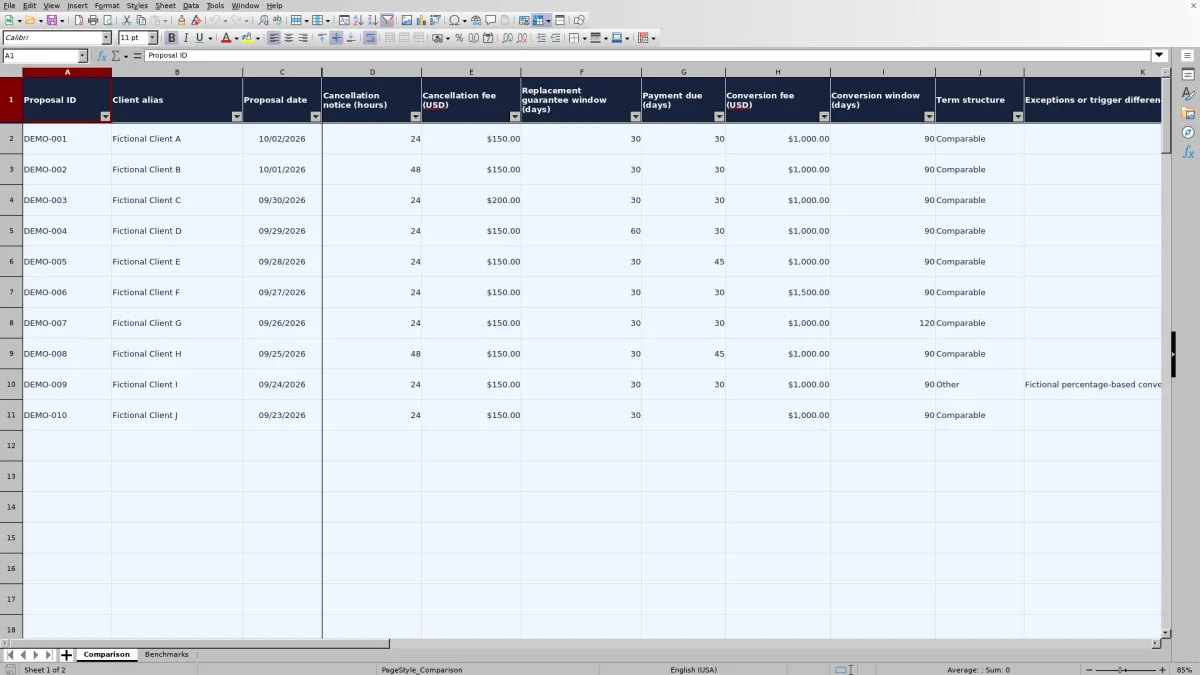
Use the pale blue input cells in Comparison rows 2–101. Replace the fictional examples when starting your own comparison. Assign a unique Proposal ID, use a fictional client alias and enter a valid proposal date in MM/DD/YYYY format. Record notice in hours, windows and payment terms in days, and fixed fees in USD. Leave unknown numeric terms blank rather than inventing a value.
3. Assess the term structure
Select Comparable only when the proposal follows the interpretations on Benchmarks. Select Other for a different structure or trigger, and explain the issue in Exceptions or trigger differences. Any entry in that exception field prevents automatic numeric comparison, even if Comparable is selected.
4. Review statuses and prepare your next action
Check Data status before interpreting the comparison columns. Resolve missing inputs or benchmarks, then use the Comparison filter to focus on Commercial differences or Manual review. For a flagged term, return to the proposal wording and decide what to clarify or negotiate. The Benchmarks indicators summarize status counts; they do not assign follow-up work or approve terms.
Establish the same meaning before comparing numbers
A number is useful only when both sides measure the same thing. The workbook assumes cancellation notice is measured in hours before the scheduled assignment start and that the cancellation fee is a fixed USD amount per canceled assignment. The replacement guarantee window begins on the placement start date.
Payment terms mean calendar days from the invoice date. Conversion terms mean a fixed USD fee per conversion and a window measured from the assignment start date. These assumptions matter: 30 business days from invoice approval is not equivalent to 30 calendar days from the invoice date, even though both proposals might contain the number 30.
The starting baseline is 24 hours of cancellation notice, a $150 cancellation fee, a 30-day replacement guarantee, payment in 30 calendar days, a $1,000 conversion fee and a 90-day conversion window. These are fictional assumptions, not recommended terms. Set a baseline appropriate to your comparison before using the flags to prepare a negotiation agenda.
Example: interpret a cancellation difference
The fictional DEMO-002 proposal lists 48 hours of cancellation notice and a $150 cancellation fee. Against the starting benchmarks of 24 hours and $150, its Cancellation comparison returns Different. Its other numeric terms match the starting baseline, so the overall Review status is Commercial differences.
The cancellation formula checks whether either the notice period or the fee differs. In row 3, that test is OR(D3<>Benchmarks!$B$2,E3<>Benchmarks!$B$3). The notice differs by 24 hours, while the fee is unchanged. The workbook reports the category flag; it does not calculate or display that 24-hour difference.
Use the result to inspect the cancellation clause and discuss the proposed notice period. Different does not mean unfavorable. The practical effect depends on the agreement wording and your assignment operations. Similarly, DEMO-003 uses the baseline notice period but a $200 fee, so it receives the same cancellation flag for a different reason.
When a proposal needs manual assessment
Do not force percentage fees, sliding scales, refund provisions or different timing triggers into fixed-fee and day-count fields just to obtain a comparison result. Select Other and explain the structure in Exceptions or trigger differences. For example, a conversion fee based on a percentage of salary is not directly comparable to the workbook's fixed USD conversion benchmark.
For an otherwise complete row, either Other or any text in the exception field produces Manual review. The four numeric comparison results stay blank. Even a note such as “none” counts as text, so leave that field empty only when there truly is no exception to record.
Manual review is a status, not a review service. The workbook does not interpret the note, assign a reviewer or decide whether the clause is acceptable. Your next step is to inspect the source proposal and assess the difference outside the numeric comparison. If a numeric value is unknown or cannot be represented, leave it blank; the row will show Incomplete before it can show Manual review.
Errors and solutions: missing inputs and blank results
If a partially entered row shows Incomplete, check its proposal ID, client alias, date, six numeric terms and term-structure selection. The formulas require a numeric Excel date and all six numeric terms. An untouched row stays blank; a row with missing required information does not receive term-by-term comparison results.
Unknown is not zero. Zero is a valid numeric term and compares normally. In the stated replacement interpretation, a zero-day window means no replacement guarantee. Use zero only when it accurately represents the proposed term, not as a substitute for information you still need from the client.
If an otherwise complete, comparable row shows Set benchmarks, check that all six cells in Benchmarks B2:B7 contain numbers. The status checks run in order: missing proposal inputs first, then Other or exception text, then missing numeric benchmarks. This means an Incomplete or Manual review status can appear even while benchmarks still need attention.
Enter day and hour values as nonnegative whole numbers and fees as nonnegative numbers in USD. Keep units out of the numeric cells: enter 30, not “30 days.” The provided validation helps with entry, but you still need to verify that the values accurately represent the proposal.
Keep proposal versions separate from financial activity
Each row represents a proposed agreement version, not a signed client contract or an individual assignment. When a client revises its offer, a useful manual workflow is to retain the earlier row and enter the revision with a new unique Proposal ID and its proposal date. This preserves the alternatives you entered; the workbook does not create version history automatically.
The Benchmarks indicators count rows by overall Review status. A proposal with differences in all four term groups still contributes only one record to Commercial differences. The total labeled Records entered includes the counted statuses, including Incomplete and Manual review; it is not a count of approved agreements or distinct clients.
Proposed fees are alternatives, not revenue. The workbook does not sum cancellation or conversion fees. To maintain an unchanged record of a negotiation baseline, save a separate dated copy before changing the benchmark values. That is a suggested file-management practice, not built-in snapshot tracking.
What a benchmark match does—and does not—establish
When a row is Ready, the formulas test exact numeric equality. Cancellation matches only when both notice hours and the fee match; conversion matches only when both the fee and the window match. The replacement guarantee and payment comparisons each check one numeric value. If all four groups match, Review status becomes Matches benchmarks.
That result means the entered numbers match the current baseline after the row passes the workbook's status checks. It does not establish that the agreement wording matches, that the terms are commercially preferable or that the agreement is enforceable. The file does not rank proposals, measure legal risk or calculate the financial effect of accepting a term.
The formulas do not read the interpretation text in Benchmarks B9:B12. If you change those interpretations, manually reassess each proposal's Term structure and exception notes. Likewise, changing a numeric benchmark recalculates comparisons against the new value rather than preserving the previous result. Use the workbook for commercial preparation, not legal advice or contract approval.
Comparison: this workbook or a blank spreadsheet?
A blank spreadsheet can suit a one-off review with unusual clauses, especially when your notes matter more than standardized numeric checks. This workbook fits a repeated comparison of the supported fixed-fee and timing structures. Its formulas provide a consistent baseline test, but they cannot model every service agreement.
| Method | Initial setup | Comparison approach | Unusual terms | Best fit |
|---|---|---|---|---|
| This Excel workbook | Replace fictional assumptions and enter proposal versions. | Built-in numeric equality checks and review-status counts for the supported fields. | Other and exception notes stop numeric comparisons for otherwise complete rows. | Repeated reviews against one shared commercial baseline. |
| Blank spreadsheet | Design your own columns, checks and summary. | Manual comparison unless you build formulas. | Free-form structure can accommodate clause-specific notes, but you must define how to assess them. | One-off or highly customized reviews that do not fit the workbook's assumptions. |
Choose based on the terms you need to assess, not just the number of proposals. If most fees are percentages or schedules with multiple tiers, frequent Manual review results signal that this workbook's numeric model is a limited fit. Keep the source agreements available whichever method you use; neither a short log nor a benchmark flag replaces the underlying clause text.
Frequently asked questions
How many proposal versions can I enter?
The prepared Comparison range is rows 2–101, providing 100 proposal-version rows. Populated fictional examples occupy part of that range and can be replaced. Formula coverage, validation and the filter are defined for that prepared range; rows added beyond it are not established as supported by the validated workbook.
Are the formula cells protected from editing?
No. Formula cells have locked-cell metadata, but worksheet protection is not enabled. Do not overwrite Comparison columns L:Q or the indicator formulas on Benchmarks. Keep an unchanged original copy so you can recover the formulas if they are edited accidentally.
Can I use a different benchmark for each client?
The workbook uses one shared set of numeric benchmarks in Benchmarks B2:B7 for all proposal rows. It does not select a client-specific baseline. If you need separate baselines, you can maintain separate workbook copies as a manual workflow, clearly identifying which assumptions each copy uses.
Does the workbook calculate invoice due dates or track guarantee deadlines?
No. It compares proposed payment-day and guarantee-window values. The proposal date identifies the proposal version; it does not drive an invoice due date, placement deadline or assignment reminder. Operational tracking of an accepted agreement would need a separate process.
Which spreadsheet applications recalculate the formulas?
The workbook guidance identifies Excel and LibreOffice for formula recalculation. Open the XLSX in a spreadsheet application that recalculates it before relying on the displayed statuses. A static preview is not a substitute for checking results after changing proposal inputs or benchmarks.
Editorial contributors

Miriam HaldenRecruiting & assignment workflows
Explore this editorial focus →
Wesley CorbinBilling & agency finance
Explore this editorial focus →